Control Samsung TV With Android
Samsung Galaxy phones and tablets come with SmartThings app built-in. It’s the company’s official solution to control smart home devices with your phone. If you have another Android phone, you can download the app from Google Play.
After you install SmartThings, use the steps below to set up your Samsung TV with it.
Step 1: Open SmartThings on your phone. Ensure you connect your phone and Samsung TV to the same Wi-Fi network. Tap ‘+‘ icon in the top-right corner. Select Add device.
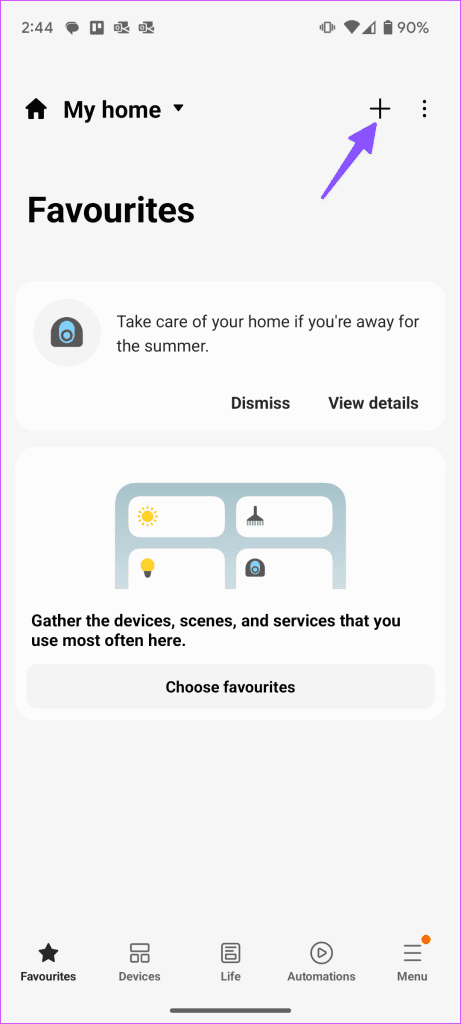

Step 2: Tap Scan to check nearby devices. The app may ask you to sign in with your Samsung account details. Make sure your Samsung smart TV is on and ready to connect to your phone.
When your Samsung TV appears, tap on it. You may see a notification appearing on your Samsung TV to allow your phone to connect to the TV. Select Allow.
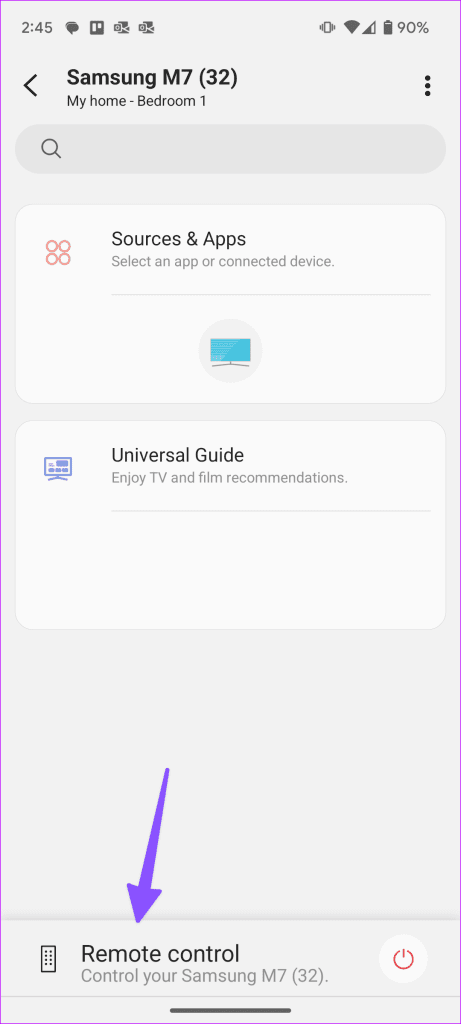
Step 3: Relaunch the SmartThings app and check your Samsung TV under the Devices tab. You can check the current program playing on it. Tap on it to see more options. Tap the Remote control at the bottom.
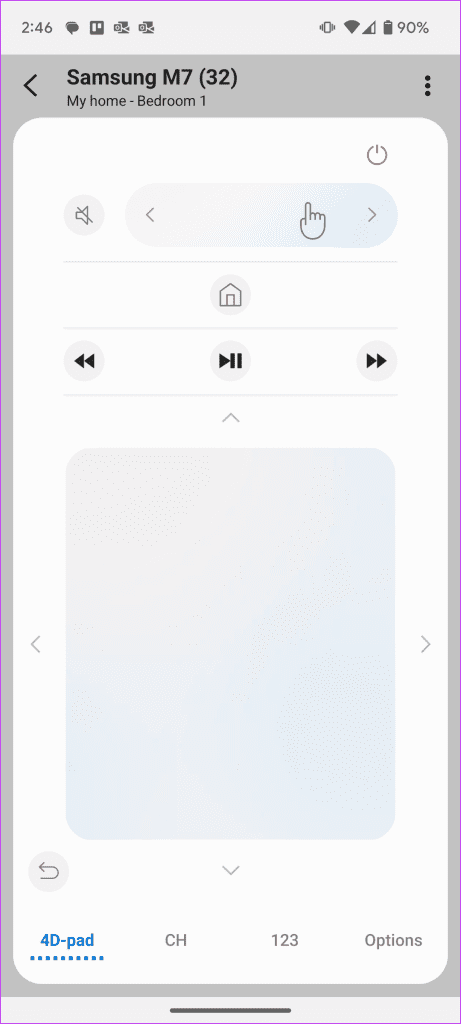
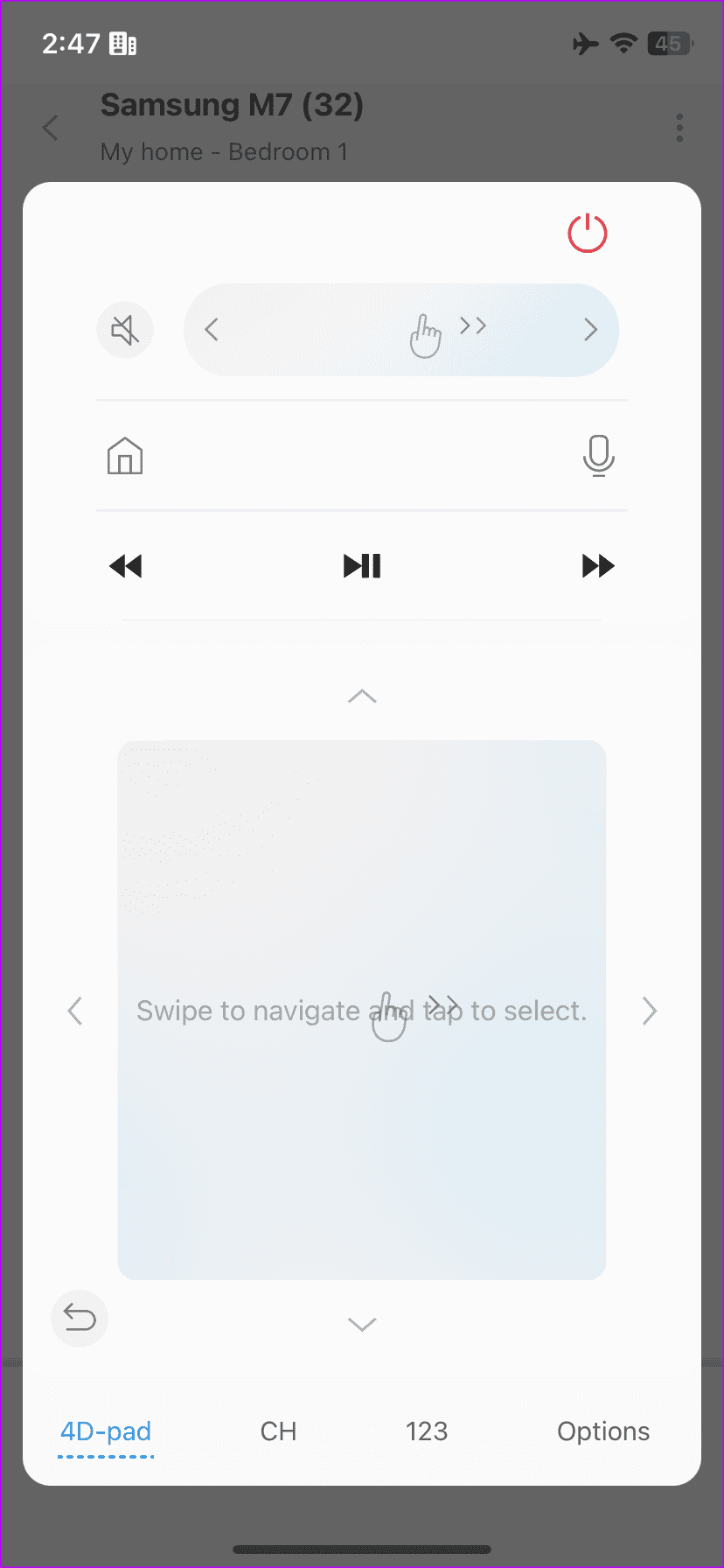
Your virtual Samsung TV remote is ready to use. You can use the default touchpad to navigate the Tizen OS, play/pause, forward/backward, mute, and other options to control your TV.
If you stream live TV channels on your TV, use the 123 menu at the bottom to quickly jump to a relevant channel. The volume, mute, and power options are at the top.
Control Samsung TV With iPhone
Samsung SmartThings app is available on iPhone and iPad too. It’s good to see the company offering the same on rival platforms.
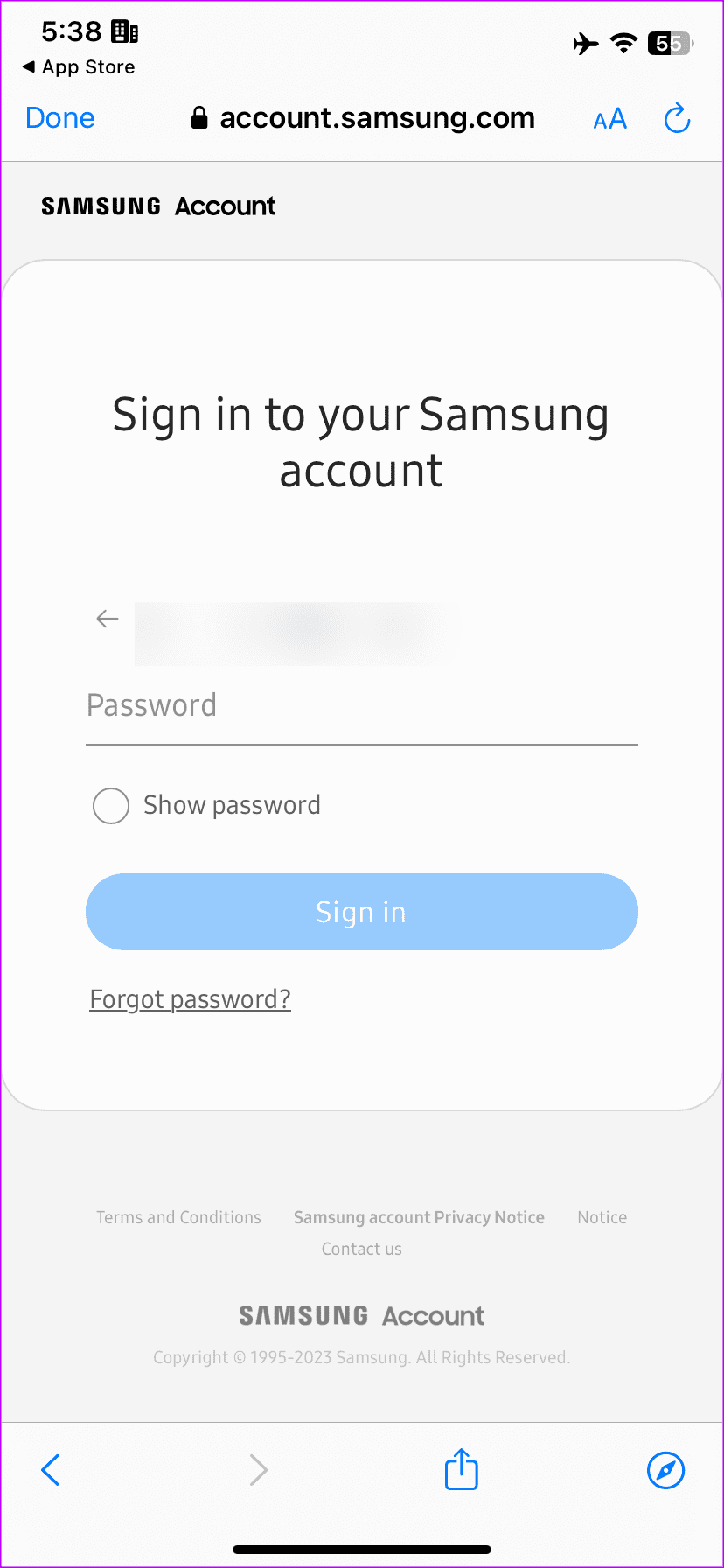
Step 1: Launch the app. Give it relevant permissions to find nearby devices, including your Samsung smart TV. Move to the Devices tab (or tap + at the top) and tap Add device. Sign in with your Samsung account details.


Step 2: Scan for nearby devices. Once your Samsung smart TV appears, tap on it. Enter the PIN displayed on your TV.
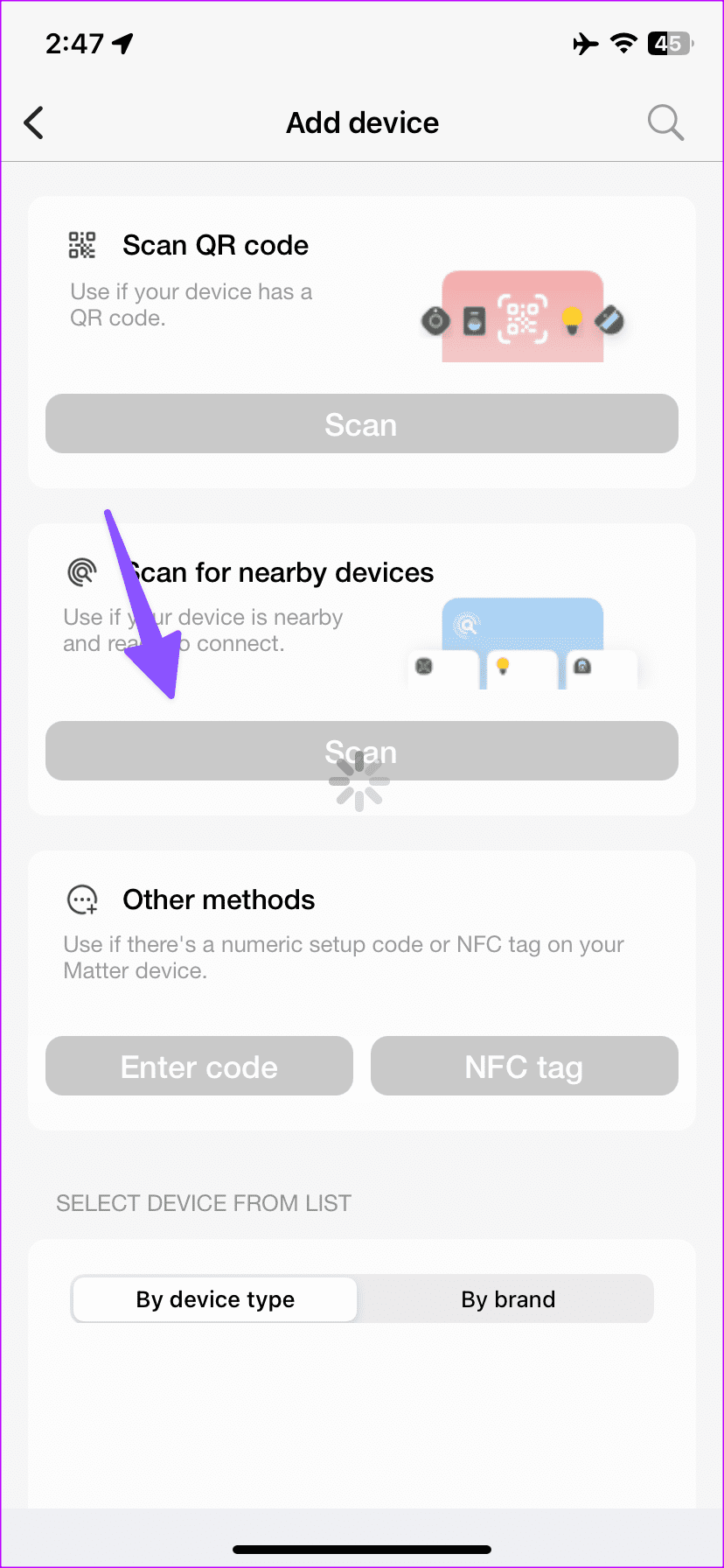
If your smart TV doesn’t appear on the list, scroll down to the TV menu and select your Tizen TV from the following menu to start the setup process.
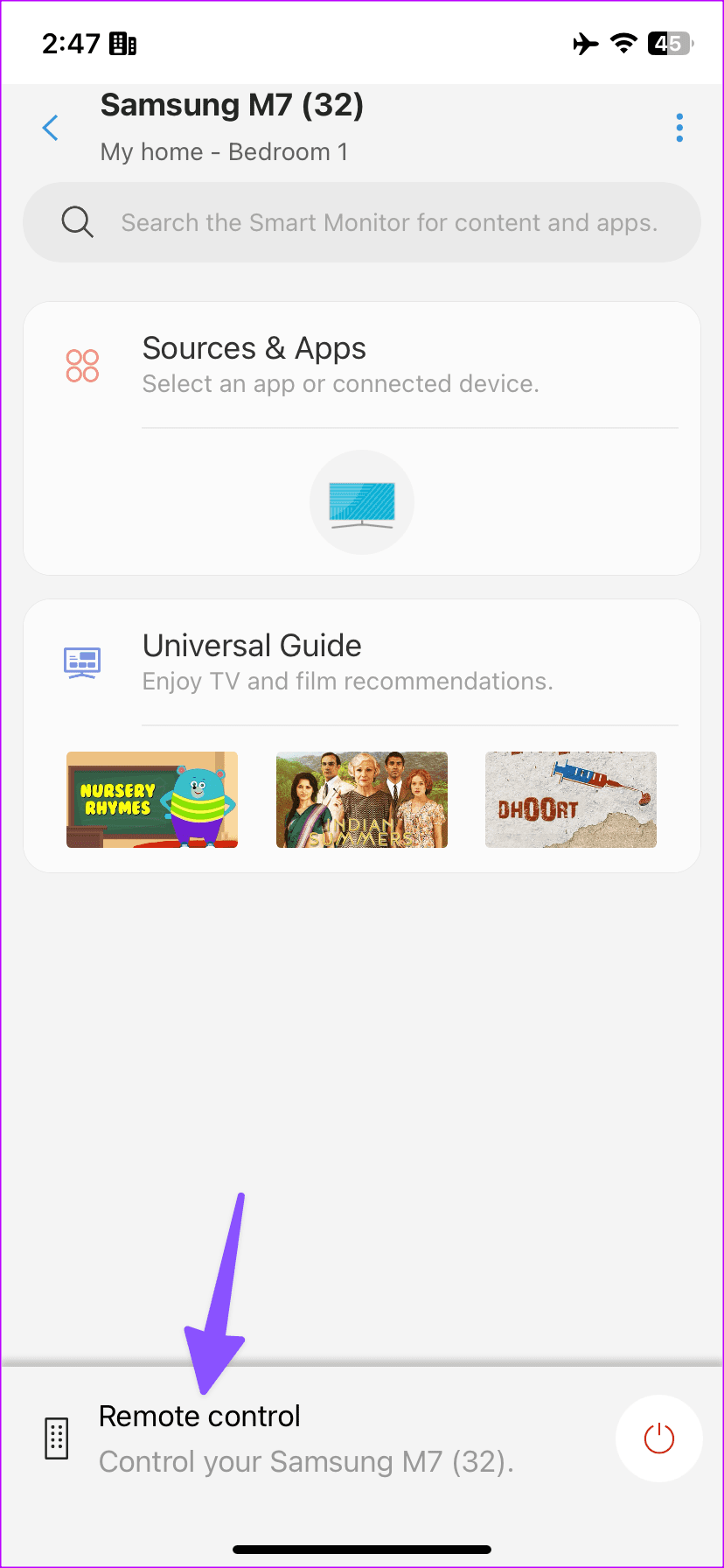
Step 3: Once your smart TV appears in the app, tap on it. Select Remote control at the bottom, and your virtual remote is ready. The user interface and remote controls remain the same as above.
Use SmartThings Widgets to Control the Samsung TV
You can utilize the SmartThings widget to automate your Samsung smart TV.
Step 1: Long-press on the Android phone home screen and select Widgets. Scroll to SmartThings and add a Scene widget on the home screen. Give it a name, select an icon, and tap Actions. Select Control Devices and tap on your Samsung TV. Hit Next.
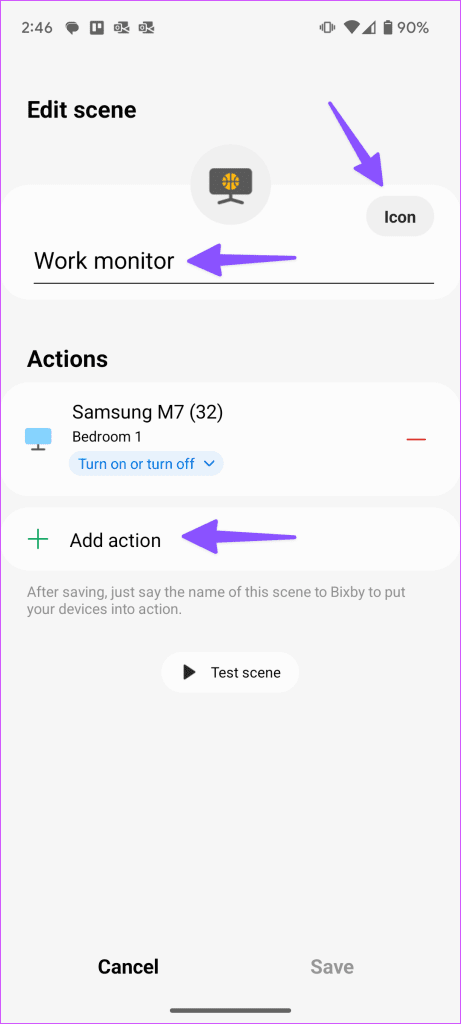

Step 2: Tap the radio button beside ‘Turn on or off the Samsung TV’ and set other actions. Tap Done.


You can now tap on your widget to turn on or off the Samsung TV.
Was this helpful?
Last updated on 04 September, 2024
Read Next
 5 Best Smart Relay Switches to Make Your Existing Sockets Smart
Smart relay switches connect to the internet and can control the socket they are attached to -- be it a wall outlet, a light bulb, or your air conditioner.
5 Best Smart Relay Switches to Make Your Existing Sockets Smart
Smart relay switches connect to the internet and can control the socket they are attached to -- be it a wall outlet, a light bulb, or your air conditioner.
 5 Ways to Delete and Reinstall Apps on Samsung Smart TV
Is your Samsung TVs storage full or do you want to troubleshoot an app?
5 Ways to Delete and Reinstall Apps on Samsung Smart TV
Is your Samsung TVs storage full or do you want to troubleshoot an app?
 What Is Smart View on Samsung and How to Use It
What Is Smart View on Samsung Phones and How Does It Work Smart View is a feature in Samsung Galaxy phones that lets you mirror your phone to a bigger
What Is Smart View on Samsung and How to Use It
What Is Smart View on Samsung Phones and How Does It Work Smart View is a feature in Samsung Galaxy phones that lets you mirror your phone to a bigger
 How to Clear Cache on Samsung Smart TV
Clear Cache of All Apps on Samsung Smart TV Running the Device Care functionality on a Samsung Smart TV diagnoses the system and frees up memory space by clearing all
How to Clear Cache on Samsung Smart TV
Clear Cache of All Apps on Samsung Smart TV Running the Device Care functionality on a Samsung Smart TV diagnoses the system and frees up memory space by clearing all
 4 Ways to Fix Samsung Smart Switch Not Working on Android
Basic Fixes: Ensure Smart Switch is installed on both devices: The Samsung Smart Switch app must be installed on both devices to ensure a smooth transition.
4 Ways to Fix Samsung Smart Switch Not Working on Android
Basic Fixes: Ensure Smart Switch is installed on both devices: The Samsung Smart Switch app must be installed on both devices to ensure a smooth transition.
 How to Use Samsung Smart Switch to Back Up and Transfer Data on Galaxy Phones
Buying a new phone and transferring data always seem to go hand in hand.
How to Use Samsung Smart Switch to Back Up and Transfer Data on Galaxy Phones
Buying a new phone and transferring data always seem to go hand in hand.
 4 Best Ways to Fix Smart View Not Working on Samsung Galaxy Phones
Basic Fixes: Restart devices: If the Smart View feature isn’t working on your Samsung Galaxy phone, the first thing you must do is restart it.
4 Best Ways to Fix Smart View Not Working on Samsung Galaxy Phones
Basic Fixes: Restart devices: If the Smart View feature isn’t working on your Samsung Galaxy phone, the first thing you must do is restart it.
 5 Best Apple HomeKit Compatible Smart Door Locks
Smart locks can make your life a lot more convenient.
5 Best Apple HomeKit Compatible Smart Door Locks
Smart locks can make your life a lot more convenient.
The article above may contain affiliate links which help support Guiding Tech. The content remains unbiased and authentic and will never affect our editorial integrity.