


Note: Instagram Collaboration makes things easier as there’s no need to share the same post from two or more separate accounts while also allowing you to reach a wider audience.
How to Send a Collab Invite on Instagram
To send a Collab invite on Instagram, you must use a public account. That said, here’s how to send a collaboration invite on Instagram from your phone.
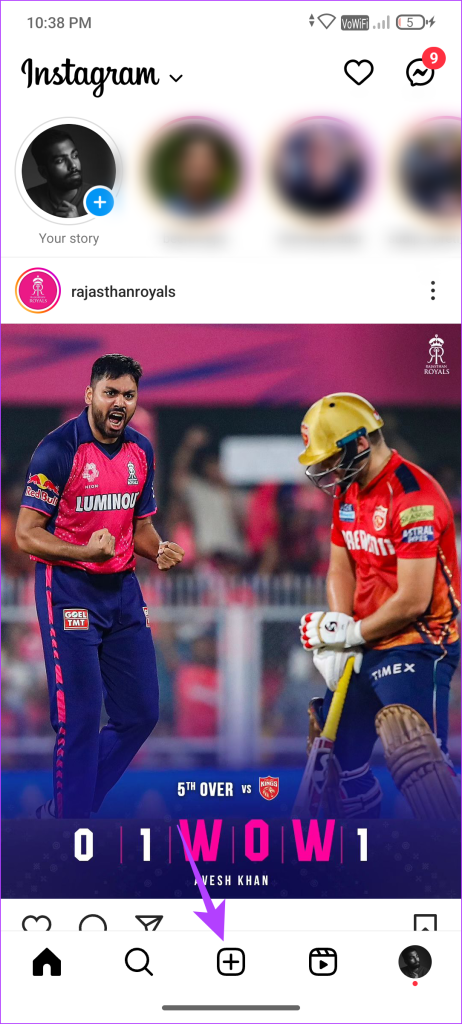
Step 1: Launch the Instagram app and tap the + icon at the bottom.
Step 2: Select the post or reel you wish to collaborate on.
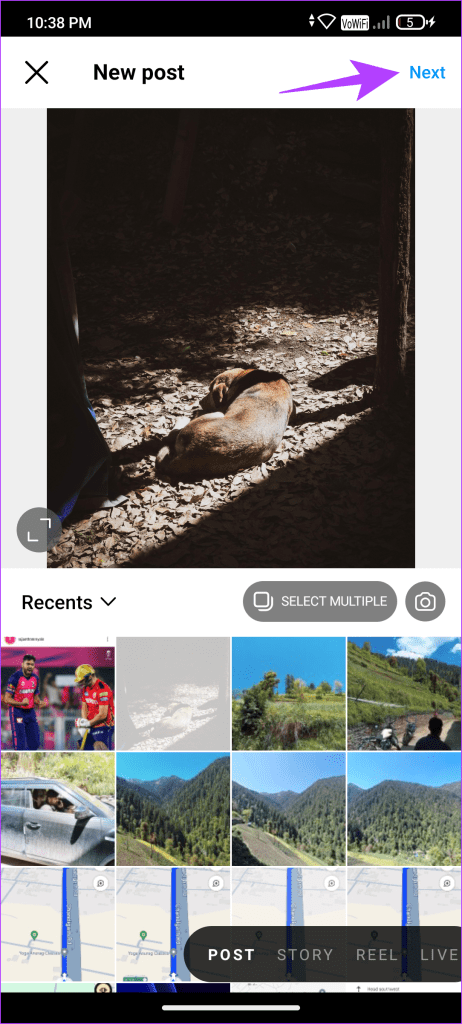
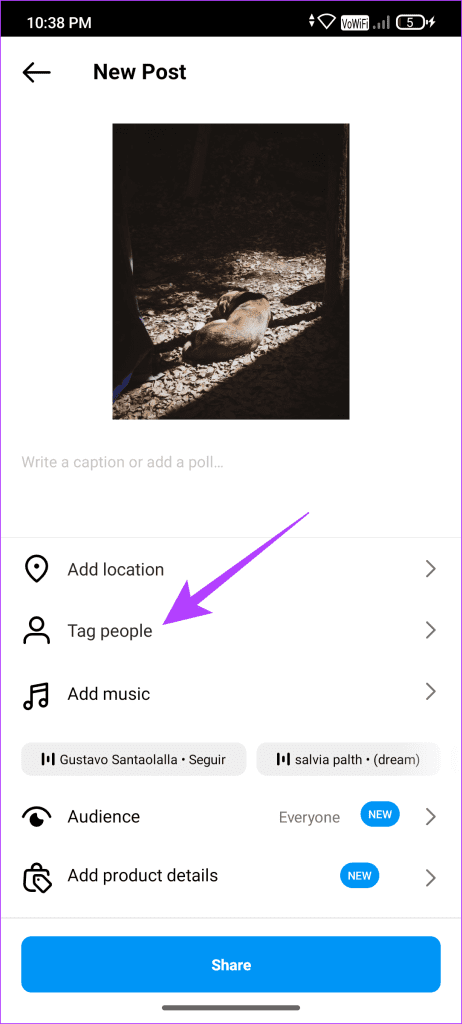
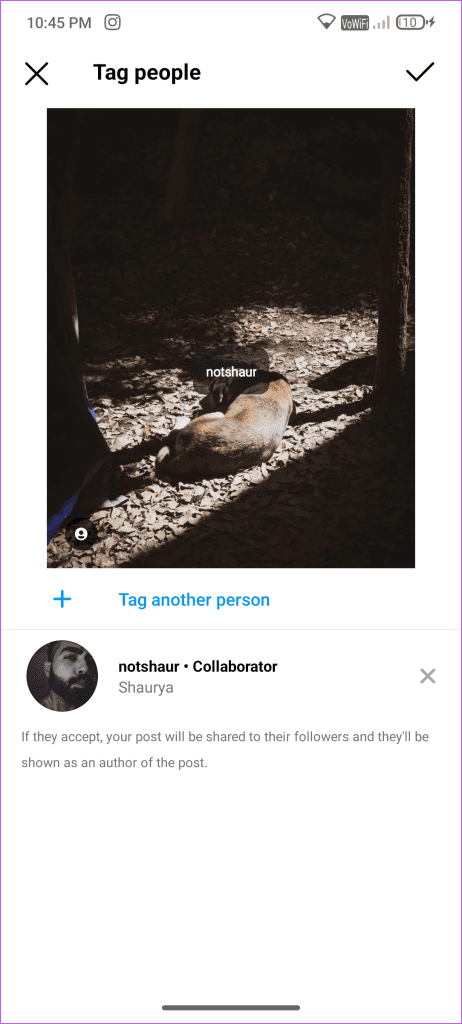
Step 3: On the final post page, tap Tag People.
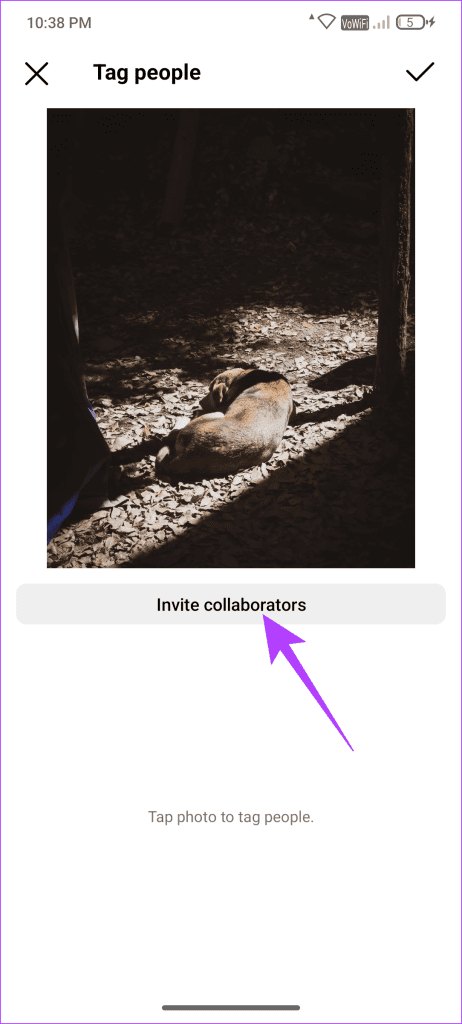
Step 4: Next, tap Invite Collaborators.
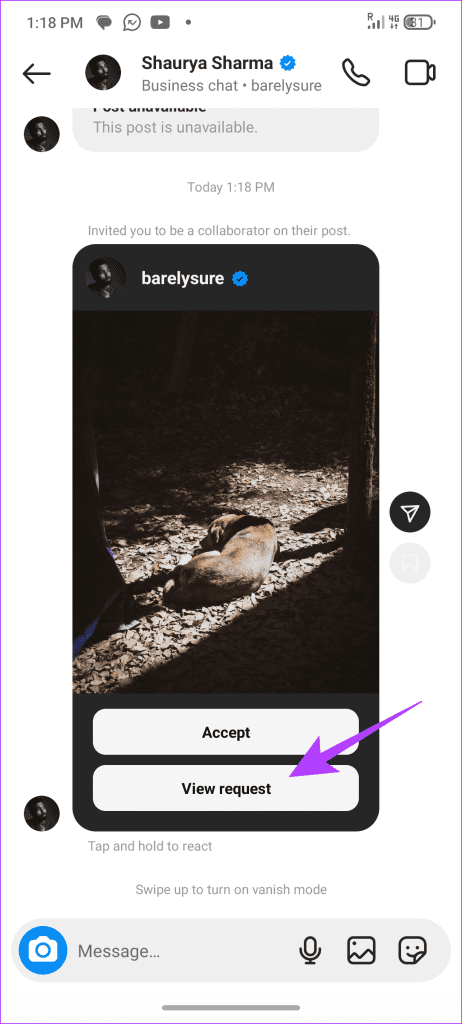
Once the post is published, the other person will receive a Collab invite via Direct Message. They can accept the invite directly from there.
To Invite Multiple Accounts as Collaborators
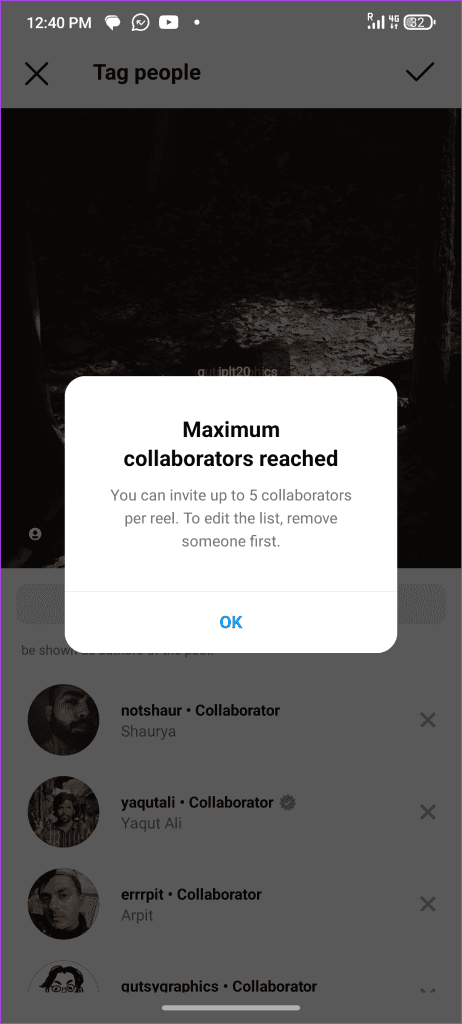
Step 1: After selecting the first collaborator, tap on Add another person.
Step 2: Now, you can add up to five collaborators.
Also Read: How to turn off Follow Suggestions on Instagram
How to Accept or Decline a Collab Invite on Instagram
Once you receive the Collab invite, here’s how to view and respond to it on Instagram.
Step 1: Open the Direct Message you received on Instagram. Tap on the View Request button to see the post for which you received the Collab request.
Step 2: Now, tap on the Review button to respond to that invite. You can Accept or Decline the request from here.
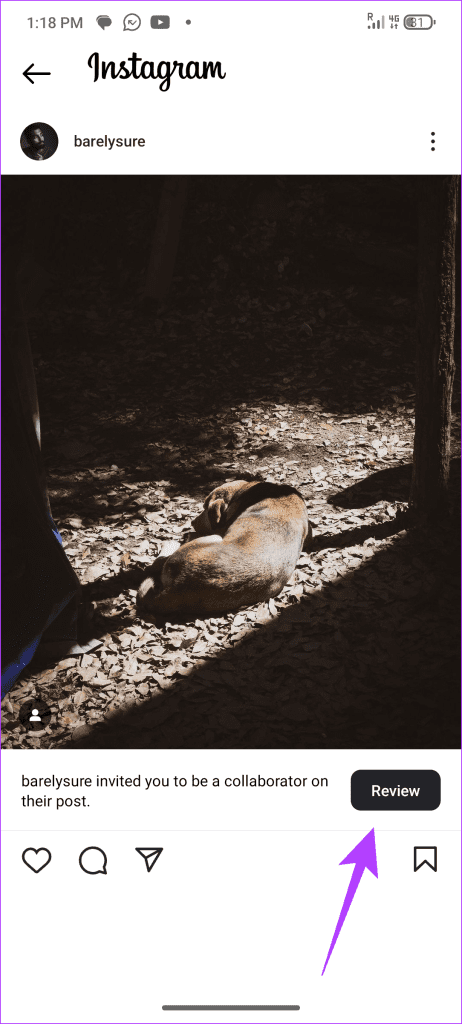
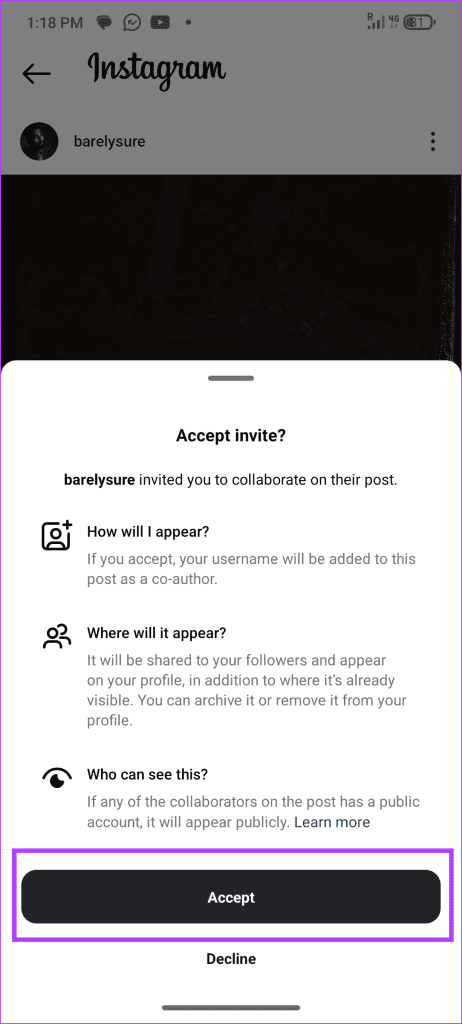
Once you accept the request, the post will be shared with all your followers and appear in your profile.
How to Revoke a Collab Invite on Instagram
If you no longer wish to collaborate with the person or you’ve sent the collab request to the wrong person, you can also revoke the collab request on Instagram by simply untagging them from the post. Here’s how:
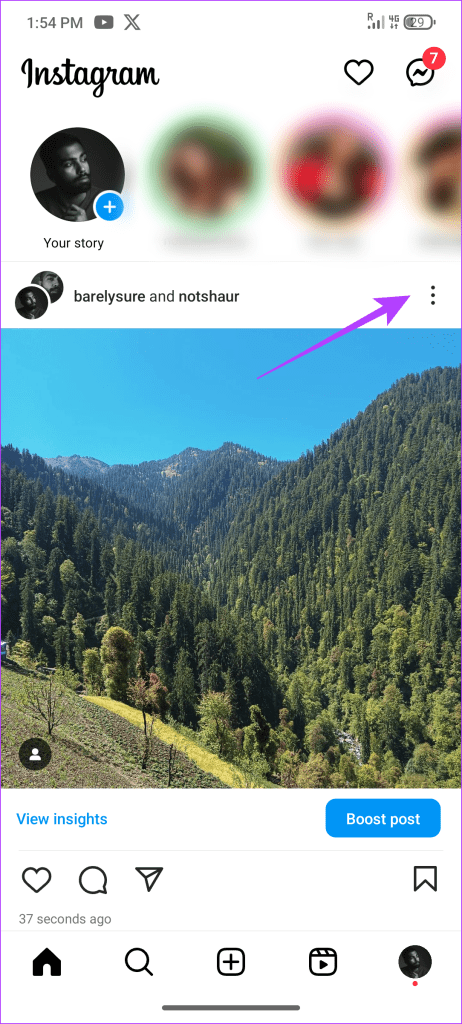
Step 1: Navigate to your collaborated post on Instagram. Tap the three-dot menu and select Edit.
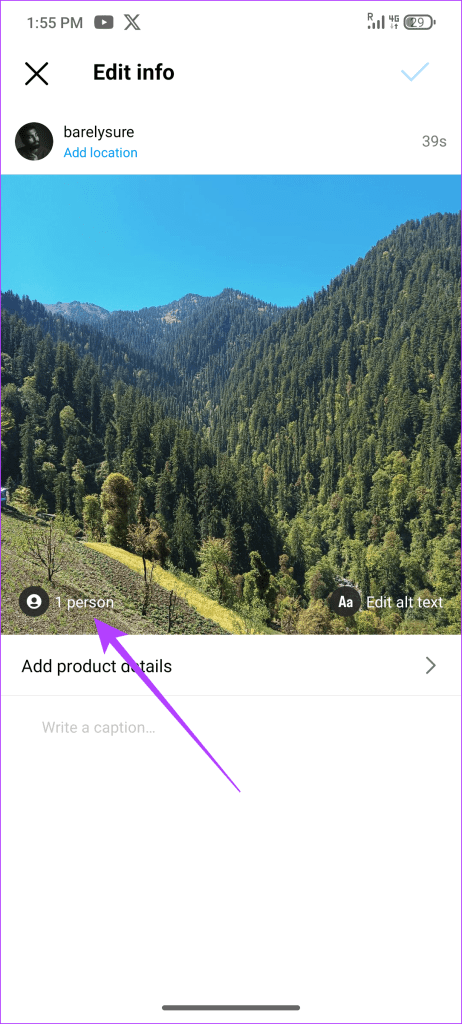
Step 2: Find the tagged accounts at the bottom left of the post and tap on it.
Step 3: Tap the cross icon next to the collaborator’s name to remove them from the post.
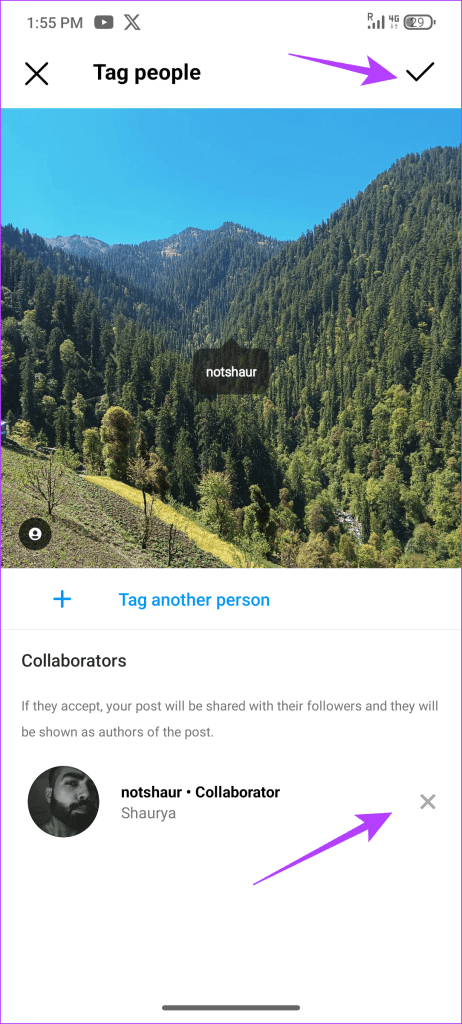
Step 4: Lastly, tap on the right checkmark to save changes.
That’s it. The invited person will no longer see the invite. However, they will see the post for which you sent the invite as a direct message.
Also Read: How to share comments on Instagram Story
How to Remove Yourself From Collaborated Posts on Instagram
Step 1: To remove yourself from the collaborated post on Instagram, navigate to the collaborated post.
Step 2: Now, tap on the three-dot menu icon at the upper right and choose Stop Sharing from the list.
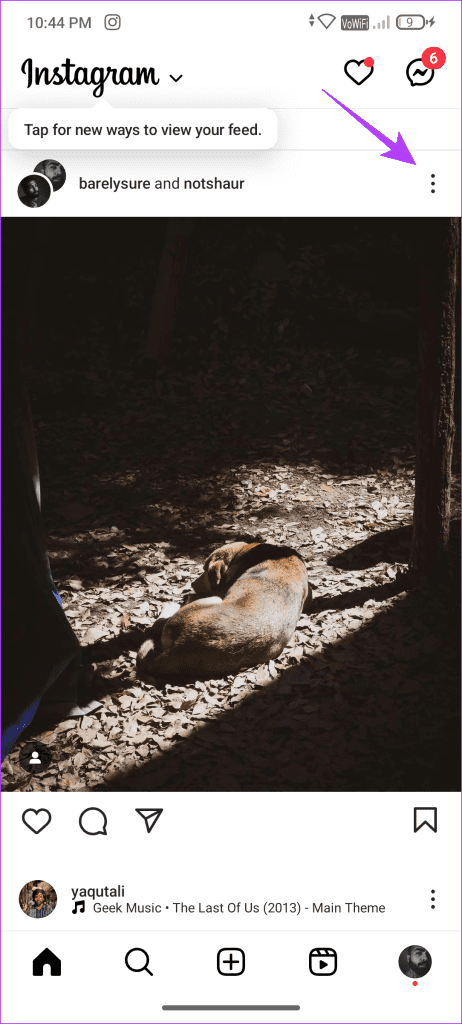
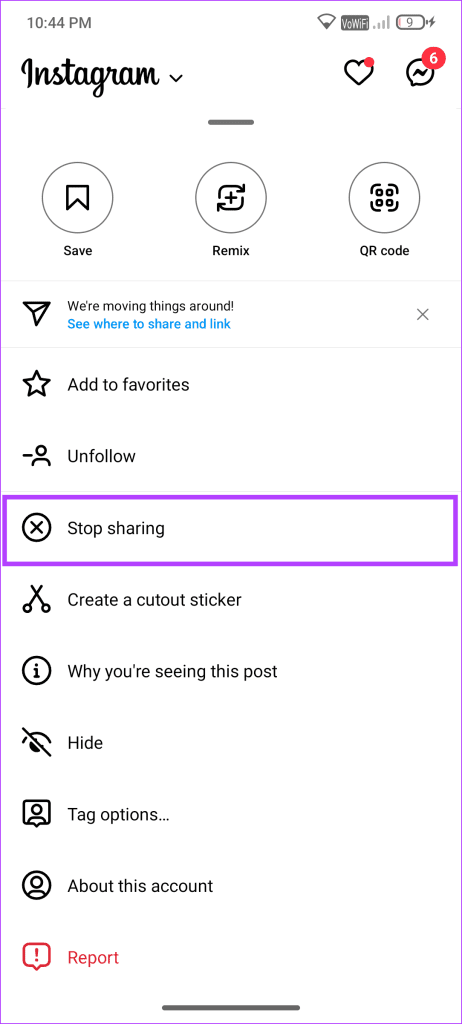
Once done, Instagram will remove your name from the collaboration and delete the post from your profile.
FAQs
Will an Invited Collaborator Have Access to the Post’s Insights?
Yes, you can view the post insights, such as Reach, Interactions, Reel Saves, and more, even if you are an invited collaborator.
Can an Invited Collaborator Delete a Post?
No, an invited collaborator can only stop sharing the post with their followers and remove it from their profile, but they cannot delete the original post entirely.
Can I Collaborate With a Private Account on Instagram?
Yes, you can collaborate with an account, even if it is private.
Was this helpful?
Last updated on 11 June, 2024
3 Comments
Leave a Reply
Read Next
 3 Ways to Fix Instagram Feed Not Showing Friends Posts
Why Can’t I See My Friends’ Posts on My Instagram Feed?
3 Ways to Fix Instagram Feed Not Showing Friends Posts
Why Can’t I See My Friends’ Posts on My Instagram Feed?
 How to Collaborate in Microsoft PowerPoint on Windows and iPad
Collaborate in Microsoft PowerPoint on Windows Microsoft recently revamped the sharing UI across all the Office apps.
How to Hide All Posts on Facebook From Public or Friends
How to Hide Past Posts on Facebook The good news is that you can manage the visibility of previously posted content.
How to Collaborate in Microsoft PowerPoint on Windows and iPad
Collaborate in Microsoft PowerPoint on Windows Microsoft recently revamped the sharing UI across all the Office apps.
How to Hide All Posts on Facebook From Public or Friends
How to Hide Past Posts on Facebook The good news is that you can manage the visibility of previously posted content.
 Instagram’s Secret Sharing: Unraveling the Close Friends Feature
What Is the Close Friends List on Instagram?
Instagram’s Secret Sharing: Unraveling the Close Friends Feature
What Is the Close Friends List on Instagram?
 How to Unarchive Instagram Posts on Android and iPhone
How to Unarchive Photos on Instagram The steps to unarchive photos on Instagram differ from those to unarchive stories.
How to Unarchive Instagram Posts on Android and iPhone
How to Unarchive Photos on Instagram The steps to unarchive photos on Instagram differ from those to unarchive stories.
 How to View Instagram Posts and Stories Without an Account
How to See Instagram Stories Without an Account Unlike posts on Instagram (mentioned below), users can see who opened/viewed their Instagram Stories.
How to View Instagram Posts and Stories Without an Account
How to See Instagram Stories Without an Account Unlike posts on Instagram (mentioned below), users can see who opened/viewed their Instagram Stories.
 How to Add Reminders for Instagram Posts and Stories on Mobile App
Who Can Create Reminders for Events on Instagram Reminders are a great way to ensure you remind your followers about any of your plans and events, and they are quite
How to Add Reminders for Instagram Posts and Stories on Mobile App
Who Can Create Reminders for Events on Instagram Reminders are a great way to ensure you remind your followers about any of your plans and events, and they are quite
 How to Rearrange Instagram Posts Without Deleting
How to Rearrange Instagram Photos While Publishing 1.
How to Rearrange Instagram Posts Without Deleting
How to Rearrange Instagram Photos While Publishing 1.
The article above may contain affiliate links which help support Guiding Tech. The content remains unbiased and authentic and will never affect our editorial integrity.
This was extremely detailed and helpful!
I was wondering if you knew how to invite multiple people as collaborators in instagram. it would be great to add that to the article too.
Thanks so much
Farheen
Yes! I was hoping this article would tell me
Hi. Great article. Can you share tips on how to find the right people to collab with please?
Thanks!