Method 1: Using Keyboard Shortcuts
With keyboard shortcuts, you can clear the text formatting within a Microsoft Word document. These shortcuts are the character and paragraph formatting shortcuts. Here’s how to use them:
Step 1: Launch Microsoft Word and the document where you must clear formatting.
Step 2: On the Word canvas, select the text from which you would like to remove all formatting. Suppose you want to remove formatting from all text in the document, press Control + A.

Step 3: On your keyboard, press the Control + Spacebar keyboard shortcut to clear all character formatting (bold, underline, italics, font type, font size, etc.) in the document or selected text.
Step 5: On your keyboard, press the Control + Q keyboard shortcut to clear the paragraph formatting (paragraph indent, line spacing, etc.) in the document or selected text.
Step 6: Press the Ctrl + Shift + N keyboard shortcut on your keyboard to remove the heading and paragraph formatting in your document.
Method 2: Using Clear All Formatting in the Font Group
There is a Clear All Formatting Button within the Microsoft Word Ribbon Font group. The button removes all formatting from a text selection and returns it to an unformatted state. Here’s how it works:
Step 1: Launch Microsoft Word and the document where you must clear formatting.
Step 2: On the Word canvas, select the text from which you would like to remove all formatting. Suppose you want to remove formatting from all text in the document, press Control + A.

Step 3: On the Word Ribbon, click the Clear All Formatting button in the Font group. This will clear character and paragraph formatting in the document or selected text.

Method 3: Using Clear Formatting in the Styles Group
If you cannot find the Clear All Formatting button on your Ribbon, you can also access the Clear Formatting option from the Styles Pane. Here’s how to do so:
Step 1: Launch Microsoft Word and the document where you must clear formatting.
Step 2: On the Word canvas, select the text from which you would like to remove all formatting. Suppose you want to remove formatting from all text in the document, press Control + A.
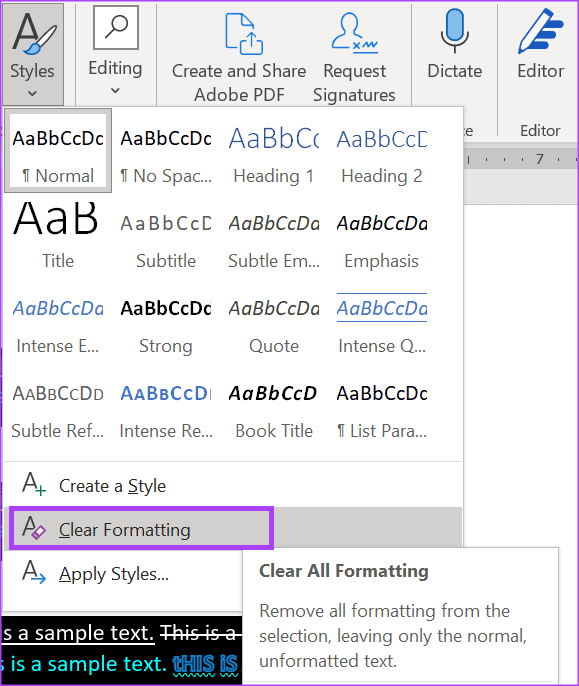
Step 3: On the Word Ribbon, click the Styles drop-down in the Styles group.

Step 4: Click the Clear Formatting option. This should clear character and paragraph formatting in the document or selected text.
Method 4: Using the Paste Special Option
Word has many options for pasting copied text. You may use the paste special option to clear formatting, as shown below.
Step 1: Launch Microsoft Word and the document where you must clear formatting.
Step 2: On the Word canvas, select the text from which you would like to remove all formatting. Suppose you want to remove formatting from all text in the document, press Control + A.
Step 3: Press Ctrl + X to cut the select portion.
Step 4: Right-click where you want to paste the data, and from the paste options, click the icon for Keep text only.

Was this helpful?
Last updated on 19 July, 2024
Read Next
 16 Cool WhatsApp Text Formatting Tricks That You Should Know
Overview TrickResultBold TextAdd * before and after the textBold TextItalic TextAdd _ before and after the textItalic TextStrikethroughAdd ~ on both sides of the textStrikethroughMonospace FontAdd ` ` ` before
16 Cool WhatsApp Text Formatting Tricks That You Should Know
Overview TrickResultBold TextAdd * before and after the textBold TextItalic TextAdd _ before and after the textItalic TextStrikethroughAdd ~ on both sides of the textStrikethroughMonospace FontAdd ` ` ` before
 How to Use Text Formatting on Reddit Using Markdown Mode
How to Format Text on Reddit: Basic Text Formatting in Markdown Mode We'll show you how to add emphasis to your text, add a strikethrough, superscript, line breaks, headers, and
How to Use Text Formatting on Reddit Using Markdown Mode
How to Format Text on Reddit: Basic Text Formatting in Markdown Mode We'll show you how to add emphasis to your text, add a strikethrough, superscript, line breaks, headers, and
 How to Remove Table Formatting in Excel
Method 1: Clear Table Style When working with data tables, Excel often applies predefined styles that include various formatting elements such as colors, borders, and fonts.
How to Remove Table Formatting in Excel
Method 1: Clear Table Style When working with data tables, Excel often applies predefined styles that include various formatting elements such as colors, borders, and fonts.
 Google Docs vs. Microsoft Word Online: Which Word Processor Is Better
Google Docs vs.
Google Docs vs. Microsoft Word Online: Which Word Processor Is Better
Google Docs vs.
 How to Clear or Disable Recently Used Documents List in Microsoft Word
Remove Specific or All Entries From Recent Documents List in Microsoft Word If you only want to remove a few documents from the Recent list, go to the Home tab
How to Clear or Disable Recently Used Documents List in Microsoft Word
Remove Specific or All Entries From Recent Documents List in Microsoft Word If you only want to remove a few documents from the Recent list, go to the Home tab
 How to Add, Customize and Delete a Text Box in Microsoft Word
Like in Microsoft PowerPoint, you can add a text box to a Microsoft Word document.
How to Add, Customize and Delete a Text Box in Microsoft Word
Like in Microsoft PowerPoint, you can add a text box to a Microsoft Word document.
 3 Ways to Underline Text in Microsoft Word
Underline Text and the Spaces Between The default setting in Microsoft Word allows you to underline both text and spaces.
3 Ways to Underline Text in Microsoft Word
Underline Text and the Spaces Between The default setting in Microsoft Word allows you to underline both text and spaces.
 Apple Pages vs Microsoft Word: Which Word Processing Software Is Better
Every major tech company out there is offering their version of the productivity suite.
Apple Pages vs Microsoft Word: Which Word Processing Software Is Better
Every major tech company out there is offering their version of the productivity suite.
The article above may contain affiliate links which help support Guiding Tech. The content remains unbiased and authentic and will never affect our editorial integrity.