How to Check Location History on iPhone and iPad
iPhone and iPad are usually the only Apple device that gets carried everywhere we go. So let us start with how to see location history on your iPhone. Your location history is also tracked when you mark a location in the Photos app.
Here’s how to check the same.
Step 1: Open Settings and then go to Privacy and Security.
Step 2: Tap on Location Services and then select System Services.
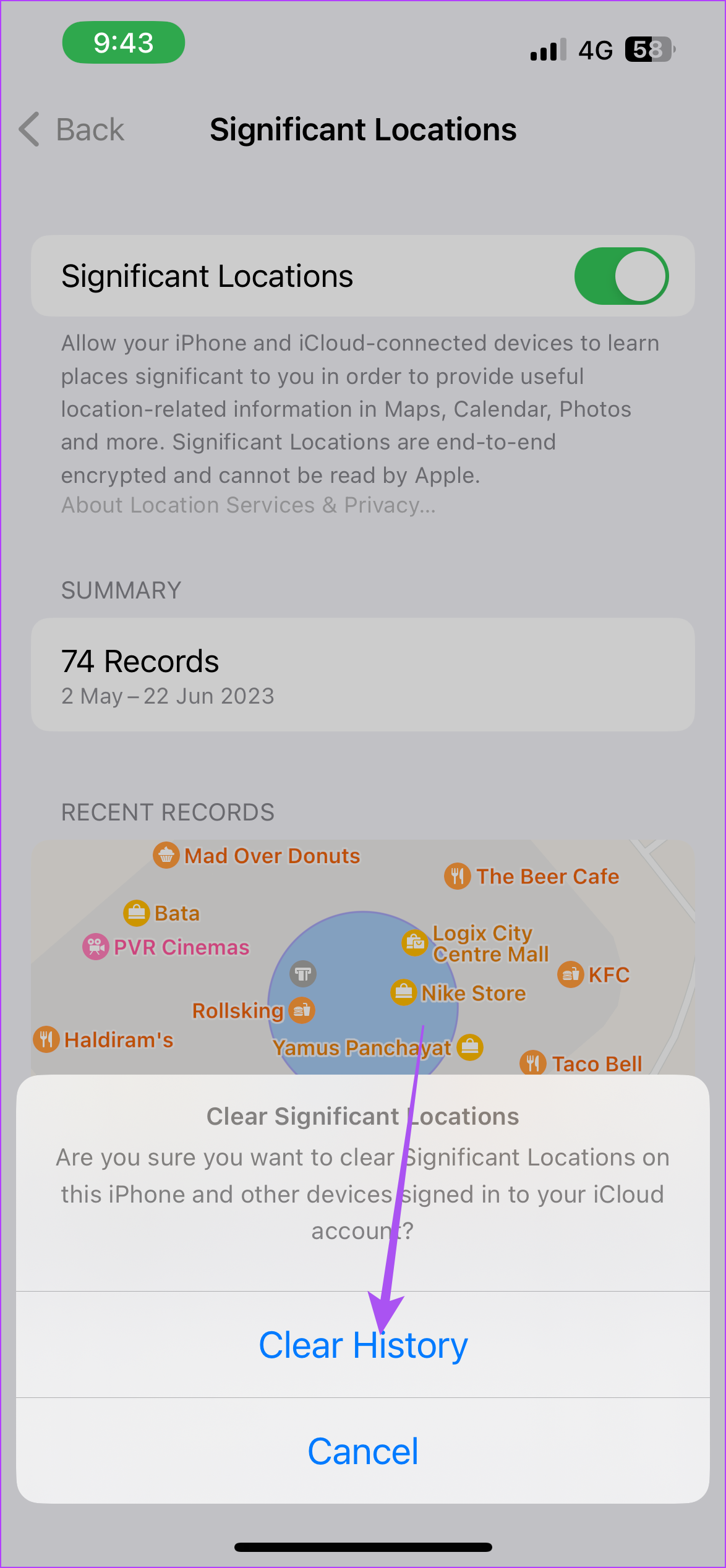
Step 3: Scroll down and then select Significant Locations.
You will be asked to authenticate using Face ID and Passcode. You will see your last location and then view all the past locations you have visited.
If you can’t see any data, please enable the feature of Significant Locations.
To clear your location history, click on Clear Data at the bottom and then confirm again by tapping on Clear History.

Tip: Check our post if location services are not working on your iPhone.
How to Check Location History on Mac
You can check your recent locations on your Apple devices, including your Mac. Your approximate location is determined using information from local Wi-Fi networks and then is collected by Location Services in a manner that doesn’t personally identify you. Here’s how to check the same on your Mac.
Step 1: Open Settings > Privacy and Security > Location Services.

Step 2: Scroll down to the bottom and then click on Details next to System Services.
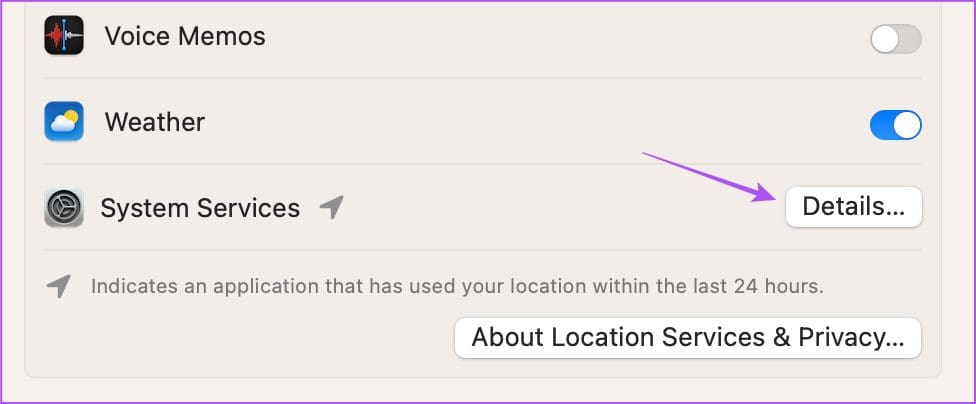
Step 3: Click on Details next to Significant Locations.
You will see all your recent locations and the significant locations that you have visited recently.
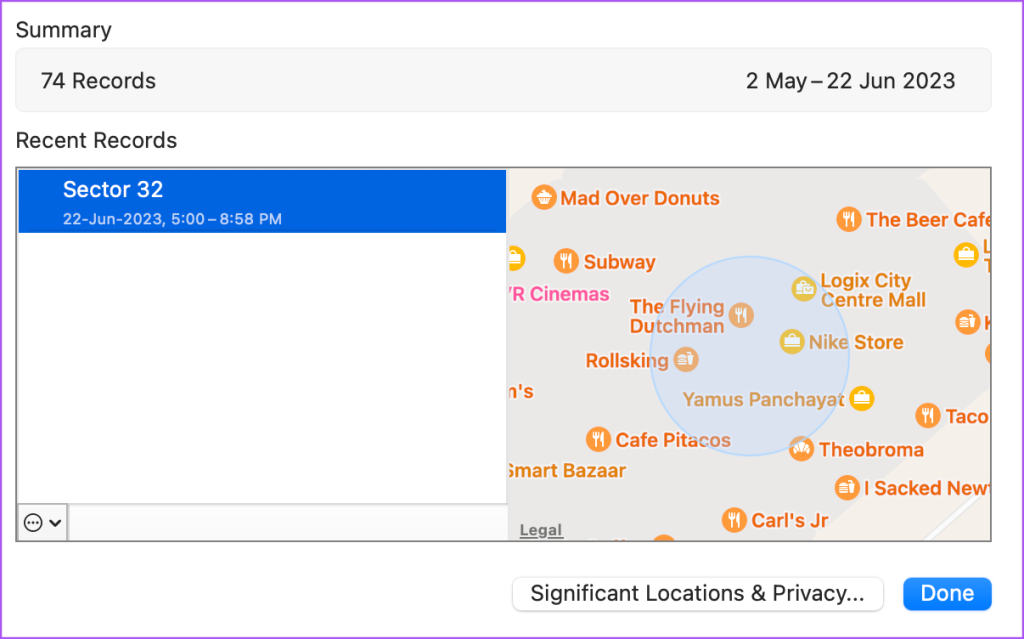
Clear Location History on Mac
Here’s how you can remove all your location data collected on your Mac.
Step 1: Open Settings > Privacy and Security > Location Services > Significant Locations.
Step 2: Click the three dots on the bottom left side.

Step 3: Click on Clear Data.

Step 4: Click on Clear History to confirm.
Step 5: Click on Done at the bottom right side to confirm.

If you keep your Significant Location turned on, the data will be appear again after some time, and you can check your location history.
Tip: Check our post on how to share your current location using the Messages app on your iPhone.
Was this helpful?
Last updated on 16 July, 2024
Read Next
 2 Ways to Check Clipboard History on Mac
Method 1: Default Clipboard Step 1: Open Finder on Mac, go to Edit in the menu bar, and choose Show Clipboard.
2 Ways to Check Clipboard History on Mac
Method 1: Default Clipboard Step 1: Open Finder on Mac, go to Edit in the menu bar, and choose Show Clipboard.
 How to Check Your Mac’s Uptime, Reboot and Shutdown History
Are you curious to find out how often your Mac has been rebooted or shut down?
How to Check Your Mac’s Uptime, Reboot and Shutdown History
Are you curious to find out how often your Mac has been rebooted or shut down?
 How to Change Weather Location on iPhone, iPad, or Apple Watch
If you own an iPhone or an Apple Watch, you probably know how convenient it is to check the weather forecast on these devices.
How to Change Weather Location on iPhone, iPad, or Apple Watch
If you own an iPhone or an Apple Watch, you probably know how convenient it is to check the weather forecast on these devices.
 How to View and Manage Your Location History in Google Maps
While Google Maps helps you to look for new places and find the best routes, it also saves these things in your Location History.
How to View and Manage Your Location History in Google Maps
While Google Maps helps you to look for new places and find the best routes, it also saves these things in your Location History.
 How to Check and Recover Clipboard History on Android
Method 1: Check and Recover Clipboard History Using Gboard One of the easiest ways to view and recover your clipboard history on an Android device is by using Gboard, the
How to Check and Recover Clipboard History on Android
Method 1: Check and Recover Clipboard History Using Gboard One of the easiest ways to view and recover your clipboard history on an Android device is by using Gboard, the
 3 Ways to Check Your Entire Uber Ride History
Method 1: Use the Activity Tab On Mobile On the Uber app on your iPhone/Android device, open the Activity tab to check your trip history.
3 Ways to Check Your Entire Uber Ride History
Method 1: Use the Activity Tab On Mobile On the Uber app on your iPhone/Android device, open the Activity tab to check your trip history.
 How to Check Call History of a Number on Android
How to Check Call History and Duration in Google Phone App Most Android phone manufacturers use Google’s Phone app by default.
How to Check Call History of a Number on Android
How to Check Call History and Duration in Google Phone App Most Android phone manufacturers use Google’s Phone app by default.
 4 Ways to Fix Location Services Not Working on Mac
Basic Fixes Restart your Mac: Sometimes a simple restart will solve a lot of issues on your Mac.
4 Ways to Fix Location Services Not Working on Mac
Basic Fixes Restart your Mac: Sometimes a simple restart will solve a lot of issues on your Mac.
The article above may contain affiliate links which help support Guiding Tech. The content remains unbiased and authentic and will never affect our editorial integrity.