


How to Check Call Duration on Google Phone App on Android
Most Android devices use the Google Phone app as the phone’s default dialer app. And even if that’s not the case, you can always install the Google Phone app and make it your default phone app. Once done, follow the steps below to check the call duration on the Google Phone app.
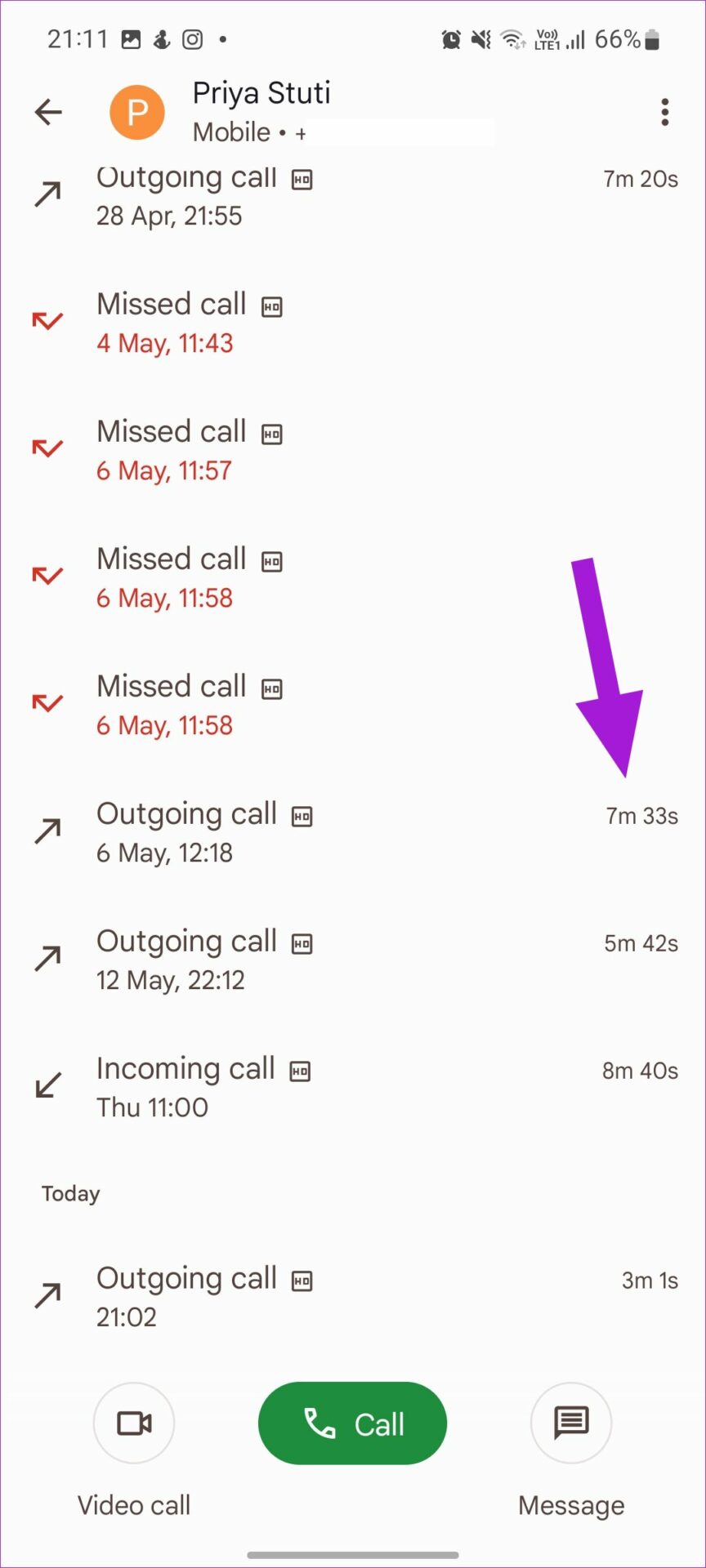
Step 1: Open the Phone app and go to Recent. Tap on a contact name or number.
Step 2: Tap on History and see the call duration for the relevant call.


Also Read: Samsung apps vs Google apps: Should you switch
How to Check Call Duration on Samsung Galaxy Phones
Samsung users can enjoy a customized experience with the native Samsung app. This includes the Samsung Phone app. Using this, you can also check your previous calls and their corresponding durations. Here’s how to do it.
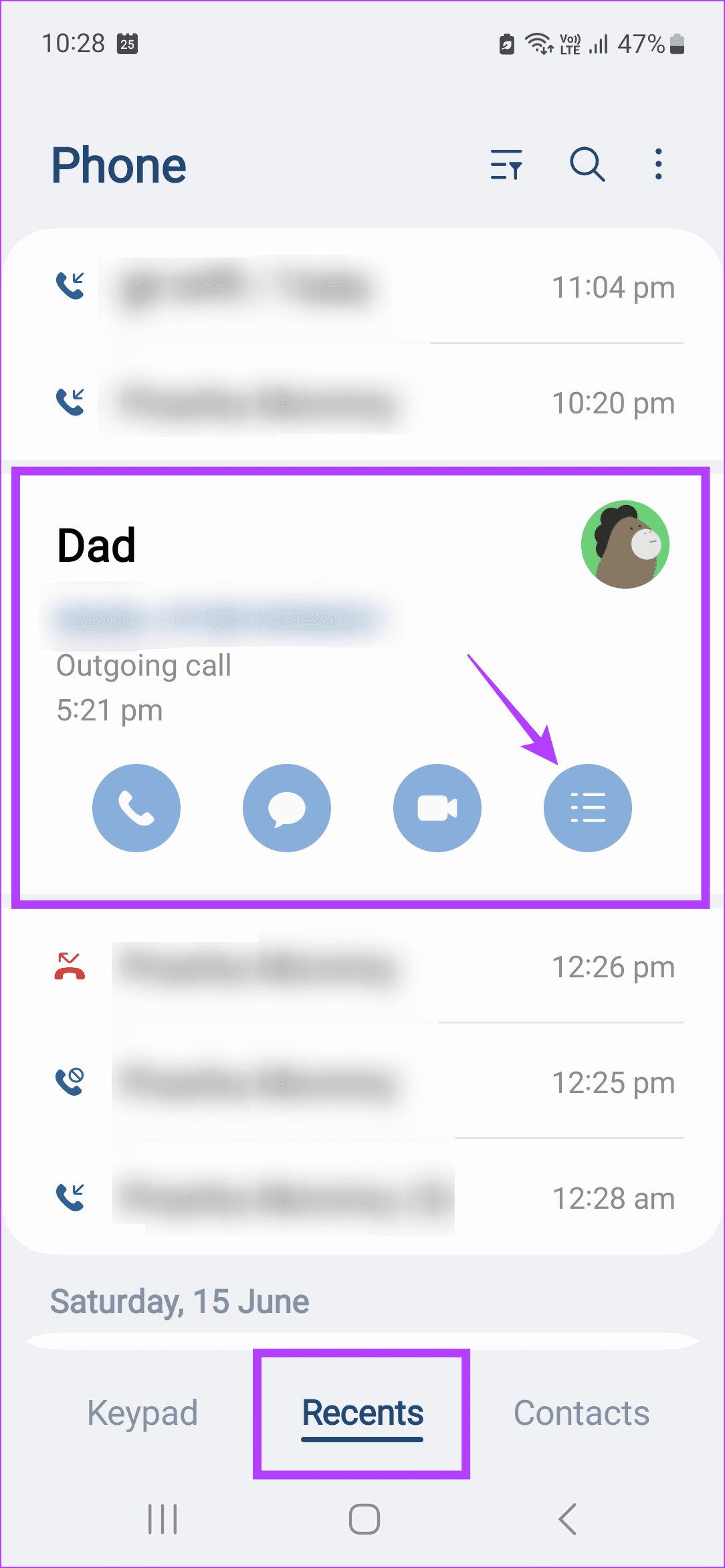
Step 1: Open the Samsung Phone app and tap on Recents. Tap on the relevant contact.
Step 2: Once visible, tap on the menu icon. Check the duration of the relevant call.

How to Check Call Duration on iPhone
Similar to Android, the iPhone also comes with its Phone app. Using this app, you can check the call duration. However, note that you will have to go to the relevant contact listing from the main Recents tab to see the duration of that particular call. Here’s how to do it.
Tip: You can also use the Recents tab to see and delete call history on your iPhone.
Step 1: Open the Phone app and tap on Recents. Tap the i icon before the relevant contact.
Step 2: Check the recent call duration for recent calls.
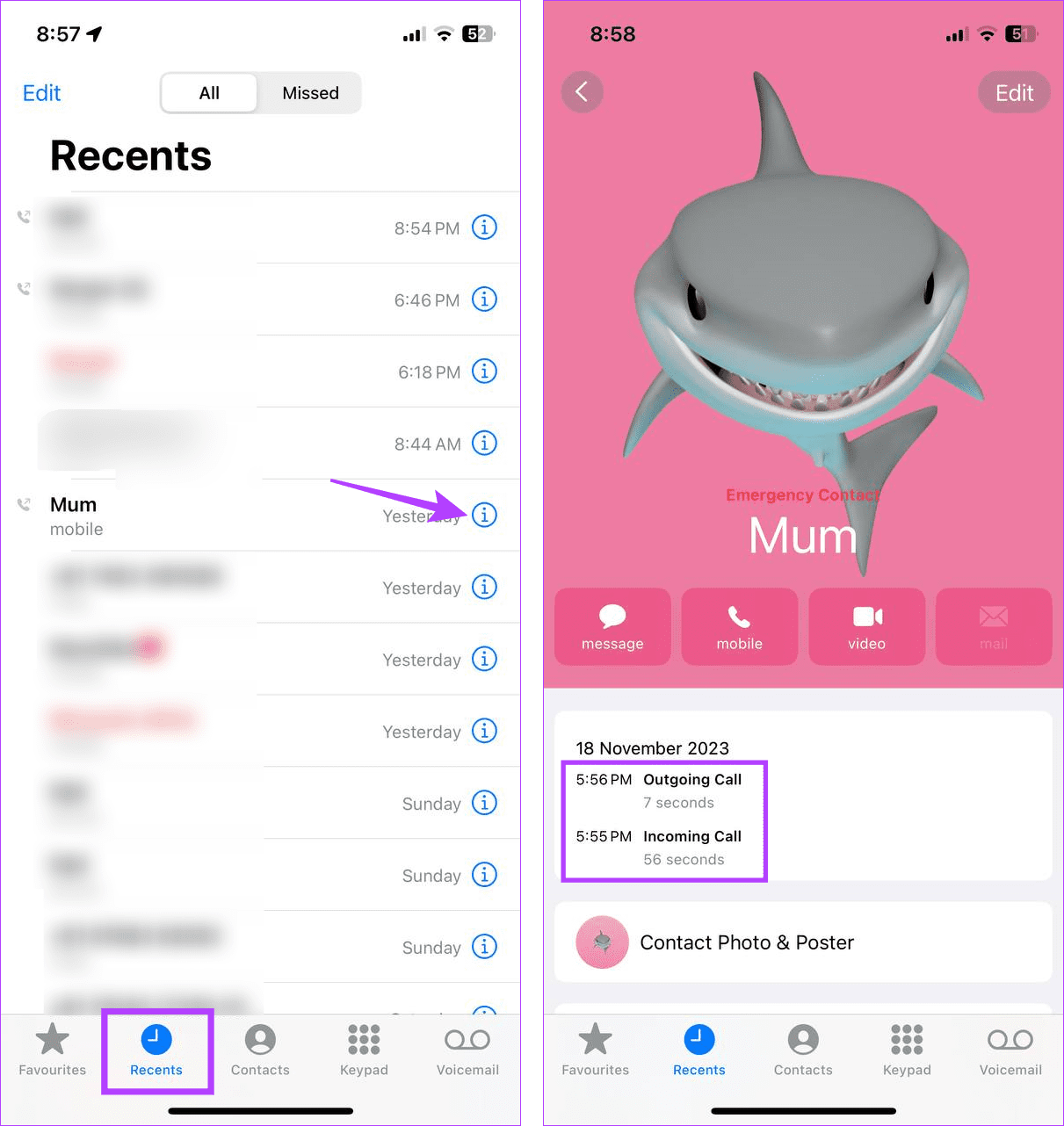
Now, if you want to see the duration for other calls from the same contact, go back to the Recents page and open the call info for the relevant listing.
Was this helpful?
Last updated on 28 June, 2024
1 Comment
Leave a Reply
Read Next
 How to Show Meeting Duration in Zoom
How to See Duration or Remaining Time in Zoom Meetings Desktop By default, Zoom doesn’t enable meeting duration.
How to Show Meeting Duration in Zoom
How to See Duration or Remaining Time in Zoom Meetings Desktop By default, Zoom doesn’t enable meeting duration.
 How to Check Call History of a Number on Android
How to Check Call History and Duration in Google Phone App Most Android phone manufacturers use Google’s Phone app by default.
How to Check Call History of a Number on Android
How to Check Call History and Duration in Google Phone App Most Android phone manufacturers use Google’s Phone app by default.
 How to Fix Missed Call Notification Not Showing on Android
Basic Fixes: Disable DND: If your Android phone is currently on DND, you will not be able to receive any missed call notifications as your device actively blocks any distractions.
How to Fix Missed Call Notification Not Showing on Android
Basic Fixes: Disable DND: If your Android phone is currently on DND, you will not be able to receive any missed call notifications as your device actively blocks any distractions.
 4 Ways to Fix Call Recorder Not Recording Incoming Voice on Android
Basic Fixes: Check the Android version: To use call recording features, your Android phone must run Android version 9 and above.
4 Ways to Fix Call Recorder Not Recording Incoming Voice on Android
Basic Fixes: Check the Android version: To use call recording features, your Android phone must run Android version 9 and above.
 5 Ways to Fix Android Phone Screen Goes Black During a Call
Before you begin, try restarting your Android device and update it to the latest available software version.
5 Ways to Fix Android Phone Screen Goes Black During a Call
Before you begin, try restarting your Android device and update it to the latest available software version.
 6 Ways to Fix Call History Not Showing on Android
Fix 1: Allow the Phone App to Access Call Logs The Phone app may not show any call history if it does not have the necessary permissions to access and
6 Ways to Fix Call History Not Showing on Android
Fix 1: Allow the Phone App to Access Call Logs The Phone app may not show any call history if it does not have the necessary permissions to access and
 How to Record and Delete Call Recordings on Android
How to Record Calls on Android Google brought call recording for Pixel devices in late 2021.
How to Record and Delete Call Recordings on Android
How to Record Calls on Android Google brought call recording for Pixel devices in late 2021.
 4 Ways to Fix Android Phone Ringing But No Call
Basic Fixes Restart device: Restart your Android device to fix any temporary bugs and glitches.
4 Ways to Fix Android Phone Ringing But No Call
Basic Fixes Restart device: Restart your Android device to fix any temporary bugs and glitches.
The article above may contain affiliate links which help support Guiding Tech. The content remains unbiased and authentic and will never affect our editorial integrity.

Thank’s very mush, this post was very helpful to me.