


Remove or Change the Phone Number in Your Discord Account
If you no longer have access to the phone number used while setting up your Discord account, removing or changing it becomes necessary. Thankfully, you can do it from its app or by accessing its web interface.
Note: Ensure you provide a valid phone number to your Discord account. Phone numbers linked to an existing Discord account, VOIP, Burner, and Landline numbers can’t be used.
On Android or iPhone
Step 1: Open Discord and double-tap the You tab at the bottom right to open your account settings.
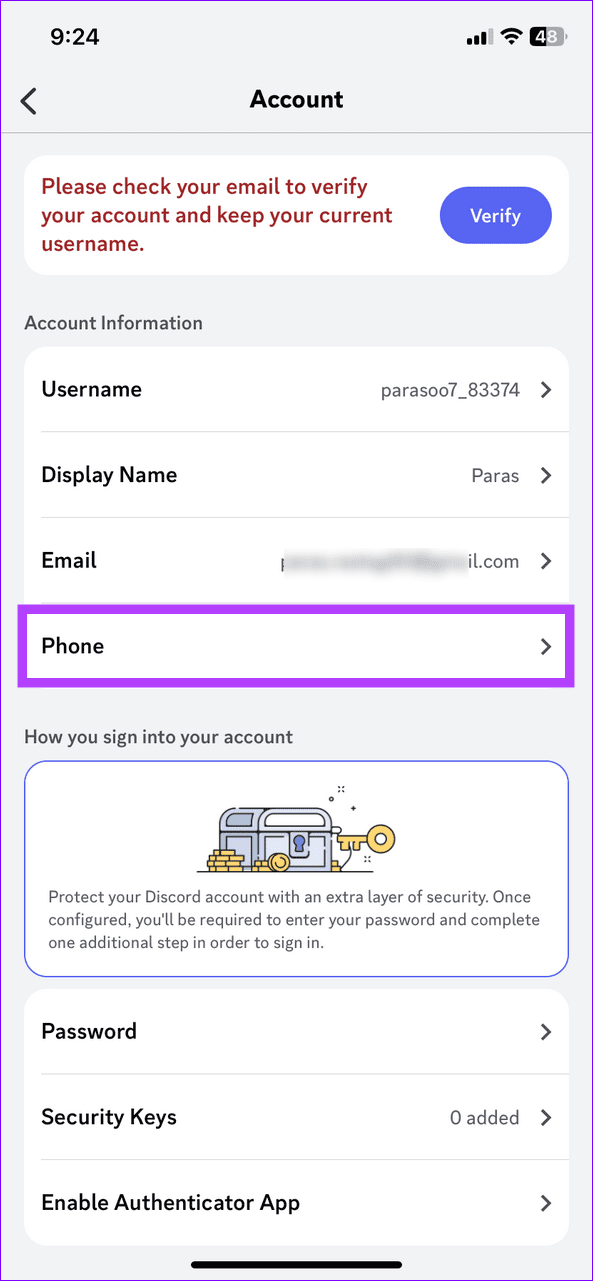
Step 2: Select Account > tap Phone.
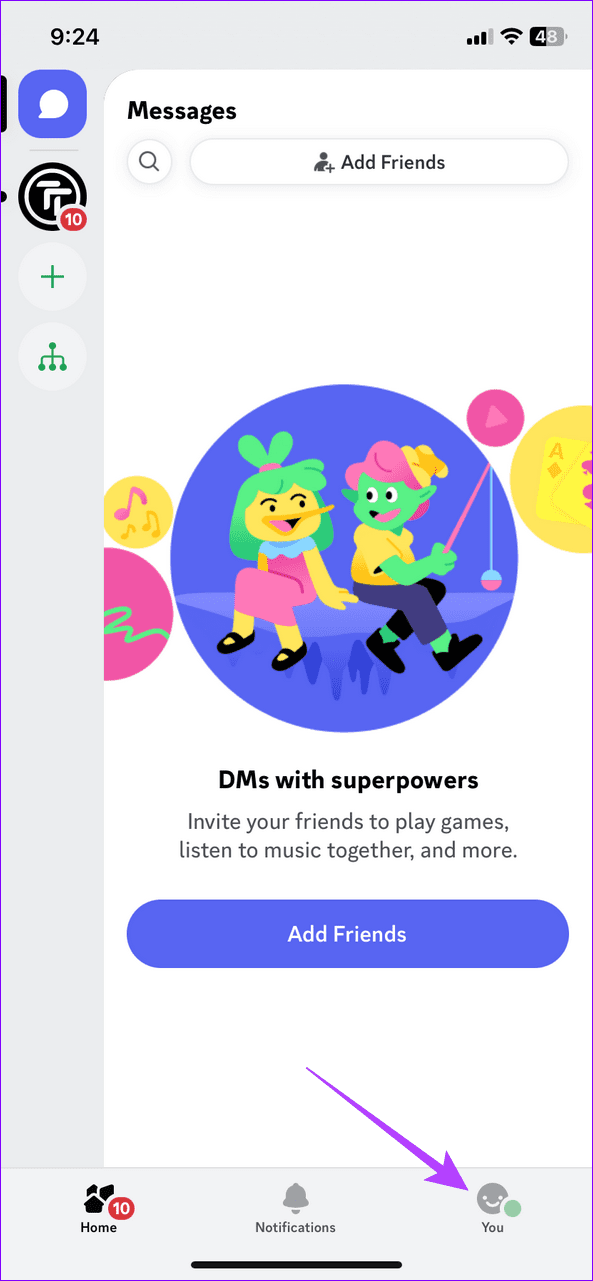


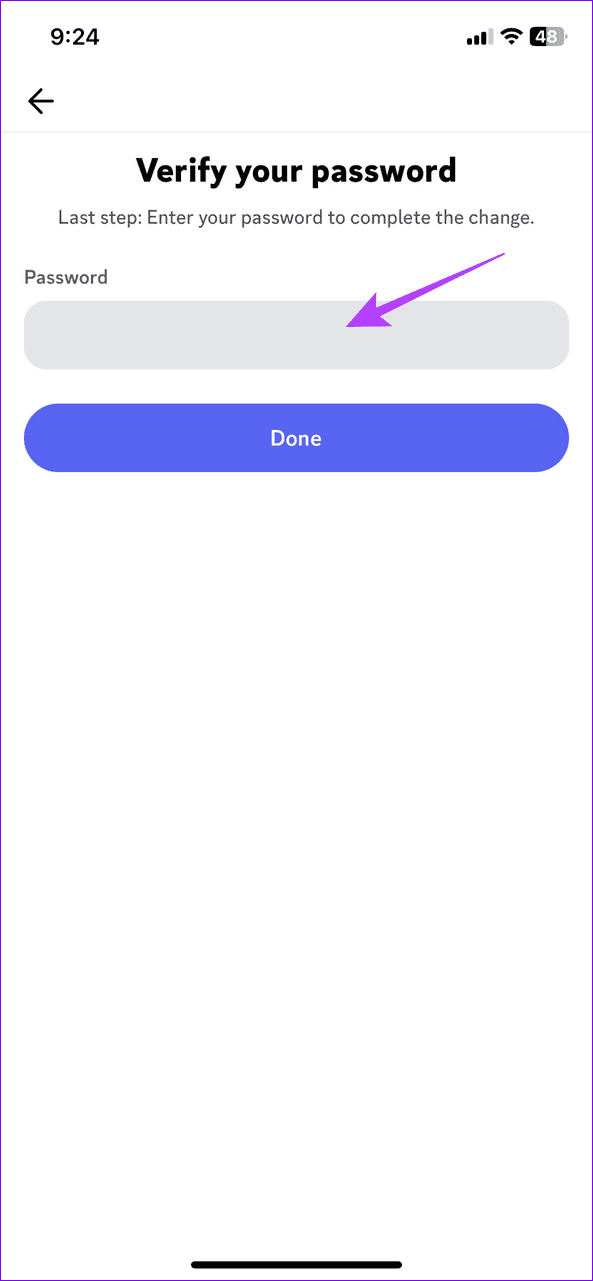
Step 3: Tap Remove Phone Number and type your account passcode to remove it.

Step 4: To change or add your phone number, select Phone, type your phone number, and tap Next.

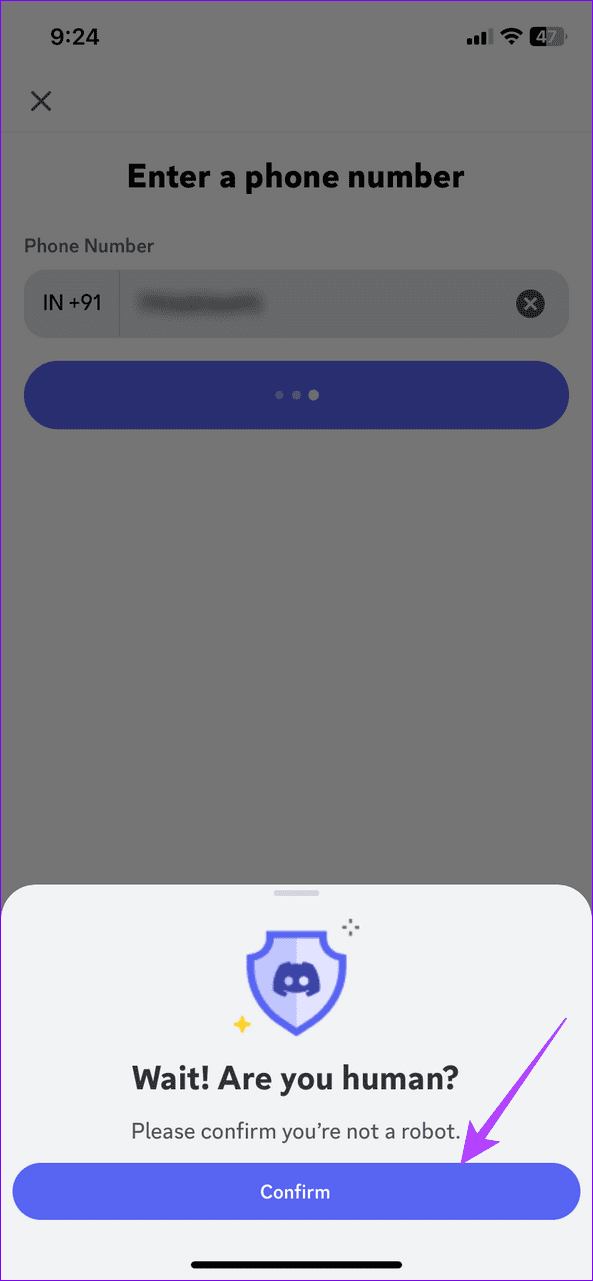
Step 5: Tap Confirm and enter the verification code and account password to change/add it.


On Web
Step 1: Press the Windows key, search Discord, and click to open it.
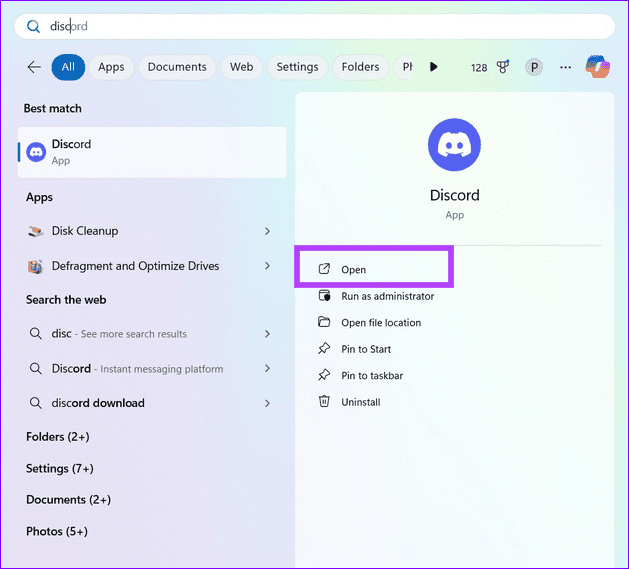
Step 2: Click the Gear icon at the bottom left and open User Settings.

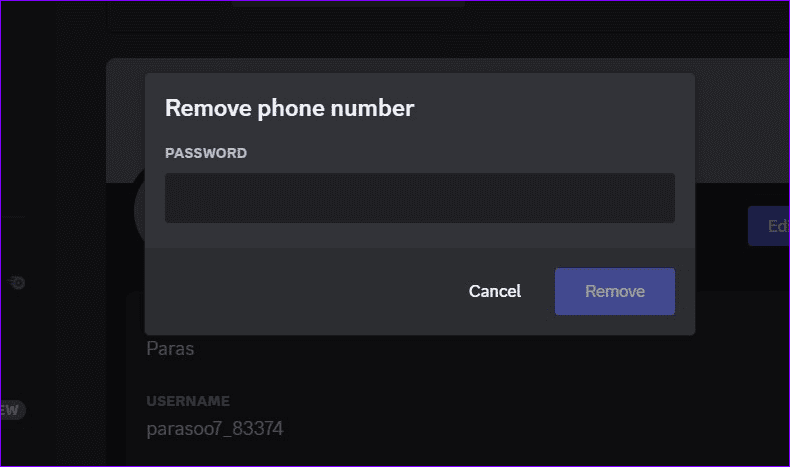
Step 3: Select My Account from the left sidebar and click Remove next to Phone Number to delete it.

Step 4: Provide your account password when prompted to confirm removing it.
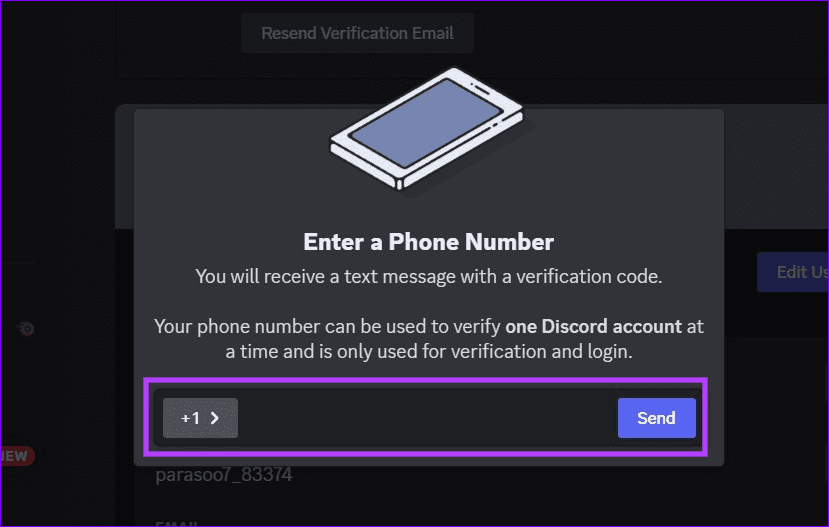
Step 5: Next, click Add/Edit next to Phone Number to add a new phone number or change the existing one.

Step 6: Type your desired phone number and click Send.
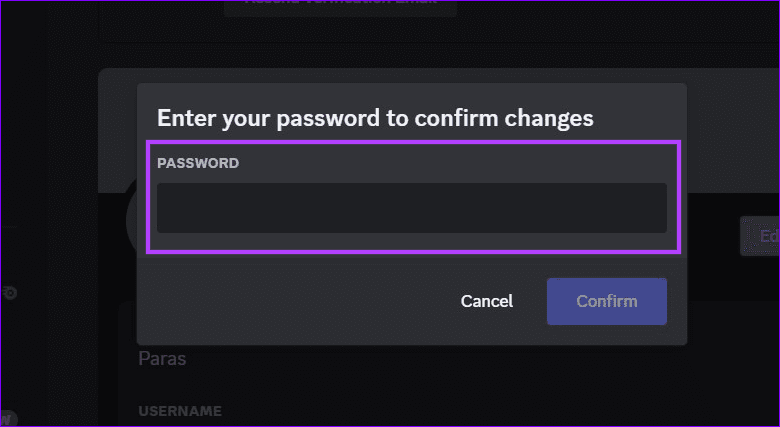
Step 7: Enter the verification code and account password to save changes.
Was this helpful?
Last updated on 15 July, 2024
2 Comments
Leave a Reply
Read Next
 2 Best Ways to Remove Old Phone From Google Account
How to Remove Old Phone From Google Account on Mobile Step 1: Launch the Phone Settings menu.
2 Best Ways to Remove Old Phone From Google Account
How to Remove Old Phone From Google Account on Mobile Step 1: Launch the Phone Settings menu.
 What Happens When You Remove a Google Account from Your Phone
1.
What Happens When You Remove a Google Account from Your Phone
1.
 How to Add, Remove, and Delete Samsung Account From Your Android Phone
You don't need a Samsung account to use your Android phone the same way you need a Google account.
How to Add, Remove, and Delete Samsung Account From Your Android Phone
You don't need a Samsung account to use your Android phone the same way you need a Google account.
 How to Change or Remove User Account Image in Windows 11
How to Change User Account Image You can quickly change your user account image on Windows 11 using the Settings app.
How to Change or Remove User Account Image in Windows 11
How to Change User Account Image You can quickly change your user account image on Windows 11 using the Settings app.
 How to Play Discord Games Using Discord Activities
What Are Discord Games?
How to Play Discord Games Using Discord Activities
What Are Discord Games?
 What Happens When You Remove a Friend on Discord
What Happens When You Unfriend Someone on Discord Before we show you how to unfriend someone on Discord, you should learn the implications of your actions and take steps accordingly.
What Happens When You Remove a Friend on Discord
What Happens When You Unfriend Someone on Discord Before we show you how to unfriend someone on Discord, you should learn the implications of your actions and take steps accordingly.
 How to Change Status Bar Clock Position or Remove It on Samsung Phone
Change or Remove Status Bar Clock Position on Samsung Phone Currently, the clock is at the top-left corner of the Samsung Galaxy phone.
How to Change Status Bar Clock Position or Remove It on Samsung Phone
Change or Remove Status Bar Clock Position on Samsung Phone Currently, the clock is at the top-left corner of the Samsung Galaxy phone.
 3 Ways to Remove Saved Snapchat Account From Any Device
Method 1: Remove Account Information From Snapchat App When you log out from Snapchat on your phone, the app doesn’t ask you to delete saved login information.
3 Ways to Remove Saved Snapchat Account From Any Device
Method 1: Remove Account Information From Snapchat App When you log out from Snapchat on your phone, the app doesn’t ask you to delete saved login information.
The article above may contain affiliate links which help support Guiding Tech. The content remains unbiased and authentic and will never affect our editorial integrity.
Change my password to discord keep the same discord email just change my password
Check our easy guide to change your Discord account password without affecting your email address.