Change Password in Outlook Mobile App
The Outlook client app on Android and iPhone doesn’t have the option to change your account password. But you can Reset your account, which forces the app to check your account settings. Then, it will ask you to enter the correct password if the existing one doesn’t match. The steps remain the same for both Android and iPhone users.
Step 1: Open the app, tap on your profile icon at the top-left corner, and go to Settings.
Step 2: Select your Outlook account.
Step 3: Scroll down to the bottom and tap on Reset Account. Tap Yes to confirm.


Step 4: Relaunch Outlook on your iPhone and enter your password if prompted.
Change Password in Outlook App on Web
Note that your Outlook account password is the same as your Microsoft account password. Here’s how to change it.
Step 1: Visit the Outlook website and sign in to your account.
Step 2: Click the Profile icon at the top-right corner and select My Profile.
Step 3: Select a method to authenticate your login to your Outlook profile. We are using Email verification.
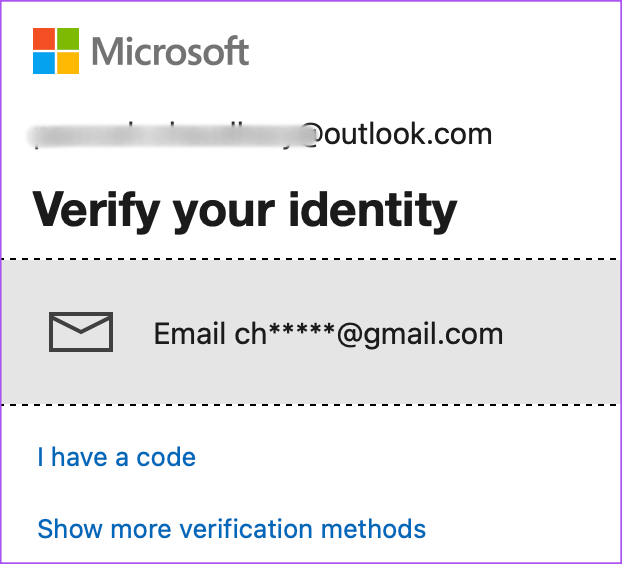
Step 4: Follow the on-screen instructions to verify your identity.
Step 5: Click on Change Password at the top right. Enter your old password and your new password twice to confirm.

You can also enable the feature of Outlook, which suggests changing your password every 72 days.
Step 6: Click on Save.
Your password has been changed, and you will now be asked to add it again to continue using your account.
Change Password in Outlook Desktop App
On Windows 11
For the Outlook app on Windows 11, you can only change your password for IMAP or POP accounts. You also need to switch to the legacy version to access this feature.
Step 1: Open the Outlook app and sign in to your account.
Step 2: Disable the toggle for New Outlook at the top-right corner.

Step 3: Select Skip Feedback to switch to legacy Outlook.
Step 4: Click on File at the top-right corner and select Account Settings.
Step 5: Select Manage Profiles.

Step 6: Click on Email Accounts > select your Microsoft IMAP or POP account > click on Change.

Step 7: Enter the new password in the field.
On Mac
The Outlook Desktop app is also available for Mac users. However, you must switch to the legacy version of Outlook to see the option to change your password.
Step 1: Open the Outlook app and sign in to your account.
Step 2: Click on Outlook at the top-right corner on the menu bar and select New Outlook.
Step 3: Click on Revert to use the legacy version of Outlook.
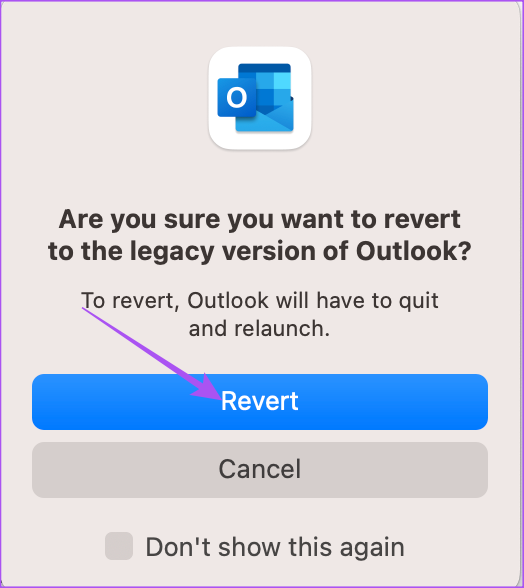
Step 4: After the legacy version appears on your screen, click on Outlook at the top-right corner and select Settings.
Step 5: Click on Accounts.
Step 6: Select your Outlook email address from the left menu.
Step 7: Enter your new password below the Username field.

Step 8: Close the window, and Outlook will automatically update your new password.
To revert to the new Outlook version, repeat the steps mentioned above. Read our post on creating an email reminder in Outlook on Mac and Windows.
Was this helpful?
Last updated on 02 July, 2024
Read Next
 How to Mark Emails as Read in Outlook on Web, Desktop, or Mobile App
Outlook is a widely used email client for personal and professional purposes.
How to Mark Emails as Read in Outlook on Web, Desktop, or Mobile App
Outlook is a widely used email client for personal and professional purposes.
 How to Turn Off Focused Inbox in Outlook on Web, Desktop, or Mobile
Not too long ago, Outlook introduced a Focused Inbox feature that automatically sorts your incoming email into two tabs.
How to Turn Off Focused Inbox in Outlook on Web, Desktop, or Mobile
Not too long ago, Outlook introduced a Focused Inbox feature that automatically sorts your incoming email into two tabs.
 How to Download Emails From Outlook on Web, Desktop, and Mobile
How to Download an Email From Outlook’s Web Version Note: You may choose to skip this method if you have multiple emails you want to download.
How to Download Emails From Outlook on Web, Desktop, and Mobile
How to Download an Email From Outlook’s Web Version Note: You may choose to skip this method if you have multiple emails you want to download.
 How to Recall an Email on Microsoft Outlook for Desktop and Web
Have you experienced panic after sending an email because you noticed an error or you forgot to include an important attachment?
How to Recall an Email on Microsoft Outlook for Desktop and Web
Have you experienced panic after sending an email because you noticed an error or you forgot to include an important attachment?
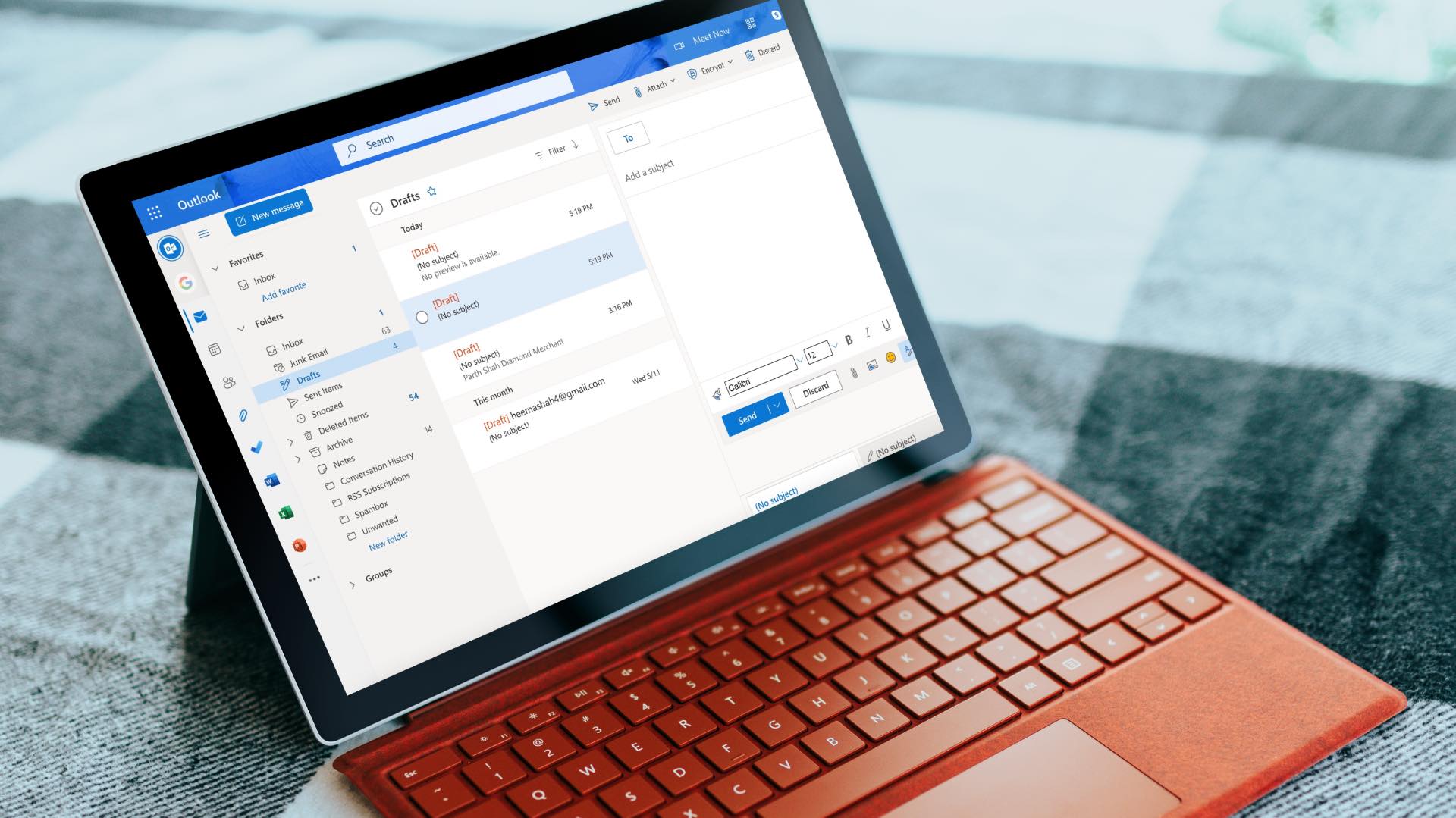 How to Change Font Style in Microsoft Outlook
Change Font Style in Microsoft Outlook App for Windows Outlook Windows app doesn’t use plain text and opts for HTML to draft a message.
How to Change Font Style in Microsoft Outlook
Change Font Style in Microsoft Outlook App for Windows Outlook Windows app doesn’t use plain text and opts for HTML to draft a message.
 How to Change Instagram Password on Your Phone or Desktop
Change Instagram Password Android Step 1: Open the Instagram app > go to your profile page.
How to Change Instagram Password on Your Phone or Desktop
Change Instagram Password Android Step 1: Open the Instagram app > go to your profile page.
 How to Delete Multiple Emails in Outlook on Mobile and Web
How to Delete Multiple Outlook Emails on Mobile Let's first start with how you can mass delete emails from the Microsoft Outlook app on your mobile.
How to Delete Multiple Emails in Outlook on Mobile and Web
How to Delete Multiple Outlook Emails on Mobile Let's first start with how you can mass delete emails from the Microsoft Outlook app on your mobile.
 How to Delete a Word Document on Desktop, Web, and Mobile
Deleting a Word document may seem straightforward, but the process can vary across platforms.
How to Delete a Word Document on Desktop, Web, and Mobile
Deleting a Word document may seem straightforward, but the process can vary across platforms.
The article above may contain affiliate links which help support Guiding Tech. The content remains unbiased and authentic and will never affect our editorial integrity.