


How to Change the Default Notification Sound in Windows 11
If you’re going to hear the notification sound all day, you might as well change it to something you like. The Settings app provides access to all the sound settings on Windows 11. Here’s how to use it to change the default notification sound.
Step 1: Click on the Start button on the Taskbar and click the Settings icon to launch the app.

Step 2: In the System tab, click on Sound.
Step 3: Under the Advanced section, click on More sound settings.

Step 4: Head over to the Sounds tab. Under the Program Events section, scroll down to select Notification from the list.

Step 5: Next, select a different sound in the drop-down menu under Sounds. You can use the Test button to play the sound if you want.

Step 6: Click Apply > OK to save the changes.

How to Add Custom Notification Sounds in Windows 11
Although Windows 11 gives you plenty of notification sounds, you can always download and use a custom notification sound from the internet.
There are plenty of websites like SoundBible or Freesound from which you can download notification sounds for free. The audio file you download must be in a WAV format.
Once you have the audio file, here’s how to set it as the default notification sound in Windows 11.
Step 1: Copy and paste the downloaded audio file into the folder where Windows stores all the system sounds.
C:\Windows\Media
Step 2: When you try to paste the audio file, you’ll see the Destination Folder Access Denied dialog box. Click on Continue to proceed.

Step 3: Next, right-click on the speaker icon in the Taskbar and select Sound settings.

Step 4: Click on More sound settings.
Step 5: Under the Sounds tab, select Notification. Then, use the drop-down menu to select your custom audio file.

Step 6: Click Apply > OK.

Although Windows 11 lets you customize the default notification sound, it does not allow you to set different notification sounds for different apps.
How to Disable Notification Sounds for Individual Apps in Windows 11
You can also disable notification sounds for unimportant apps to avoid distractions. To disable notification sounds for a specific app on Windows, use the following steps.
Step 1: Open the Settings app > select System from the sidebar > Notification on the right.

Step 2: Under Notifications from apps and other senders, you’ll see a list of apps. Click on the app to disable notification sounds.

Step 4: Toggle off the Play a sound when a notification arrives option. From this menu, you can also prevent the app from showing notification banners.

You can repeat the above steps to disable notification sounds for the other apps.
How to Disable All Notification Sounds in Windows 11
If you find it tedious to turn off notification sounds for specific apps, you also have the option to silence all notifications on Windows. This is useful if you don’t want to be bothered by constant notification sounds. Follow these steps to mute notification sounds in Windows 11.
Step 1: Open the Settings app > choose System > Notifications.
Step 2: Click the drop-down arrow next to Notifications > uncheck the box for Allow notifications to play sounds.

Though you’ll continue to receive notifications as usual in the background, you won’t be bothered by any sounds.
Also Read: How to fix messages notifications not working on Android
Was this helpful?
Last updated on 26 August, 2024
1 Comment
Leave a Reply
Read Next
 4 Ways to Fix iPhone App Notification Sounds Not Working
Basic Fixes: Check your iPhone's speaker: If your iPhone's speaker grill is damaged, it might not play notification sounds.
4 Ways to Fix iPhone App Notification Sounds Not Working
Basic Fixes: Check your iPhone's speaker: If your iPhone's speaker grill is damaged, it might not play notification sounds.
 4 Ways to Fix Notification Sounds Not Working on iPad
Basic Fixes: Reboot iPad: Sometimes, a simple fix like rebooting the iPad will bring back the notification sound.
4 Ways to Fix Notification Sounds Not Working on iPad
Basic Fixes: Reboot iPad: Sometimes, a simple fix like rebooting the iPad will bring back the notification sound.
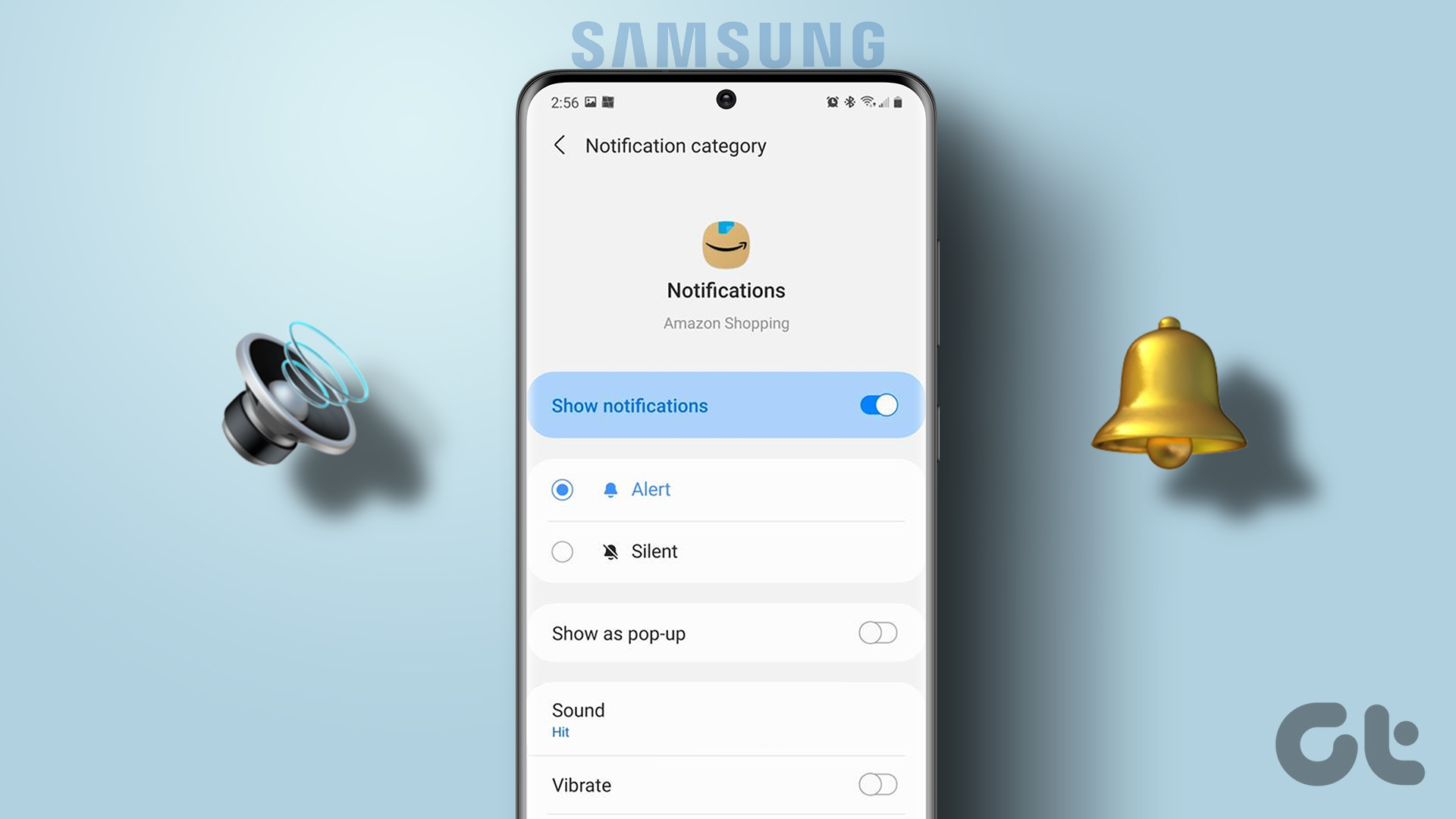 How to Set Custom Notification Sounds for Different Apps on Samsung Galaxy Phones
How to Set Different Notification Sounds for Different Apps You can change app sounds through the phone's Settings app.
How to Set Custom Notification Sounds for Different Apps on Samsung Galaxy Phones
How to Set Different Notification Sounds for Different Apps You can change app sounds through the phone's Settings app.
 How to Find and Fix Windows 10 Making Random Sounds
Recently, when I was working on my Windows 10 laptop, I heard some random ding sounds coming from the speaker.
How to Find and Fix Windows 10 Making Random Sounds
Recently, when I was working on my Windows 10 laptop, I heard some random ding sounds coming from the speaker.
 How to Set Different Notifications Sounds for Different Apps on Android Phones
With so many apps installed on our phones, a barrage of notifications is bound to confuse us.
How to Set Different Notifications Sounds for Different Apps on Android Phones
With so many apps installed on our phones, a barrage of notifications is bound to confuse us.
 How to Change Microsoft Teams Notification Sound
Change Microsoft Teams Notification Sound on Android Step 1: Find and long-press the Microsoft Teams icon.
How to Change Microsoft Teams Notification Sound
Change Microsoft Teams Notification Sound on Android Step 1: Find and long-press the Microsoft Teams icon.
 How to Change Instagram Notification Sound (iPhone and Android)
Change Instagram Notification Sound on iPhone Unfortunately, iOS doesn't allow you to change the notification sound for individual apps.
How to Change Instagram Notification Sound (iPhone and Android)
Change Instagram Notification Sound on iPhone Unfortunately, iOS doesn't allow you to change the notification sound for individual apps.
 How to Change Snapchat Notification Sound
Change Snapchat Notification Sound on iPhone The default alert sound on your iPhone is used for Snapchat notifications.
How to Change Snapchat Notification Sound
Change Snapchat Notification Sound on iPhone The default alert sound on your iPhone is used for Snapchat notifications.
The article above may contain affiliate links which help support Guiding Tech. The content remains unbiased and authentic and will never affect our editorial integrity.


I followed instructions to uncheck the “allow notifications to play sounds” box, but I still get notification sounds. I wish I could see a list showing all notifications from all apps and the time of the notifications so that I could track down which app is sending the notifications. All lists of notifications that I can find show only notifications that are not recent enough to be the notifications I’m hearing. I don’t mind getting notifications; I just want to eliminate all sounds – except for video calls (and maybe certain high-priority types of messages?). For now I have chosen “do not disturb” to see if that works.