Change Instagram Password Android
Step 1: Open the Instagram app > go to your profile page.


Step 2: Tap on the three horizontal lines at the top right.
Step 3: Select Account Center > Password and security > Change password.


Step 4: Choose the account you would like to change the password for.
Step 5: Enter your current password > type the new password twice.
Step 6: Tap on Change password to confirm the changes.
Change Instagram Password on iPhone
If you are an iPhone or iPad user, follow these steps to change your Instagram password:
Step 1: Open Instagram and tap the profile icon.
Step 2: Select the hamburger menu at the top right.


Step 3: Navigate to Settings > Accounts Center > Password and security.

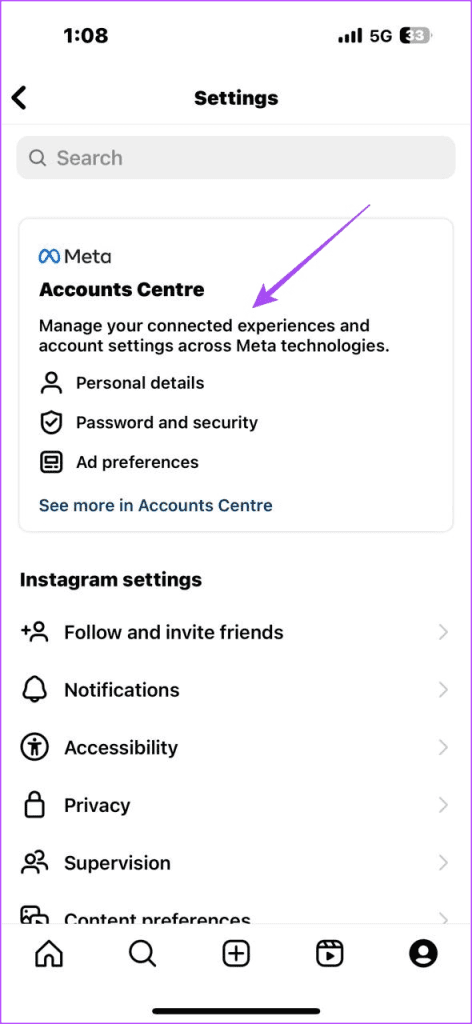
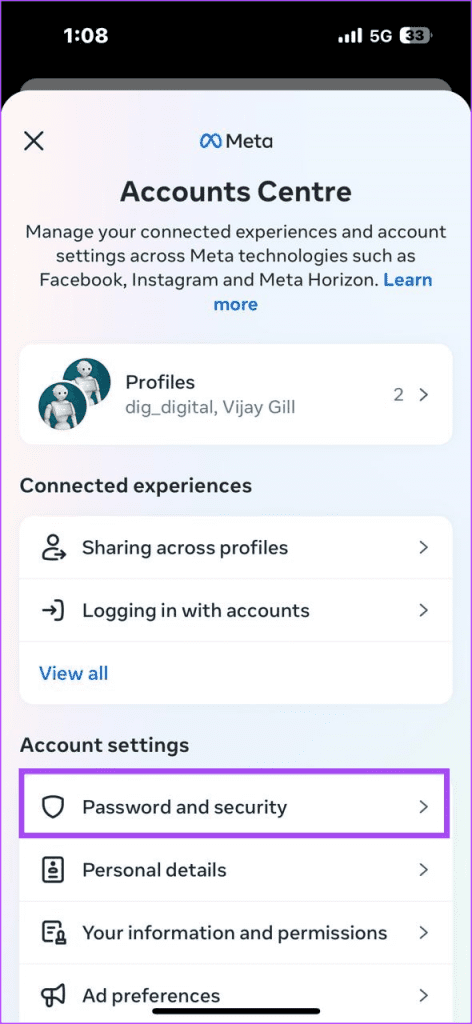
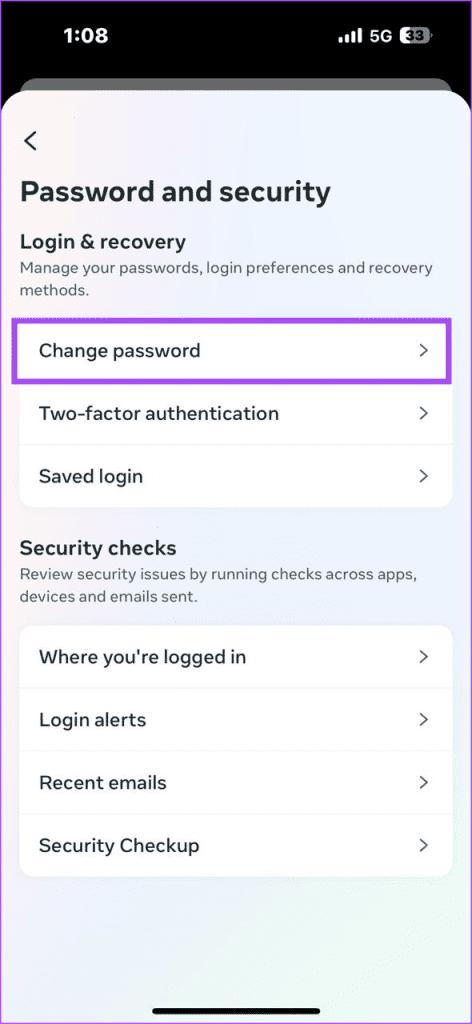
Step 4: Tap on Change password > your account.
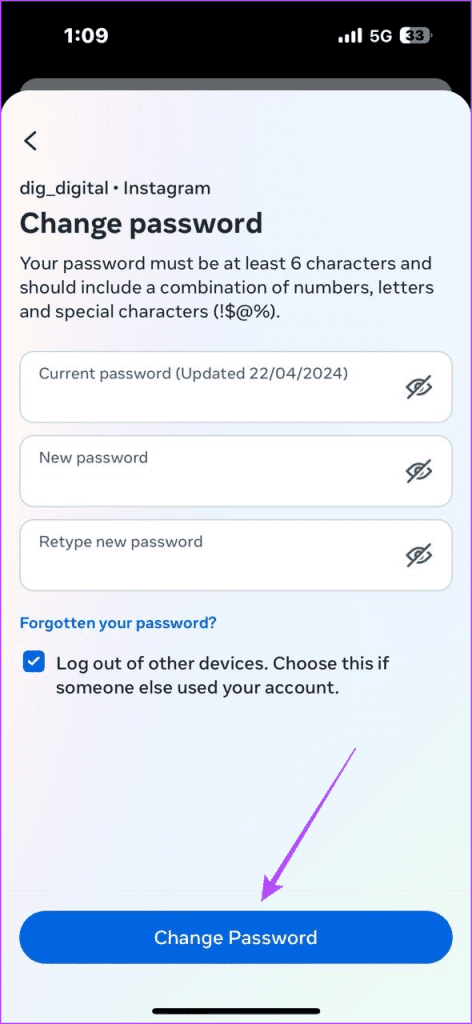
Step 5: Enter your old and new passwords > tap Change Password.

Change Instagram Password on Desktop
Step 1: Open a web browser and log in to your Instagram account.
Step 2: Click on the hamburger menu (three horizontal lines) at the bottom left.
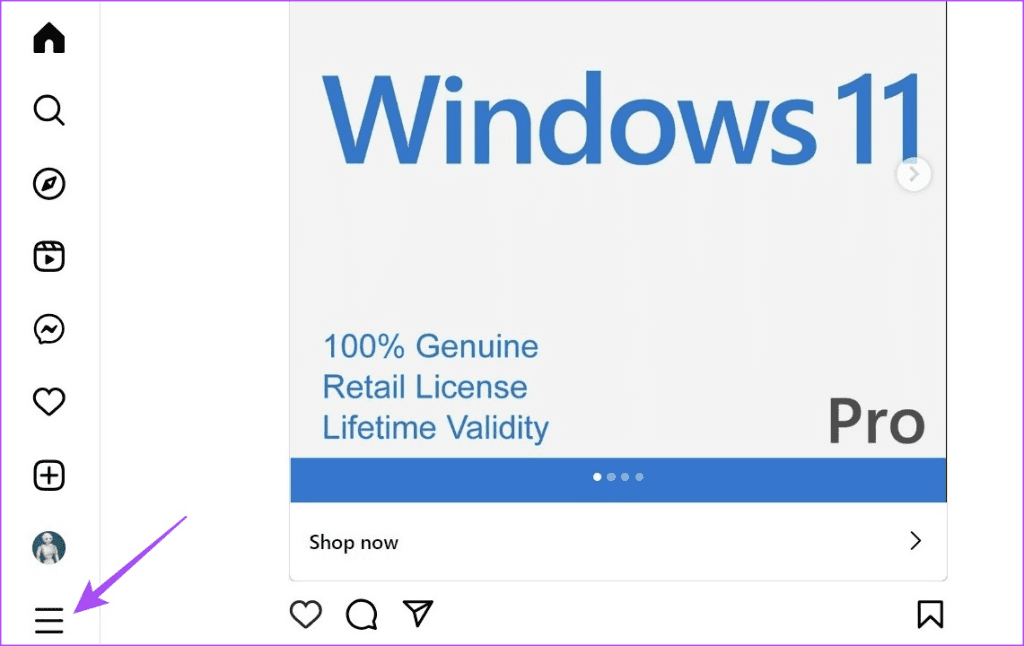
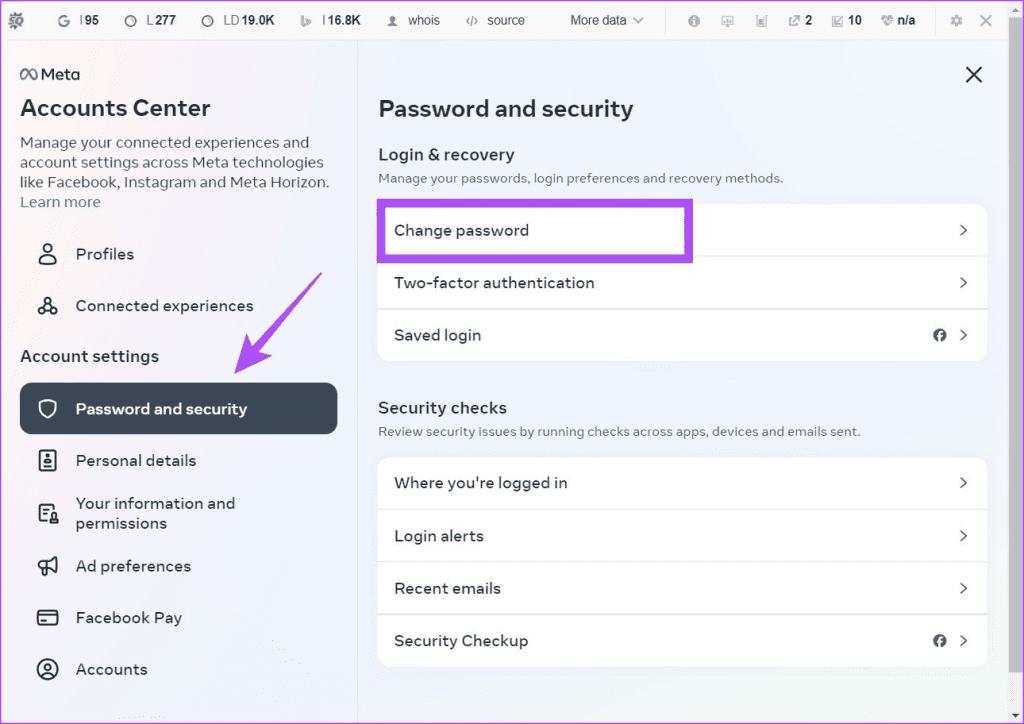
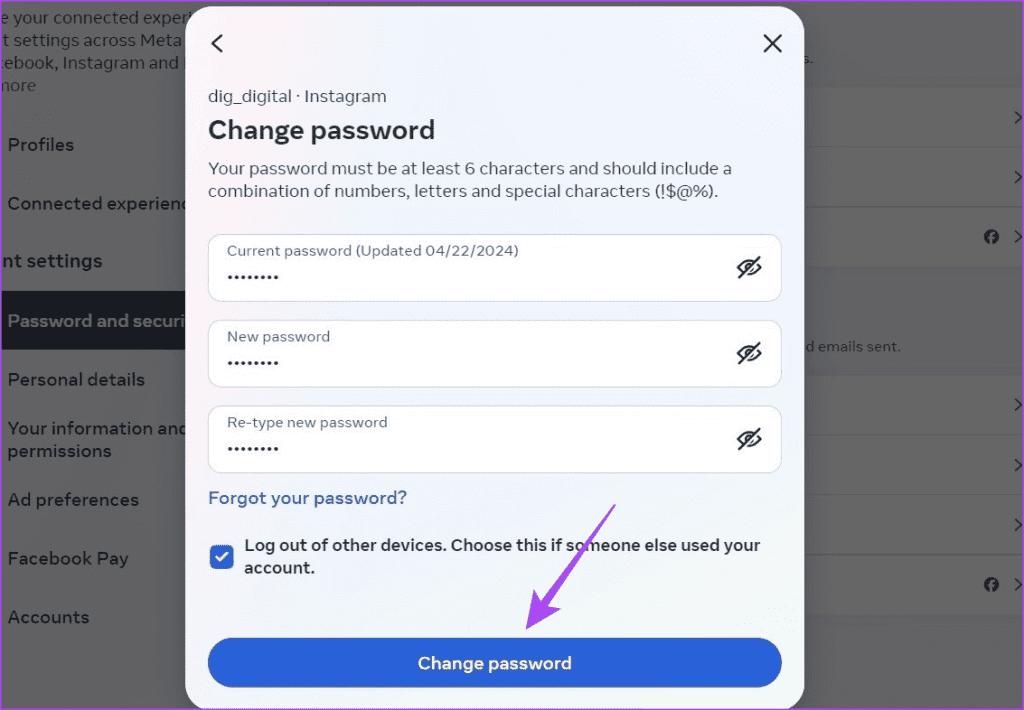
Step 3: Navigate to Settings > Account Center > Password and security.
Step 4: In the right pane, click on Change Password.
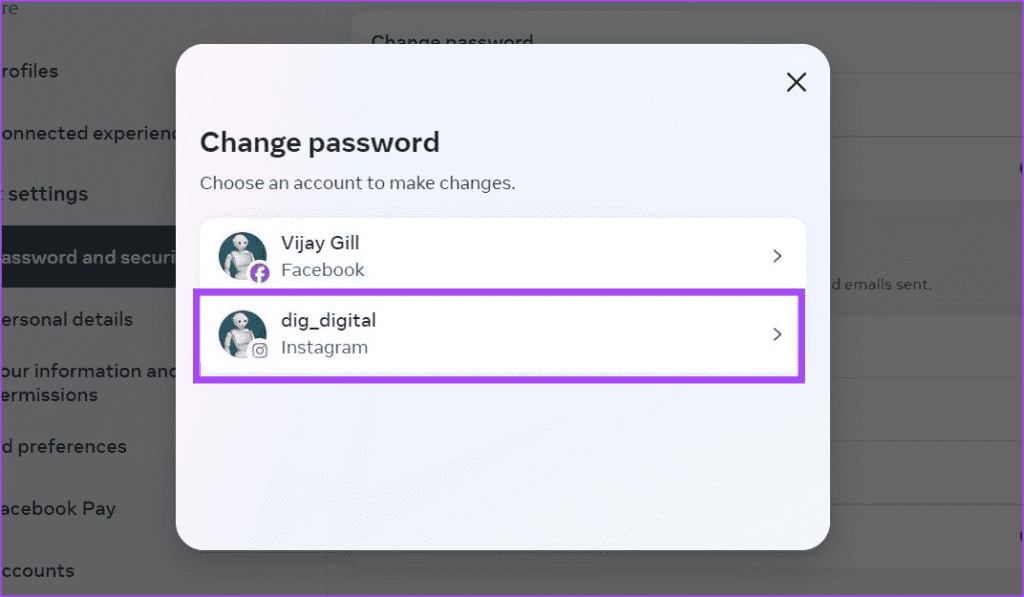
Step 5: Choose the account for which you want to change the password.
Step 6: Enter your old and new passwords, then click on Change password.
FAQs
Yes. Click the Forgot Password? link on the login page and follow the prompts to reset your password via email or phone verification.
No, you can only change it once every 14 days. This prevents spam and confusion among users and also maintains your online identity.
Was this helpful?
Last updated on 01 August, 2024
Read Next
 How to Change Outlook Password on Mobile, Desktop, and Web
Change Password in Outlook Mobile App The Outlook client app on Android and iPhone doesn’t have the option to change your account password.
How to Change Outlook Password on Mobile, Desktop, and Web
Change Password in Outlook Mobile App The Outlook client app on Android and iPhone doesn’t have the option to change your account password.
 How to Change Your Yahoo Mail Password
Yahoo's database has been breached many times, so if you still use their email service or are still sticking around, you should regularly update your passwords.
How to Change Your Yahoo Mail Password
Yahoo's database has been breached many times, so if you still use their email service or are still sticking around, you should regularly update your passwords.
 Forgot Your Discord Password: 4 Ways to Change or Reset It
How to Change Discord Password For Mobile Note: The steps to change your Discord password are the same for Android phones and iPhones.
Forgot Your Discord Password: 4 Ways to Change or Reset It
How to Change Discord Password For Mobile Note: The steps to change your Discord password are the same for Android phones and iPhones.
 How to Find Your Instagram Password on Any Device
Find Your Instagram Password on Android and iPhone Whenever you sign in for the first time on any device, you usually get a prompt for saving your account password.
How to Find Your Instagram Password on Any Device
Find Your Instagram Password on Android and iPhone Whenever you sign in for the first time on any device, you usually get a prompt for saving your account password.
 16 GTA 6 Wallpapers (4K) for Your Phone and Desktop
If you want to join the hype with some GTA 6 wallpapers, you are in for a delight.
16 GTA 6 Wallpapers (4K) for Your Phone and Desktop
If you want to join the hype with some GTA 6 wallpapers, you are in for a delight.
 How to Change WhatsApp Audio Speed on Mobile and Desktop
Change Playback Speed for Audio Messages on WhatsApp WhatsApp allows you to change the playback speed of audio messages in three levels : 1x – 1x means WhatsApp will play
How to Change WhatsApp Audio Speed on Mobile and Desktop
Change Playback Speed for Audio Messages on WhatsApp WhatsApp allows you to change the playback speed of audio messages in three levels : 1x – 1x means WhatsApp will play
 How to Change the Default Language in Steam for Desktop and Mobile
How to Change the Language in Steam for Desktop Changing the default language in the Steam app is similar on both Windows and Mac, thanks to their comparable interfaces.
How to Change the Default Language in Steam for Desktop and Mobile
How to Change the Language in Steam for Desktop Changing the default language in the Steam app is similar on both Windows and Mac, thanks to their comparable interfaces.
 How to Change Default Google Account on Desktop and Mobile
Method 1: Change the Default Google Account on the Desktop Step 1: Open Google on your preferred browser.
How to Change Default Google Account on Desktop and Mobile
Method 1: Change the Default Google Account on the Desktop Step 1: Open Google on your preferred browser.
The article above may contain affiliate links which help support Guiding Tech. The content remains unbiased and authentic and will never affect our editorial integrity.