Change Font Style in Apple Mail on Mac
Step 1: Open the Mail app > compose a new message.
Step 2: Type your email message > select the text whose font style you want to change.
Step 3: Click the Format (Aa) icon at the top Menu Bar in the window. You will now see a new Menu Bar to format text in Apple Mail.

Step 4: To change the font style, click the font drop-down menu. You will be provided with some default font styles.
Click on Show Fonts to access more font style options. You can select a font and change its size and color.

Step 5: To make your email text smaller or larger, select your text and click the font size drop-down.
Step 6: After selecting the font style and size, enter the receiver’s email address and click the Send icon at the top.

Read our post on how to create an email group in the Mail app on your Mac. You can send the same email with different font styles to several contacts at the same time.
Change Font Style in Apple Mail on iPhone and iPad
Step 1: Open the Mail app on your iPhone or iPad > tap the Compose New Message icon at the bottom-right corner.
Step 2: After typing your email message, select the text whose font style you want to change.
Step 3: Tap the arrow icon on the right of the Keyboard > tap on the Format icon at the top of the keyboard.
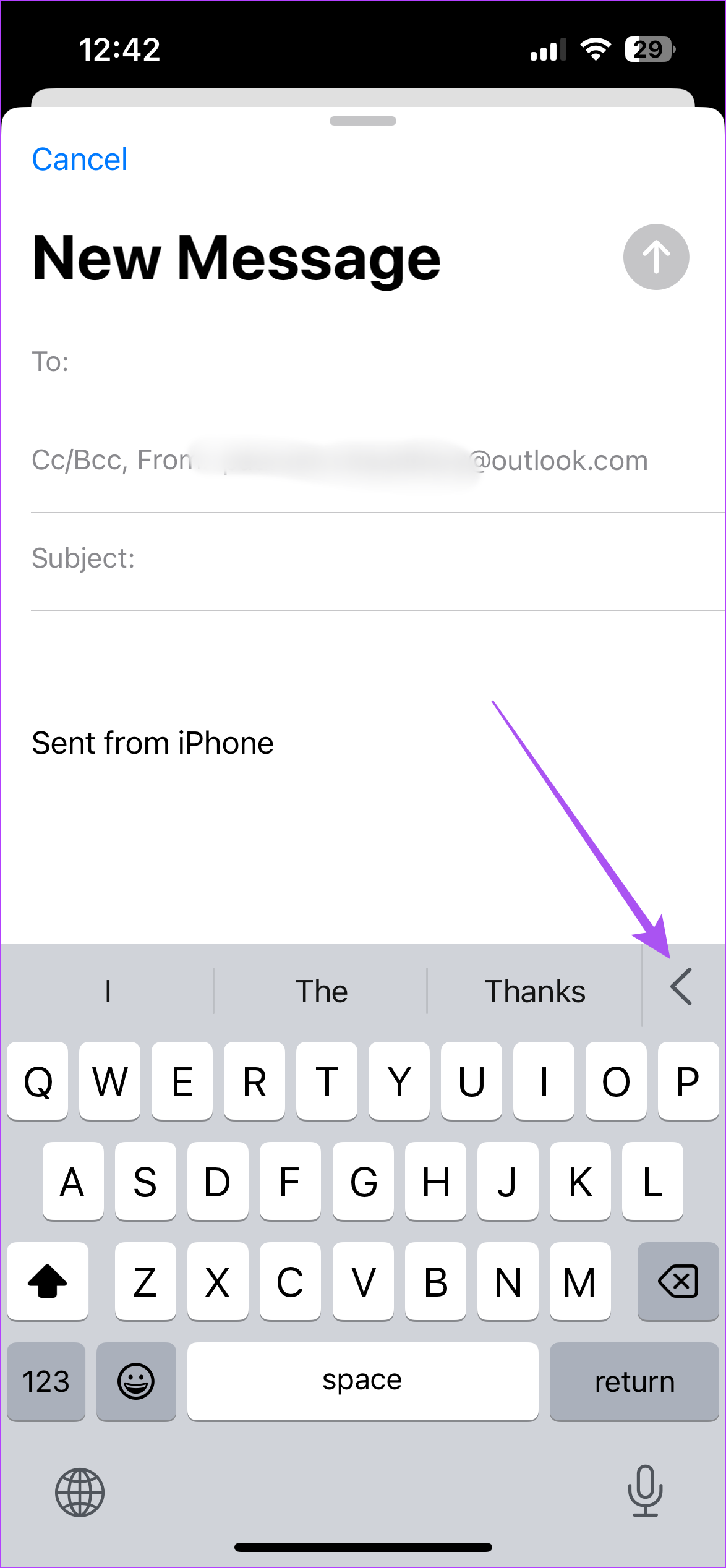

You will see all the options to format your selected text.
Step 4: To change the font style, tap on the Font option > select your font style from the list.
You can also make the email text smaller or larger by tapping on Font Size icons and changing the text color by tapping on Color Wheel.


You can also change the color of your font style by tapping on the Color Wheel icon.
Step 5: After choosing your preferences, click the Send icon at the top-right corner.
Was this helpful?
Last updated on 05 August, 2024
Read Next
 How to Change Font Style in Notes App on iPhone, iPad and Mac
Change Font Style in Notes App on iPhone and iPad Let's first show you how to change the font style of your notes in the Notes app on your iPhone
How to Change Font Style in Notes App on iPhone, iPad and Mac
Change Font Style in Notes App on iPhone and iPad Let's first show you how to change the font style of your notes in the Notes app on your iPhone
 How to Change Font Style in Gmail on Web and Mobile
Change Default Text Style in Gmail on Web The compose menu in Gmail on the Web offers several formatting tools to change an email's text look and style.
How to Change Font Style in Gmail on Web and Mobile
Change Default Text Style in Gmail on Web The compose menu in Gmail on the Web offers several formatting tools to change an email's text look and style.
 How to Change Font Style in Microsoft Outlook
Change Font Style in Microsoft Outlook App for Windows Outlook Windows app doesn’t use plain text and opts for HTML to draft a message.
How to Change Font Style in Microsoft Outlook
Change Font Style in Microsoft Outlook App for Windows Outlook Windows app doesn’t use plain text and opts for HTML to draft a message.
 Outlook App vs Apple Mail: Which Is a Better iOS Mail App
Frankly, there are so many mail apps for the iOS platform that it can be difficult to zero in on one.
Outlook App vs Apple Mail: Which Is a Better iOS Mail App
Frankly, there are so many mail apps for the iOS platform that it can be difficult to zero in on one.
 How to Change Default Font, Size, and Spacing in Google Docs
Change Default Text Font Type, Size, and Spacing in Google Docs You may believe the default text is too small, and the 1.15 spacing is a bit wider than you
How to Change Default Font, Size, and Spacing in Google Docs
Change Default Text Font Type, Size, and Spacing in Google Docs You may believe the default text is too small, and the 1.15 spacing is a bit wider than you
 How to Change Default Font in Google Sheets: 3 Easy Ways
Google Sheets is a powerful spreadsheet application that allows you to create and edit spreadsheets on the go.
How to Change Default Font in Google Sheets: 3 Easy Ways
Google Sheets is a powerful spreadsheet application that allows you to create and edit spreadsheets on the go.
 3 Ways to Fix Apple Mail Stuck on Checking for Mail on iPhone
Basic Fixes: Check the network connection: First, check the network connection quality on your iPhone. If you face network issues, you can enable Airplane mode on your iPhone and disable it
3 Ways to Fix Apple Mail Stuck on Checking for Mail on iPhone
Basic Fixes: Check the network connection: First, check the network connection quality on your iPhone. If you face network issues, you can enable Airplane mode on your iPhone and disable it
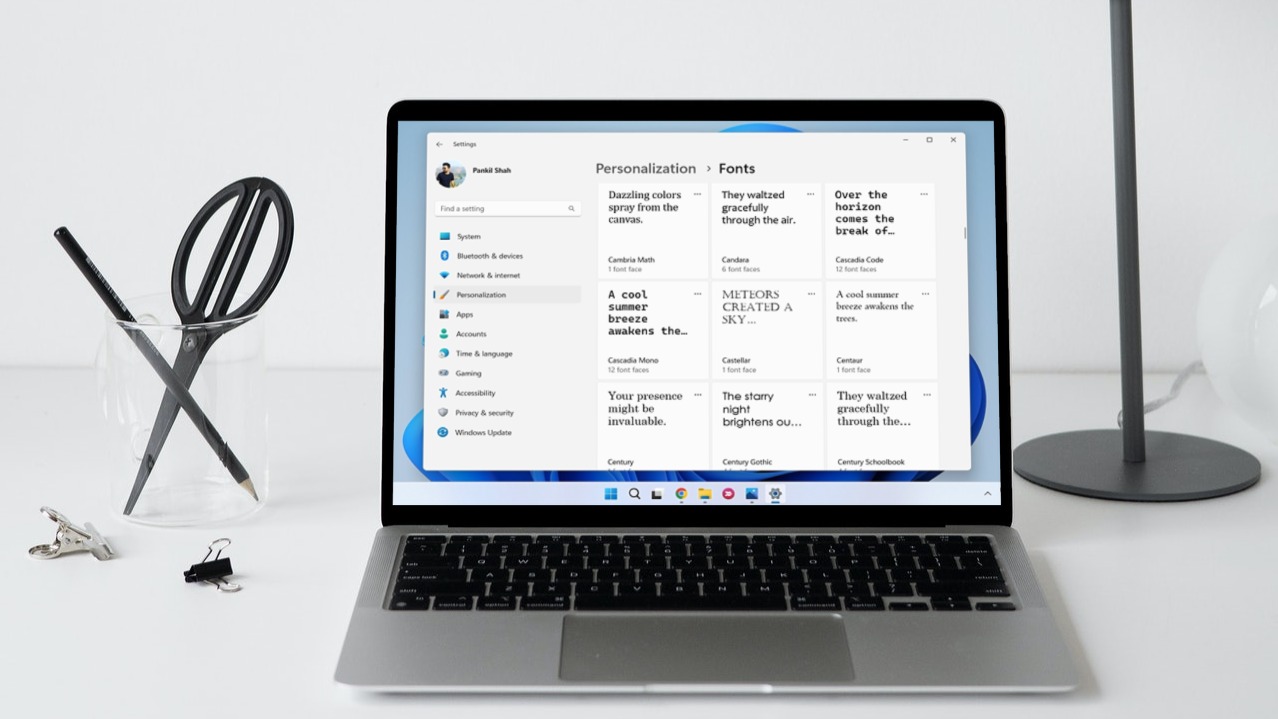 How to Change Default System Font on Windows 11
How to Change the Default Font on Windows 11 Windows 11 comes pre-installed with a wide range of fonts.
How to Change Default System Font on Windows 11
How to Change the Default Font on Windows 11 Windows 11 comes pre-installed with a wide range of fonts.
The article above may contain affiliate links which help support Guiding Tech. The content remains unbiased and authentic and will never affect our editorial integrity.