


Change Font Style in Microsoft Outlook App for Windows
Outlook Windows app doesn’t use plain text and opts for HTML to draft a message. The formatting options are straightforward. Let’s check them out.
Step 1: Open the Outlook app on Windows. Click on the New Email button at the top-left corner.
Step 2: Start typing body message, and Outlook will enable a formatting bar at the top.

The formatting options are standard, and if you have used Microsoft Word before, you will find yourself right at home.
Change Font Style in Microsoft Outlook for Mac
Outlook uses a completely revamped interface on Mac compared to the Windows version. When you start typing a new message, you will find a similar formatting bar at the top to tweak the font style.

Change Font Style in Microsoft Outlook Apps for iPhone and Android
Unlike Gmail apps for mobile, Outlook doesn’t hide font style options while drafting an email. Let’s check Outlook formatting options on iOS and Android.
On iPhone
Step 1: Open Outlook app on iPhone.
Step 2: Tap on the Plus icon at the bottom.
Step 3: Tap on the Format icon when you start writing an email.
Step 4: You can change the title, subhead, and body, add bullet points and numbers, and insert a link. However, the Outlook app for iPhone doesn’t provide options to change font colors and a highlighter.


Android
Step 1: Open Outlook app on Android and then tap on the compose button.
Step 2: Tap on the Format icon at the bottom and then open formatting options to change font style in Outlook.


The options are identical, but Outlook for Android does offer a pen tool to add your signature. Make sure to use it when required.
Change Font Style in Microsoft Outlook on Web
With the Office integration, email rules, and many other functions, it’s sufficient to say that Outlook web is the most feature-rich Outlook client out there. Some users might see plain text only when composing an email in Outlook. You need to enable formatting options first. Follow the steps below.
Step 1: Open Outlook site in a web browser and sign in with your Microsoft account details.
Step 2: Select the New message button at the top and then compose an email.
Step 3: You might see plain text enabled by default. It will turn off image attachments, emoji panel, and formatting options.
Step 4: Click on the three-dot menu on the bottom bar and then choose Switch to HTML.

Step 5: Outlook will enable the formatting bar at the bottom to change the font style and text alignment.

Microsoft Outlook for web comes with dozens of formatting options. You can change font type, size, play with bold, italic, underline effects, change color, use highlighter, and more.
You can open more formatting options (represented by the three-dot menu) and increase indent, insert a quote, link, superscript, and even add a table if you want more options. In short, you have all the required options to craft the perfect email on Outlook. As we said earlier, don’t go overboard with so many options at your fingertips.
Change Default Font Style in Microsoft Outlook on Web
Not everyone prefers the default font style in Outlook. If you are among those and constantly find yourself tweaking font style and size, you need to change the default font style once and for all. Here’s how.
Step 1: Open Outlook for web in a browser, sign in with your Microsoft account, and select the Settings icon in the top-right.
Step 2: When a column on the right opens, click on View all Outlook settings link in the bottom-right corner.

Step 3: From the Mail menu, select Compose and reply.
Step 4: Scroll down to Compose a message in HTML format. Change the default text style and size, and use bold, italic, and underline effects.
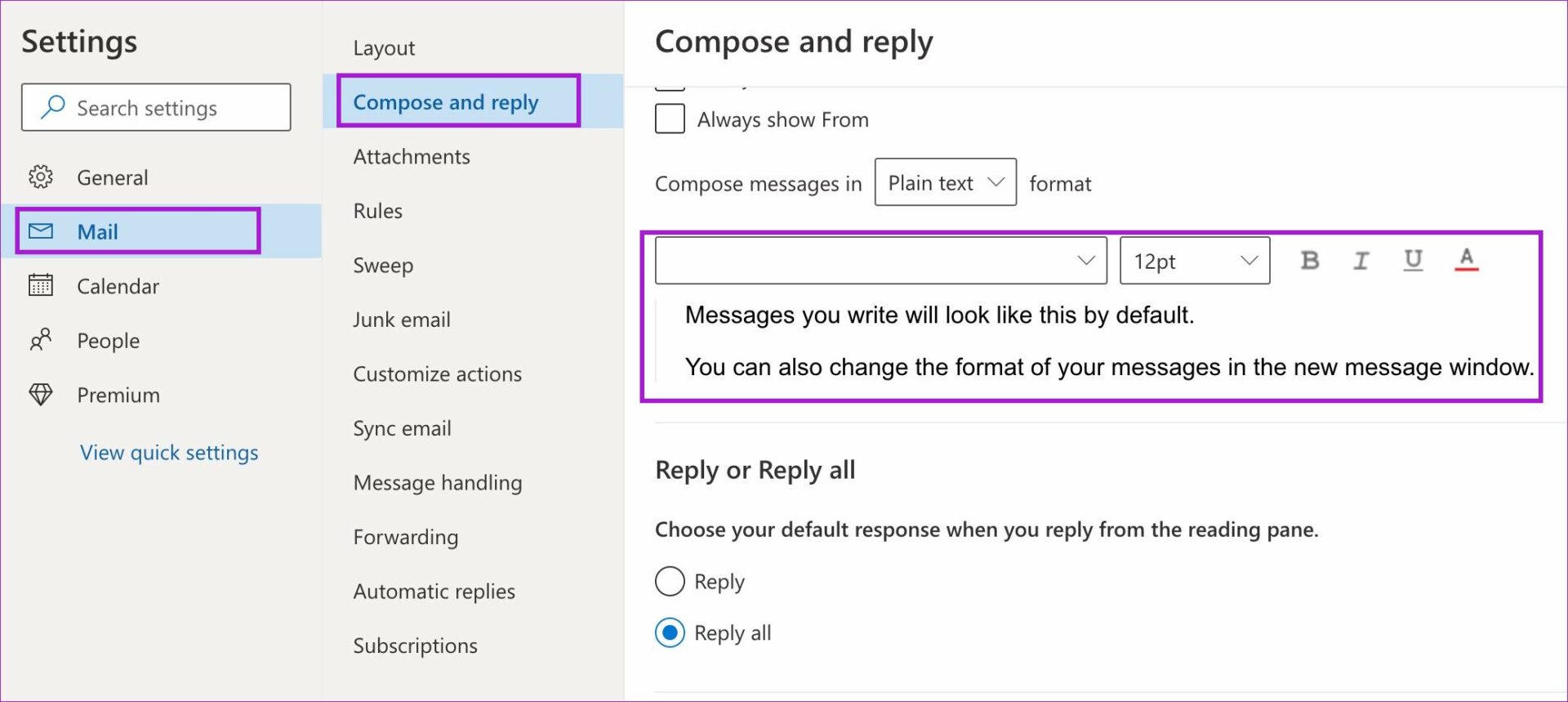
Step 5: Check the live preview at the bottom and hit the Save button.
Compose an email in Outlook and check the new default text style in action.
Tip: You can also read our dedicated post to change font style in Gmail.
Was this helpful?
Last updated on 07 August, 2024
Read Next
 How to Change Font Style in Gmail on Web and Mobile
Change Default Text Style in Gmail on Web The compose menu in Gmail on the Web offers several formatting tools to change an email's text look and style.
How to Change Font Style in Gmail on Web and Mobile
Change Default Text Style in Gmail on Web The compose menu in Gmail on the Web offers several formatting tools to change an email's text look and style.
 How to Change Font Style in Notes App on iPhone, iPad and Mac
Change Font Style in Notes App on iPhone and iPad Let's first show you how to change the font style of your notes in the Notes app on your iPhone
How to Change Font Style in Notes App on iPhone, iPad and Mac
Change Font Style in Notes App on iPhone and iPad Let's first show you how to change the font style of your notes in the Notes app on your iPhone
 How to Change Font Style and Size in Apple Mail App
Change Font Style in Apple Mail on Mac Step 1: Open the Mail app > compose a new message.
How to Change Font Style and Size in Apple Mail App
Change Font Style in Apple Mail on Mac Step 1: Open the Mail app > compose a new message.
 How to Change Default System Font on Windows 11
How to Change the Default Font on Windows 11 Windows 11 comes pre-installed with a wide range of fonts.
How to Change Default System Font on Windows 11
How to Change the Default Font on Windows 11 Windows 11 comes pre-installed with a wide range of fonts.
 How to Change Default Font, Size, and Spacing in Google Docs
Change Default Text Font Type, Size, and Spacing in Google Docs You may believe the default text is too small, and the 1.15 spacing is a bit wider than you
How to Change Default Font, Size, and Spacing in Google Docs
Change Default Text Font Type, Size, and Spacing in Google Docs You may believe the default text is too small, and the 1.15 spacing is a bit wider than you
 2 Ways to Change SMS and iMessage Color and Font on iPhone or iPad
What Does the Standard Message Color Represent The message bubbles are available in three different colors.
2 Ways to Change SMS and iMessage Color and Font on iPhone or iPad
What Does the Standard Message Color Represent The message bubbles are available in three different colors.
 How to Change Default Font in Google Sheets: 3 Easy Ways
Google Sheets is a powerful spreadsheet application that allows you to create and edit spreadsheets on the go.
How to Change Default Font in Google Sheets: 3 Easy Ways
Google Sheets is a powerful spreadsheet application that allows you to create and edit spreadsheets on the go.
 Top 4 Ways to Change New Outlook Back to Old (Classic View) Outlook on Windows and Mac
The new Outlook app for desktop boasts a modern and simplified design, aligning it more closely with the web version of Microsoft Outlook.
Top 4 Ways to Change New Outlook Back to Old (Classic View) Outlook on Windows and Mac
The new Outlook app for desktop boasts a modern and simplified design, aligning it more closely with the web version of Microsoft Outlook.
The article above may contain affiliate links which help support Guiding Tech. The content remains unbiased and authentic and will never affect our editorial integrity.

