Change Default Text Style in Gmail on Web
The compose menu in Gmail on the Web offers several formatting tools to change an email’s text look and style. These options are on par with dedicated word processing software. Here’s how to go about it.
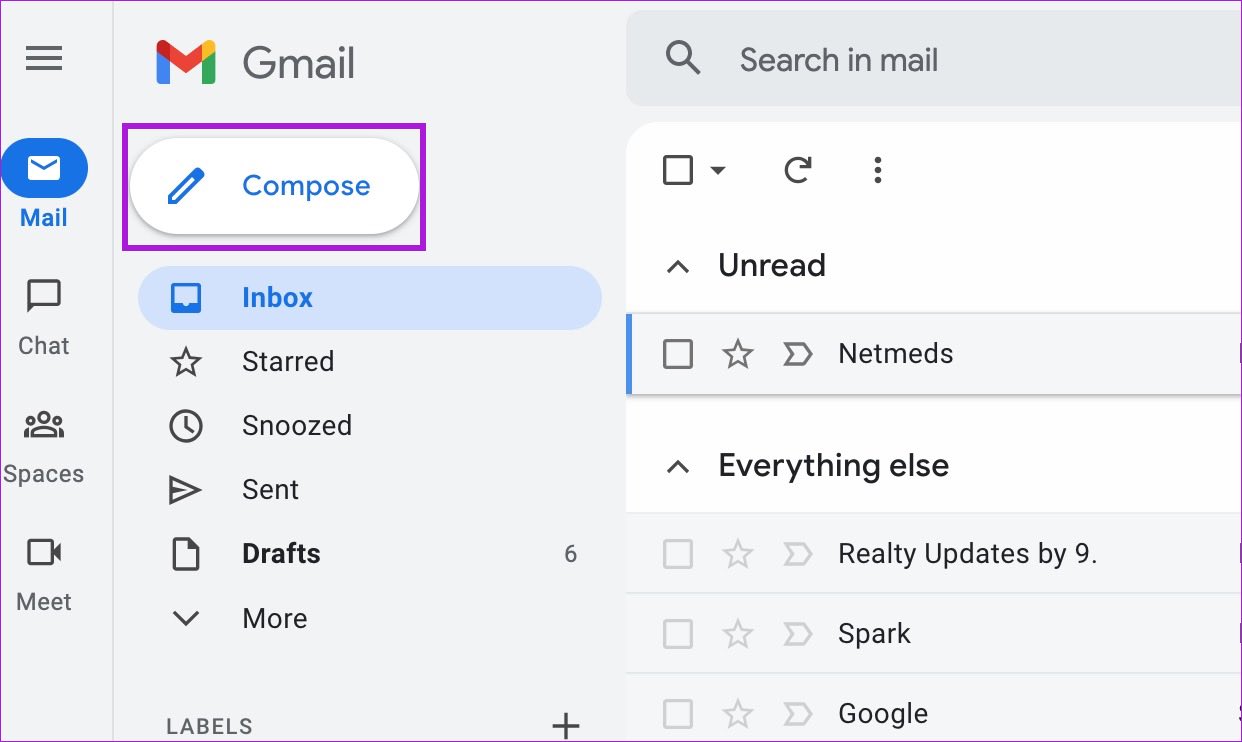
Step 1: Open Gmail in a web browser > click on Compose.
Step 2: Add the recipient’s email address and subject, and type your message.
Step 3: Use the formatting bar below to change the text look and style.
Step 4: If the formatting options don’t appear, click on the A button at the bottom.
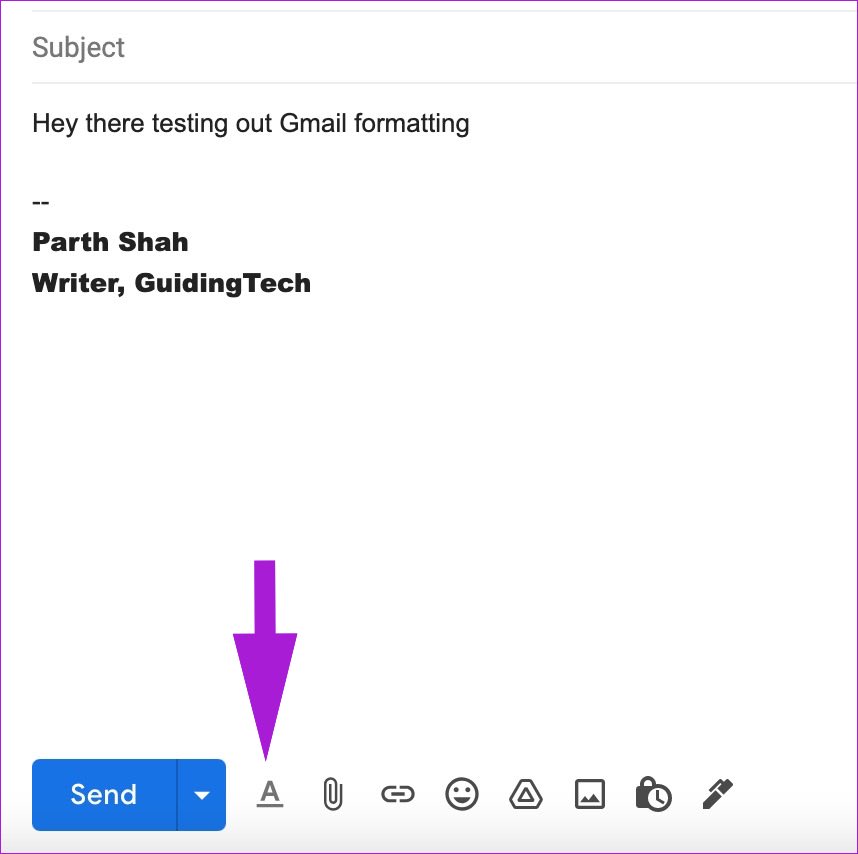
Here are the formatting options on offer for Gmail on the web:
- Change text type and size
- Play with bold, italic, and underline text effects
- Change text and background color (highlight text)
- Change text alignment
- Quote
- Numbered and bullet list
- Strikethrough
Also Read: How to use snooze in Gmail on mobile and desktop
Change Text Style in Gmail for Android
While not visible upfront, Gmail for Android offers formatting options to tweak text style. It can be helpful while responding to an email or composing a new one. Follow the steps below to learn it.
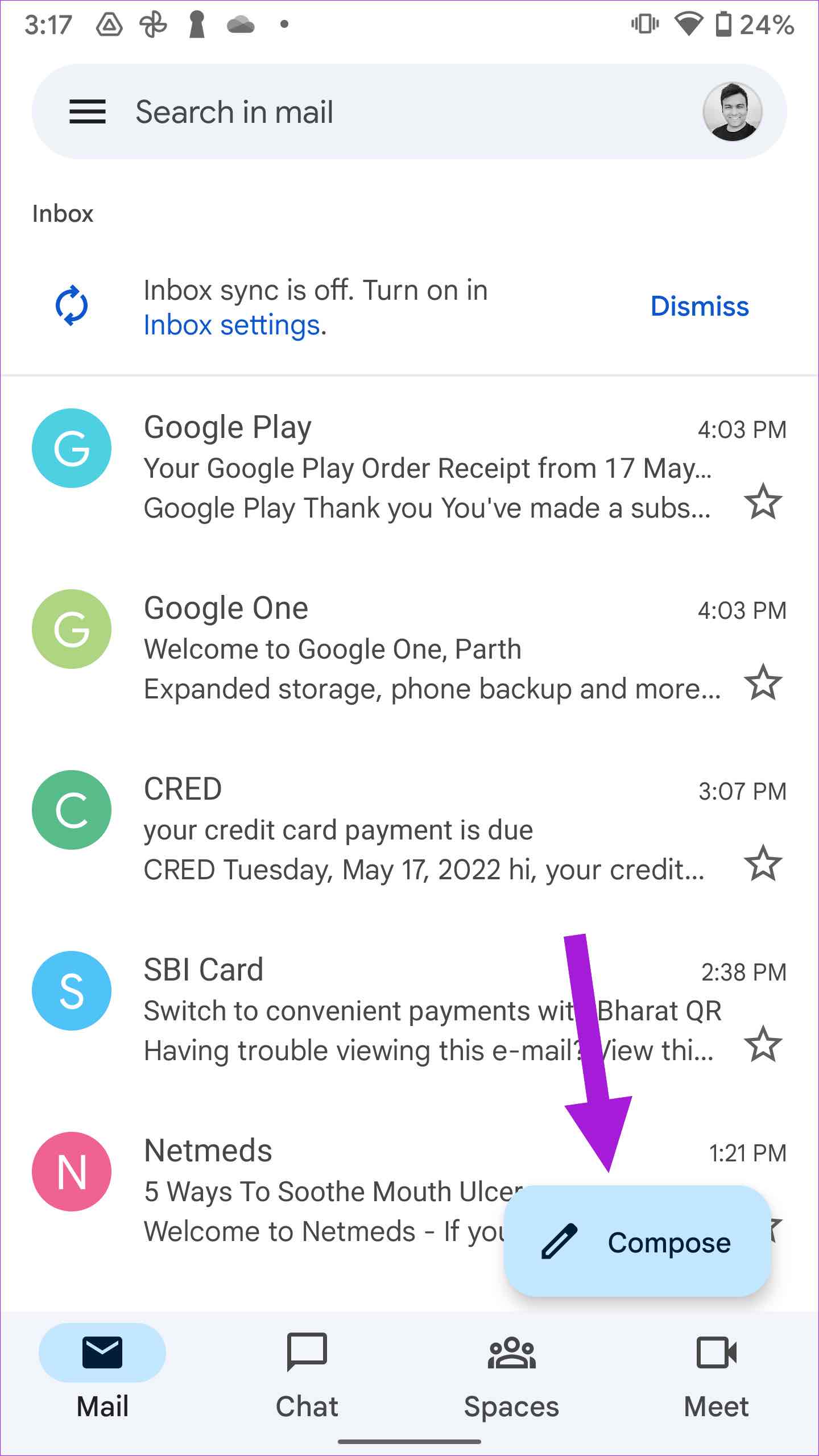
Step 1: Open the Gmail app on Android. Then, tap on the Compose button at the bottom-right corner.
Step 2: Compose your email and start typing your message.
Step 3: When you want to highlight something, select the text and tap on Format from the context menu.
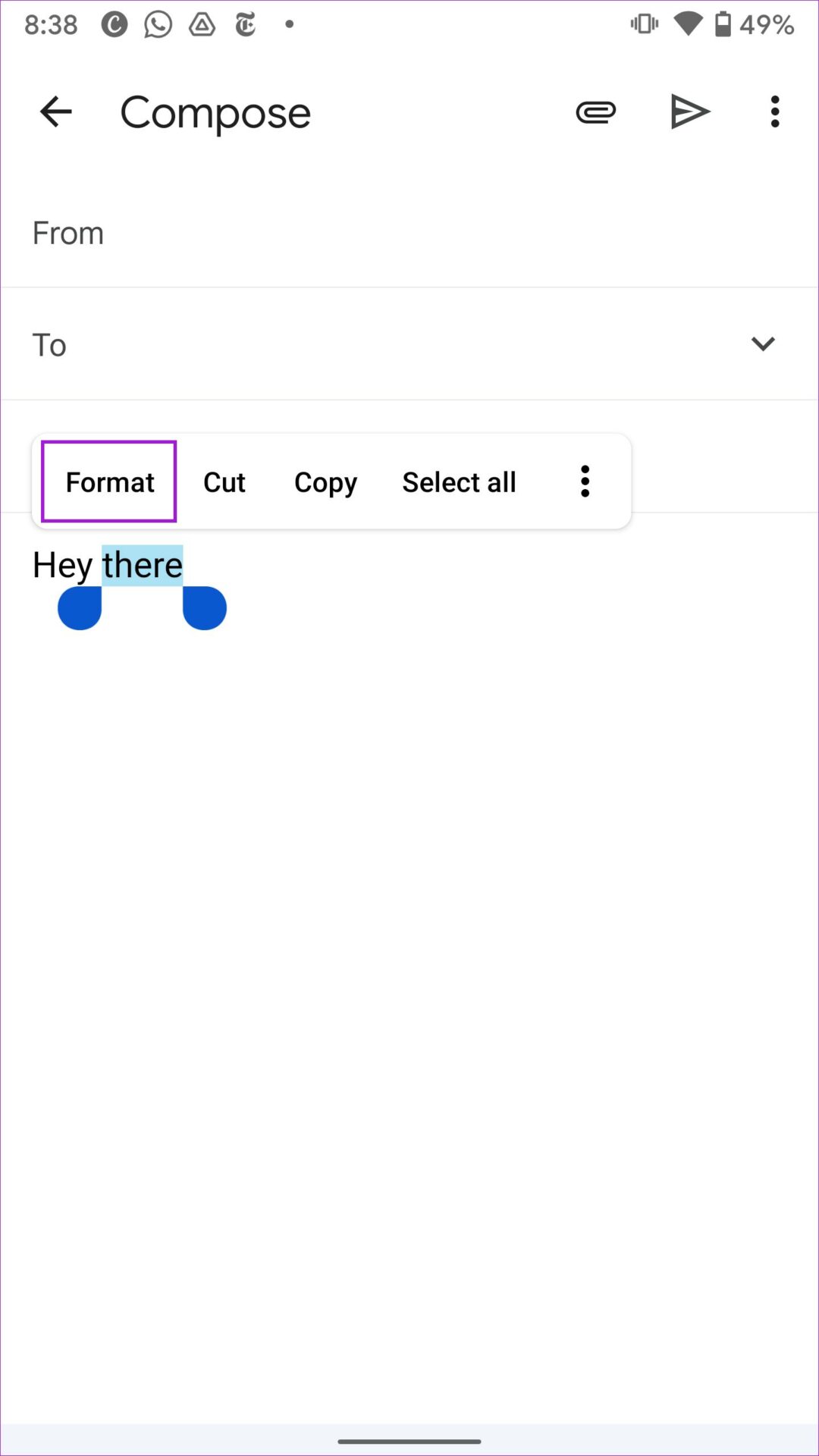
Step 4: You can add bold, italic, and underline effects and change text style and color.
Tap on the cross mark at the bottom-right corner to hide the formatting bar. The Gmail app for Android does not allow you to change the default text style.
Also Read: How to import Gmail contacts to iPhone
Text Formatting in the Gmail App for iPhone
Gmail’s text formatting options are limited in its official app for iPhone than its Android app. You can only play with bold, italic, and underline. Here’s how.
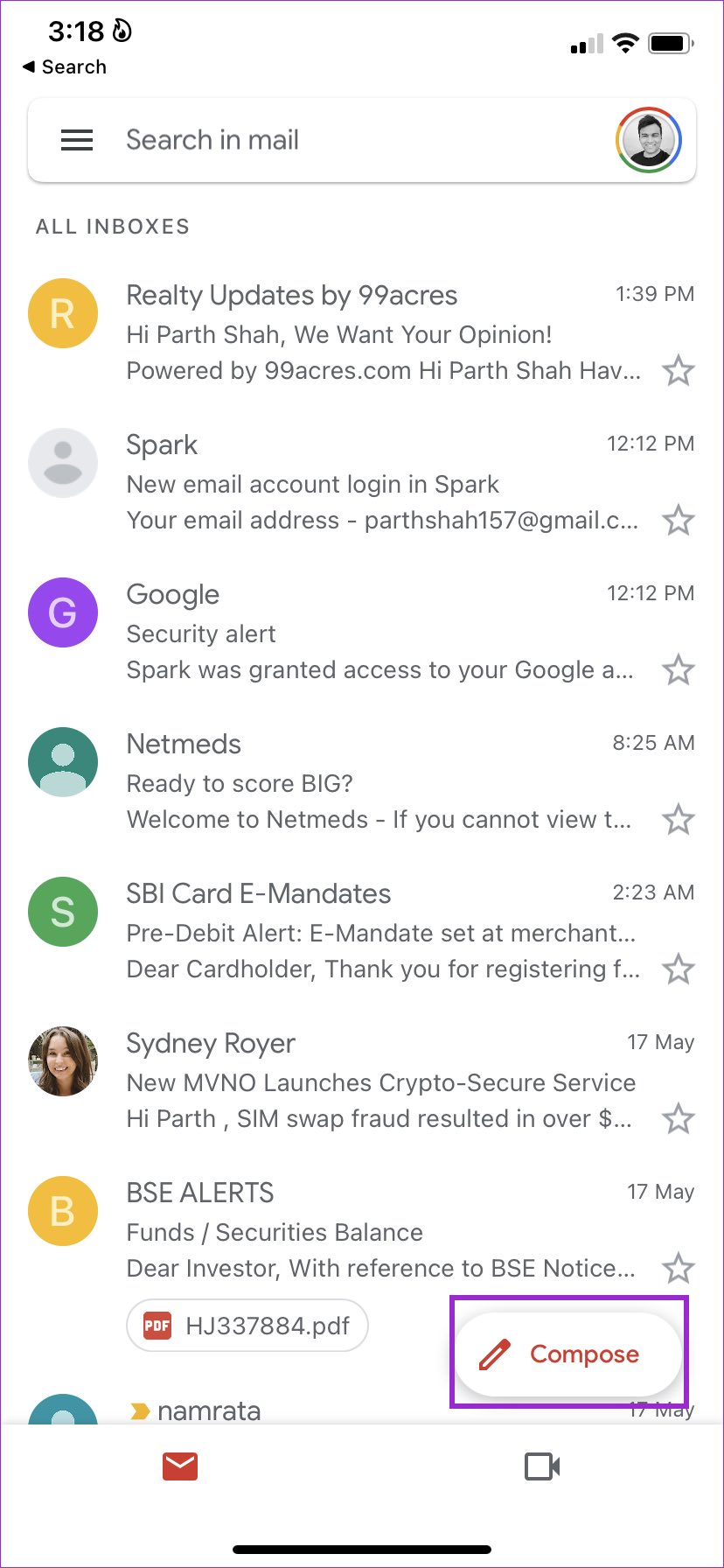
Step 1: Open the Gmail app on your iPhone. Once opened, tap on Compose to type a message.
Step 2: Long-tap on the text you want to format. Tap on formatting options and select bold, italic, or underline style.
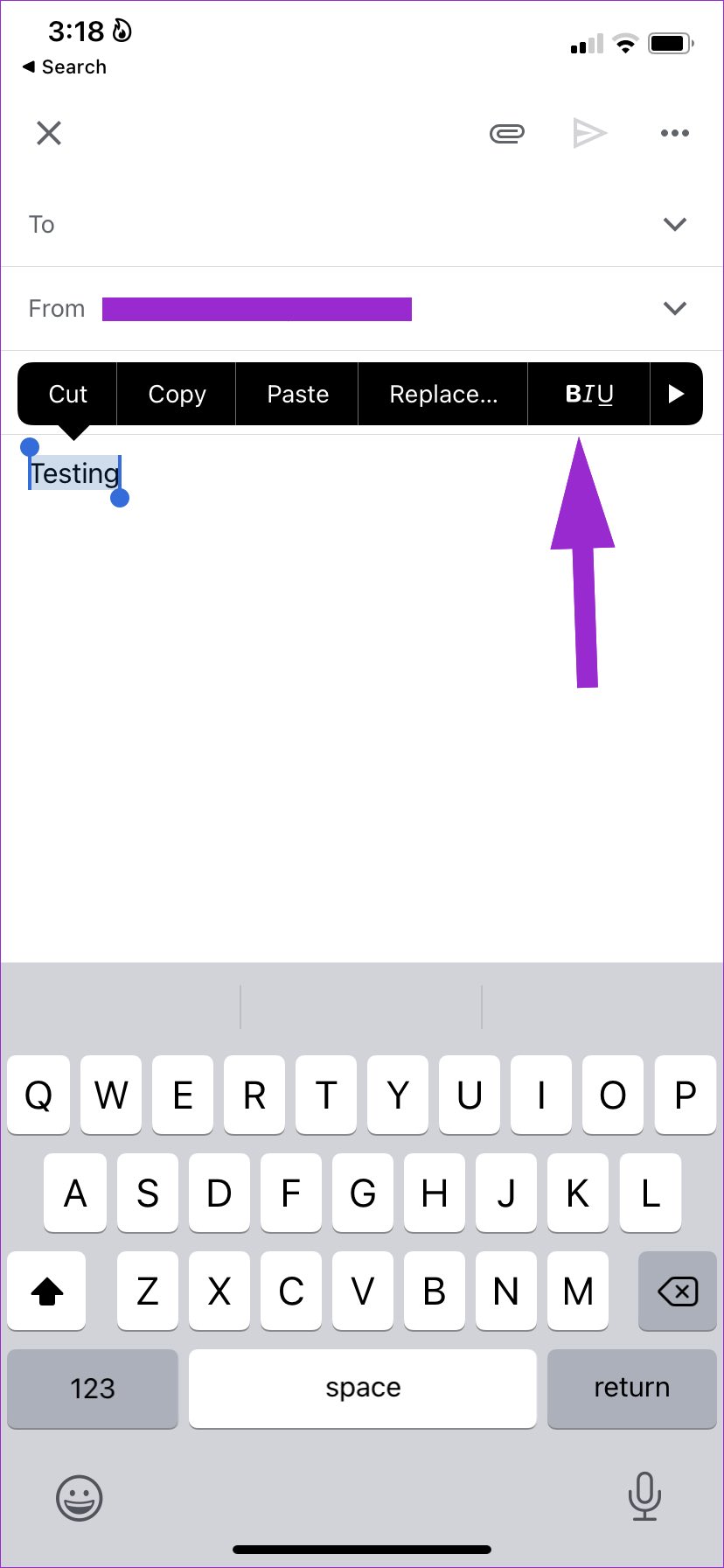
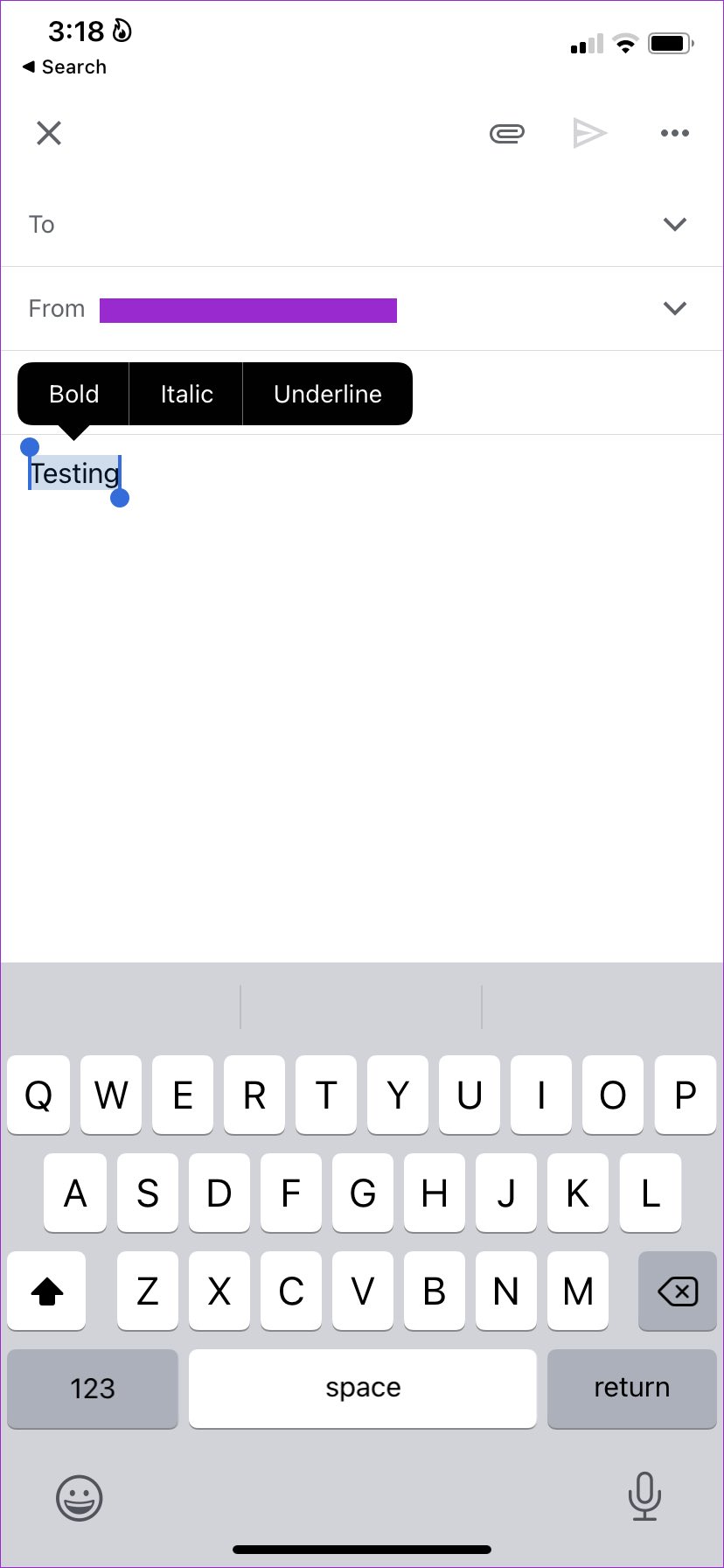
We aren’t sure why Google doesn’t offer the same rich text formatting options (as Android ones) on iOS.
Was this helpful?
Last updated on 31 May, 2024
Read Next
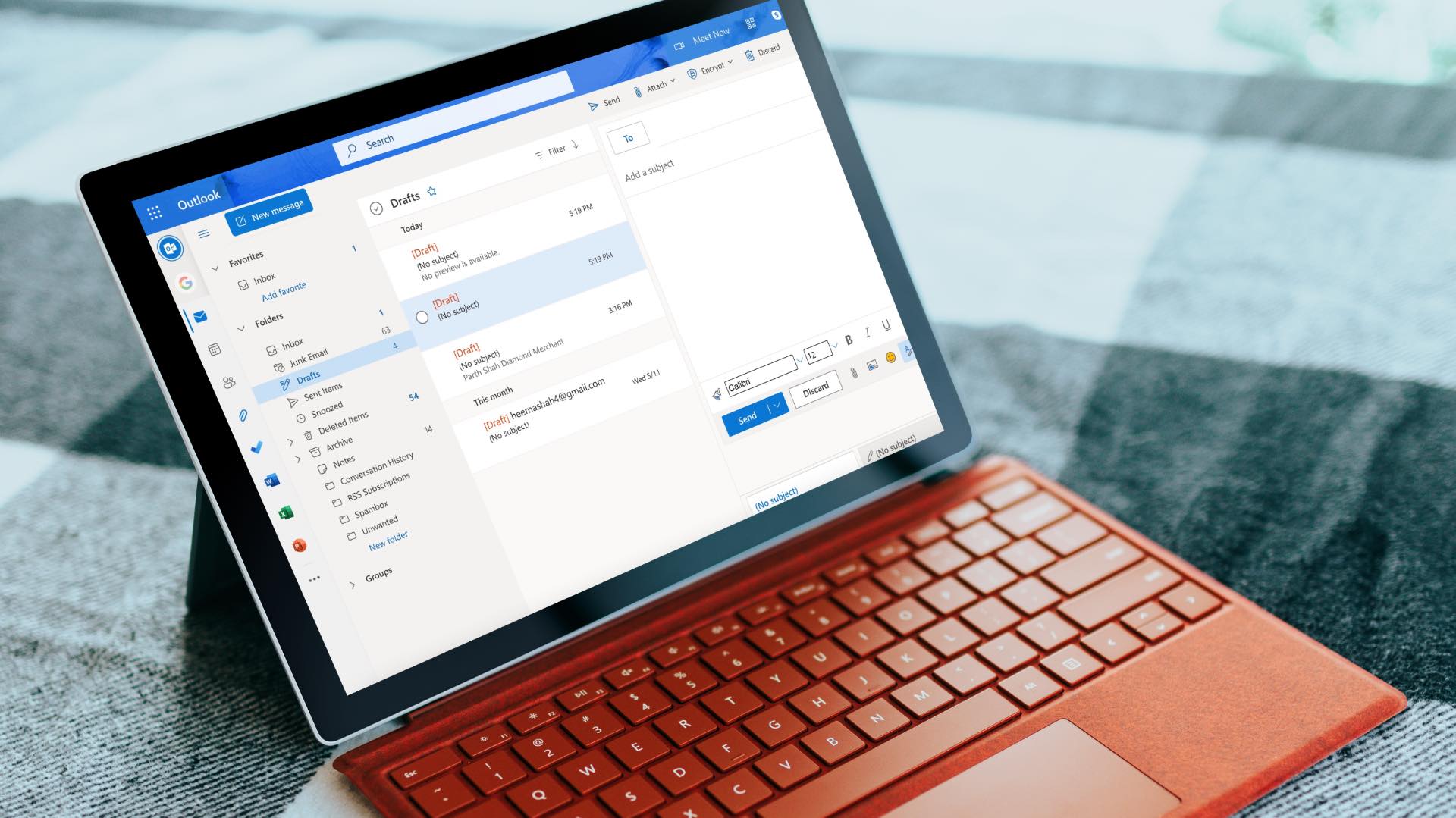 How to Change Font Style in Microsoft Outlook
Change Font Style in Microsoft Outlook App for Windows Outlook Windows app doesn’t use plain text and opts for HTML to draft a message.
How to Change Font Style in Microsoft Outlook
Change Font Style in Microsoft Outlook App for Windows Outlook Windows app doesn’t use plain text and opts for HTML to draft a message.
 How to Change Font Style and Size in Apple Mail App
Change Font Style in Apple Mail on Mac Step 1: Open the Mail app > compose a new message.
How to Change Font Style and Size in Apple Mail App
Change Font Style in Apple Mail on Mac Step 1: Open the Mail app > compose a new message.
 How to Change Font Style in Notes App on iPhone, iPad and Mac
Change Font Style in Notes App on iPhone and iPad Let's first show you how to change the font style of your notes in the Notes app on your iPhone
How to Change Font Style in Notes App on iPhone, iPad and Mac
Change Font Style in Notes App on iPhone and iPad Let's first show you how to change the font style of your notes in the Notes app on your iPhone
 How to Change Default Font, Size, and Spacing in Google Docs
Change Default Text Font Type, Size, and Spacing in Google Docs You may believe the default text is too small, and the 1.15 spacing is a bit wider than you
How to Change Default Font, Size, and Spacing in Google Docs
Change Default Text Font Type, Size, and Spacing in Google Docs You may believe the default text is too small, and the 1.15 spacing is a bit wider than you
 How to Change Default Font in Google Sheets: 3 Easy Ways
Google Sheets is a powerful spreadsheet application that allows you to create and edit spreadsheets on the go.
How to Change Default Font in Google Sheets: 3 Easy Ways
Google Sheets is a powerful spreadsheet application that allows you to create and edit spreadsheets on the go.
 How to Connect Your Gmail Account to Outlook (Web and App)
Why You Should Integrate Gmail with Outlook Outlook has excellent native apps compared to Gmail’s web solution on desktop.
How to Connect Your Gmail Account to Outlook (Web and App)
Why You Should Integrate Gmail with Outlook Outlook has excellent native apps compared to Gmail’s web solution on desktop.
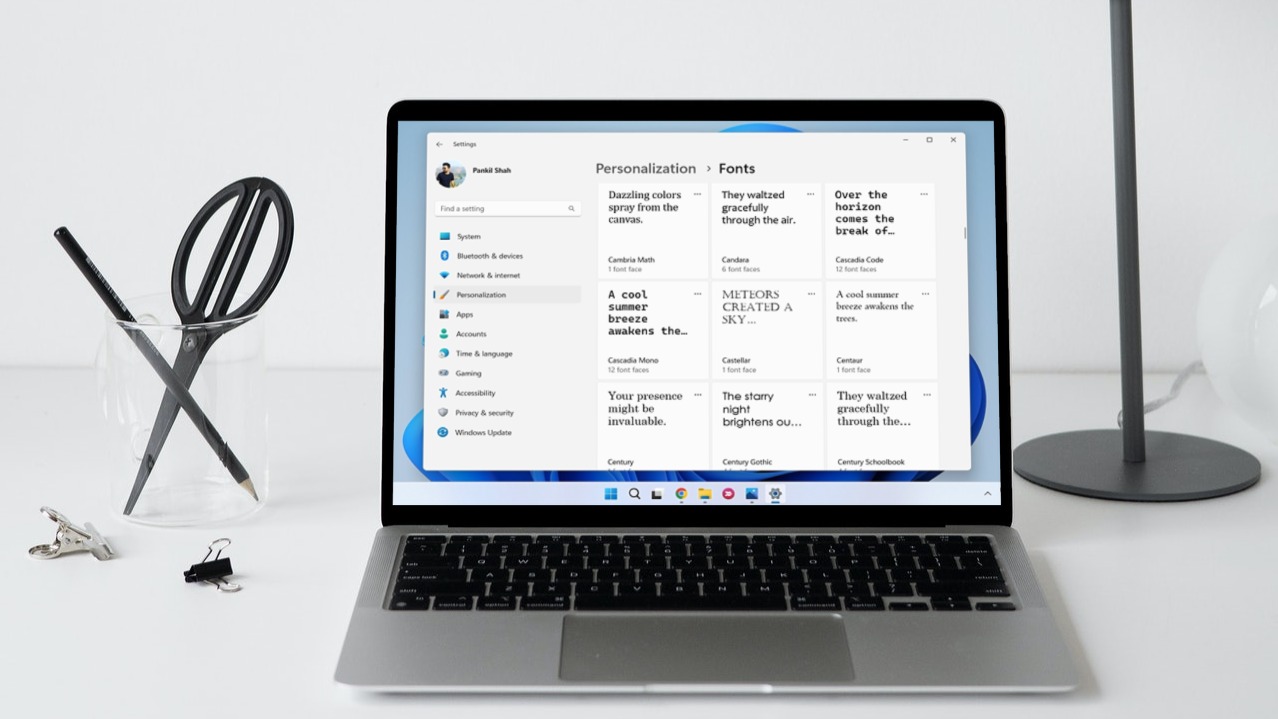 How to Change Default System Font on Windows 11
How to Change the Default Font on Windows 11 Windows 11 comes pre-installed with a wide range of fonts.
How to Change Default System Font on Windows 11
How to Change the Default Font on Windows 11 Windows 11 comes pre-installed with a wide range of fonts.
 2 Ways to Change SMS and iMessage Color and Font on iPhone or iPad
What Does the Standard Message Color Represent The message bubbles are available in three different colors.
2 Ways to Change SMS and iMessage Color and Font on iPhone or iPad
What Does the Standard Message Color Represent The message bubbles are available in three different colors.
The article above may contain affiliate links which help support Guiding Tech. The content remains unbiased and authentic and will never affect our editorial integrity.