Method 1: Use WhatsApp to Blur a Part of Video on iPhone
If you don’t want to install a dedicated app to blur something in video on an iPhone, use your favorite instant messaging app like WhatsApp or Telegram. Let’s start with WhatsApp first.
While WhatsApp doesn’t offer a blur effect, you can get creative and add an emoji or sticker over a video frame you want to hide.
Step 1: Open WhatsApp > Go to the chat > Plus icon > Videos.
Step 2: Select a video and then tap the Sticker icon.
Step 3: Add a sticker to a specific frame. You can’t resize it, though. Check the video preview and then hit Send.
Step 4: Open the sent video and then tap the Share icon at the bottom. Select Save.


Tip: Learn how to share high-quality videos using Telegram.
Method 2: Use Telegram to Blur Faces in a Video on iPhone
Telegram goes a step ahead and lets you doddle over a video. Unlike WhatsApp, this one also offers animated stickers which you can use to conceal a part of a video. Let’s check them in action and make videos blurry on an iPhone.
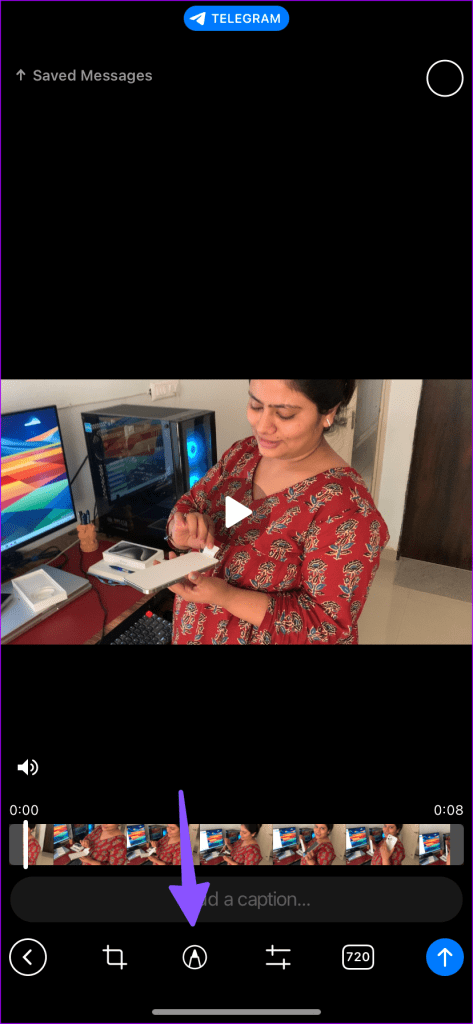
Step 1: Open Telegram > Go to the chat > Pin icon > Gallery.
Step 2: Tap the pen icon and then use one of the drawing tools to doddle over a frame.
Step 3: Slide to Sticker and then use one of the stickers to apply. You can also resize a sticker.
Step 4: Increase video quality from the bottom menu > Tap Send.

Method 3: Use Third-Party Apps to Blur Something in Video on iPhone
You don’t need to use professional apps like Premiere Pro to blur faces in a video on an iPhone. There are dozens of free alternatives to choose from. We tested a few and picked a couple of capable options for you.
Blur-Video
Blur-Video is one such app that hides confidential details in a video. The app has a clean and easy-to-understand UI and gets the job done in no time. Let’s check it in action.
Step 1: Download Blur-Video on iPhone using the link below.
Step 2: Launch the app > tap Start > Give the required permission to read your device photos and videos > Select a video you want to blur.
Step 3: The app opens a video editor with a standard timeline. Tap Add Blur.
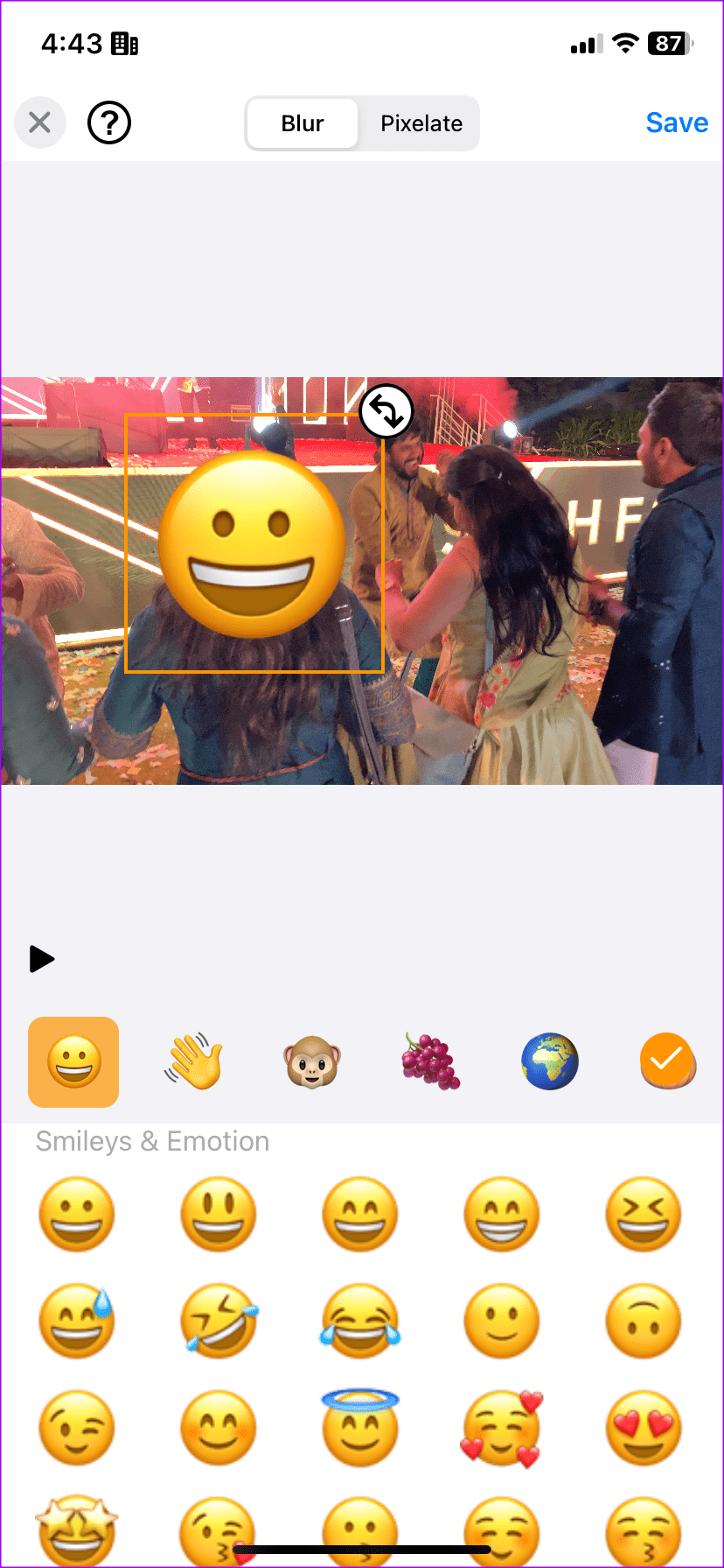
Step 4: You have several options to tweak the blur effect. You can resize the blur part, change the blur size to square, and even add an emoji to a video. You can tweak the blur strength from the top slider.
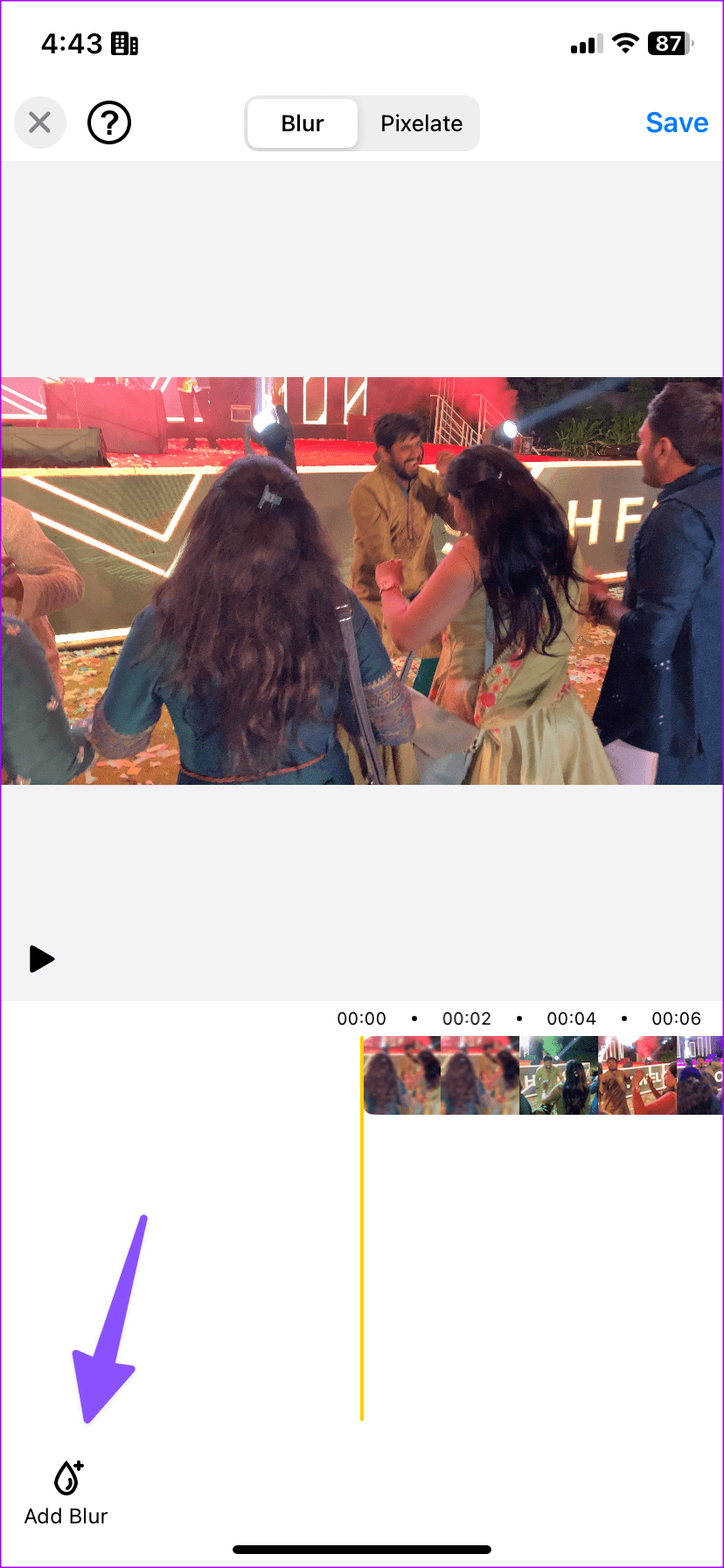

Step 5: You can slide to Pixelate if you prefer it over standard blur.
Play your video, and make sure to add blur in a specific frame only. When you are satisfied with the final outcome, hit Save in the top-right corner to export it to the Photos app.

Blur Video – Face Blur on iPhone
The app above is strictly limited to blurring a part of a video only. If you want to explore several video editing features, use the Blur Video – Face Blur app on your iPhone.
Step 1: Install the app > Give permissions > New Project > Select the video.
Step 2: You can trim a video before you start editing. Tap Next.
Step 3: You can add a face, rectangle, or circle blur. You can switch to Pixelate and then even tweak blur intensity.
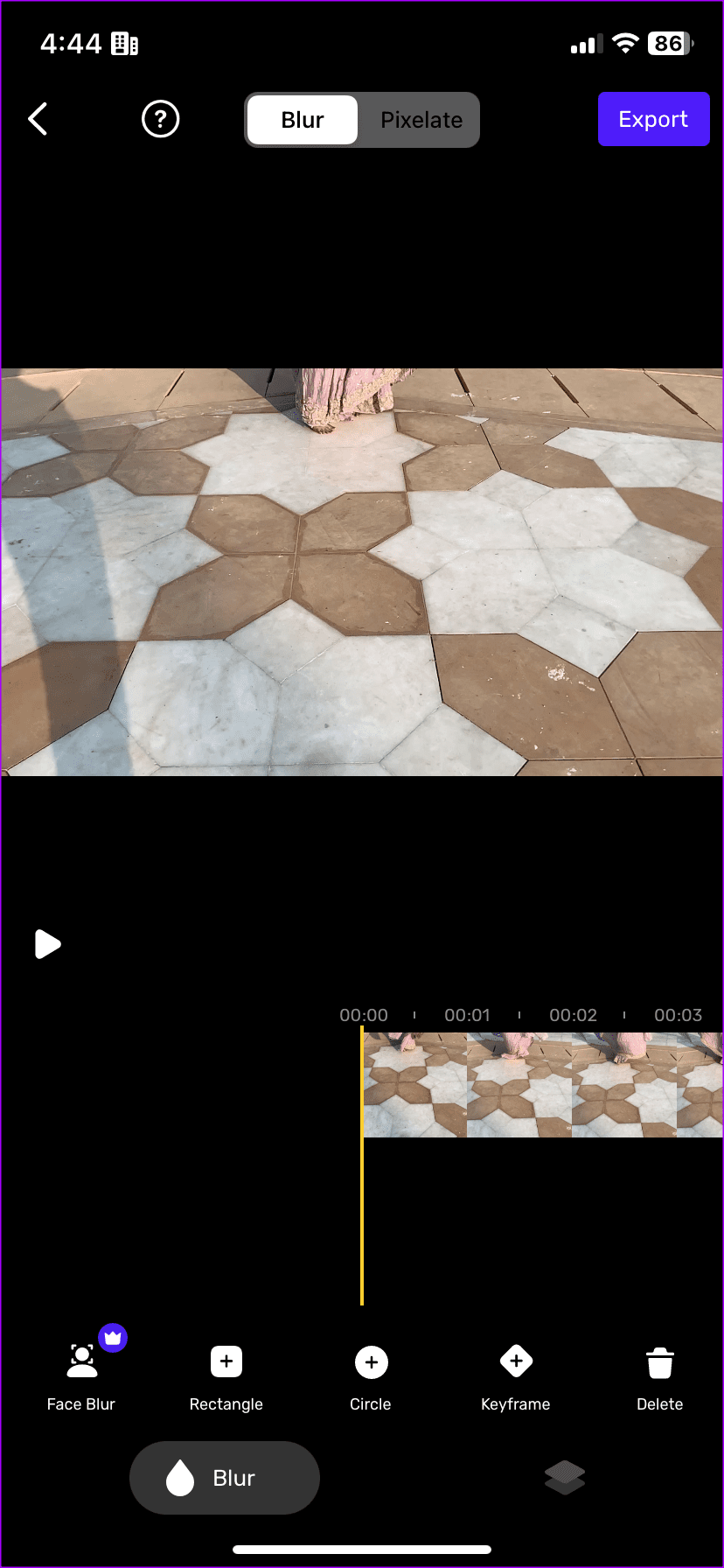

Before exporting a video, slide to the filters menu and apply a relevant effect to your clip. Tap Export, and your video is ready for sharing.
Was this helpful?
Last updated on 26 August, 2024
Read Next
 How to Blur Background in WhatsApp Video Calls on iPhone and Android
https://youtu.be/QC0vCCGNfsA How to Blur WhatsApp Video Call Background on iPhone You can blur the background of your WhatsApp video call right from the Control Center on your iPhone.
How to Blur Background in WhatsApp Video Calls on iPhone and Android
https://youtu.be/QC0vCCGNfsA How to Blur WhatsApp Video Call Background on iPhone You can blur the background of your WhatsApp video call right from the Control Center on your iPhone.
 3 Ways to Fix Screen Recording Not Working on iPhone and iPad
Basic Fixes Restart iPhone: Restarting your iPhone may resolve any software glitches preventing screen recording.
3 Ways to Fix Screen Recording Not Working on iPhone and iPad
Basic Fixes Restart iPhone: Restarting your iPhone may resolve any software glitches preventing screen recording.
 5 Ways to Blur a Part of Picture on iPhone and iPad
Method 1: Use Markup Tools in the Photos App While the default markup option in the Photos app doesn’t come with a blur tool, you can get creative and use
5 Ways to Blur a Part of Picture on iPhone and iPad
Method 1: Use Markup Tools in the Photos App While the default markup option in the Photos app doesn’t come with a blur tool, you can get creative and use
 2 Ways to Fix No Audio When Recording Videos on iPhone
https://youtu.be/N8_G5TlpptA Basic Troubleshooting Unmute the audio - This isn’t a solution to the problem but a step that can verify whether there is a problem in the first place.
2 Ways to Fix No Audio When Recording Videos on iPhone
https://youtu.be/N8_G5TlpptA Basic Troubleshooting Unmute the audio - This isn’t a solution to the problem but a step that can verify whether there is a problem in the first place.
 3 Fixes for Voice Memos Not Recording Audio on iPhone
Basic Fixes Check Microphone permissions for the Voice Memos app: Open Settings > Voice Memos > enable Microphone access.
3 Fixes for Voice Memos Not Recording Audio on iPhone
Basic Fixes Check Microphone permissions for the Voice Memos app: Open Settings > Voice Memos > enable Microphone access.
 How to Convert Slow Motion Video to Normal Video on iPhone
Recording a video in slow motion can add an artistic flair to your content and make it visually appealing.
How to Convert Slow Motion Video to Normal Video on iPhone
Recording a video in slow motion can add an artistic flair to your content and make it visually appealing.
 4 Fixes When Google Meet Background Blur Is Not Working
Basic Fix: Use Google Chrome: Because not all browsers meet the requirements for blur, Google Chrome is the safest choice.
4 Fixes When Google Meet Background Blur Is Not Working
Basic Fix: Use Google Chrome: Because not all browsers meet the requirements for blur, Google Chrome is the safest choice.
 4 Ways to Blur Out a Part of Picture on Mac
Method 1.
4 Ways to Blur Out a Part of Picture on Mac
Method 1.
The article above may contain affiliate links which help support Guiding Tech. The content remains unbiased and authentic and will never affect our editorial integrity.