What Happens if You Block a Telegram User?
- The blocked user can no longer send you direct messages.
- The blocked user won’t be able to see your Last Seen timestamp or your online status. So will you.
- The blocked user will not see your profile picture. You might still see their profile picture unless they block you.
- If the blocked user forwards a message you sent to another chat, your name will not be visible as the original sender.
- Blocking a user doesn’t affect your interaction with channels or bots they manage.
- The blocked user won’t be notified that they’ve been blocked.
Furthermore, blocking someone on Telegram is reversible. You can unblock them anytime, and things will return to normal, as before you blocked the user. With that said, let’s begin with the steps.
Also Read: How to hide your phone number on Telegram
How to Block Someone on Telegram
Note: Blocking someone on Telegram will also remove them from your contacts list and delete your chat history with that person.
On Desktop
The steps remain broadly consistent between Telegram desktop versions for Windows and Mac operating systems. In this guide, we will showcase the Windows steps for demonstration purposes. If you are on Mac, follow along.
Step 1: Open the Telegram app on your Windows or Mac computer. Click on the hamburger icon in the top left corner.
Note: If you are on Mac, you can directly go to Contact from the side pane’s bottom menu.
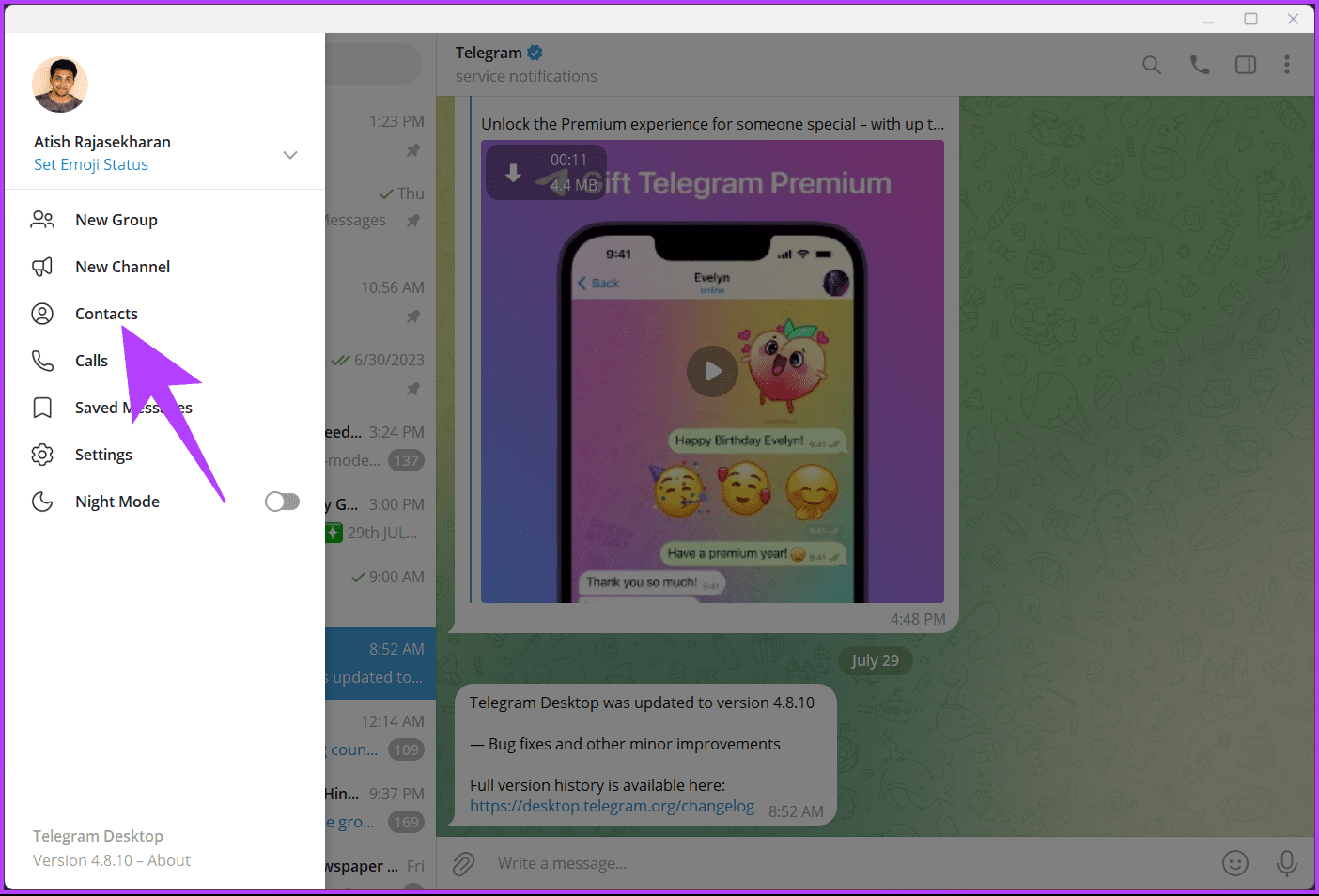
Step 2: From the side pane, choose Contacts.
Step 3: In the Contacts pop-up, scroll and choose the contact you want to block.
Note: You can also use the search bar at the top to search for contacts to delete rather than finding them manually.
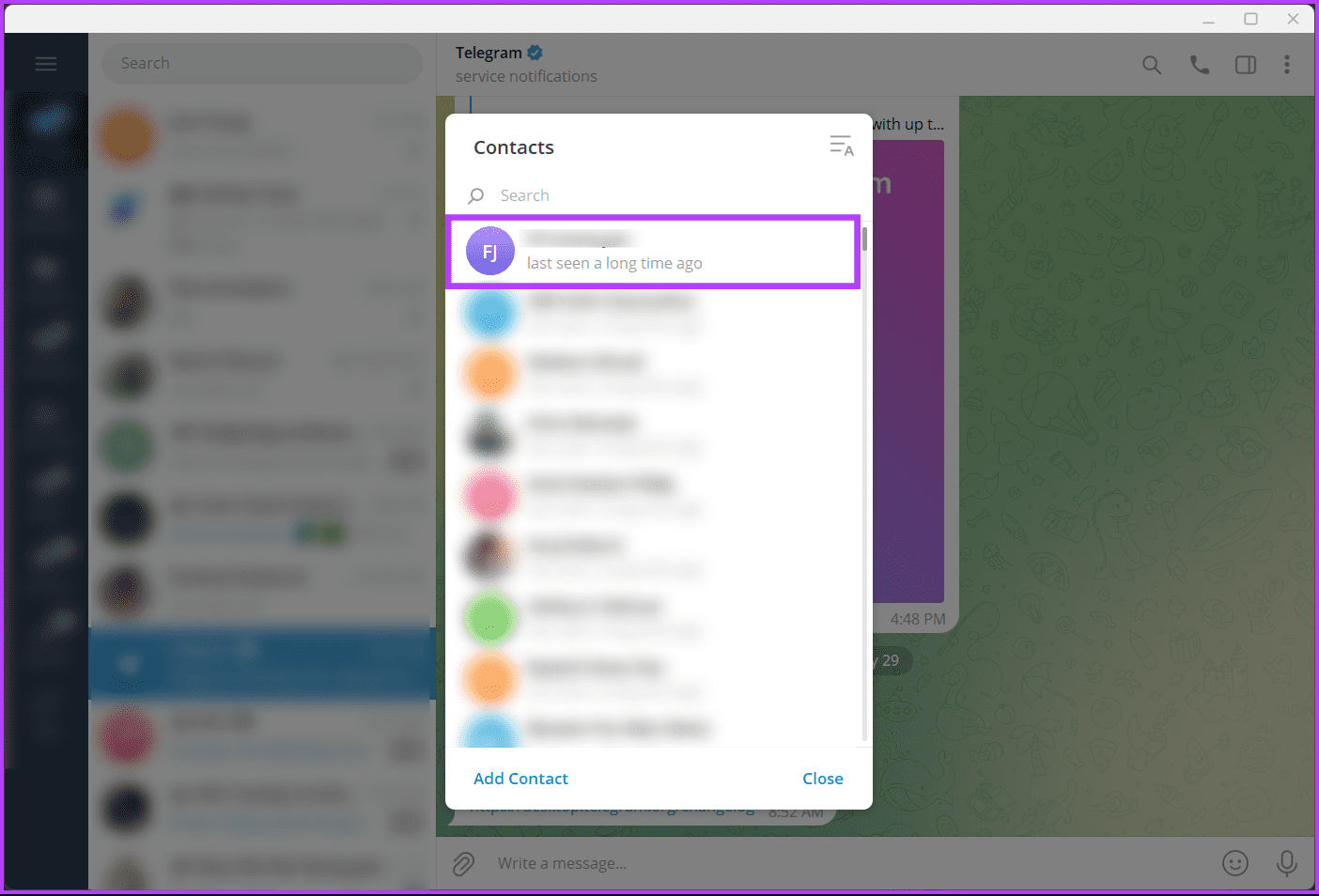
You will be taken to the chat page of the contact you selected.
Do note that if the person you want to block is not in your contacts list or is unknown to you, you can block them from the chat section. All you have to do is scroll through the chat, tap on the conversation, and continue with the below steps.
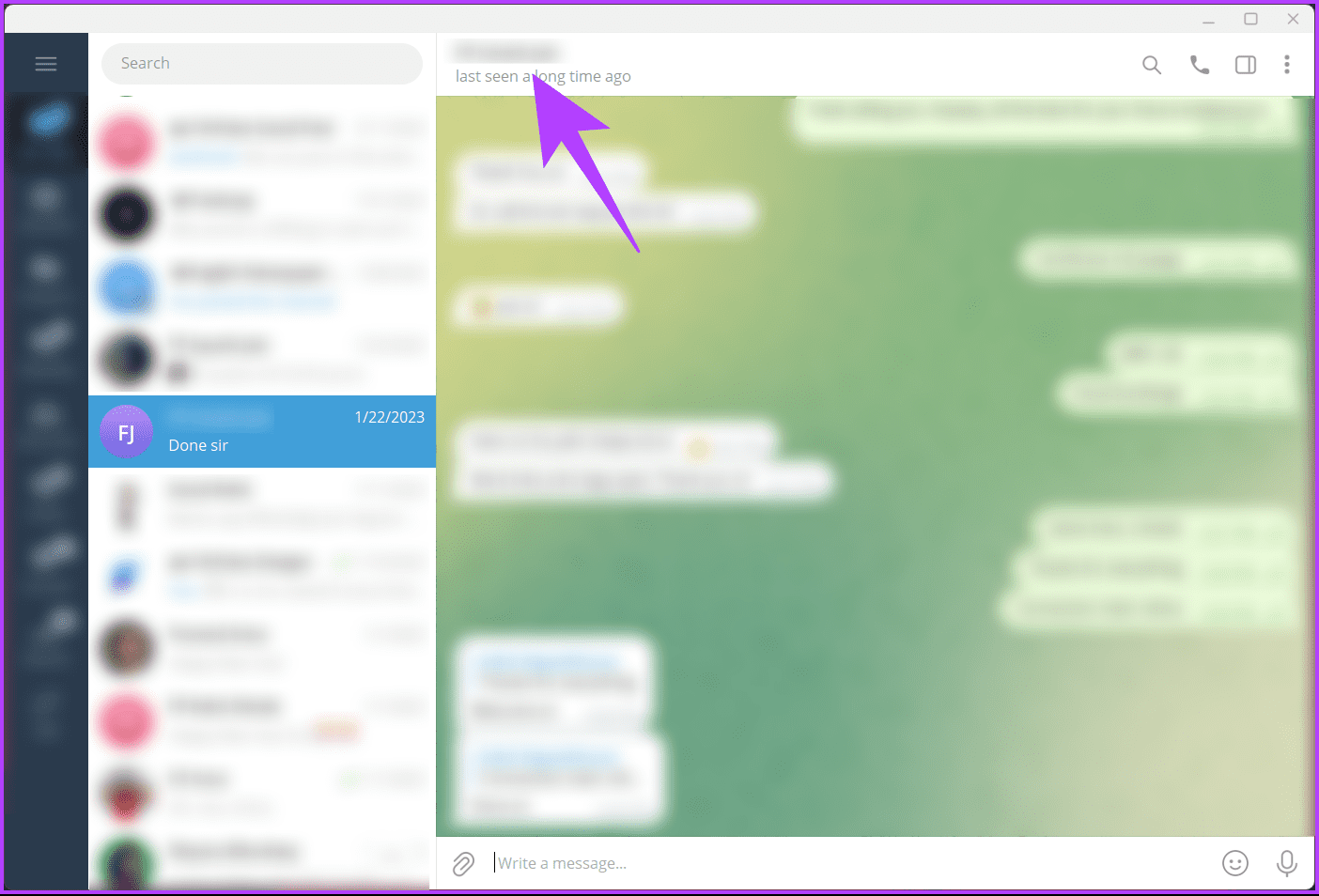
Step 4: Now, click on the contact name at the top to find more details.
Note: For Mac users, click on the More menu.
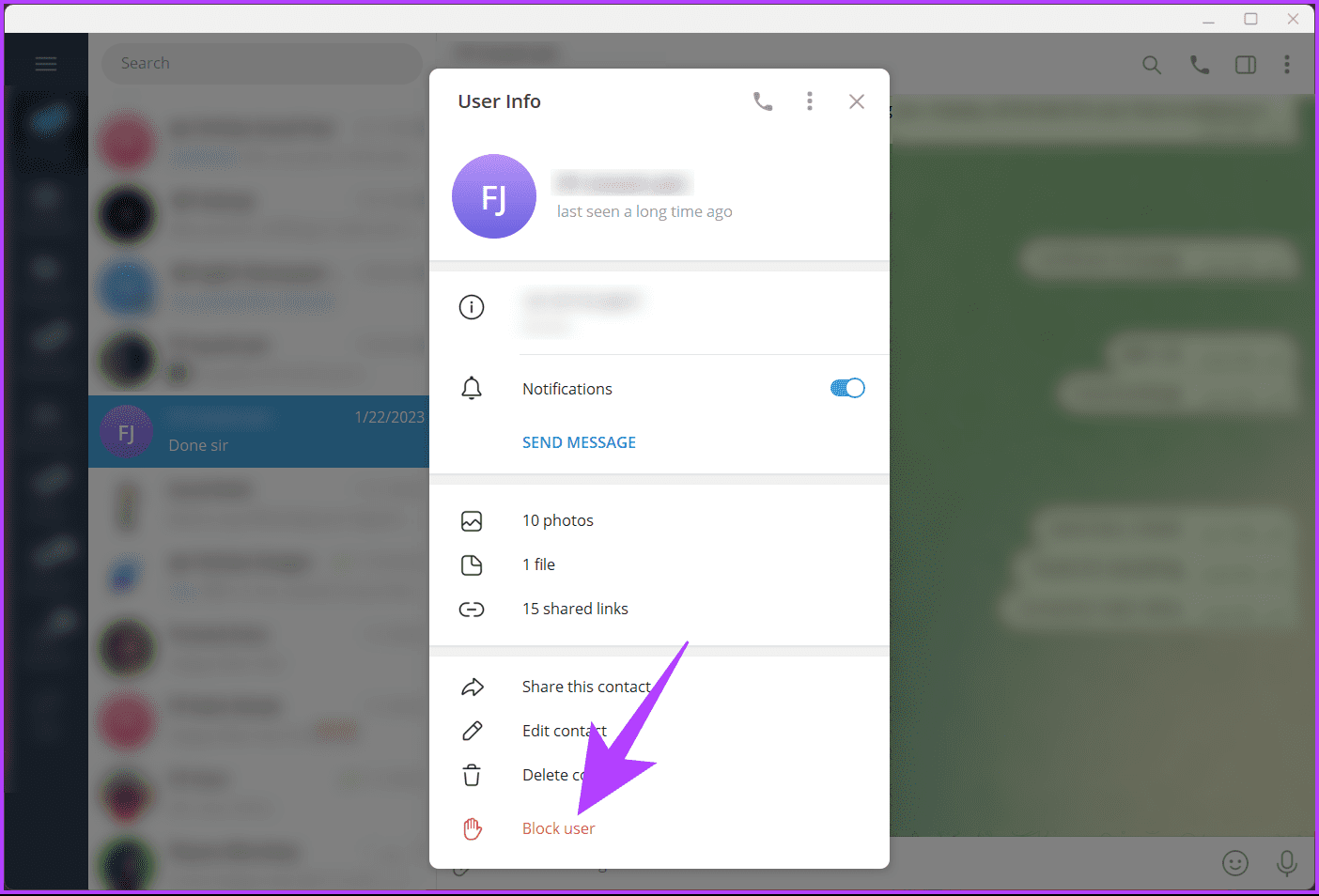
Step 5: In the User Info pop-up, click on the three-dot icon, and select Block user.
Step 6: From the Block [username] pop-up, choose the Block option.
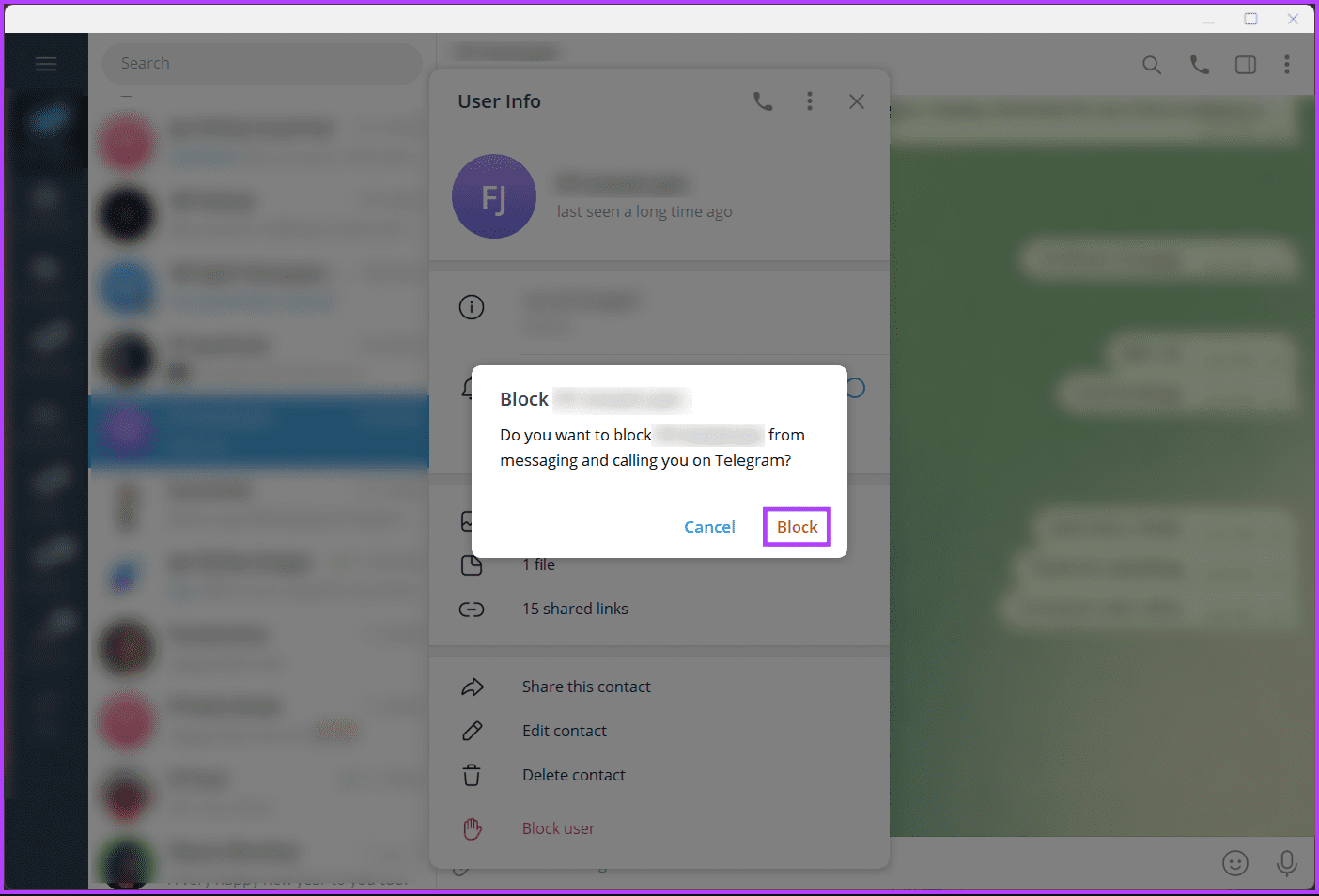
That’s it. You have successfully blocked someone on Telegram. If you don’t have access to the desktop and want to do the same on Android, continue reading.
On Android
Step 1: Launch the Telegram app and tap on the hamburger icon in the upper left corner.
Step 2: In the side pane, choose Contacts. Now, tap on the contact you want to block.
Note: Tap the search icon if you cannot find the contact you want to block.
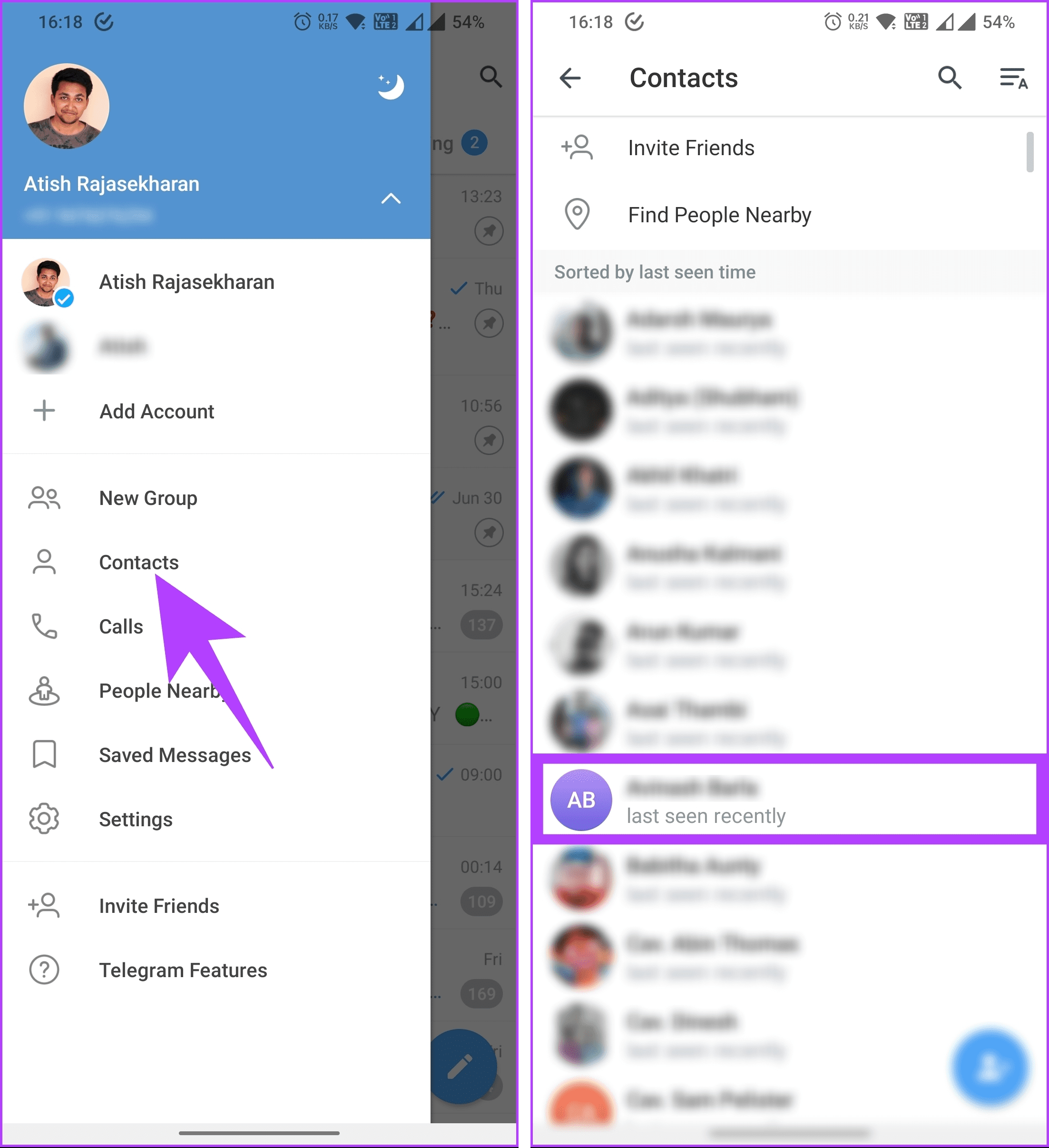
You will be taken to the chat with the selected contact. It is important to note that if the individual you wish to block is not listed in your contacts or is unfamiliar to you, you can still block them using the chat section. Simply scroll through the chat, select the conversation, and follow the steps outlined below.
Step 3: In the chat section, tap on the profile and go to the three-dot icon in the top right-corner.
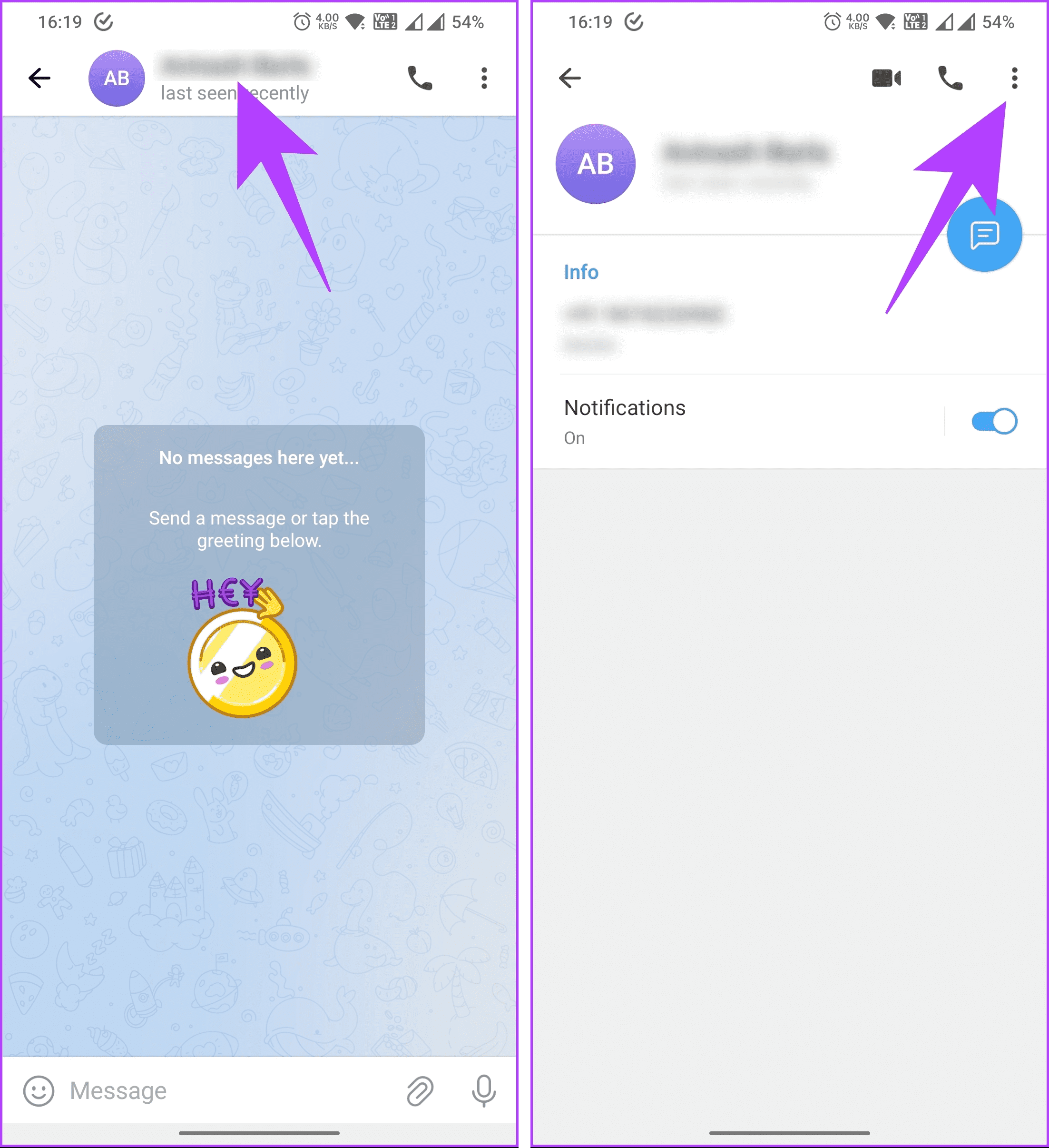
Step 4: From the drop-down menu, select Block user. In the Block user pop-up, select Block user.
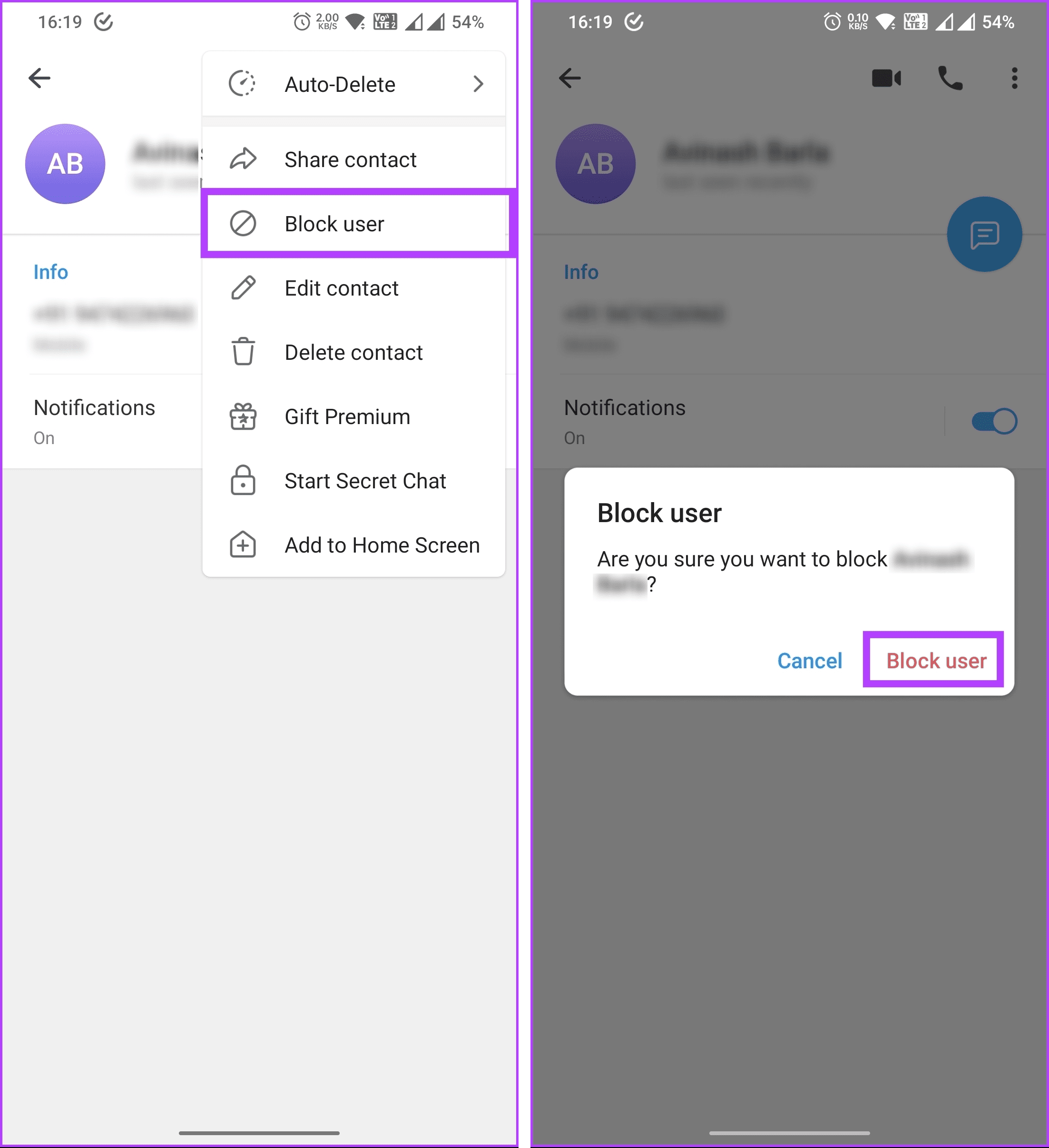
That’s about it. The contact or unknown user you didn’t want to continue your chat with on Telegram is blocked, enhancing your privacy and communication experience on the platform.
If you are an iPhone user and want to block someone, continue reading.
Also Read: How to add someone to Telegram group on Android, iOS, or PC
On iOS
Step 1: Launch the Telegram app and go to Contacts from the bottom navigation bar.
Step 2: Now, tap on the contact you want to block. If you cannot find the contact you want to block, all you need to do is tap the search icon.
Note: If the person you wish to block is outside your contacts or is unfamiliar to you, you can still block them by going to their chat and following the steps outlined below.
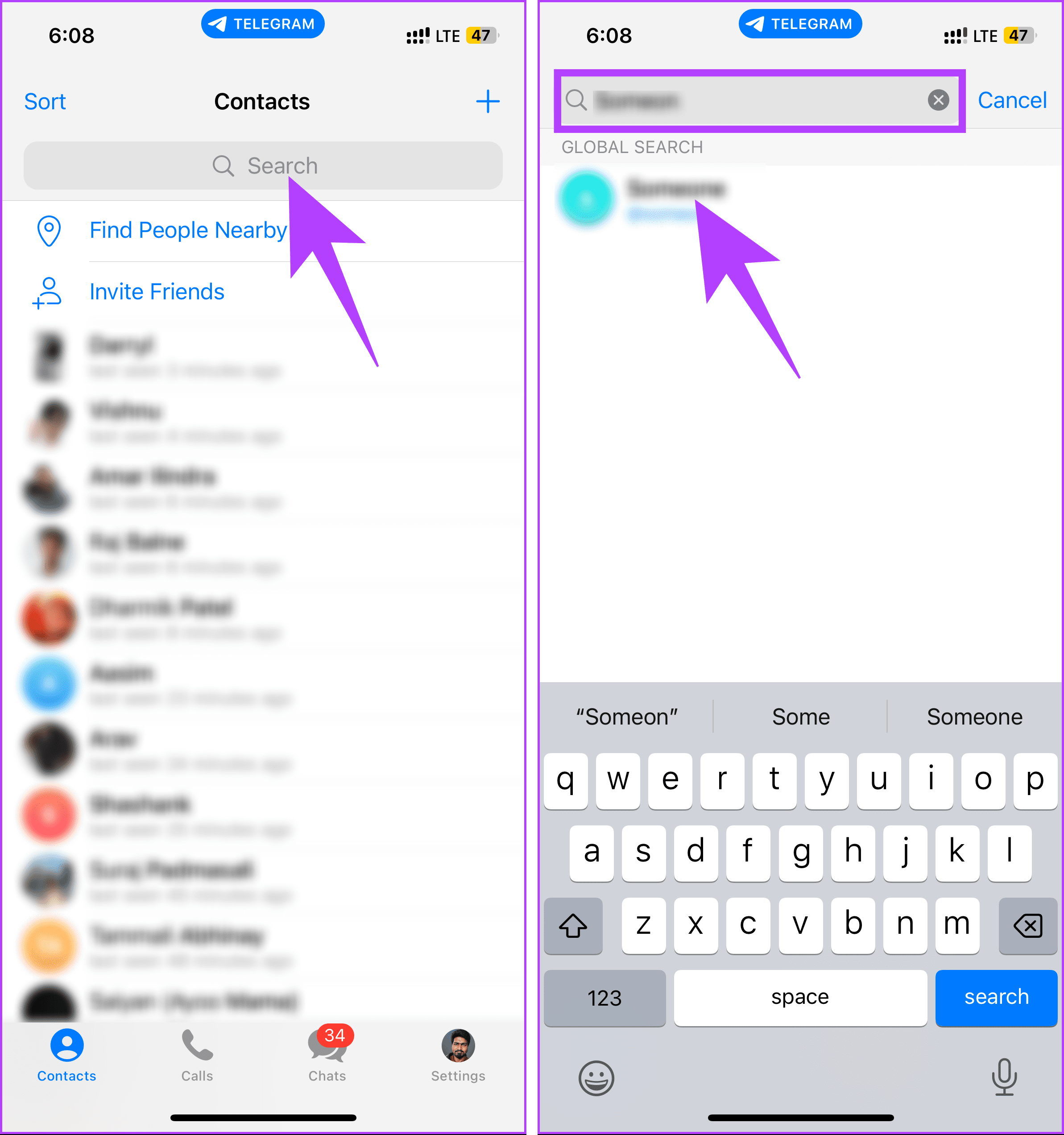
Step 3: In the chat section, tap on the profile in the top navigation bar and select Block user.
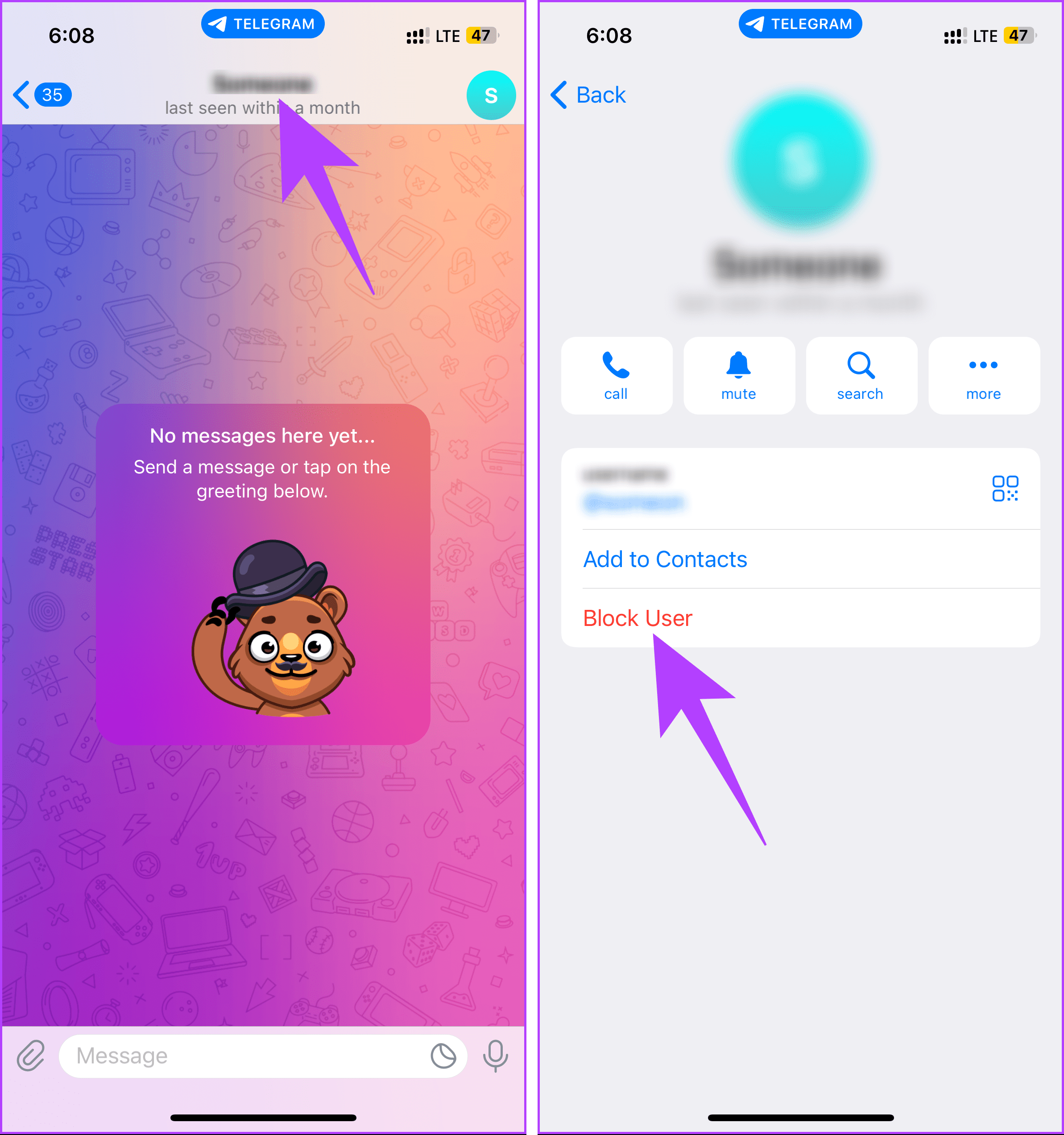
Step 4: Select Block [username] from the bottom sheet.
There you go. You have easily blocked a user on Telegram and secured your chatting experience. If you have any queries, check out the FAQ section below.
FAQs on Blocking Someone on Telegram
No, blocking someone means you will no longer receive messages from that person. Their messages will not be delivered to you, and they won’t be able to contact you through Telegram.
Telegram does not send a notification to the person you block. They will only notice that they have been blocked when they try to interact with you and realize they cannot send messages or see your updates.
No, blocking someone on Telegram does not remove you from their contacts. They can still see your name and phone number in their contacts list, but they cannot message you, call you, or see your profile picture or online status.
Now that you know how to block someone on Telegram, you can go ahead and prevent unwanted interactions or harassment.
Was this helpful?
Last updated on 07 July, 2024
Read Next
 How to Add Someone to Telegram Group on Android, iOS, or PC
How to Add Someone to an Existing Telegram Group On Android Step 1: Open the Telegram app on your Android device.
How to Add Someone to Telegram Group on Android, iOS, or PC
How to Add Someone to an Existing Telegram Group On Android Step 1: Open the Telegram app on your Android device.
 What Happens When You Block Someone on Facebook
What Happens to Profile and Interactions Like Posts, Comments, Likes, Tags, Stories, Etc.
What Happens When You Block Someone on Facebook
What Happens to Profile and Interactions Like Posts, Comments, Likes, Tags, Stories, Etc.
 How to Block Someone on Gmail and What Happens When You Do
How to Block Someone on Gmail Before we show you what happens, here are the steps to block someone on Gmail.
How to Block Someone on Gmail and What Happens When You Do
How to Block Someone on Gmail Before we show you what happens, here are the steps to block someone on Gmail.
 How to Block Someone on LinkedIn Without Them Knowing
What Happens When You Block a LinkedIn Member The person you block will no longer be able to see your LinkedIn profile.
How to Block Someone on LinkedIn Without Them Knowing
What Happens When You Block a LinkedIn Member The person you block will no longer be able to see your LinkedIn profile.
 How to Block Someone Who Blocked You on Facebook
Can You Block Someone Who Blocked You on Facebook Yes, but it’s a little more complex than blocking someone.
How to Block Someone Who Blocked You on Facebook
Can You Block Someone Who Blocked You on Facebook Yes, but it’s a little more complex than blocking someone.
 Can You Block Someone on Facebook but Not Messenger
1.
Can You Block Someone on Facebook but Not Messenger
1.
 What Happens When You Block Someone on TikTok
 Blocked accounts can’t see your profile and stories.
What Happens When You Block Someone on TikTok
What Happens When You Block Someone on TikTok Blocked accounts can’t see your profile and stories.
 How to Block or Unblock Someone on the Viber App
Like many social media platforms, Viber offers a double-edged sword - you can stay connected with loved ones while potentially attracting unwanted interactions.
How to Block or Unblock Someone on the Viber App
Like many social media platforms, Viber offers a double-edged sword - you can stay connected with loved ones while potentially attracting unwanted interactions.
The article above may contain affiliate links which help support Guiding Tech. The content remains unbiased and authentic and will never affect our editorial integrity.