

1. How to Rename Files in Bulk on Windows 11 Using File Explorer
Step 1: Open File Explorer and navigate to the files and folders you want to rename.

Step 2: Click on the View tab and select Details.

Step 3: Select all the files you want to rename. Then, go to the Home tab and click the Rename button.
Alternatively, you can select the first file, press and hold the shift key, and click the last file to select all files, or simply press Ctrl + A.

Step 4: Rename the first file and press Enter.
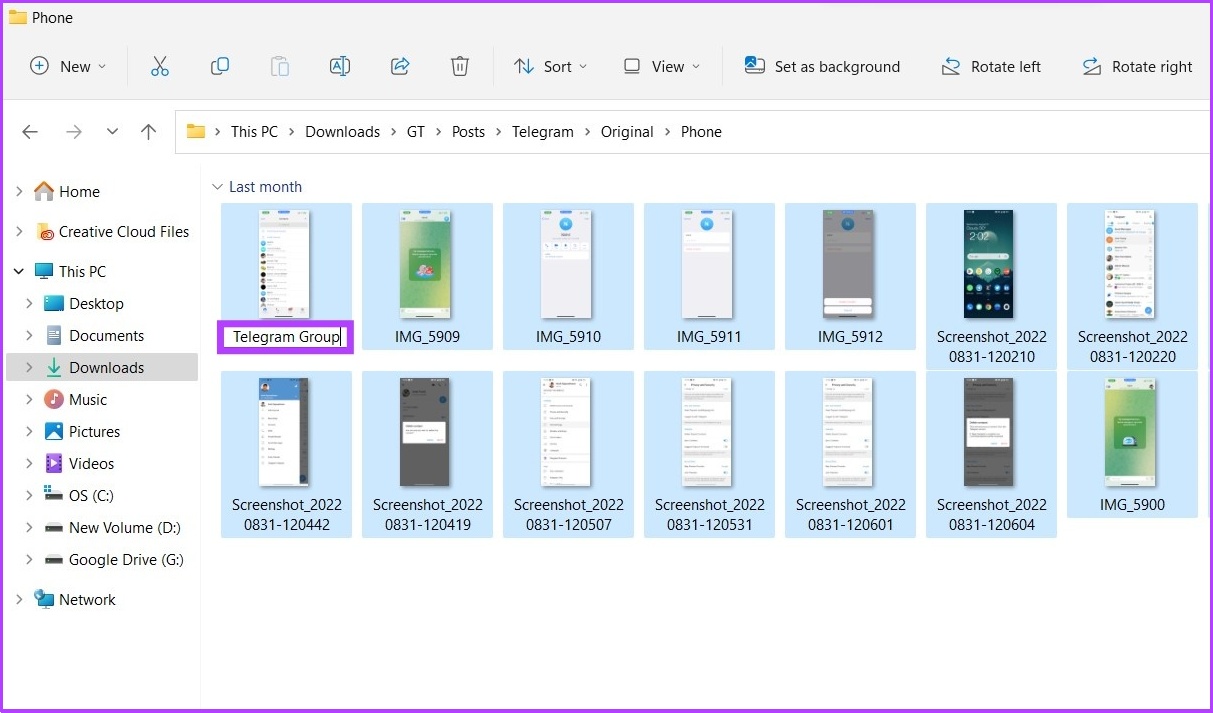
That’s it! The selected files will be renamed using the specified structure name, with a count number in parentheses to make each file name different. Ex: telegram group (1).jpg, telegram group (2).jpg, and so on.
2. How to Rename Multiple Files at Once on Windows 11
Method 1: Using Command Prompt
Step 1: Open Windows Search, type Command Prompt, and press Enter. Press Yes on the prompt.
Step 2: In the Command Prompt, type the following command and hit Enter.
Note: In PATH\TO\FILES, copy the file’s location or folder and paste it. Ex: ‘:cd %USERPROFILE%\Documents\files’.
cd c:\PATH\TO\FILES
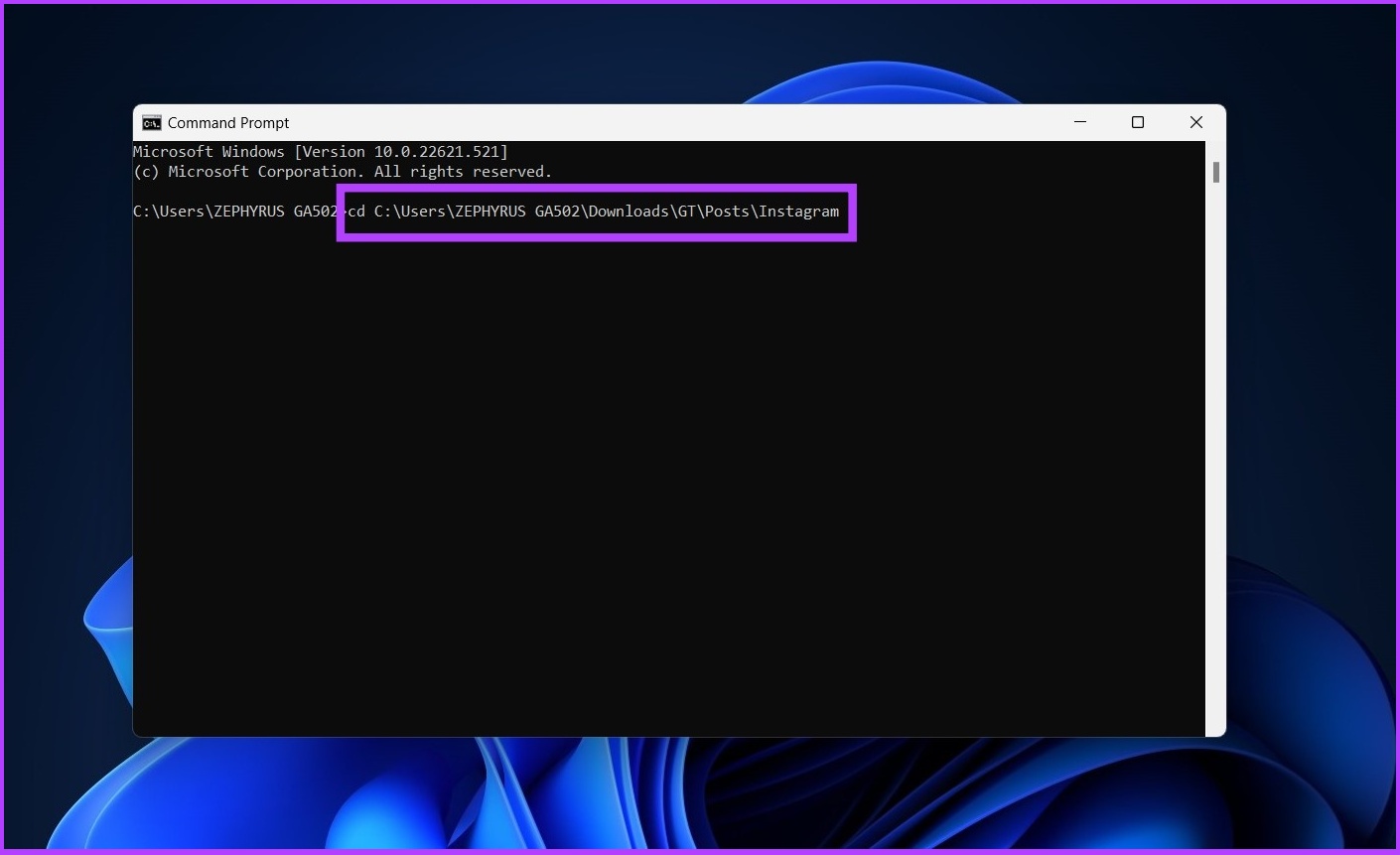
Step 3: Now, type ‘ren *.FILE-EXTENSION ???-FILE-NAME.*’ to rename the files in bulk and press Enter.
The asterisk (*) tells the command to rename everything with a specific extension, while the question mark (?) represents a character of the original name you want to keep as part of the new name. Enter the file extension in ‘FILE-EXTENSION’ and enter rename file in ‘-FILE-NAME’. Ex: *.jpg ???-resetinstagram.*

And there you go. All the files you selected will be renamed.
Method 2: Using Powershell
Step 1: Open Windows Search, type PowerShell, and click Run as Administrator.
Press Yes on the prompt.
Step 2: In the PowerShell, type the following command and hit Enter.
Note: In PATH\TO\FILES, copy the file’s or folder location and paste it. Ex: ‘:cd %USERPROFILE%\Documents\files’.
cd PATH\TO\FOLDER

Step 3: Now type the following command and press Enter.
ls | %{Rename-Item $_ -NewName ("NEW-FILE-NAME-{0}.EXTENSION" -f $nr++)}
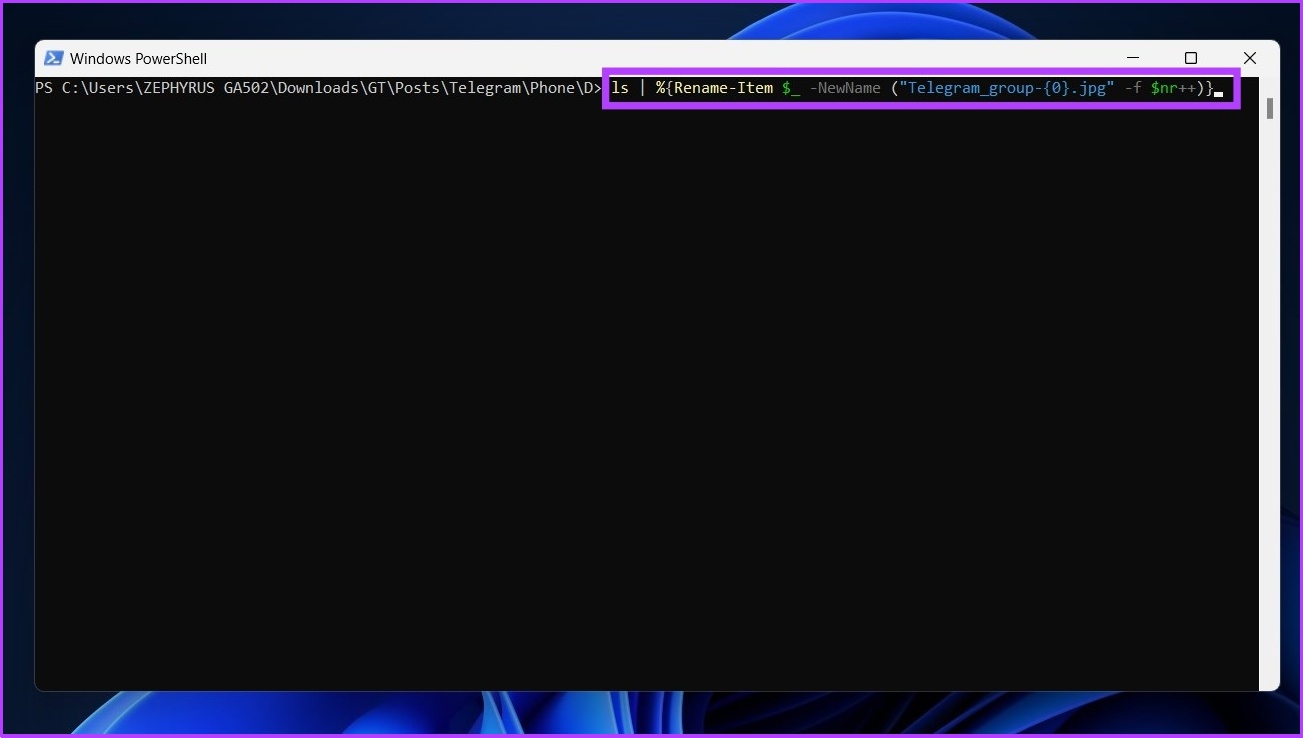
Replace ‘NEW-FILE-NAME’ with the structure name you want to use and add the proper file extension instead of ‘EXTENSION’.
And that’s it. Following the above steps, the selected files will be renamed using the specified format. If you want more customization and options to bulk modify files, there is PowerToys; continue reading.
3. Using Microsoft’s PowerToys to Batch Rename Files in Windows 11
Power Tools offers batch rename files on Windows 11 using PowerRename, which is far more capable than the default tool on Windows 11.
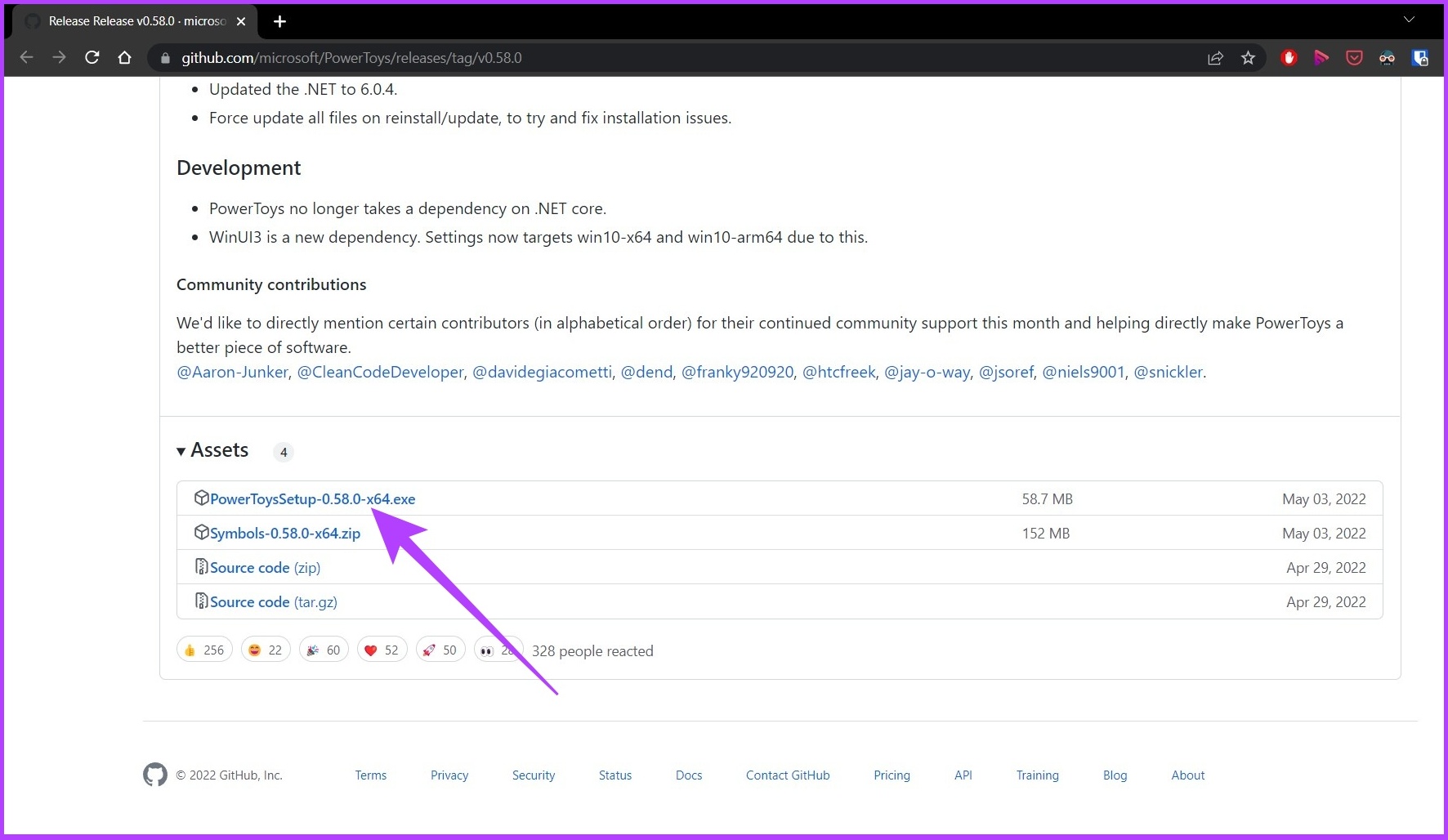
Step 1: Download PowerToys from GitHub and install it.
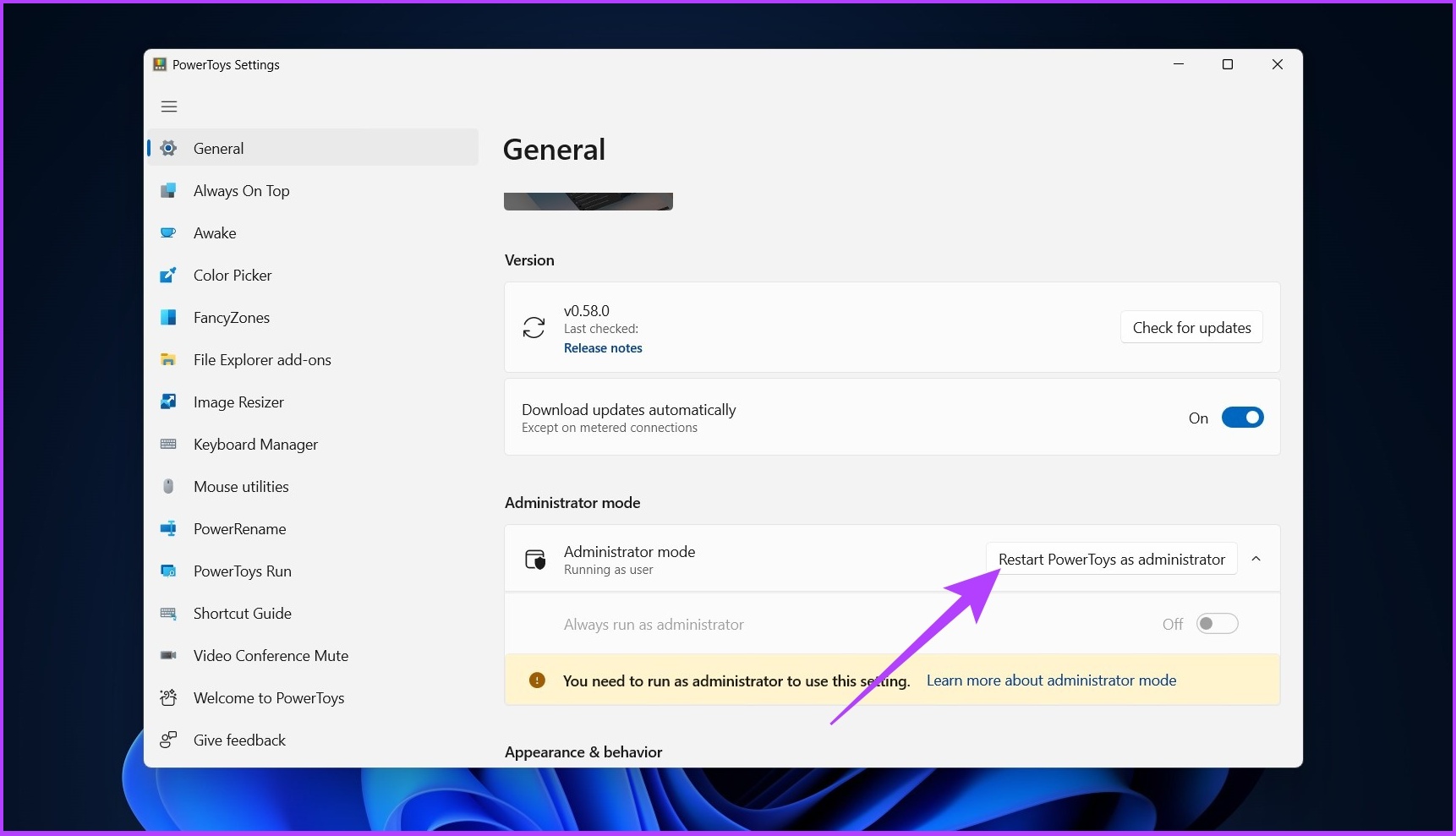
Step 2: Open PowerToys, and under Administrator mode, click Restart PowerToys as administrator.
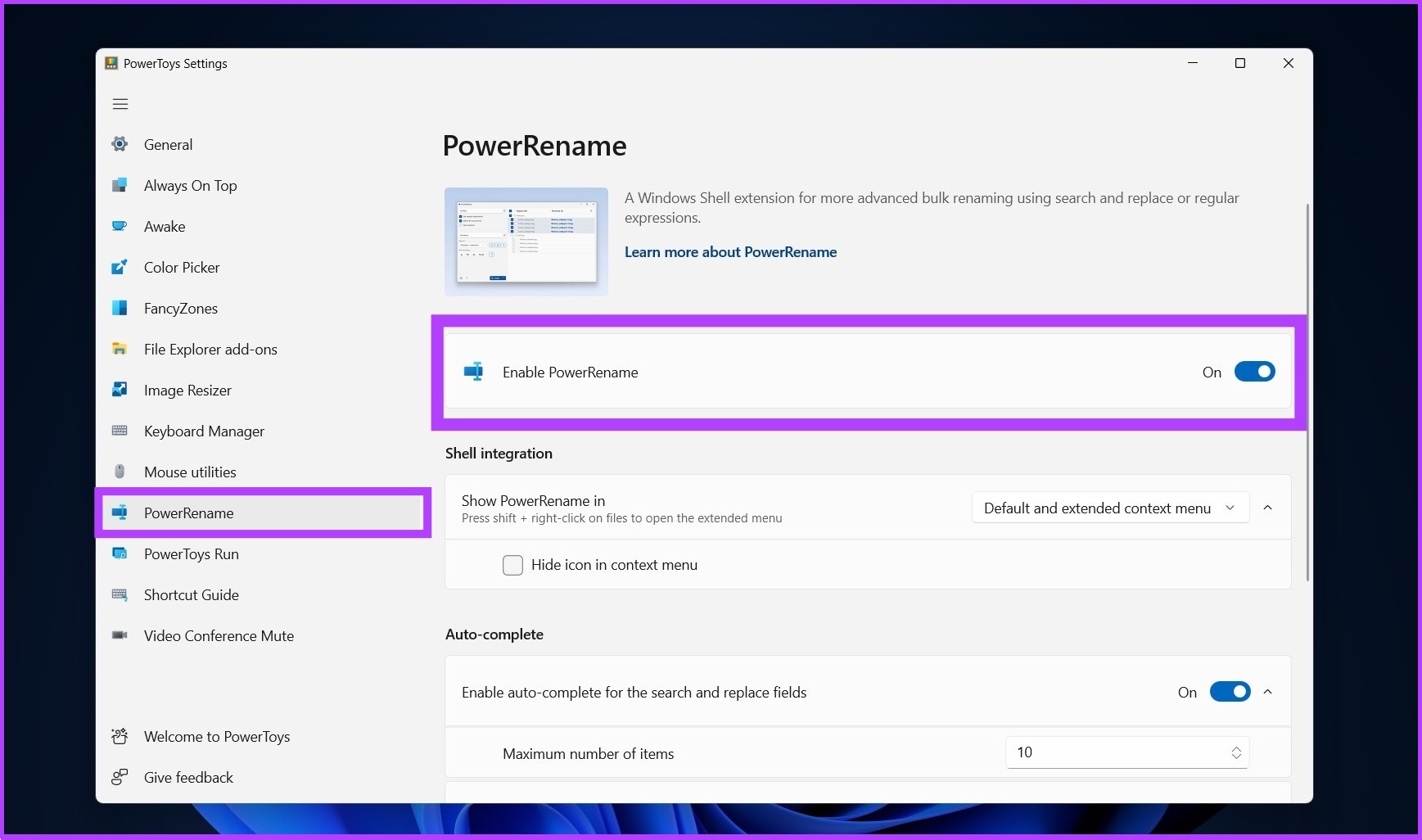
Step 3: The app will restart automatically. Once open, choose PowerRename from the side menu and turn on the toggle to Enable PowerRename if you have not already done so.
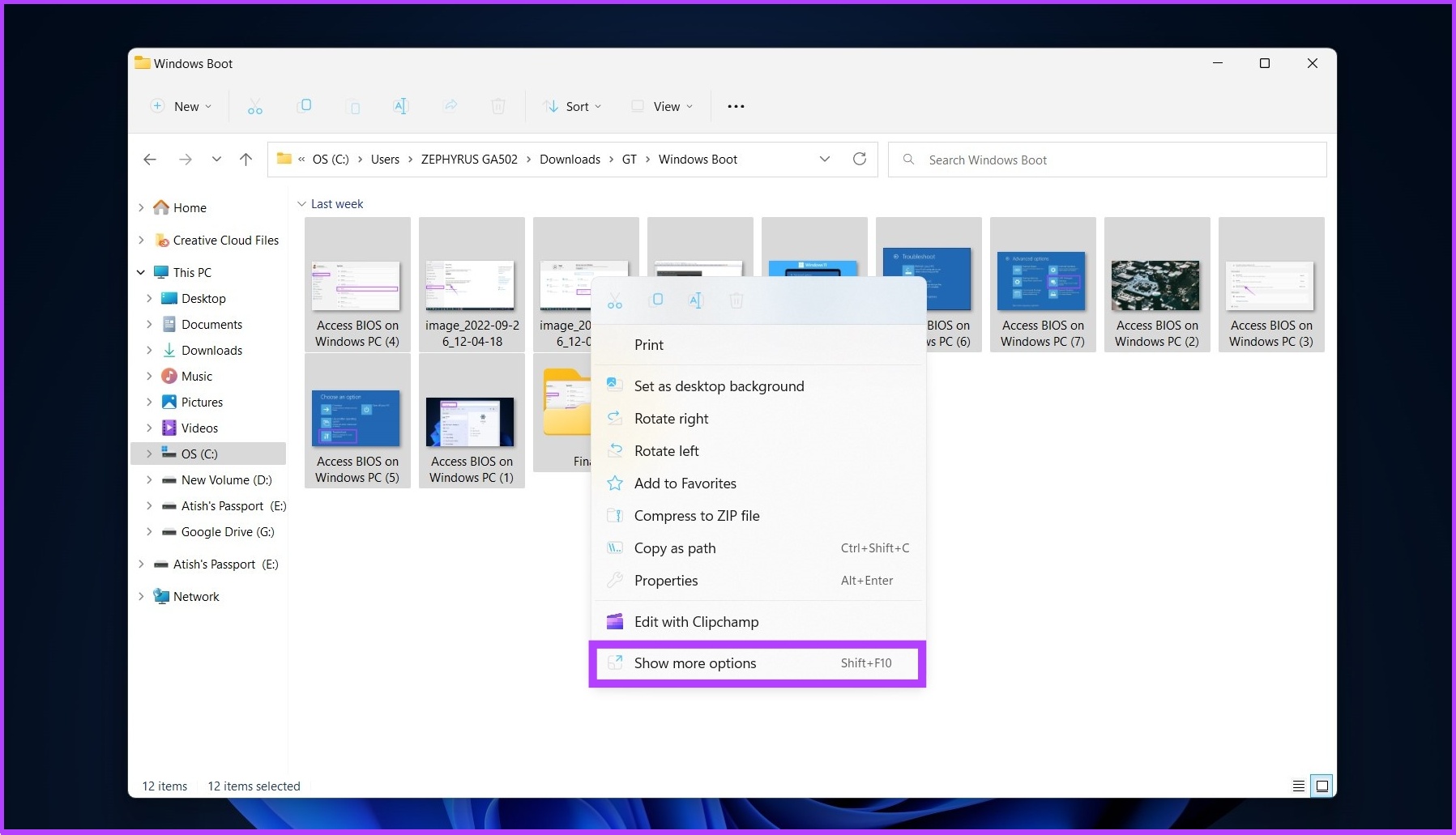
Step 4: Navigate to the files you want to rename, select them all, right-click, and choose Show more options.
Step 5: Now, choose PowerRename to open all selected files on the PowerRename interface.

Step 6: Choose the current file names to replace with a new one and click Apply.
Example: image_2022 to be replaced by ‘Access BIOS on Windows PC’
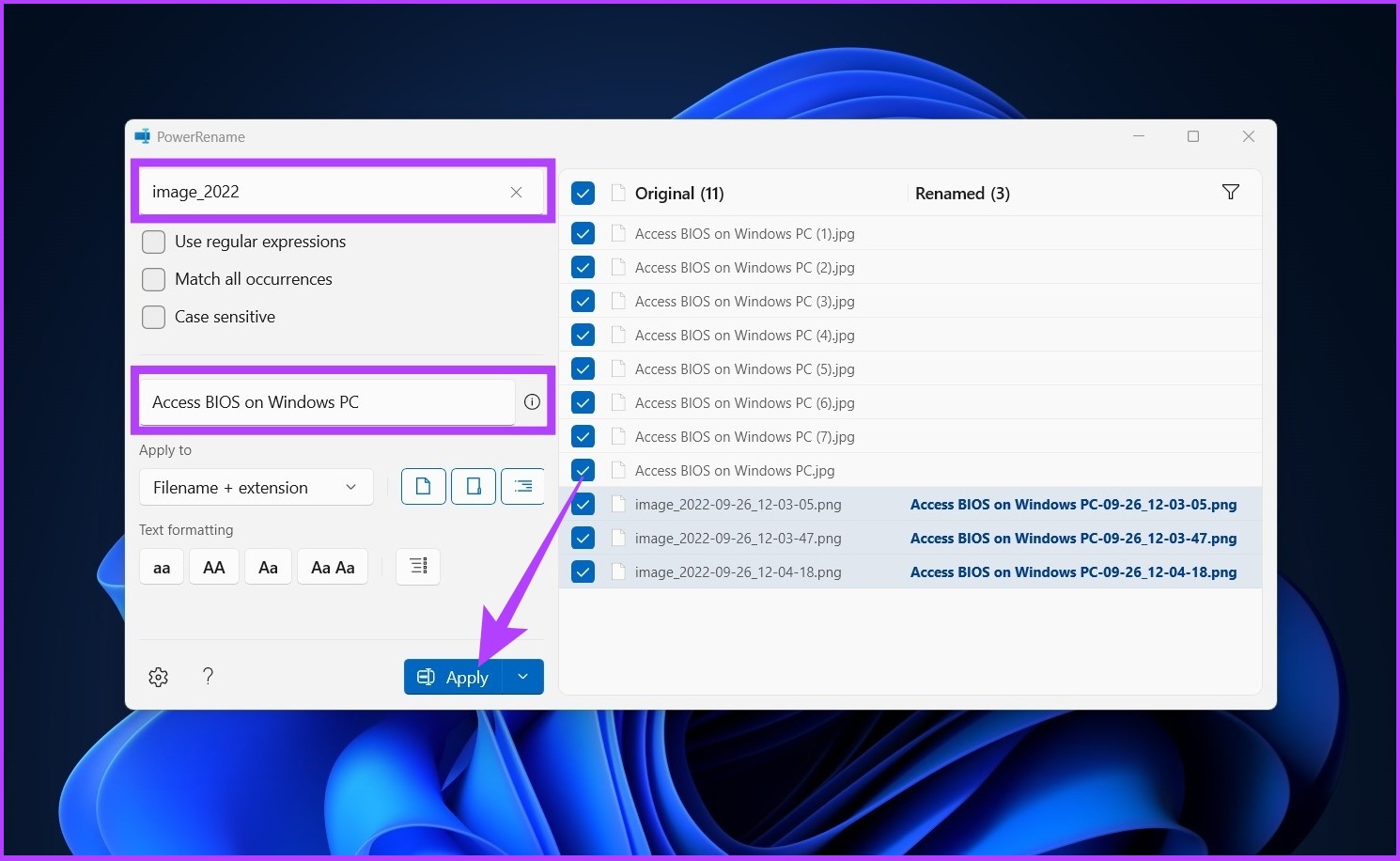
So there you have it. All the file names will be changed in a go.

Many tools are available for batch renaming files, including Bulk Rename Utility and Advanced Renamer. However, the interfaces of these tools are complex, and they do not offer easy ways to carry out the renaming process.
Therefore, we recommend using the tools mentioned in this article to batch rename files in Windows efficiently.
FAQs About Renaming Files on Windows 11
The quickest way to rename files in Windows 11 is by using File Explorer. Select the files you want to rename > right-click> go to rename > rename the files > click save.
The keyboard shortcut to rename a file in Windows is F2.
All the listed ways to rename files are practical and efficient. You can select the method that is most convenient for you or the easiest for you to complete your task.
Was this helpful?
Last updated on 18 August, 2024
Read Next
 How to Create and Open Batch (BAT) Files on Windows 11
How to Create a Batch File (.Bat) on Windows 11 It's easy to make a BAT file on Windows 11.
How to Create and Open Batch (BAT) Files on Windows 11
How to Create a Batch File (.Bat) on Windows 11 It's easy to make a BAT file on Windows 11.
 4 Ways to Fix Unable to Rename Folders on Windows 11
Try Basic Fixes Make sure the folder is not in use: You may have difficulty renaming a folder on your PC if it is already open in another program.
4 Ways to Fix Unable to Rename Folders on Windows 11
Try Basic Fixes Make sure the folder is not in use: You may have difficulty renaming a folder on your PC if it is already open in another program.
 How to Batch Convert Photos with Adobe Bridge
How to Batch Process Photos with Adobe Bridge If you have a bunch of photos to convert to a different file format, it makes more sense to process them at
How to Batch Convert Photos with Adobe Bridge
How to Batch Process Photos with Adobe Bridge If you have a bunch of photos to convert to a different file format, it makes more sense to process them at
 How to Rename the User Folder in Windows 11
https://youtu.be/CLd5GCQFMMs What Is the User Folder on Windows 11 Every copy of Windows 11 installed will have a folder named after the user account.
How to Rename the User Folder in Windows 11
https://youtu.be/CLd5GCQFMMs What Is the User Folder on Windows 11 Every copy of Windows 11 installed will have a folder named after the user account.
 How to Rename or Delete SoftwareDistribution and Catroot2 Folders
What Happens When You Reset SoftwareDistribution and Catroot2 Folders Catroot2 folder contains catalog files (.cat) that are cryptographic hashes and digital signatures for system files.
How to Rename or Delete SoftwareDistribution and Catroot2 Folders
What Happens When You Reset SoftwareDistribution and Catroot2 Folders Catroot2 folder contains catalog files (.cat) that are cryptographic hashes and digital signatures for system files.
 How to Rename Photos, Videos, and Albums on iPhone and iPad
Rename and Save Photos in the Files App Since the Photos app on your iPhone doesn't have renaming options, you must use the Files app.
How to Rename Photos, Videos, and Albums on iPhone and iPad
Rename and Save Photos in the Files App Since the Photos app on your iPhone doesn't have renaming options, you must use the Files app.
 Samsung My Files vs Google Files: Which File Manager Is Better on Galaxy Phones
Samsung apps are bundled to replace the official Google Apps in the One UI.
Samsung My Files vs Google Files: Which File Manager Is Better on Galaxy Phones
Samsung apps are bundled to replace the official Google Apps in the One UI.
 3 Ways to Delete Old Windows Update Files From Windows 10 and 11
Method 1: Delete Old Windows Update Files via Settings The Storage section of the Settings app provides a detailed breakdown of all temporary files on your PC, including old Windows
3 Ways to Delete Old Windows Update Files From Windows 10 and 11
Method 1: Delete Old Windows Update Files via Settings The Storage section of the Settings app provides a detailed breakdown of all temporary files on your PC, including old Windows
The article above may contain affiliate links which help support Guiding Tech. The content remains unbiased and authentic and will never affect our editorial integrity.

