


What Happens When You Archive a Chat in Messenger?
Before archiving a conversation in Messenger, let’s discuss its implications. When you archive a chat in Messenger, the app hides it from your home screen. You can always unarchive conversations from the same menu.
Unlike WhatsApp and Telegram, Messenger doesn’t offer an option to pin important chats at the top. Instead of finding relevant messages, you can archive unnecessary chats and keep only required contacts on the Messenger home.
How to Archive Conversations on Facebook Messenger Mobile Apps
Most users prefer Messenger mobile apps to stay in touch with friends and family members on the go. The steps below can archive messages in Messenger for Android and iPhone.
On Android
Step 1: Open the Messenger app on your Android phone.
Step 2: Long-press on a conversation you want to archive and select Archive.


Repeat the same for all irrelevant conversations in Messenger and keep your home page spam-free. Unfortunately, there is no way to multi-select several conversations in Messenger and archive them with a single tap.
On iOS
You may use the same method as on an Android to archive, but alternatively, you can follow the steps below.
Step 1: Launch the Messenger app on your iPhone.
Step 2: Left swipe on a conversation and select Archive from the context menu.


Archive Conversations on Facebook Messenger Using Desktop
If you use a desktop, you don’t need to reach your mobile phone to archive messages in Messenger. Visit the Messenger site, then follow the steps below.
Step 1: Sign into your Facebook account.
Step 2: Check a list of conversations from the main menu.
Step 3: Hover the cursor over a conversation and click the kebab menu (that looks like a three-dot).

Step 4: Select Archive chat.

Step 5: Repeat the same for all conversations you want to hide.
You may also follow the same steps above to archive a group chat.
Unarchive Messages in Facebook Messenger
Did you accidentally archive important chats in Messenger? Unarchiving them won’t take more than a couple of minutes.
On Desktop
Step 1: Head to Messenger on the web > select Archived from the left sidebar.

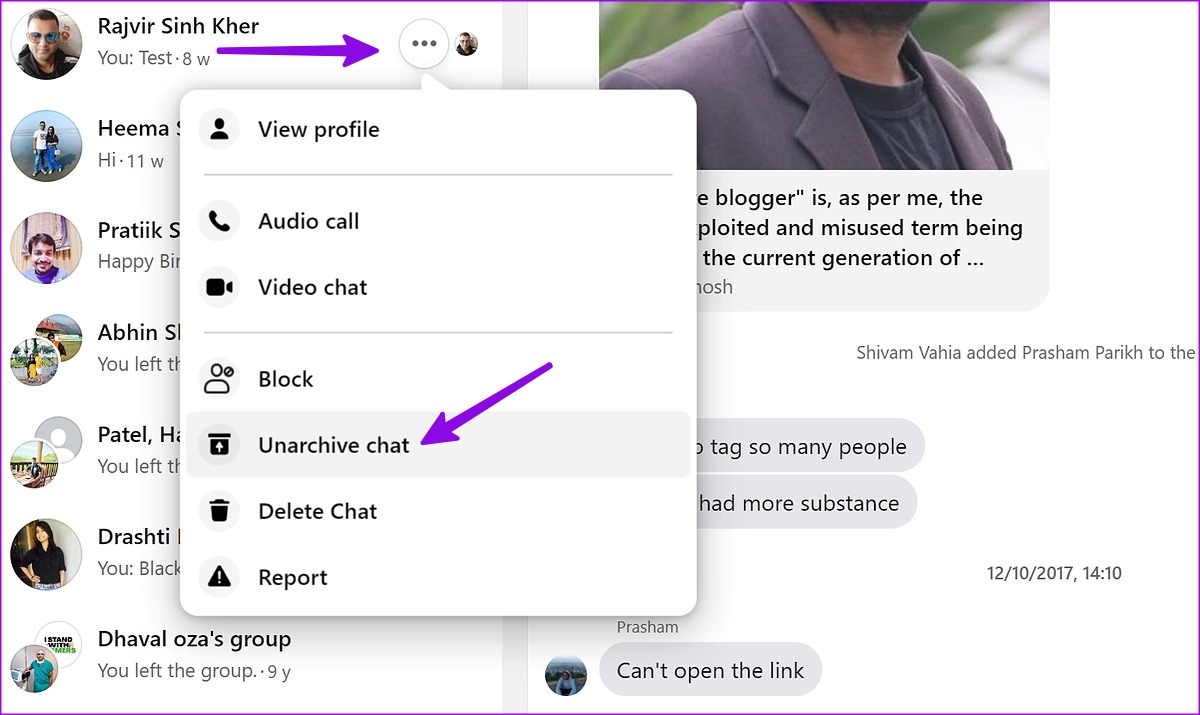
Step 2: Select the three horizontal dots menu > click Unarchive chat. The conversation will appear on the main page.
iOS and Android
Step 1: Open the hamburger menu in Messenger (from the top-left corner).
Step 2: Select Archive.


Step 3: Long-press on a conversation and select Unarchive.
FAQs
What’s the Difference Between Archive and Delete in Messenger?
When you archive a chat, it disappears from your chat list; however, it is not deleted; it is only hidden.
Does Messenger Mute Archived Chats?
No, when you archive a conversation, the chat is not muted, and the messages are only hidden.
Was this helpful?
Last updated on 28 May, 2024
Read Next
 How to Archive or Unarchive Emails in Gmail
What Does Archive in Gmail Mean?
How to Archive or Unarchive Emails in Gmail
What Does Archive in Gmail Mean?
 What is Archive in WhatsApp and What Happens When You Archive a Chat
What is Archive in WhatsApp Archive is a chat organization and privacy feature that lets you hide WhatsApp chats from the main list (chats tab).
What is Archive in WhatsApp and What Happens When You Archive a Chat
What is Archive in WhatsApp Archive is a chat organization and privacy feature that lets you hide WhatsApp chats from the main list (chats tab).
 Facebook Messenger Delete vs Archive: Which One to Use
While technology helps us in different ways, it’s also getting confusing.
Facebook Messenger Delete vs Archive: Which One to Use
While technology helps us in different ways, it’s also getting confusing.
 How to Unarchive Instagram Posts on Android and iPhone
How to Unarchive Photos on Instagram The steps to unarchive photos on Instagram differ from those to unarchive stories.
How to Unarchive Instagram Posts on Android and iPhone
How to Unarchive Photos on Instagram The steps to unarchive photos on Instagram differ from those to unarchive stories.
 Gmail Mute vs Snooze vs Archive: What’s the Difference?
What Happens When You Archive?
Gmail Mute vs Snooze vs Archive: What’s the Difference?
What Happens When You Archive?
 How to Archive or Delete a Class in Google Classroom
How to Archive a Class in Google Classroom Archiving a class in Google Classroom can help you remove the class from your Classes dashboard while still having access to all
How to Archive or Delete a Class in Google Classroom
How to Archive a Class in Google Classroom Archiving a class in Google Classroom can help you remove the class from your Classes dashboard while still having access to all
 WhatsApp Mute vs. Archive: Understand the Differences
What Is Mute on WhatsApp Muting someone on WhatsApp stops message notifications from them.
WhatsApp Mute vs. Archive: Understand the Differences
What Is Mute on WhatsApp Muting someone on WhatsApp stops message notifications from them.
 What Happens When You Archive a Post on Instagram?
What Happens When You Archive Instagram Post?
What Happens When You Archive a Post on Instagram?
What Happens When You Archive Instagram Post?
The article above may contain affiliate links which help support Guiding Tech. The content remains unbiased and authentic and will never affect our editorial integrity.

