How to Add Location Details to Photos on iPhone
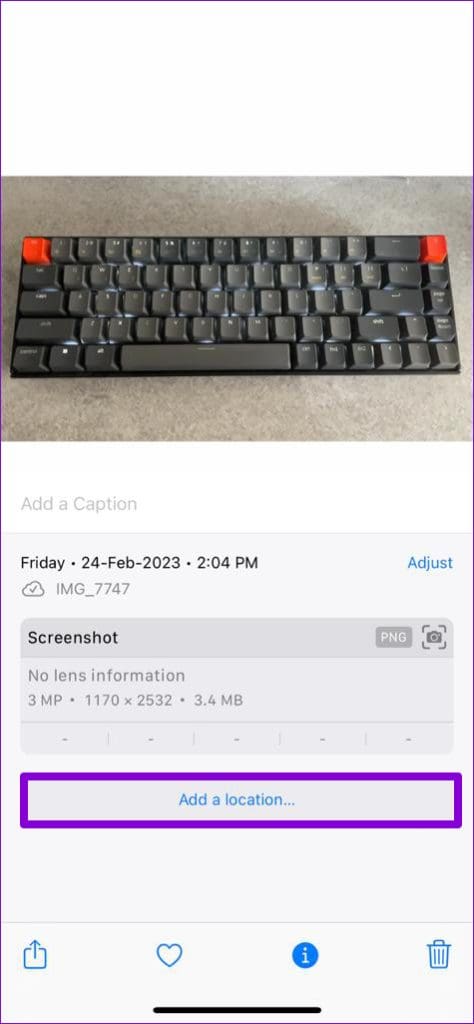
Step 1: Launch the Photos app and select the photo to add location information.
Step 2: Tap the i icon at the bottom and hit Add a location.
Step 3: Enter the location’s name in the search box > select one of the suggested map locations.


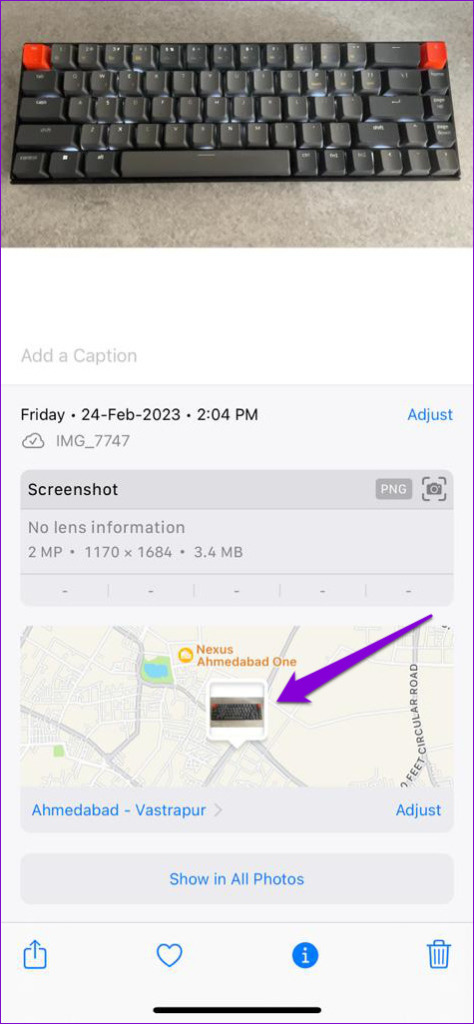
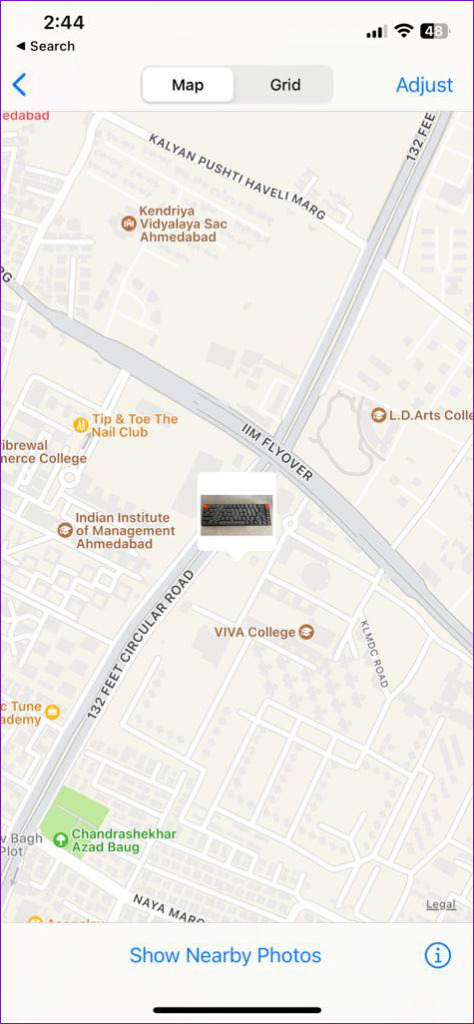
After completing the above steps, location details will be added to your photo. You can tap on the location to view your photo on a map.
Similarly, the Photos app allows you to add location information to multiple photos at once. This can save you time if you have several photos from the same location.
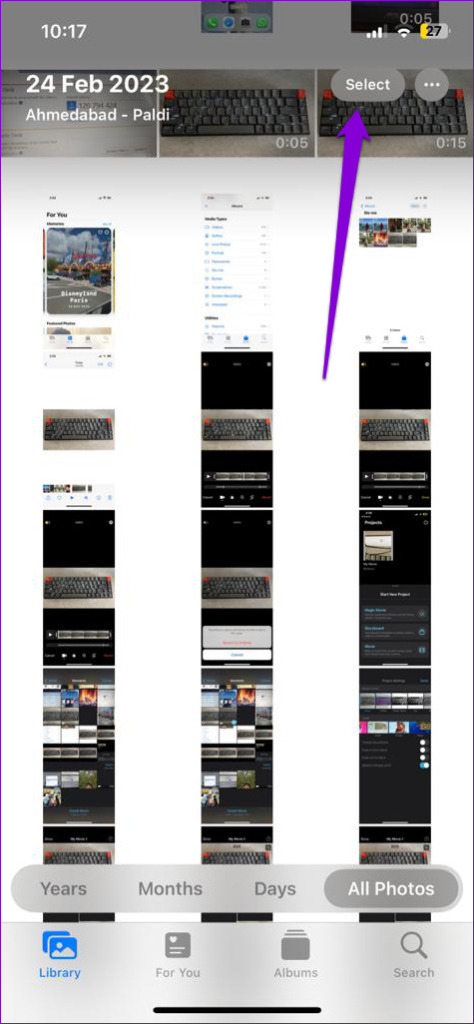
Step 1: In the Photos app, tap the Select button at the top right corner and choose the photos to which you want to add location details.
Step 2: Tap the three-dot menu icon at the bottom right and select Adjust Location from the resulting menu.
Step 3: Enter the location name in the text box and select from the available options.

How to Automatically Add Location Details to Photos on Your iPhone
Although the Photos app allows you to add location information in a few simple steps, doing so manually can be time-consuming. Fortunately, you can configure your iPhone to add location details to any photos you capture automatically.
Step 1: Open the Settings app > head to Privacy & Security > Location Services.
Step 2: Enable the toggle for Location Services if it isn’t already.
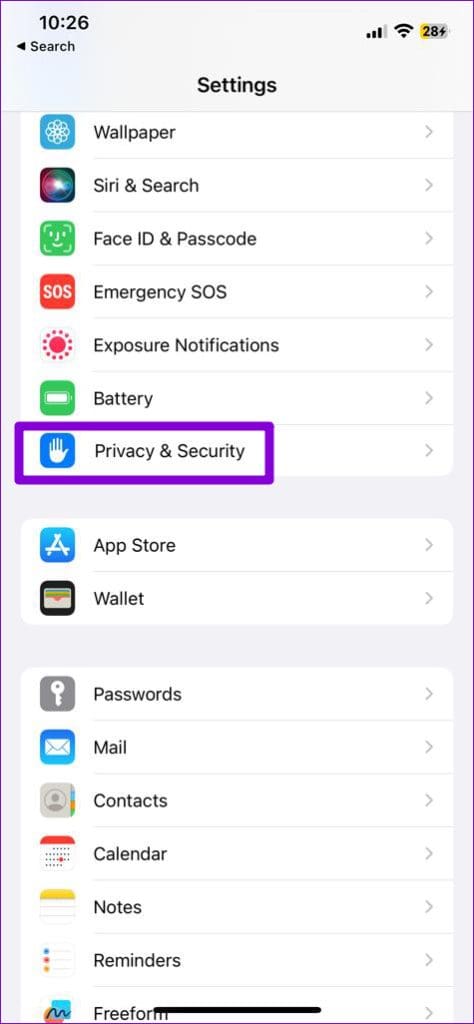


Step 3: Tap on Camera > select While Using the App from the following menu. Optionally, enable the toggle for Precise Location if you want your photos to have accurate location data.


How to Adjust Location Details for Photos on iPhone
Even after enabling location permission for the Camera app, your iPhone may fail to add location information correctly for various reasons. You may also want to remove location information from some of your photos before sharing them with someone else. For such instances, the Photos app allows you to edit or remove location details for photos on your iPhone.
Step 1: In the Photos app, open the photo with the incorrect location details.
Step 2: Tap the i icon at the bottom and select Adjust next to the saved location.
Step 3: Type the accurate location in the text box and select from the available locations. If you want to remove location information from your photo, select No Location.

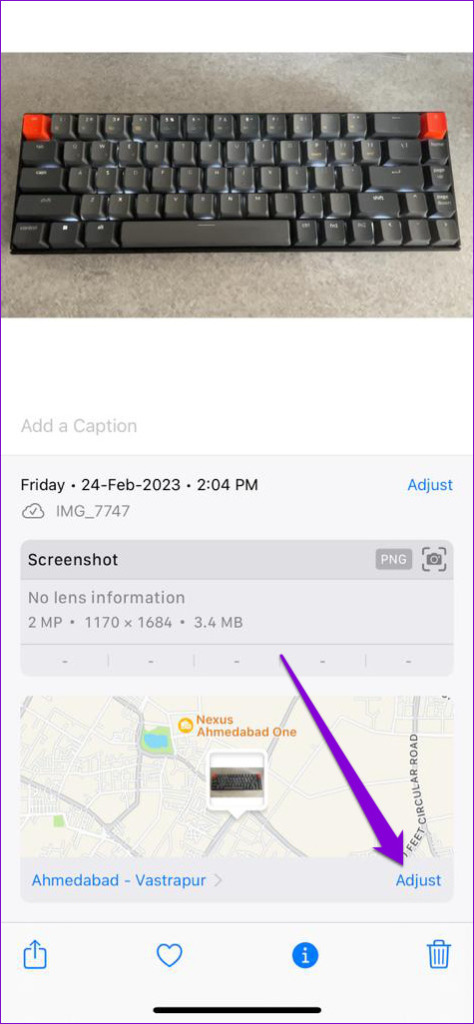
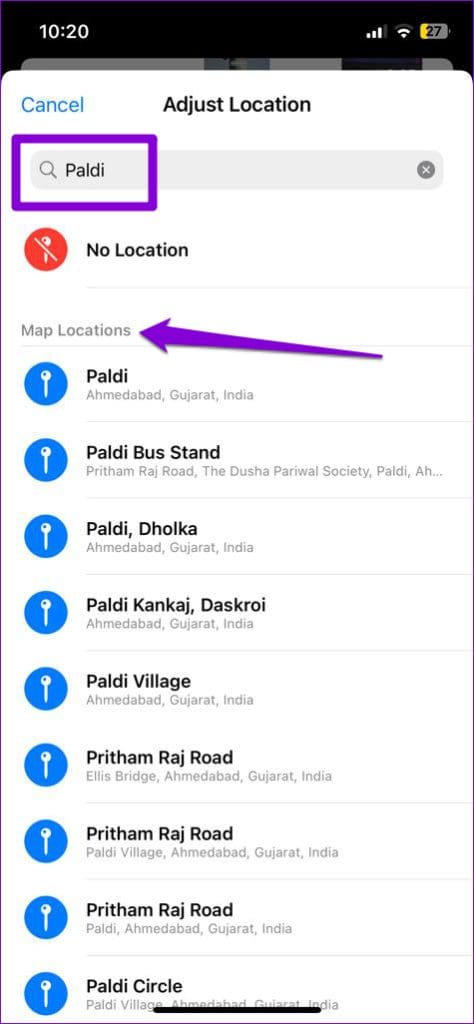
That’s it. The location tag for that photo will be updated. Similarly, you can edit or remove location details for multiple photos simultaneously.
Was this helpful?
Last updated on 06 August, 2024
Read Next
 How to Add Location Details to Photos on Android
Adding location information to your photos is a straightforward process.
How to Add Location Details to Photos on Android
Adding location information to your photos is a straightforward process.
 How to Browse the Photos App by Location on iPhone
The default image gallery on iPhone is the Photos app.
How to Browse the Photos App by Location on iPhone
The default image gallery on iPhone is the Photos app.
 iPhone 15 Pro Max vs Samsung Galaxy S23 Ultra: Cameras Compared
Despite being a year old, the Samsung Galaxy S23 Ultra is still a very good phone to buy.
iPhone 15 Pro Max vs Samsung Galaxy S23 Ultra: Cameras Compared
Despite being a year old, the Samsung Galaxy S23 Ultra is still a very good phone to buy.
 How to Check or Change Owner Details in Windows 11
Check the Registered Owner and Organization Name You can run the Winver command or use the Windows PowerShell terminal to inspect this quickly.
How to Check or Change Owner Details in Windows 11
Check the Registered Owner and Organization Name You can run the Winver command or use the Windows PowerShell terminal to inspect this quickly.
 How to Delete Photos From iPhone But Not From Google Photos
How to Delete Photos from iPhone But Keep Them in Google Photos Open Google Photos, swipe up the photo you want to delete, and select Delete from Device.
How to Delete Photos From iPhone But Not From Google Photos
How to Delete Photos from iPhone But Keep Them in Google Photos Open Google Photos, swipe up the photo you want to delete, and select Delete from Device.
 How to Move Photos From iPhone to Google Photos
Method 1.
How to Move Photos From iPhone to Google Photos
Method 1.
 How to Add or Change Home and Work Location on Google Maps
How to Set Home and Work Location on Google Maps Step 1: Tap on the Saved tab on the bottom toolbar.
How to Add or Change Home and Work Location on Google Maps
How to Set Home and Work Location on Google Maps Step 1: Tap on the Saved tab on the bottom toolbar.
 How to Add a Location or Missing Address in Google Maps
Over the past few years, navigation apps such as Google Maps have become an important part of our lives.
How to Add a Location or Missing Address in Google Maps
Over the past few years, navigation apps such as Google Maps have become an important part of our lives.
The article above may contain affiliate links which help support Guiding Tech. The content remains unbiased and authentic and will never affect our editorial integrity.