Add AirPlay Passcode on iPhone and iPad
When you cast media from your iPhone or iPad using AirPlay on any device for the first time, you will be prompted to enter a passcode. But that passcode cannot be created on your iPhone or iPad before you use screen mirroring or stream media. However, you get a few options to connect your iPhone or iPad to TVs using AirPlay. Here’s how to access the setting. The steps are the same for iPhone and iPad.
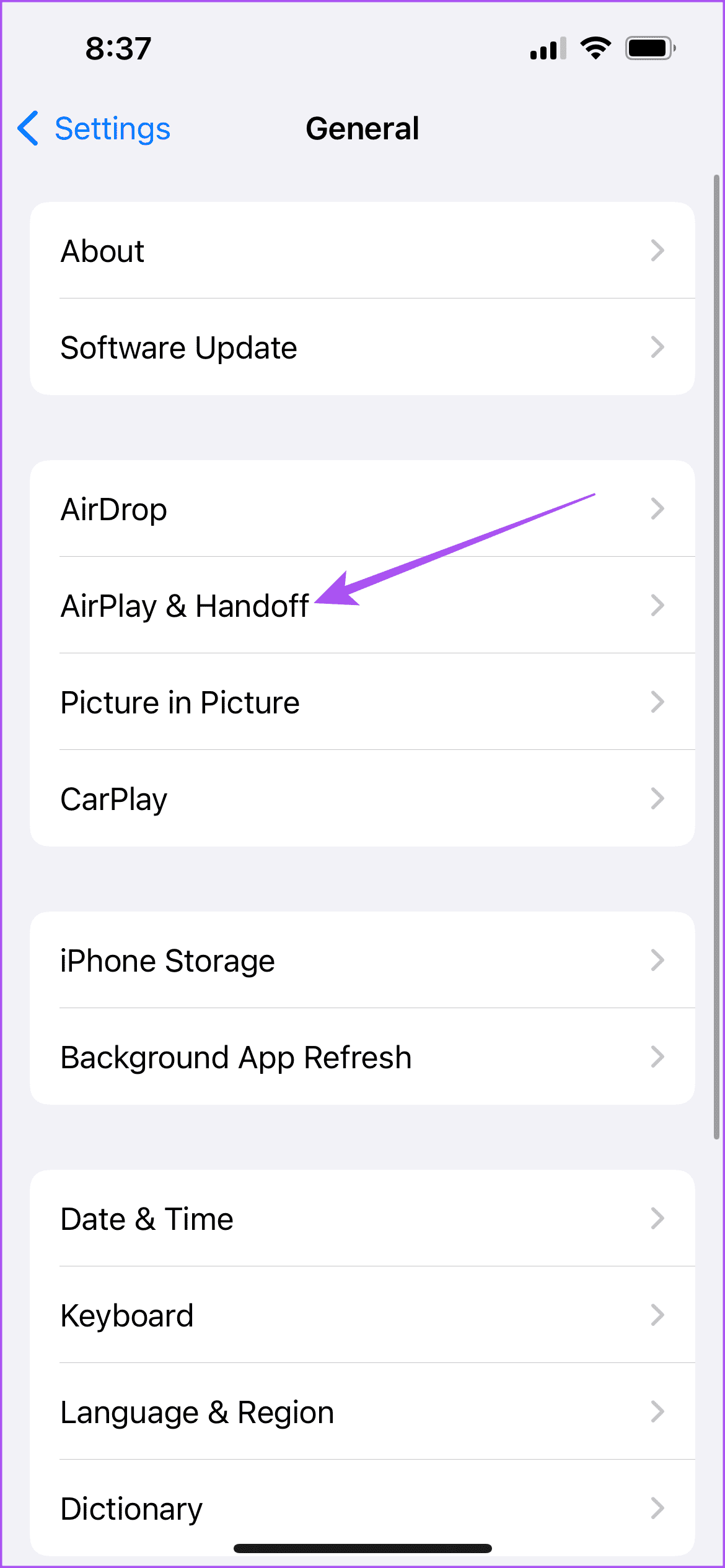
Step 1: Open Settings > General.
Step 2: Tap on AirPlay and Handoff. Then, select Automatically AirPlay to TVs.
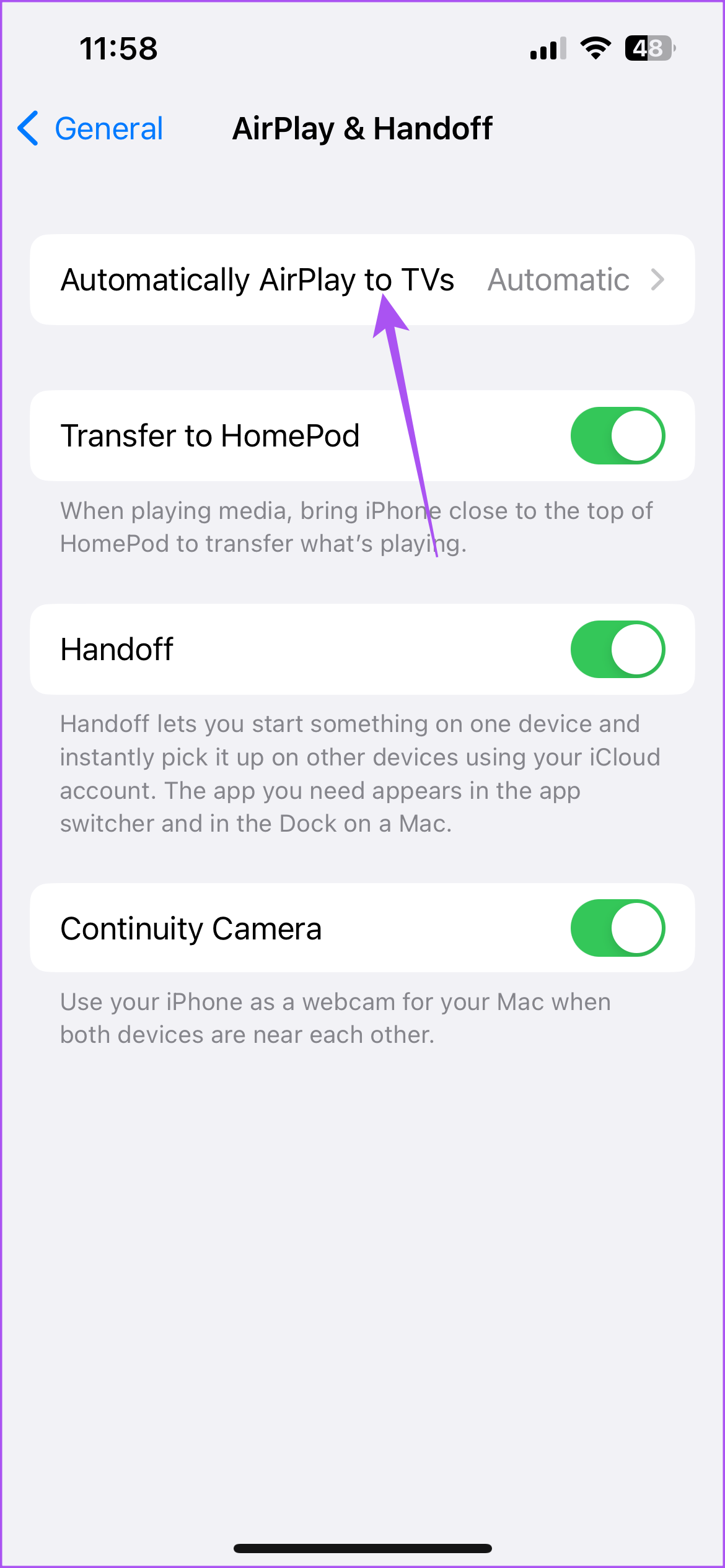
You can choose to let your iPhone or iPad discover and automatically connect to nearby Apple TVs or choose your preference before doing that.
Add AirPlay Passcode on Mac
Your Mac does give you the option to add, enable or reset your AirPlay password. Before your mirror your screen or stream media from your Mac, the other device will be asked to enter the AirPlay password. Here’s how to set it on your Mac.
Step 1: Open Settings > General.
Step 2: Select AirDrop and Handoff.
Step 3: Click the toggle next to Require Password.

Step 4: Click on Set.
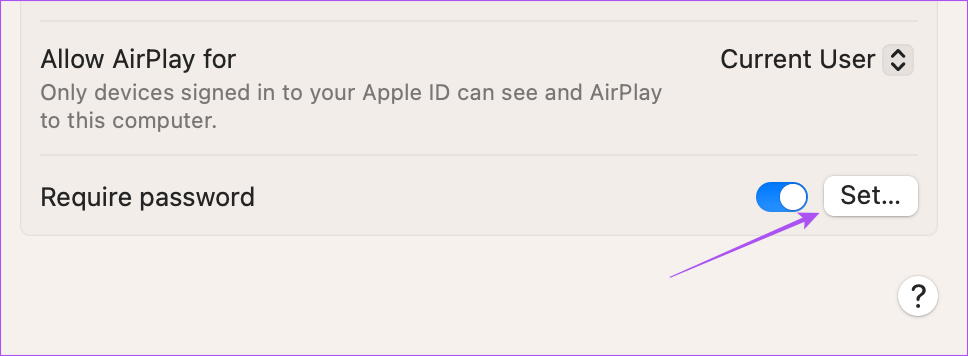
Step 5: Enter your AirPlay passcode and then click on Ok.
To disable your AirPlay password, just click the toggle again next to Require Password to disable it.
These steps will also help you to know how to find your AirPlay password.
Change AirPlay Password on Mac
If you wish to change your AirPlay password on your Mac, here’s how to do that.
Step 1: Open Settings and then select AirPlay and Handoff.

Step 2: Click on Set.
Step 3: Add a new password and then click on Ok.

Add AirPlay Passcode on Apple TV
You get the option to add your AirPlay password on Apple TV. Since most of you would like to stream media like movies, music, and videos on a bigger screen, Apple allows you to create a password on your Apple TV, which needs to be entered before using AirPlay. That’s why AirPlay will keep asking for a password whenever someone tries to stream content. Here’s how you can add it.
Step 1: Open Settings on your Apple TV or Apple TV 4K and then go to AirPlay and HomeKit.
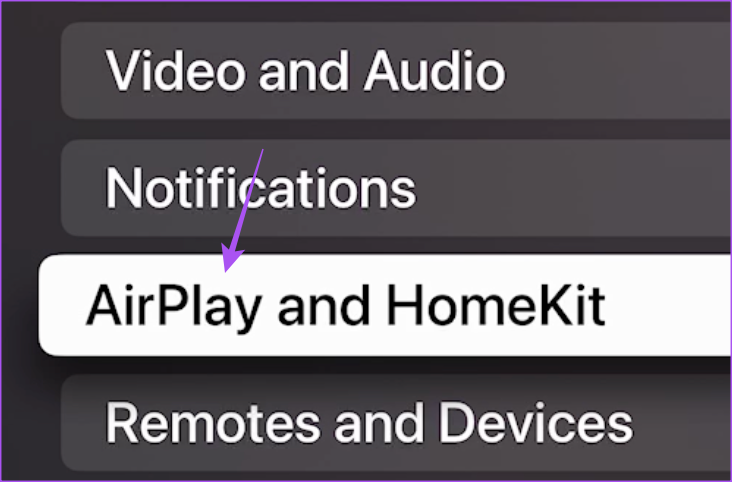
Step 2: Select Allow Access.

Step 3: Select Require Password to enable the feature.

A default AirPlay password will be generated, which needs to be entered before streaming content from your device.

If you ever want to know your AirPlay password, you can go to the Settings of your Apple TV or Apple TV 4K.
Change or Disable AirPlay Passcode on Apple TV
Here’s how you can change your AirPlay password or disable the AirPlay password on your Apple TV.
Step 1: Open Settings > AirPlay and Handoff > Allow Access > Require Password.
Step 2: Enter your new password and then select Done.

To disable the password, select Password again to turn it off.
Was this helpful?
Last updated on 16 July, 2024
Read Next
 3 Fixes for AirPlay Not Working on Apple TV
Basic Fixes Use the same Apple account and Wi-Fi network: AirPlay will only work between your Apple devices if you have the same Apple account and connected to the same
3 Fixes for AirPlay Not Working on Apple TV
Basic Fixes Use the same Apple account and Wi-Fi network: AirPlay will only work between your Apple devices if you have the same Apple account and connected to the same
 5 Best Fixes for Apple TV Stuck on AirPlay Screen
You can use the AirPlay functionality on your Apple TV to stream media from your iPhone or iPad on your TV screen.
5 Best Fixes for Apple TV Stuck on AirPlay Screen
You can use the AirPlay functionality on your Apple TV to stream media from your iPhone or iPad on your TV screen.
 Top 10 Ways to Fix AirPlay Not Working on Roku
Roku offers a wide range of streaming devices to movie buffs.
Top 10 Ways to Fix AirPlay Not Working on Roku
Roku offers a wide range of streaming devices to movie buffs.
 5 Best AirPlay Receivers for Speakers and Sound Systems
AirPlay receivers are small devices designed to enhance your home audio experience.
5 Best AirPlay Receivers for Speakers and Sound Systems
AirPlay receivers are small devices designed to enhance your home audio experience.
 How to Disable the Login Password Screen in Windows 10
Entering a password every time you log in to your Windows 10 computer can get tiring after a while.
How to Disable the Login Password Screen in Windows 10
Entering a password every time you log in to your Windows 10 computer can get tiring after a while.
 What to Do When Safari Doesn’t Ask to Save Password on iOS
I’m a Google Chrome user.
What to Do When Safari Doesn’t Ask to Save Password on iOS
I’m a Google Chrome user.
 4 Ways to Remove Login Password From Windows 11
Method 1.
4 Ways to Remove Login Password From Windows 11
Method 1.
 5 Ways to Unlock Secure Folder in Samsung Without Password
Did you forget your Secure Folder password and are unable to use it?
5 Ways to Unlock Secure Folder in Samsung Without Password
Did you forget your Secure Folder password and are unable to use it?
The article above may contain affiliate links which help support Guiding Tech. The content remains unbiased and authentic and will never affect our editorial integrity.