How to Access and Use the Office Clipboard
Using the Office Clipboard, you can save texts from an email, data from a spreadsheet, and even graphics from an online source. When you open the clipboard on any Office product, it appears as a task pane. For illustrative purposes, we will be using Microsoft Word. However, you can easily replicate the steps on other Office products.
Step 1: Open Microsoft Word.
Step 2: On the Microsoft Office Ribbon, click on the Home tab.
Step 3: On the Home tab, look for the Clipboard group and then click the dialog box launcher (downwards arrow) beside it to open the Clipboard task pane.

The clipboard task pane will open blank if you haven’t copied any items. So, when you copy items, the Clipboard task pane should fill up until it contains its maximum 24 items.
How to Copy and Paste Items on the Office Clipboard
To fill up the Office Clipboard, you can copy and cut items to reflect on it. To do so, follow the steps below:
Step 1: Open the document containing the item to be copied.
Step 2: Highlight the content you want to copy.
Step 3: Right-click the highlighted content and then select Copy. You can also press Control + C.

Step 4: Click the Home tab in the Microsoft Office app.

Step 5: In the Home tab, look for the Clipboard group and then click the dialog box launcher beside it to open the Clipboard task pane.
Step 6: Check the Clipboard task pane for the item copied.
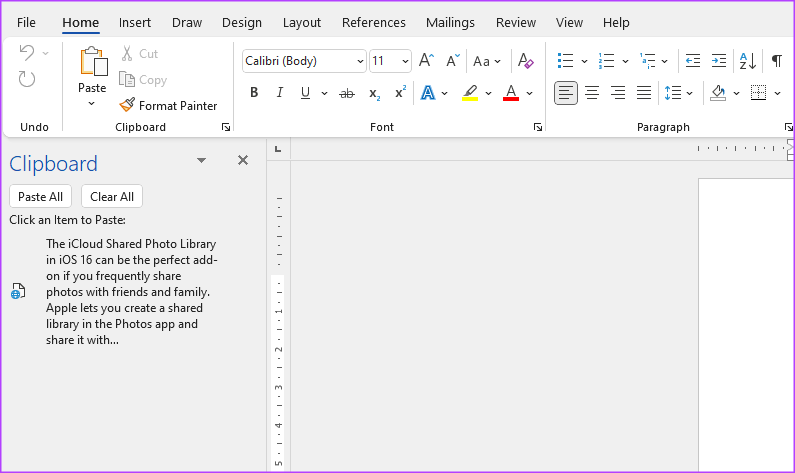
Without having to paste the item yourself, you should see that the copied item is already on your Office Clipboard.
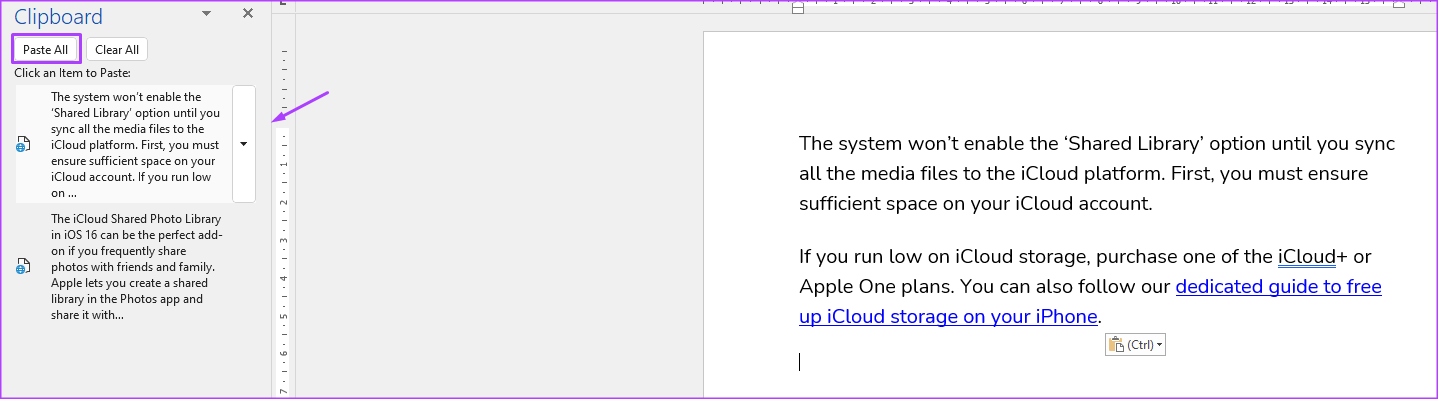
Step 7: To paste the copied items on an Office product, click any of the items as shown on the Clipboard task pane. To paste all copied items at a go, click Paste All.
Tip: Check out our post if you can’t select or highlight text in Microsoft Word.
How to Delete Items From the Office Clipboard
As you copy items, the Office Clipboard gradually stores them until it reaches its limit of 24 items. When this happens, the clipboard can no longer save your items. To clear up space, you will need to delete items from the Office Clipboard. Here’s how to do so:
Step 1: On the Microsoft Word Ribbon > Home tab > Dialog box launcher.
Step 2: Check the Clipboard task pane for all items copied.
Step 3: To delete just one item from the Clipboard, hover your cursor and then click the drop-down beside it.

Step 4: Click the Delete option from the drop-down.
Step 5: To delete all the Clipboard items, click Clear All at the top of the Clipboard task pane.

Tip: To view previously copied items, you will need to view your Windows Clipboard History.
Was this helpful?
Last updated on 16 August, 2024
Read Next
 3 Ways to Access the Clipboard on Your iPhone
Method 1: Use the Notes App to See Clipboard Using the Notes app is a great way to not only access but also store the copied contents from a clipboard.
3 Ways to Access the Clipboard on Your iPhone
Method 1: Use the Notes App to See Clipboard Using the Notes app is a great way to not only access but also store the copied contents from a clipboard.
 How to Set Out of Office Message in Microsoft Teams
How to Set Out of Office in Microsoft Teams Note: The steps are the same for both Windows and Mac.
How to Set Out of Office Message in Microsoft Teams
How to Set Out of Office in Microsoft Teams Note: The steps are the same for both Windows and Mac.
 8 Working Ways to Get Microsoft Office for Free
Method 1.
8 Working Ways to Get Microsoft Office for Free
Method 1.
 How to Generate QR Codes in Microsoft Office Using QR4Office
Pre-Requisites to Create QR Codes With QR4office To create a QR code, you'll need the following: Windows 10 version 16299 or higher Microsoft 365 subscription Microsoft Word/PowerPoint/Excel QR4Office How to
How to Generate QR Codes in Microsoft Office Using QR4Office
Pre-Requisites to Create QR Codes With QR4office To create a QR code, you'll need the following: Windows 10 version 16299 or higher Microsoft 365 subscription Microsoft Word/PowerPoint/Excel QR4Office How to
 How to Repair Microsoft Office Installation Errors in Windows
Are you having trouble installing Microsoft Office on your Windows computer?
How to Repair Microsoft Office Installation Errors in Windows
Are you having trouble installing Microsoft Office on your Windows computer?
 Fix: Microsoft Office Stuck on Getting Things Ready on Windows 11
Basic Fix Close other programs: This may be necessary, especially since other running programs may interfere with installation.
Fix: Microsoft Office Stuck on Getting Things Ready on Windows 11
Basic Fix Close other programs: This may be necessary, especially since other running programs may interfere with installation.
 How to Manage and Share Files and Folder Access on Microsoft OneDrive
Like iCloud and Google Drive, Microsoft's OneDrive is a great cloud storage platform to store your data.
How to Manage and Share Files and Folder Access on Microsoft OneDrive
Like iCloud and Google Drive, Microsoft's OneDrive is a great cloud storage platform to store your data.
 2 Ways to Access the Page Setup Dialog Box in Microsoft Word
Method 1: Using the Microsoft Word Ruler The Microsoft Word ruler has several uses, including quickly accessing the Page Setup dialog box. Here's how: Step 1: Click the Start button
2 Ways to Access the Page Setup Dialog Box in Microsoft Word
Method 1: Using the Microsoft Word Ruler The Microsoft Word ruler has several uses, including quickly accessing the Page Setup dialog box. Here's how: Step 1: Click the Start button
The article above may contain affiliate links which help support Guiding Tech. The content remains unbiased and authentic and will never affect our editorial integrity.