


How to Pair the Galaxy Buds2 With Your Windows PC
Connecting the Galaxy Buds2 with the Windows PC is a straightforward process. Here’s how to do it.
Step 1: Open the Galaxy Buds2 case, and tap and hold the touch-sensitive area for about 10-15 seconds. Then, put them on your ear, and you’ll hear a series of beeps.
Note: It’s important to reset the Galaxy Buds2, especially if you have paired them previously to your phone. However, it’s just a one-time thing, and you needn’t do it every time you connect your buds.
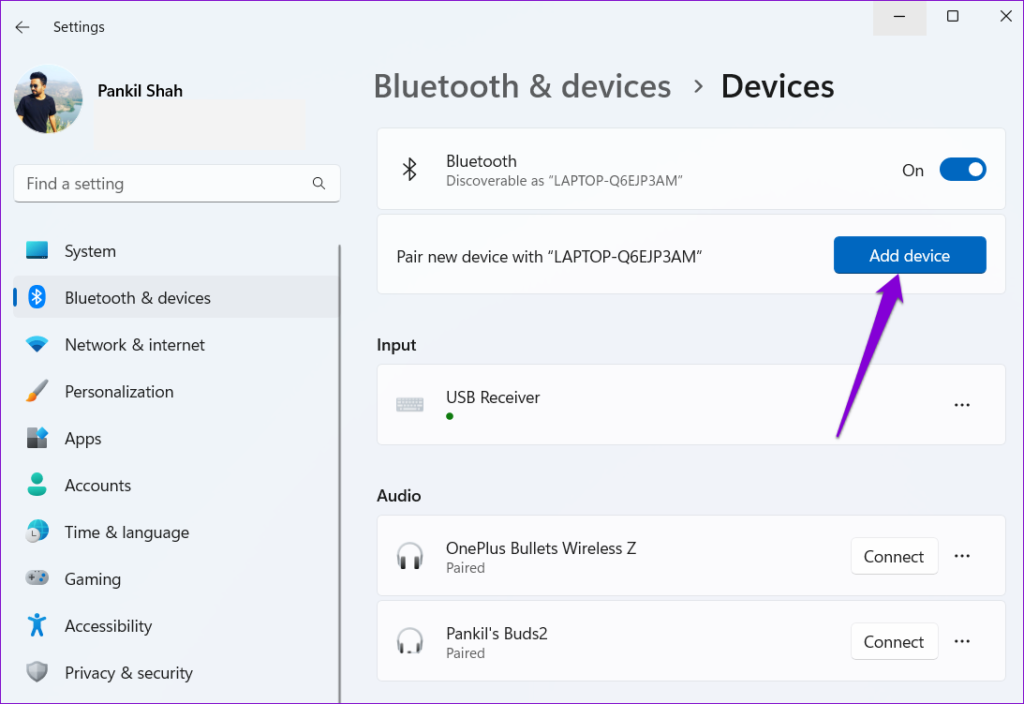
Step 2: Press the Windows key + I to open the Settings app and head to Bluetooth & devices > Devices. Then, click on Add device.
Step 3: Select your Galaxy Buds once they appear.
How to Pair the Galaxy Buds2 With Android or iPhone
Connecting the Galaxy Buds2 with an Android or iPhone is just as easy. Here’s how to do it.
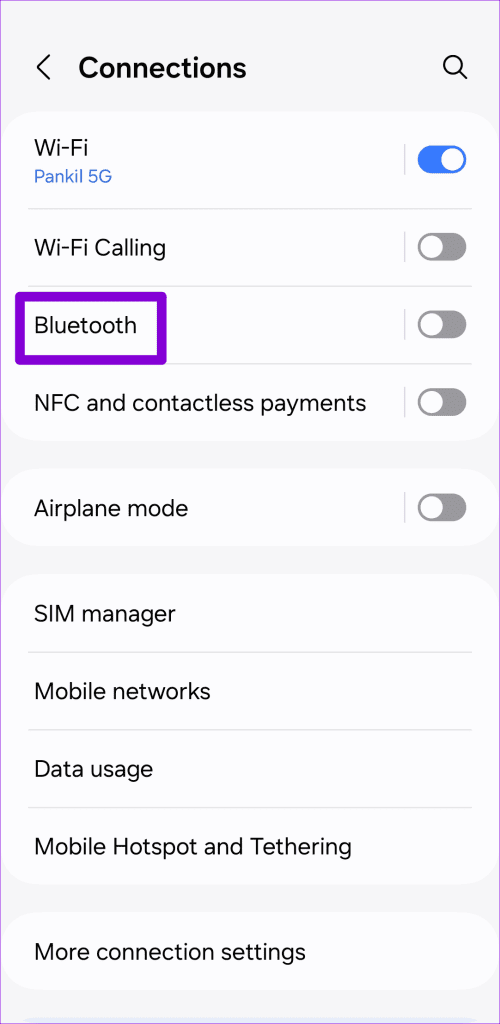
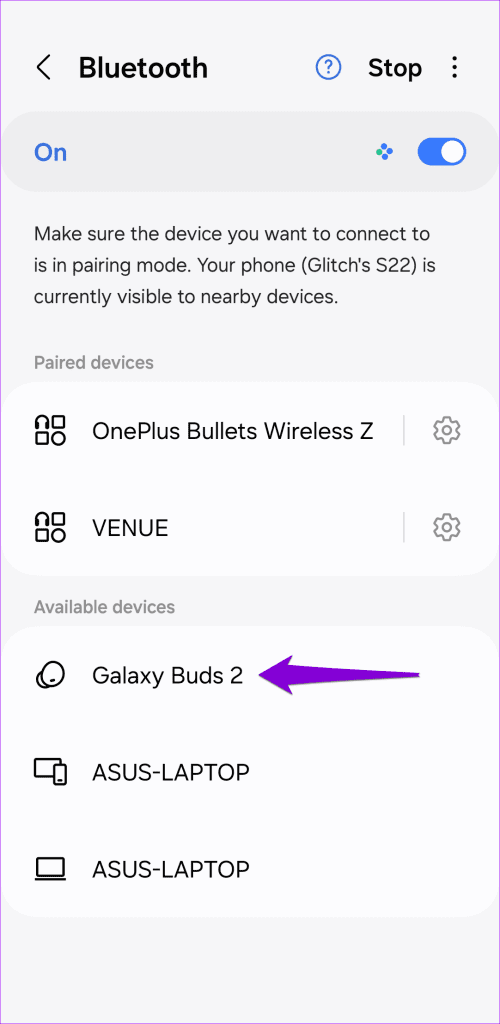
Step 1: Open the Settings app on your Android or iPhone and go to Bluetooth.
Step 2: Wait for your phone to scan the nearby devices and select the Galaxy Buds 2 once it appears.
In addition to allowing you to listen to your favorite tracks, the touch controls on your device let you perform several basic functions. For example, a single tap will play or pause music, while a long press can activate the Sound Transparency feature. You can also enable or disable Active Noise Cancellation (ANC) with a touch gesture.
How to Pair the Galaxy Buds2 With MacBook Pro
Just like with Windows laptops, you can also connect the Galaxy Buds2 to an Apple MacBook Pro or MacBook Air.
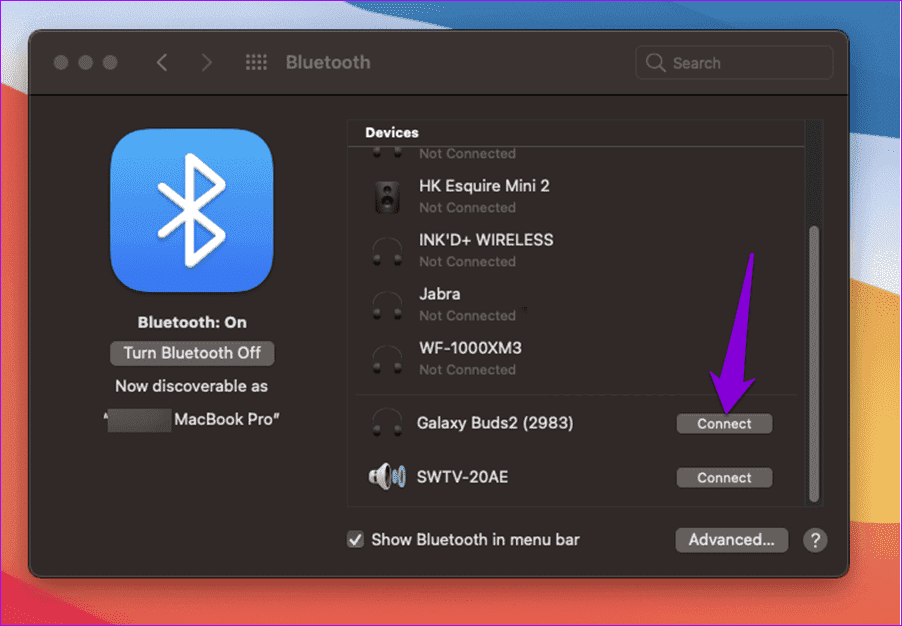
Step 1: Open the Action Center on your Mac, and select Bluetooth from the list.
Step 2: In the Bluetooth menu, click Connect next to the Galaxy Buds2.
How to Pair the Galaxy Buds2 With the Galaxy Watch 4
Lastly, the Galaxy Buds2 pairs seamlessly with Samsung’s Galaxy Watch 4. You can control playback directly from your watch, whether you’re using Spotify or the stock music widget. This setup allows you to keep your phone in one place while managing your music through your watch.
Step 1: On your watch, swipe up or down on the home screen to access Settings. Select Connections > Bluetooth from the menu.
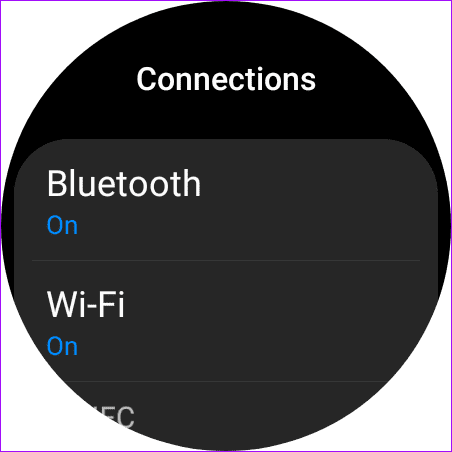
Step 2: Tap on Scan and after a while, you will see the Galaxy Buds2 in the list. All you need to do is tap on it.

Was this helpful?
Last updated on 03 September, 2024
1 Comment
Leave a Reply
Read Next
 How to Pair the Jabra Elite 75t to Laptop and Other Devices
If you have recently bought the Jabra Elite 75t (or planning to buy one), you must already know about its features.
How to Pair the Jabra Elite 75t to Laptop and Other Devices
If you have recently bought the Jabra Elite 75t (or planning to buy one), you must already know about its features.
 How to Pair Samsung Galaxy Buds Pro to iPhone, Laptop, and MacBook
How to Pair Samsung Galaxy Buds Pro to Other Devices With iPhone Step 1: If you've paired the earphones with another device already, it's best to reset the earphones before
How to Pair Samsung Galaxy Buds Pro to iPhone, Laptop, and MacBook
How to Pair Samsung Galaxy Buds Pro to Other Devices With iPhone Step 1: If you've paired the earphones with another device already, it's best to reset the earphones before
 8 Best Fixes for Honor Band 5 Won’t Pair Issue on Android and iPhone
Pairing is important when it comes to fitness bands.
8 Best Fixes for Honor Band 5 Won’t Pair Issue on Android and iPhone
Pairing is important when it comes to fitness bands.
 Top 11 Ways to Fix Cannot Pair Mi Band Problem
It’s necessary to connect your Mi Band with the Mi Fit app for the first time to use it.
Top 11 Ways to Fix Cannot Pair Mi Band Problem
It’s necessary to connect your Mi Band with the Mi Fit app for the first time to use it.
 Top 10 Samsung My Files Tips and Tricks on Galaxy Devices
Native file management is one of the prime reasons to choose Android over iOS.
Top 10 Samsung My Files Tips and Tricks on Galaxy Devices
Native file management is one of the prime reasons to choose Android over iOS.
 2 Ways to Fix Wrong Order of Messages on Samsung Galaxy Devices
https://youtu.be/NdwSN__cLQc Basic Fixes: Restart the Samsung Messages app: A temporary bug or glitch can cause the messages to appear out of order.
2 Ways to Fix Wrong Order of Messages on Samsung Galaxy Devices
https://youtu.be/NdwSN__cLQc Basic Fixes: Restart the Samsung Messages app: A temporary bug or glitch can cause the messages to appear out of order.
 4 Ways to Fix Face Recognition Not Working on Samsung Galaxy Devices
Basic Fixes: Ensure facial recognition data is added properly: When capturing your face data, ensure you're in a well-lit room.
4 Ways to Fix Face Recognition Not Working on Samsung Galaxy Devices
Basic Fixes: Ensure facial recognition data is added properly: When capturing your face data, ensure you're in a well-lit room.
 7 Best Ways to Fix S Pen Not Working on Samsung Galaxy Devices
Samsung's Galaxy Note series was one of the most popular smartphone lineups until Samsung killed it in 2021.
7 Best Ways to Fix S Pen Not Working on Samsung Galaxy Devices
Samsung's Galaxy Note series was one of the most popular smartphone lineups until Samsung killed it in 2021.
The article above may contain affiliate links which help support Guiding Tech. The content remains unbiased and authentic and will never affect our editorial integrity.

Hi,
I have discovered that de Buds 2 are not compatible with the RHA Bluetooth Flight Adapter.
Unless several resets the RHA and Buds 2 will just not talk to each other.
Weird thing is that i can connect the RHA with all other bluetooth sound devices i own (Sony Wx1000 headset and JBL Charge 3).
And the Buds 2 are perfectly connecting to my phone, my windows 10 PC, my windows 11 PC…
Any suggestions ?
Peter