How to Change Profile Name in Zoom on Desktop
Method 1: Change Zoom Name for All Meetings
Step 1: Click on the profile picture icon at the top. Tap on your username and select My Profile.
Tip: If you don’t see My profile, go to Settings > Profile > Edit profile.
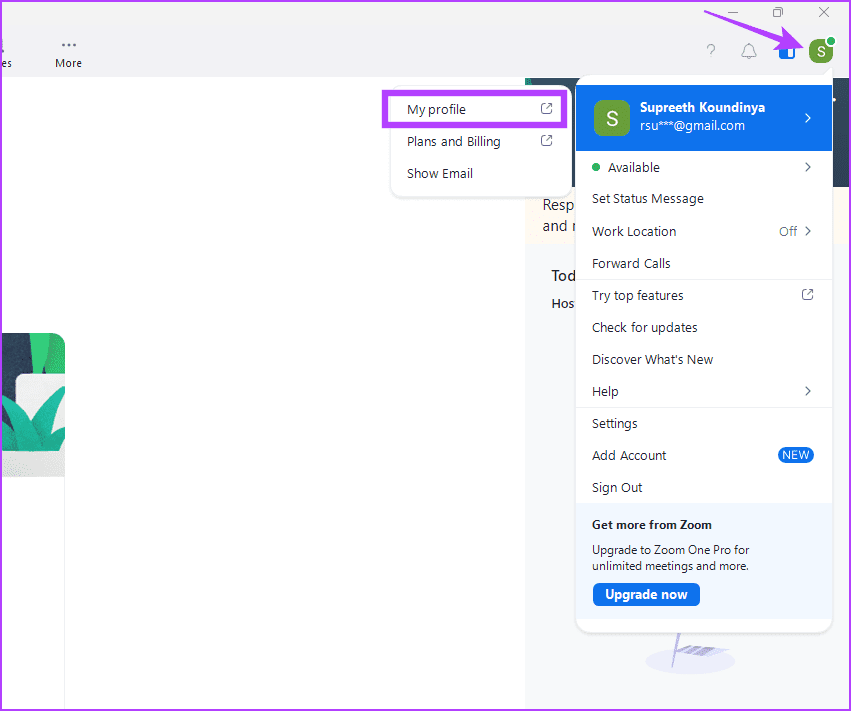
Step 2: In Zoom account settings, go to Profile under the Personal section from the left sidebar. Click on the Edit button next to your name and enter a new name. Then, click on Save to save the changes.

Method 2: Change Zoom Name for the Current Meeting Only
Here’s how to change your name only for the upcoming meeting.
Step 1: Open the Zoom app without clicking on the Zoom meeting link, and click on the Join button.

Step 2: You will see two input fields. The first one is for filling in the meeting ID and the second one is for entering the display name.
Enter your name in the second box, and enter the Meeting ID manually.

Method 3: Change Zoom Name During a Meeting
If you want to change your name once you have joined a meeting, you don’t need to disconnect the call to change your name.
Step 1: Click on the Participants icon on the meeting screen.
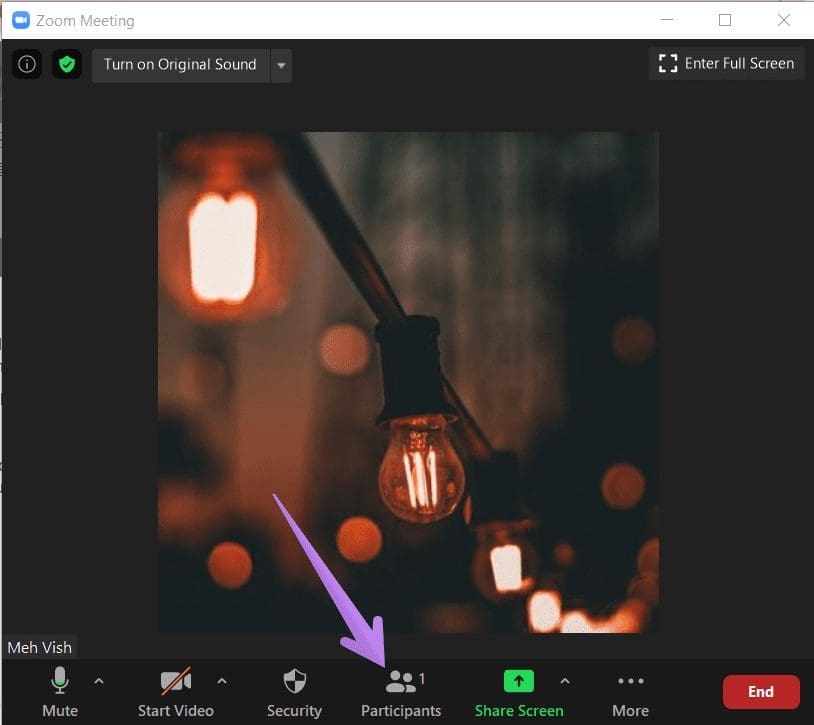
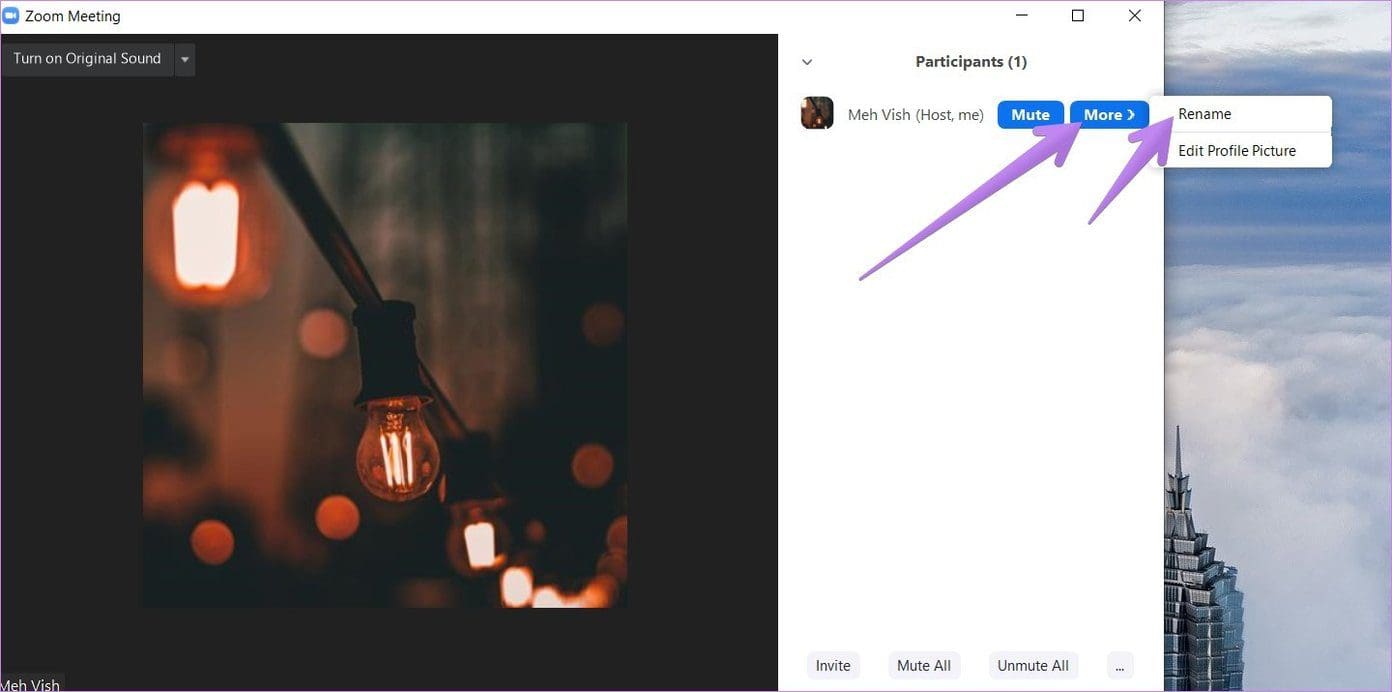
Step 2: A sidebar will open. Hover your mouse over your name and click on More > choose Rename > enter a new name.
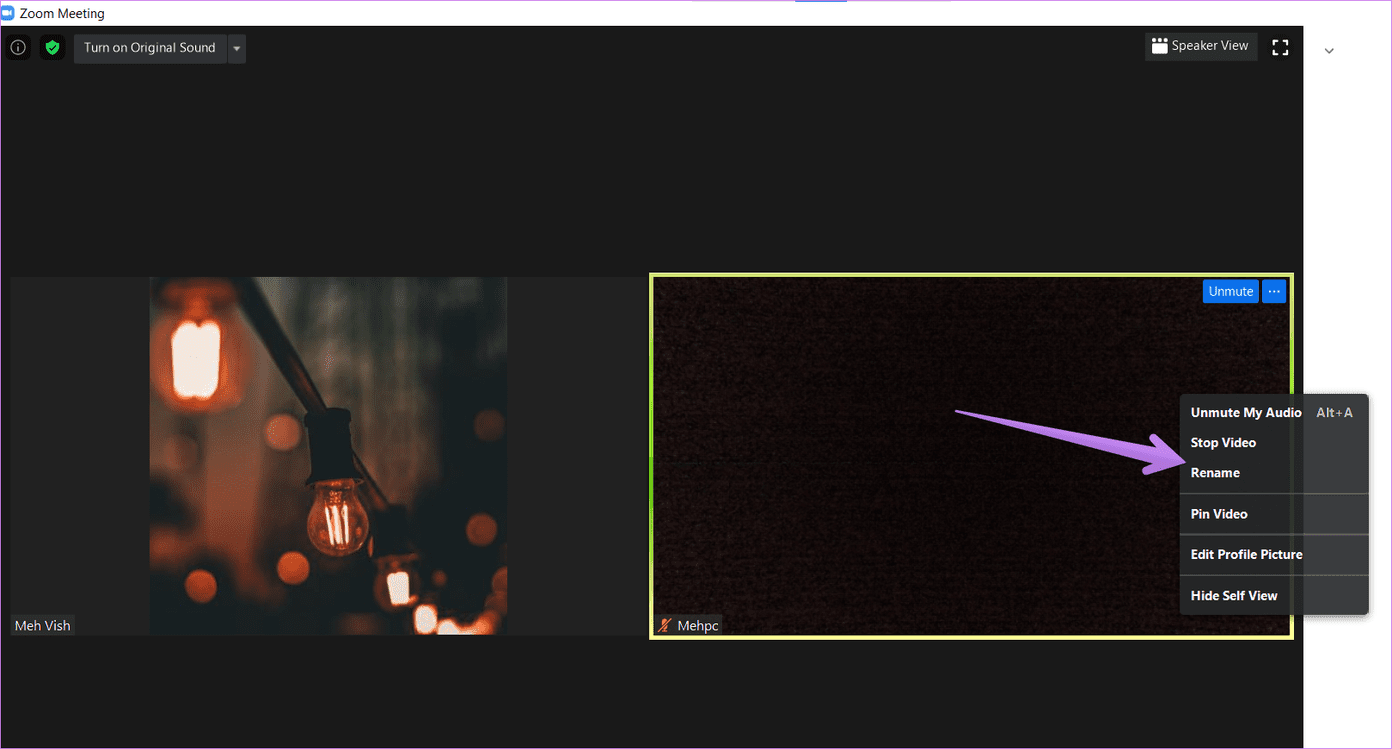
Alternatively, right-click on your video preview and select Rename from the menu.
Tip: Find out how to show a profile picture instead of a video in Zoom.
How to Change Name in Zoom on Android, iPhone, and iPad
Method 1: Change Zoom Name on Mobile for All Meetings
To change the name for all meetings before joining a meeting, follow these steps:
Step 1: Launch the Zoom app > tap on More at the bottom > tap on your name at the top.
Step 2: Tap on Display Name and change the name on the next screen.


Method 2: Change Zoom Name on Mobile Before Joining Meeting
To change your name for a single meeting only, tap on the Join button on the Zoom app home screen. Enter your name in the Name box.


Also Read: How to use notes in Zoom meetings
Method 3: Change Zoom Name During Meeting
Step 1: After joining a meeting, tap on the Participants tab at the bottom.
Step 2: Tap on your name > choose Rename from the menu.

Also Read: How to fix background blur not working in Zoom
Was this helpful?
Last updated on 09 July, 2024
Read Next
 How to Use Notes in Zoom Meetings on Mobile and Desktop
How to Use Zoom Notes in Meetings on Desktop Before we get started, ensure that you have installed the latest version of the Zoom app on your Mac or Windows
How to Use Notes in Zoom Meetings on Mobile and Desktop
How to Use Zoom Notes in Meetings on Desktop Before we get started, ensure that you have installed the latest version of the Zoom app on your Mac or Windows
 How to Change WhatsApp Audio Speed on Mobile and Desktop
Change Playback Speed for Audio Messages on WhatsApp WhatsApp allows you to change the playback speed of audio messages in three levels : 1x – 1x means WhatsApp will play
How to Change WhatsApp Audio Speed on Mobile and Desktop
Change Playback Speed for Audio Messages on WhatsApp WhatsApp allows you to change the playback speed of audio messages in three levels : 1x – 1x means WhatsApp will play
 How to Change Outlook Password on Mobile, Desktop, and Web
Change Password in Outlook Mobile App The Outlook client app on Android and iPhone doesn’t have the option to change your account password.
How to Change Outlook Password on Mobile, Desktop, and Web
Change Password in Outlook Mobile App The Outlook client app on Android and iPhone doesn’t have the option to change your account password.
 How to Change the Default Language in Steam for Desktop and Mobile
How to Change the Language in Steam for Desktop Changing the default language in the Steam app is similar on both Windows and Mac, thanks to their comparable interfaces.
How to Change the Default Language in Steam for Desktop and Mobile
How to Change the Language in Steam for Desktop Changing the default language in the Steam app is similar on both Windows and Mac, thanks to their comparable interfaces.
 How to Change Default Google Account on Desktop and Mobile
Method 1: Change the Default Google Account on the Desktop Step 1: Open Google on your preferred browser.
How to Change Default Google Account on Desktop and Mobile
Method 1: Change the Default Google Account on the Desktop Step 1: Open Google on your preferred browser.
 How to Change Zoom App Ringtone and Notification Sound
How to Change Zoom Incoming Call Ringtone on Android, iPhone, and iPad If you use Zoom daily, you might be bored of its same ringtone or notification sound.
How to Change Zoom App Ringtone and Notification Sound
How to Change Zoom Incoming Call Ringtone on Android, iPhone, and iPad If you use Zoom daily, you might be bored of its same ringtone or notification sound.
 How to Change Font Style in Microsoft Outlook
Change Font Style in Microsoft Outlook App for Windows Outlook Windows app doesn’t use plain text and opts for HTML to draft a message.
How to Change Font Style in Microsoft Outlook
Change Font Style in Microsoft Outlook App for Windows Outlook Windows app doesn’t use plain text and opts for HTML to draft a message.
 How to Find Zoom Meeting Password on Mobile and PC
Were you trying to join a Zoom meeting when you were shown a ‘Enter Zoom meeting password’ pop-up?
How to Find Zoom Meeting Password on Mobile and PC
Were you trying to join a Zoom meeting when you were shown a ‘Enter Zoom meeting password’ pop-up?
The article above may contain affiliate links which help support Guiding Tech. The content remains unbiased and authentic and will never affect our editorial integrity.