You can set just about any image you like as the background for your Windows 11 desktop. Sometimes, though, you may find that what was once a crisp, sharp image looks blurry or pixelated. This can happen for several reasons, including low image resolution, an unsuitable background fit, or display settings.
If your desktop wallpaper is pixelated, try the fixes and tips below.
Check the Image Resolution
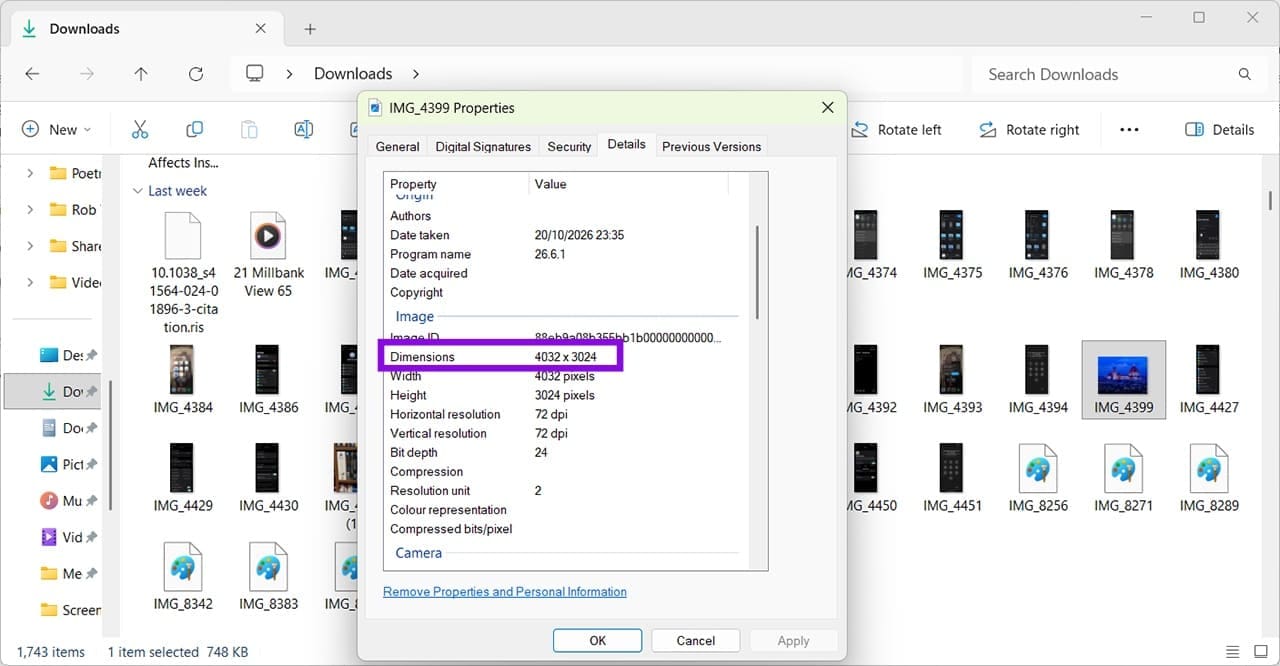
Step 1. The first step in figuring out how to fix pixelated wallpaper in Windows 11 is to check the resolution. Resolution means how many pixels there are in an image, and is usually presented in width x height. You can right-click any image, go to Properties > Details, and you will see the resolution under the Image header. The example below shows that an image has a resolution of 4032 x 3024.
Step 2. You now need to check that the image resolution is the same as or higher than your screen’s resolution. To do this, go to Settings > System > Display.

In this instance, the display resolution is 1920 × 1080, and Windows identifies this as the recommended resolution for the machine.
Ideally, choose an image with enough pixels to display at this size without being enlarged significantly. Its aspect ratio should also be suitable for your screen, depending on how you want the image to fit. If the image looks blurry or pixelated, try to find a higher-resolution version of the same image or choose a different one.
Change Your Scale & Layout Settings
Step 1. Incorrect display resolution settings can also make images appear less sharp. To check these, head to Settings > System > Display and look for Display resolution under the relevant display settings. Make sure it is set to the option marked “Recommended.”
Tip: You can open “Personalization” by right-clicking anywhere on your desktop and selecting the relevant option from the pop-up menu.

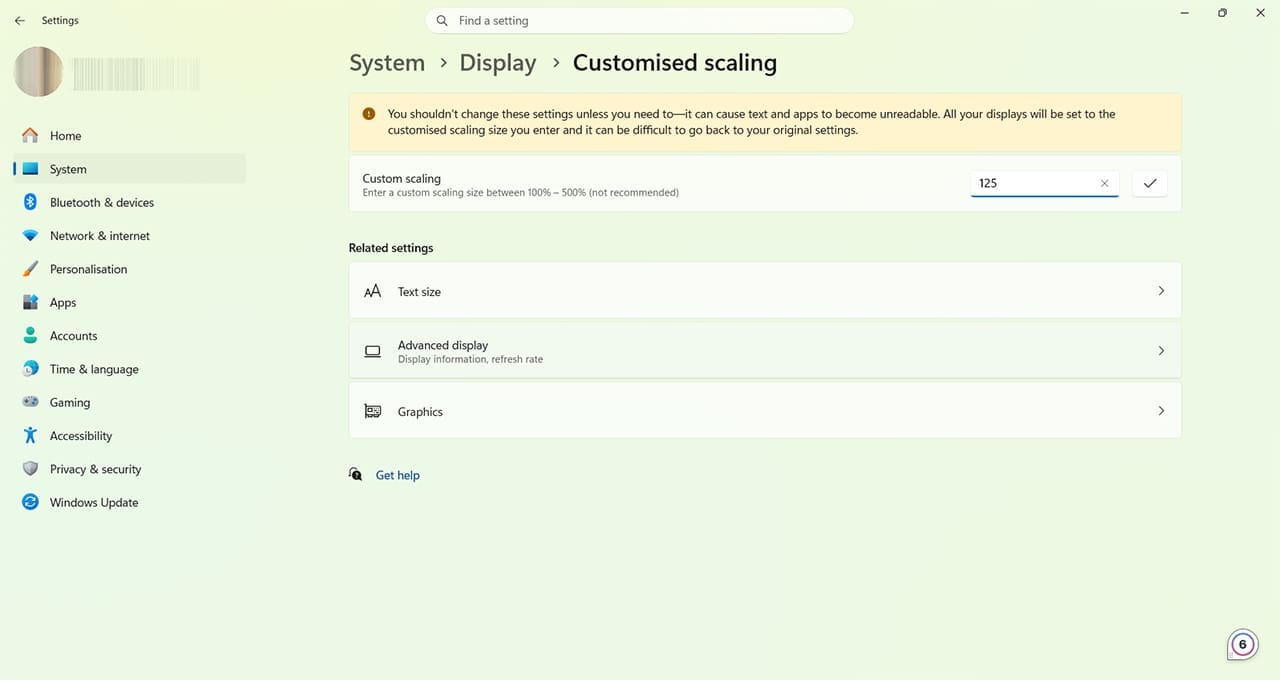
Step 2. Check that the Scale option is set to the Recommended percentage size. If not, click on “Scale,” and change the Custom scaling to 100% to see if this fixes the blurring. If not, repeat the process, but try setting the scale to 125%. Don’t adjust your scaling if it’s already set to the recommended level, as it can cause problems with text sizing.
Set Wallpaper Directly From Image
Step 1. If you’re still finding that your desktop wallpaper is pixelated, you may want to try using the image file itself to set the wallpaper. Most users follow this process to set a wallpaper: Settings > Personalization > Personalize your background > Picture.

From here, you can select an image from Windows Explorer.

But you can, instead, open Windows Explorer from the desktop or Start menu, and navigate to the image you want.

Step 2. Right-click the image and select “Set as desktop background.”

You should now find that your image is crisp and clear.

Was this helpful?
Last updated on 31 October, 2026
Read Next
 A Guide to Fixing Keyboard Shortcuts Not Working on Windows 10
When you get used to keyboard shortcuts, there's no going back.
A Guide to Fixing Keyboard Shortcuts Not Working on Windows 10
When you get used to keyboard shortcuts, there's no going back.
 A Complete Guide to Fixing Blurry Text in Windows 10
Microsoft’s Windows 10 operating system enjoys a comfortable lead over the rivals in the desktop OS market share.
A Complete Guide to Fixing Blurry Text in Windows 10
Microsoft’s Windows 10 operating system enjoys a comfortable lead over the rivals in the desktop OS market share.
 Why Can’t I See Myself on Zoom: A Guide for Fixing Video Problems
It’s safe to say that the video calling apps have taken over the physical company meetings and conferences.
Why Can’t I See Myself on Zoom: A Guide for Fixing Video Problems
It’s safe to say that the video calling apps have taken over the physical company meetings and conferences.
 A Detailed Guide to Fixing AirPods Not Switching to Noise Cancellation
The AirPods Pro features Active Noise Cancellation, and that's what makes them better over AirPods.
A Detailed Guide to Fixing AirPods Not Switching to Noise Cancellation
The AirPods Pro features Active Noise Cancellation, and that's what makes them better over AirPods.
 A Complete Guide to Fixing Android Recovery Mode Not Working
When was the last time your Android phone struggled to boot into Recovery mode?
A Complete Guide to Fixing Android Recovery Mode Not Working
When was the last time your Android phone struggled to boot into Recovery mode?
 A Detailed Guide to Fixing Mac Booting With Black Screen Issues
Clicking the power button on your MacBook should light up the screen and keyboard, play a startup chime, display the Apple logo, and finally, boot into the authentication screen where
A Detailed Guide to Fixing Mac Booting With Black Screen Issues
Clicking the power button on your MacBook should light up the screen and keyboard, play a startup chime, display the Apple logo, and finally, boot into the authentication screen where
 A Guide to Fixing Mac Not Connecting to Wi-Fi in macOS Recovery
If your Mac acts up or keeps crashing, the built-in Recovery mode can be useful.
A Guide to Fixing Mac Not Connecting to Wi-Fi in macOS Recovery
If your Mac acts up or keeps crashing, the built-in Recovery mode can be useful.
 Fixing a File Content Downloading Error in Outlook
If you get an error downloading file content in Outlook, it usually appears when you click an attachment or image that refuses to preview or download.
Fixing a File Content Downloading Error in Outlook
If you get an error downloading file content in Outlook, it usually appears when you click an attachment or image that refuses to preview or download.
The article above may contain affiliate links which help support Guiding Tech. The content remains unbiased and authentic and will never affect our editorial integrity.