If you get an error downloading file content in Outlook, it usually appears when you click an attachment or image that refuses to preview or download. The problem can affect Outlook on the web and the new Outlook app, including accounts used for work or school. Here are some possible causes and troubleshooting steps.
What Causes the “Error Downloading File Content” in Outlook?
Outlook needs to fetch the attachment from Microsoft’s servers before it can preview or save it, so connection problems, service issues, or access restrictions can trigger an error. Possible causes include:
- A weak or unstable internet connection, especially with large files
- Low disk space on the device you’re downloading to
- Corrupted browser cookies, cache, or site permissions for Outlook
- Blocked file types or restrictions set by your organization’s admin
- An incorrectly configured time zone in a shared mailbox, if the problem is associated with that mailbox’s regional settings.
Fix 1 – Forward the Email or Save Attachments to OneDrive
If you need the file quickly, you can work around the error rather than fixing it right away.
Step 1. If the attachment is not blocked by Outlook or your organization, open the email and forward it to your own address or another mailbox you can access.
Step 2. Open the forwarded copy and try downloading the attachment from there.
Step 3. If that doesn’t work, click the drop-down arrow next to the attachment and select “Save to OneDrive.” For multiple files, choose “Save all to OneDrive.”
Step 4. Open OneDrive and download the file from there.
Fix 2 – Recreate the Attachments Folder in the New Outlook App
The new Outlook app for Windows stores downloaded attachments in a local folder. If that folder gets corrupted, every download can fail with the same error.
Step 1. Close Outlook completely.
Step 2. Press “Win + R,” paste the following path, and hit “Enter”:
%userprofile%\AppData\Local\Microsoft\Olk
Step 3. Check whether an “Attachments” folder exists. If it is missing, create it. If it already exists, do not delete it without first confirming that it is safe to remove and that Outlook is closed.
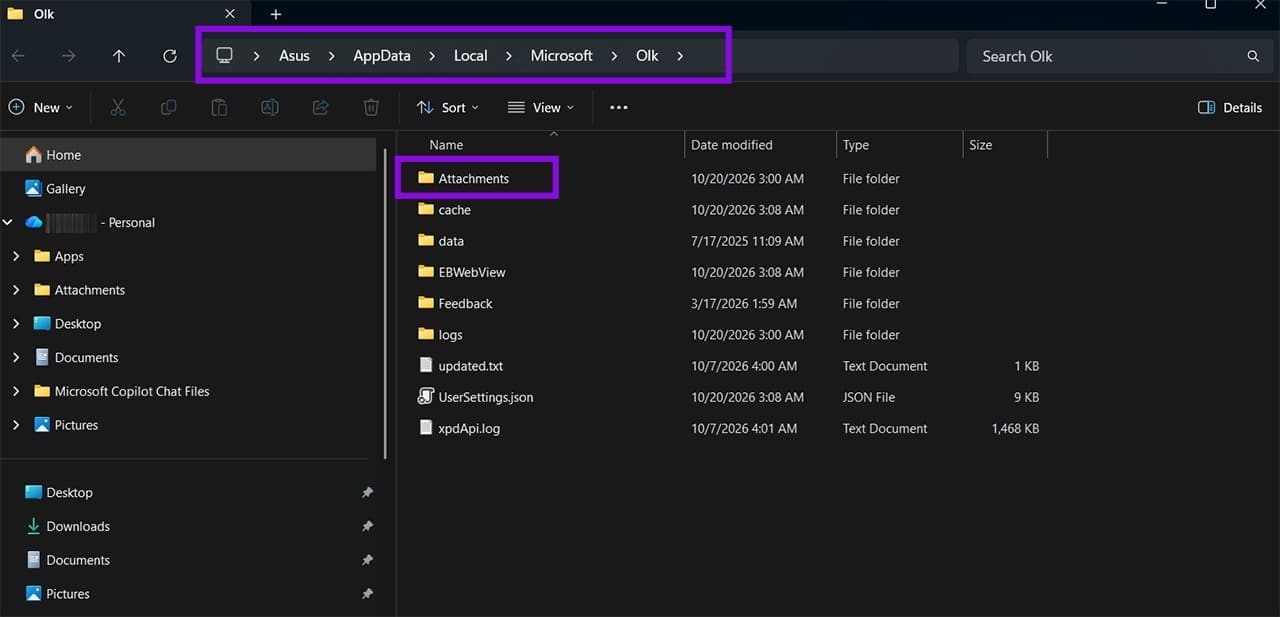
Step 4. Right-click a space, create a new folder, and name it “Attachments.”
Step 5. Reopen Outlook and try downloading the file again.
Fix 3 – Correct the Time Zone if You Get an Error Downloading File Content
A mismatched time zone can interfere with how Outlook syncs and serves attachments. It’s worth checking even if the clock in Windows looks right.
Step 1. In the Outlook app or Outlook on the web, click the “Settings” icon in the top-right.
Step 2. Select “General” and then go to “Language and time.” Click on “Change” for “Time zone.”

Step 3. Select the correct time zone from the drop-down menu and click “Save.”
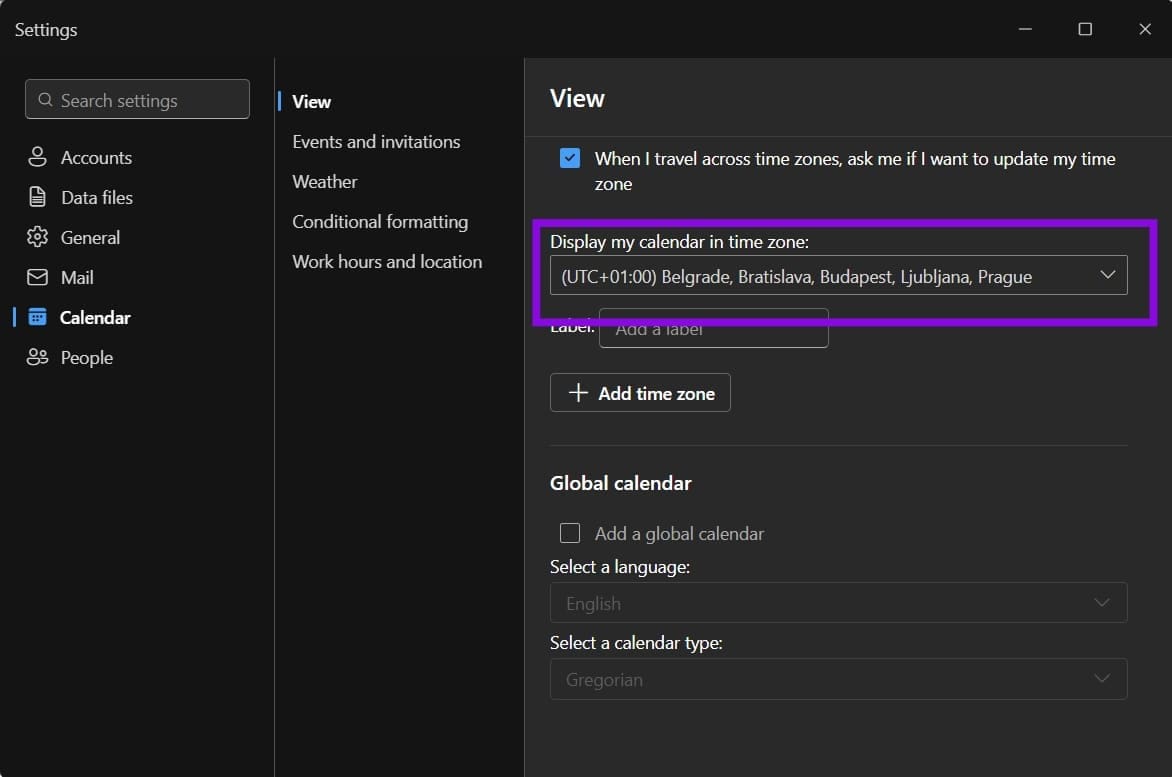
Step 4. Restart Outlook.
Fix 4 – Clear Outlook Site Data in Your Browser
If the error only shows up in Outlook on the web, stored cookies or permissions for the site might be the problem. Here’s how to clear them in Edge.
Step 1. Open Edge and go to “Settings.”
Step 2. Go to “Privacy, search, and services,” then select “Cookies.” Click on “See all cookies and site data.”

Step 3. Type “Outlook” in the search bar to filter the list. Note that if you back out of this menu, it will freeze, and you need to open a new tab.

Step 4. Click the trash can icon next to the results for “outlook.office.com” and confirm.
This signs you out of Outlook, so log back in and try the download again.
Fix 5 – Repair or Reset the Outlook App
If nothing else works, the Outlook app itself might be damaged.
Step 1. Open “Settings” and go to “Apps,” then go to “Installed apps.”
Step 2. Find Outlook, click its three-dot menu, and select “Advanced options.”
Step 3. Select “Repair” first, then reopen Outlook and test the download. If the problem persists, return to “Advanced options” and consider selecting “Reset,” which removes the app’s local data and may require you to sign in again.
As a last resort, you may need to uninstall Outlook and install it again from the Microsoft Store.
Was this helpful?
Last updated on 23 October, 2026
Read Next
 3 Ways to Fix Content File Locked Error in Steam for Windows
Try Basic Fixes Run Steam as an administrator: If your Steam library folder lacks the necessary write permissions, you may encounter the 'content file locked' error.
3 Ways to Fix Content File Locked Error in Steam for Windows
Try Basic Fixes Run Steam as an administrator: If your Steam library folder lacks the necessary write permissions, you may encounter the 'content file locked' error.
 Why Can’t I See Myself on Zoom: A Guide for Fixing Video Problems
It’s safe to say that the video calling apps have taken over the physical company meetings and conferences.
Why Can’t I See Myself on Zoom: A Guide for Fixing Video Problems
It’s safe to say that the video calling apps have taken over the physical company meetings and conferences.
 A Detailed Guide to Fixing AirPods Not Switching to Noise Cancellation
The AirPods Pro features Active Noise Cancellation, and that's what makes them better over AirPods.
A Detailed Guide to Fixing AirPods Not Switching to Noise Cancellation
The AirPods Pro features Active Noise Cancellation, and that's what makes them better over AirPods.
 A Complete Guide to Fixing Android Recovery Mode Not Working
When was the last time your Android phone struggled to boot into Recovery mode?
A Complete Guide to Fixing Android Recovery Mode Not Working
When was the last time your Android phone struggled to boot into Recovery mode?
 A Guide to Fixing Keyboard Shortcuts Not Working on Windows 10
When you get used to keyboard shortcuts, there's no going back.
A Guide to Fixing Keyboard Shortcuts Not Working on Windows 10
When you get used to keyboard shortcuts, there's no going back.
 A Detailed Guide to Fixing Mac Booting With Black Screen Issues
Clicking the power button on your MacBook should light up the screen and keyboard, play a startup chime, display the Apple logo, and finally, boot into the authentication screen where
A Detailed Guide to Fixing Mac Booting With Black Screen Issues
Clicking the power button on your MacBook should light up the screen and keyboard, play a startup chime, display the Apple logo, and finally, boot into the authentication screen where
 A Guide to Fixing Mac Not Connecting to Wi-Fi in macOS Recovery
If your Mac acts up or keeps crashing, the built-in Recovery mode can be useful.
A Guide to Fixing Mac Not Connecting to Wi-Fi in macOS Recovery
If your Mac acts up or keeps crashing, the built-in Recovery mode can be useful.
 A Complete Guide to Fixing Blurry Text in Windows 10
Microsoft’s Windows 10 operating system enjoys a comfortable lead over the rivals in the desktop OS market share.
A Complete Guide to Fixing Blurry Text in Windows 10
Microsoft’s Windows 10 operating system enjoys a comfortable lead over the rivals in the desktop OS market share.
The article above may contain affiliate links which help support Guiding Tech. The content remains unbiased and authentic and will never affect our editorial integrity.