Try Basic Fixes
- Check if Telegram is down: If Telegram servers are experiencing problems, you may have trouble sending or receiving voice messages. Visit a website like Downdetector and see if others are facing similar issues.
- Free up storage space on your phone: If your phone is running low on storage space, Telegram might have trouble downloading or saving new voice messages. To avoid this, free up storage space by clearing unused apps or transferring some of your data to the cloud. While at it, free up the storage space Telegram is using on your device.
- Update the Telegram app: Updating an app can sometimes fix problems or bugs that you are experiencing with it. Updating the Telegram app from the Play Store or App Store can help eliminate the bugs.
Fix 1: Allow Telegram to Use the Microphone
If the Telegram app cannot access your phone’s microphone, it won’t record and send voice messages. If unsure, here’s how to check microphone permission for the Telegram app on your Android or iPhone.
On Android
Step 1: Long-press on the Telegram app icon and tap the info icon from the menu. Then, tap on Permissions.


Step 2: Tap on Microphone > select Allow only while using the app.


On iPhone
Step 1: Open the Settings app on your iPhone > scroll down to tap on Telegram.
Step 2: Turn on the toggle for Microphone.


Fix 2: Enable Microphone Access From Privacy Settings (Android)
With Android 12, Google added several new privacy features to its mobile operating system. One of those features was the ability to control microphone permission for apps. If you have disabled microphone access in your phone’s privacy settings, Telegram can’t use your microphone despite having the necessary permission.
To enable microphone access on Android:
Step 1: Open the Settings app on your phone > scroll down to tap Privacy.
Step 2: Under Controls and alerts, enable the toggle for Microphone access.


Fix 3: Disable Raise to Listen (iPhone)
Raise to Listen is a nifty iOS feature that lets you listen to and respond to voice messages by raising your iPhone to your ear. Sometimes, this feature can cause your voice messages to play at a low volume when you try to play them on the speaker. Hence, it’s best to turn this feature off if you use it sparingly.
To do so, open the Settings app > scroll down to tap on Messages > disable the toggle for Raise to Listen.


Fix 4: Check if You’ve Restricted Voice Messages for Your Contacts
If you have a Telegram Premium subscription, the app lets you control who can send you voice messages. If you’ve accidentally restricted voice messages for your contacts, here’s how to re-enable them.
Step 1: Open the Telegram app settings menu > go to Privacy and Security.
Step 2: Go to Voice Messages > select Everybody from the following menu.


Fix 5: Clear Telegram App Cache
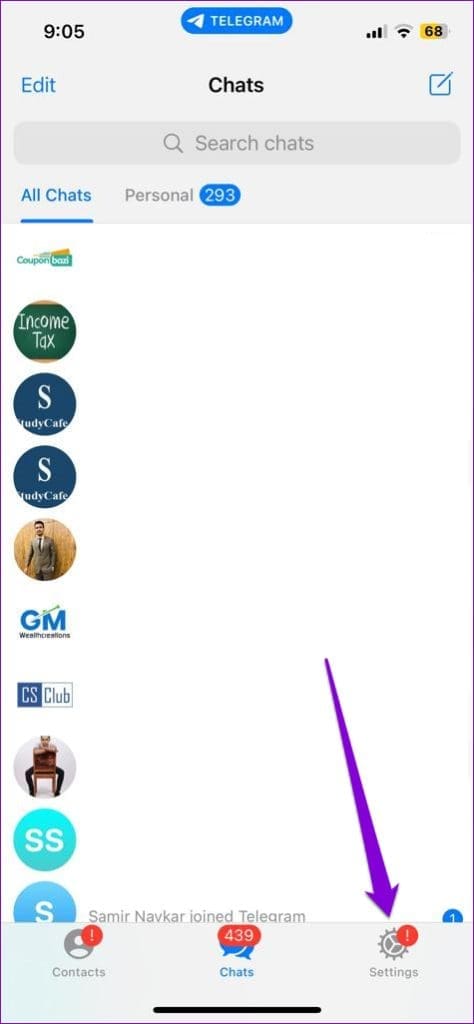
Overwhelming cache data can also cause the Telegram app to malfunction at times. Thankfully, Telegram lets you clear redundant cache data directly from the settings menu. To clear the Telegram cache on your Android or iPhone:
Step 1: Open Telegram on your phone > tap on the three horizontal lines at the top left > select Settings > go to Data and Storage.


Step 2: Go to Storage Usage > tap Clear Cache.


Was this helpful?
Last updated on 09 August, 2024
Read Next
 3 Fixes for Voice Messages Not Playing in Instagram on iPhone
Basic Fixes Switch to Wi-Fi: If you have access to a Wi-Fi, make the switch to get better internet speeds.
3 Fixes for Voice Messages Not Playing in Instagram on iPhone
Basic Fixes Switch to Wi-Fi: If you have access to a Wi-Fi, make the switch to get better internet speeds.
 3 Fixes for Google Maps Voice Navigation Not Working on Android and iPhone
Basic Fixes Check volume: Check the volume level on your smartphone, and ensure it isn't low.
3 Fixes for Google Maps Voice Navigation Not Working on Android and iPhone
Basic Fixes Check volume: Check the volume level on your smartphone, and ensure it isn't low.
 3 Fixes for iMessage Voice Messages Playing in Low Volume
Basic Fixes Check iPhone volume levels: You may have reduced the volume levels previously to avoid disturbing others while using your iPhone to consume media.
3 Fixes for iMessage Voice Messages Playing in Low Volume
Basic Fixes Check iPhone volume levels: You may have reduced the volume levels previously to avoid disturbing others while using your iPhone to consume media.
 4 Fixes for Telegram Notification Sound Not Working on Android and iPhone
Try Basic Fixes Close Telegram on your computer: If you have the Telegram app open on your computer, Telegram notifications may not appear or make a sound on your phone.
4 Fixes for Telegram Notification Sound Not Working on Android and iPhone
Try Basic Fixes Close Telegram on your computer: If you have the Telegram app open on your computer, Telegram notifications may not appear or make a sound on your phone.
 7 Fixes for Telegram Not Working on Wi-Fi on iPhone and Android
Let's look at the detailed solutions to fix Telegram not working on Wi-Fi on iPhone and Android.
7 Fixes for Telegram Not Working on Wi-Fi on iPhone and Android
Let's look at the detailed solutions to fix Telegram not working on Wi-Fi on iPhone and Android.
 4 Ways to Fix WhatsApp Voice Messages Not Working
Try These Basic Fixes First Check the phone's volume: If you can't hear a voice message, check whether the speaker volume is high enough.
4 Ways to Fix WhatsApp Voice Messages Not Working
Try These Basic Fixes First Check the phone's volume: If you can't hear a voice message, check whether the speaker volume is high enough.
 4 Ways to Fix Facebook Messenger Voice Messages Not Working
Try Basic Fixes Check the volume level on phone: If the volume level on your phone is too low, you may have trouble hearing your Messenger voice messages.
4 Ways to Fix Facebook Messenger Voice Messages Not Working
Try Basic Fixes Check the volume level on phone: If the volume level on your phone is too low, you may have trouble hearing your Messenger voice messages.
 How to Edit and Cut WhatsApp Voice Messages
How to Edit WhatsApp Voice Messages Using Audio Cutter Apps You can natively edit voice messages in WhatsApp.
How to Edit and Cut WhatsApp Voice Messages
How to Edit WhatsApp Voice Messages Using Audio Cutter Apps You can natively edit voice messages in WhatsApp.
The article above may contain affiliate links which help support Guiding Tech. The content remains unbiased and authentic and will never affect our editorial integrity.