What Causes Driver Power State Failure?
- Most users will get this Blue Screen of Death when the driver malfunctions due to power-related problems.
- Also, it might occur when your PC has a corrupt or damaged driver that can no longer communicate with the hardware it is supposed to control.
- Additionally, driver power state failure may be triggered by faulty hardware.
Before You Troubleshoot: Use Safe Mode and Check System Log
When you run into the driver power state failure, frequent crashes may make it impossible to boot and use your computer normally. Boot your Windows 11 PC into Safe Mode to use it with limited drivers and services while disabling any third-party apps or services.
Before troubleshooting, checking for errors in the System’s log is wise. This log records all events on your computer and helps you know what troubleshooting steps to take.
Step 1: Open the Event Viewer application from the Start menu.
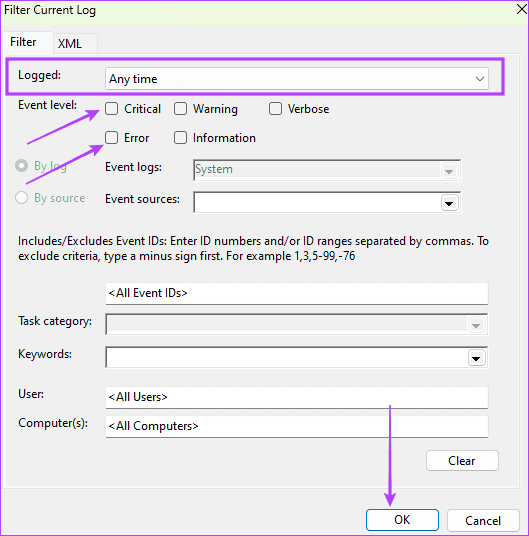
Step 2: Expand Windows Logs on the left pane > click on System > Filter Current Log… in the right pane.

Step 3: Select a time frame from the Logged option (ensure it covers when the crash occurred) > tick the box for Error and Critical > click OK.
Step 4: Review the generated error list. Double-click on any error you suspect triggers the Blue Screen of Death (BSoD) and use specific troubleshooting steps.
Fix 1: Update Windows
Updating the Windows operating system may provide you with the latest driver versions for your device. This will be a handy fix if an outdated driver causes the Blue Screen of Death (BSOD). Follow the steps below to update your Windows 11 computer.
Step 1: Open the Settings app > click Windows Update on the left pane > click the Check for updates button on the right.

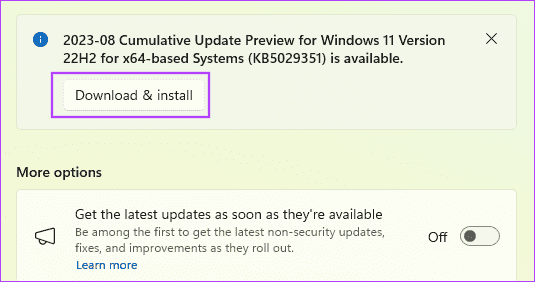
Step 2: If there are any updates, click Download & install. You may have to restart the computer to complete the installation.
Step 3: It is also recommended you install any available Optional Updates to try and fix the issue. Go to Settings > Windows Updates > Advanced options.
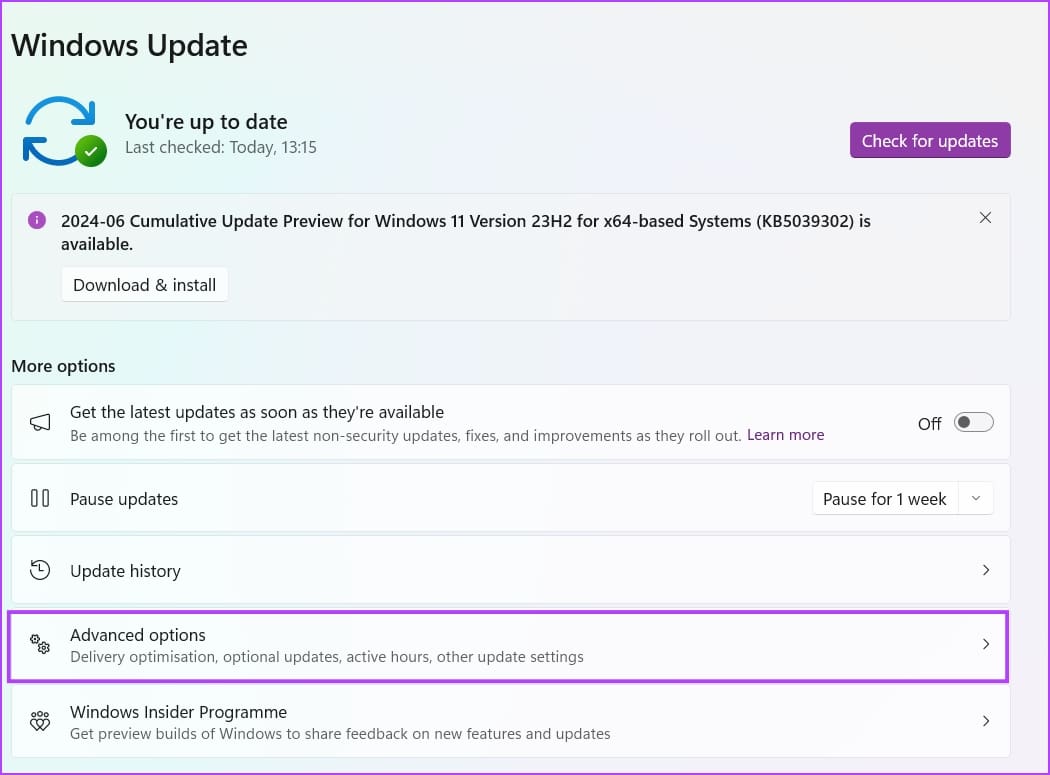
Step 4: Click on Optional Updates and install any available updates.

Fix 2: Run Windows Troubleshooter
Using various troubleshooters within the Settings app can help Windows detect issues in your PC and help you fix them.
Step 1: Open the Settings app > go to System > Troubleshoot.

Step 2: Click on Other trouble-shooters.

Step 3: Run all the troubleshooters in this list. While it seems time-consuming, there is a good chance the issue will be fixed.

Fix 3: Update or Rollback Drivers
If you have downloaded a driver version incompatible with your hardware, it may go into an invalid or inconsistent power state. Updating or rolling back the driver will fix the problem.
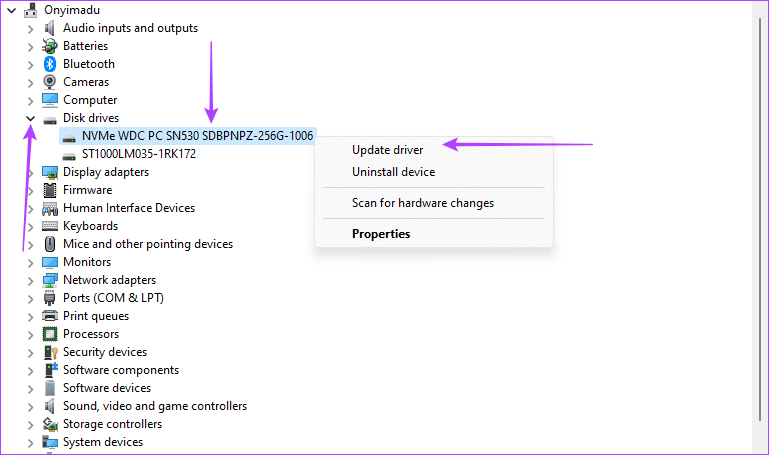
Step 1: Right-click the Start menu > select Device Manager.

Step 2: Expand any category with outdated drivers > right-click on your driver > select Update driver.
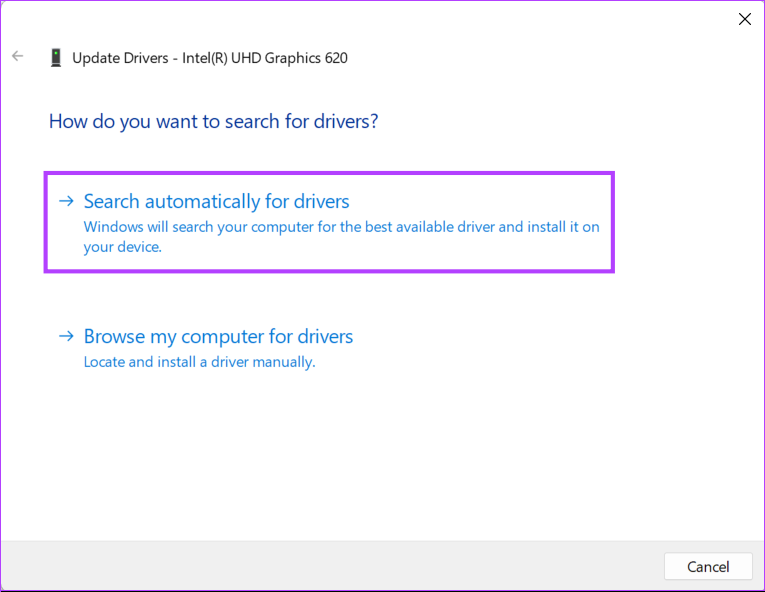
Step 3: Select Search automatically for drivers and follow the prompts on the wizard to complete the process.
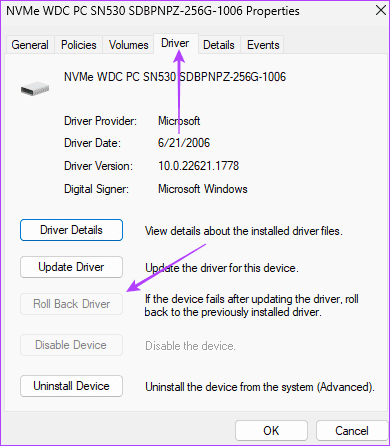
If you recently updated drivers before the Blue Screen of Death (BSoD) occurred, consider rolling them back.
Step 1: Expand any category with the newly updated driver > double-click on your driver.

Step 2: Click the Driver tab and the Roll Back Driver button if it is not greyed out.
Step 3: Select a reason for the rollback and click Yes.
Fix 4: Update the Power Plan on Your Windows Laptop
The power plan may control your computer’s hibernation or sleep mode. You should use plans that keep your computer active while peripheral devices are operational to avoid triggering critical error signals. Disabling sleep is a valid guard against the problem.
Step 1: Click the magnifying lens on the Taskbar > type power > select Edit power plan.
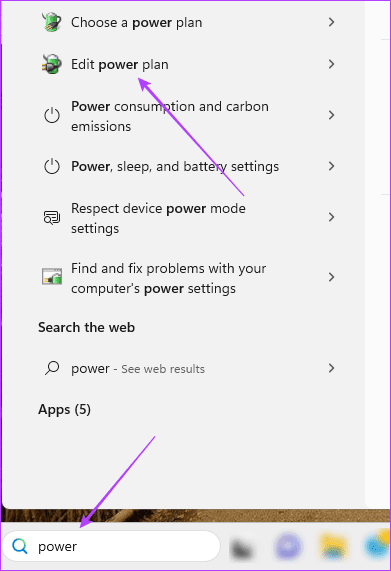
Step 2: Select Never for both ‘Put the computer to sleep’ options and click the Save changes button.

Fix 5: Disable Fast Startup
Fast startup is beneficial on Windows devices since it reduces boot time. However, some drivers may not unload correctly during the boot process, leading them to enter an invalid or inconsistent power state. Disabling Fast Startup prevents the computer from loading your drivers into memory at shutdown, forcing them to unload correctly.
Was this helpful?
Last updated on 12 August, 2024
Read Next
 6 Best Power Banks With USB Type-C Power Delivery
A power bank is a must-have for many of us who are often on the road.
6 Best Power Banks With USB Type-C Power Delivery
A power bank is a must-have for many of us who are often on the road.
 Top 5 Ways to Reinstall a Sound Driver in Windows 10
The Windows 10 is renowned for struggling with an issue or another, and sound/audio issues are the most prominent.
Top 5 Ways to Reinstall a Sound Driver in Windows 10
The Windows 10 is renowned for struggling with an issue or another, and sound/audio issues are the most prominent.
 5 Ways to Fix “A Driver Cannot Load on This Device” Error on Windows 11
Fix 1: Update the Problematic Driver If a driver is incompatible, Windows may fail to load it.
5 Ways to Fix “A Driver Cannot Load on This Device” Error on Windows 11
Fix 1: Update the Problematic Driver If a driver is incompatible, Windows may fail to load it.
 5 Ways to Fix Printer Driver Is Unavailable Error on Windows 11
Fix 1: Run the Printer Troubleshooter Windows 11 includes several troubleshooters that can help you fix common system-level issues.
5 Ways to Fix Printer Driver Is Unavailable Error on Windows 11
Fix 1: Run the Printer Troubleshooter Windows 11 includes several troubleshooters that can help you fix common system-level issues.
 4 Ways to Fix “Windows Could Not Find a Driver for Your Network Adapter” Error
Fix 1: Enable Network Adapter Windows may fail to communicate with the network adapter if you've previously disabled it.
4 Ways to Fix “Windows Could Not Find a Driver for Your Network Adapter” Error
Fix 1: Enable Network Adapter Windows may fail to communicate with the network adapter if you've previously disabled it.
 4 Ways to Fix Graphics Device Driver Error Code 22 on Windows
Fix 1: Enable and Update the Graphics Driver You may see error code 22 on Windows if you have previously disabled the graphics driver or if it's outdated.
4 Ways to Fix Graphics Device Driver Error Code 22 on Windows
Fix 1: Enable and Update the Graphics Driver You may see error code 22 on Windows if you have previously disabled the graphics driver or if it's outdated.
 Top 10 Ways to Fix ‘Display Driver Failed to Start’ Error in Windows 10 and 11
Display drivers facilitate communication between the Windows operating system (or any OS) with your GPU.
Top 10 Ways to Fix ‘Display Driver Failed to Start’ Error in Windows 10 and 11
Display drivers facilitate communication between the Windows operating system (or any OS) with your GPU.
 5 Ways to Fix Intel Wi-Fi 6 AX201 Adapter Driver or Hardware Issues
Fix 1: Update or Reinstall Driver The software drivers for the Intel Wi-Fi 6 AX201 on your Windows PC may be outdated and are due for an update.
5 Ways to Fix Intel Wi-Fi 6 AX201 Adapter Driver or Hardware Issues
Fix 1: Update or Reinstall Driver The software drivers for the Intel Wi-Fi 6 AX201 on your Windows PC may be outdated and are due for an update.
The article above may contain affiliate links which help support Guiding Tech. The content remains unbiased and authentic and will never affect our editorial integrity.