Basic Fixes:
- Disable VPN and firewall: Zoom is banned in several countries, including Iran, Syria, and North Korea, for regulatory reasons. If you are using a VPN on your Windows PC, disable it temporarily and ensure that the Zoom app can bypass the firewall on your computer to use the internet connectivity.
- Check Zoom servers: Using a service like Downdetectors, you may ensure the Zoom servers are not down.
- Restart the app: Restarting Zoom is effective because it can fix minor bugs that trigger that problem.
- Check Internet connection: It’s always advisable to check your internet connection before an important Zoom meeting, especially when using a high-resolution webcam with Zoom backgrounds during long video calls.
- Ensure the date and time are correct on your device: Zoom works with your computer’s date and time, so you should ensure they are correct. If not, they will trigger the problem.
- Reinstall Zoom: You may consider uninstalling your current Zoom installation and downloading and installing a fresh copy. This will be an effective fix if Zoom is corrupted.
Fix 1: Run the Network and Internet Troubleshooter
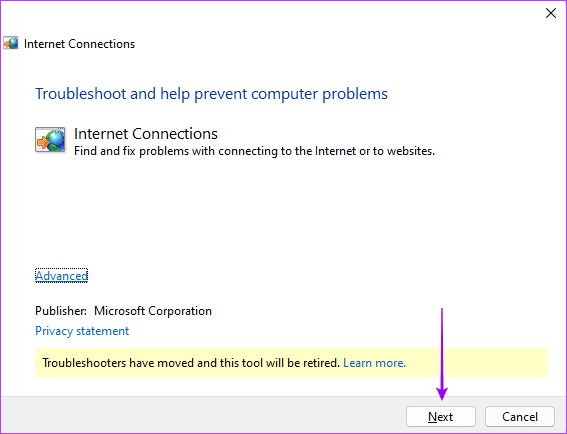
Windows comes with a built-in Network and internet troubleshooter. It can detect internet errors that may cause the Zoom problem. You may run this tool following the steps below.
Step 1: Press Windows + R to open the Run dialog.
Step 2: Type cmd and hit Ctrl + Shift + Enter to open an elevated Command Prompt.
Step 3: Type the command below and hit Enter.
msdt.exe /id NetworkDiagnosticsWeb
Step 4: Click the Next button and follow the wizard to complete the process.
Fix 2: Clear Temporary Cache
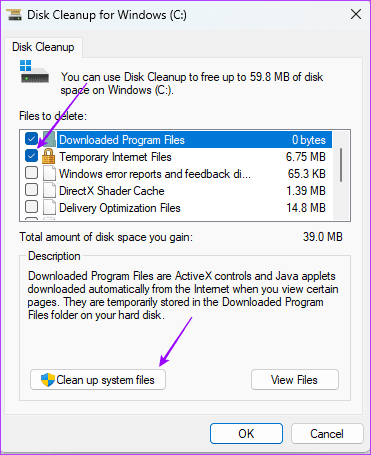
Over time, Windows collects a temporary cache in the background to speed up the frequent tasks on the computer. These cache files can corrupt and interfere with other apps like Zoom. You must remove temporary internet and unnecessary cache files from the system. To do that, follow the steps below.
Step 1: Press the Windows key, search Disk Cleanup, and open the app.
Step 2: Select C: drive from the list and hit Enter.

Step 3: Check the boxes for Temporary Internet files and cache files from the list, click on Clean up system files at the bottom, and hit OK.
Reboot the computer and try using Zoom again.
Was this helpful?
Last updated on 18 July, 2024
Read Next
 5 Ways to Fix WhatsApp Call Stuck at Connecting
Basic Fixes Check WhatsApp servers - The culprit behind WhatsApp calls getting stuck at connecting could be server issues.
5 Ways to Fix WhatsApp Call Stuck at Connecting
Basic Fixes Check WhatsApp servers - The culprit behind WhatsApp calls getting stuck at connecting could be server issues.
 5 Ways to Fix Telegram Stuck on Updating or Connecting
Basic Fixes Check Telegram servers: If the Telegram servers are down, you can’t use any app’s services on your phone.
5 Ways to Fix Telegram Stuck on Updating or Connecting
Basic Fixes Check Telegram servers: If the Telegram servers are down, you can’t use any app’s services on your phone.
 5 Ways to Fix Amazon Echo Not Connecting to Wi-Fi Issue
Basic Fixes Check the Setup Process: Ensure you set up the Echo properly.
5 Ways to Fix Amazon Echo Not Connecting to Wi-Fi Issue
Basic Fixes Check the Setup Process: Ensure you set up the Echo properly.
 4 Ways to Fix YouTube Not Connecting to the Internet on Android and iPhone
Try Basic Fixes Check if YouTube is down: You might not be the only one having problems with the YouTube app.
4 Ways to Fix YouTube Not Connecting to the Internet on Android and iPhone
Try Basic Fixes Check if YouTube is down: You might not be the only one having problems with the YouTube app.
 Top 7 Ways to Fix Zoom Lag on Windows 10
Even after fierce competition from the likes of Google Meet and Microsoft Teams, Zoom continues to grow its market share in the video calling market.
Top 7 Ways to Fix Zoom Lag on Windows 10
Even after fierce competition from the likes of Google Meet and Microsoft Teams, Zoom continues to grow its market share in the video calling market.
 5 Ways to Fix Audio Issues in Zoom
Basic Fixes Join using computer audio: The Zoom app will offer a pop-up to let you join with Computer Audio when you tap on the New Meeting option.
4 Ways to Fix Zoom Audio Delay on Windows 11
Basic Fixes Check your network connection: Ensure your PC has a good internet connection.
5 Ways to Fix Audio Issues in Zoom
Basic Fixes Join using computer audio: The Zoom app will offer a pop-up to let you join with Computer Audio when you tap on the New Meeting option.
4 Ways to Fix Zoom Audio Delay on Windows 11
Basic Fixes Check your network connection: Ensure your PC has a good internet connection.
 Top 6 Ways to Fix Zoom Not Responding on Windows 10
Zoom has certainly become an integral part of education and work.
Top 6 Ways to Fix Zoom Not Responding on Windows 10
Zoom has certainly become an integral part of education and work.
The article above may contain affiliate links which help support Guiding Tech. The content remains unbiased and authentic and will never affect our editorial integrity.