Basic Fixes
- Check your network connection: Ensure your PC has a good internet connection. I recommend an internet speed of at least 5 Mbps to attend a Zoom call without audio delay.
- Verify the microphone in the Zoom app: Ensure that you pick the correct microphone and test it under the Zoom app settings. Open the Zoom app, click your profile icon at the top right, and select Settings. Select Audio from the left sidebar and pick your connected microphone on the right. Click the Test mic button to check if it is working accurately.
- Ensure listening through headphones/earphones: Connect your headphones/earphones to the PC and try listening to the Zoom call audio instead of the external PC speaker.
- Update or reinstall the Zoom app: Open the Zoom Workplace app, click your profile icon at the top right, and select Check for updates to install new updates. Alternatively, uninstall it from Windows Settings > Apps > Installed apps, and download its installer to install it afresh.
- Update Windows 11: Press the Windows + I shortcut to open Settings, select Windows Update from the left sidebar, and install available system updates.
Fix 1: Update the Microphone Drivers
Outdated microphone drivers may interfere with the Zoom audio output causing a delay. Head to the Device Manager app to update them manually.
Step 1: Press the Windows key, search Device Manager, and click to open it.

Step 2: Expand Audio inputs and outputs, right-click your microphone, and select Update driver.
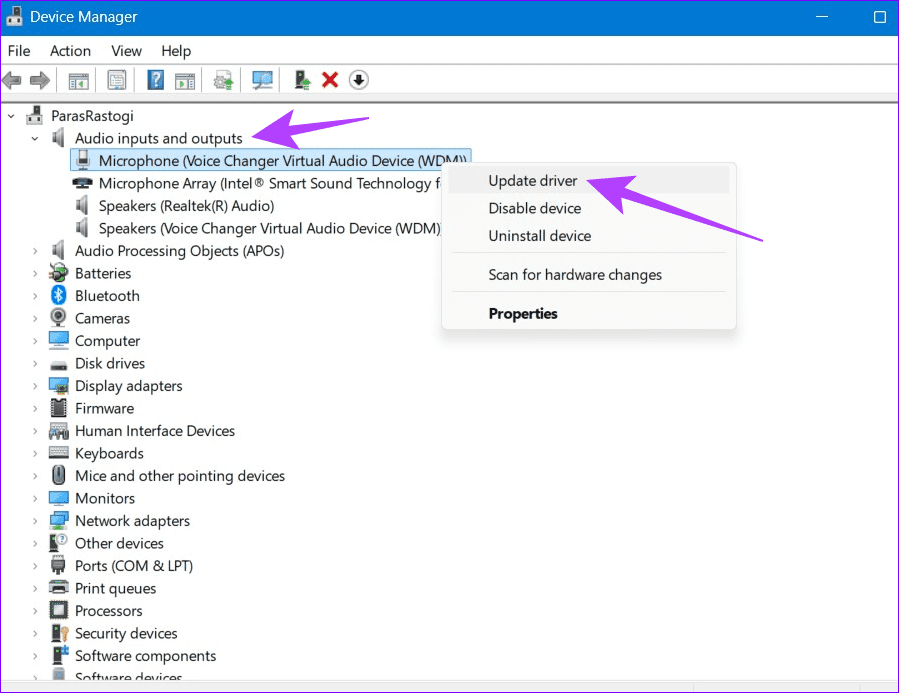
Step 3: Finally, click Search automatically for drivers to update them online.

Fix 2: Change Display Settings to Fix Audio Lag
Windows 11 optimizes the native Camera app to save power by default, which may lead to audio or video delays in Zoom. To fix it, adjust the Camera app’s display settings to get the best performance.
Step 1: Press the Windows + I shortcut to open Settings, select System from the left sidebar, and click Display.
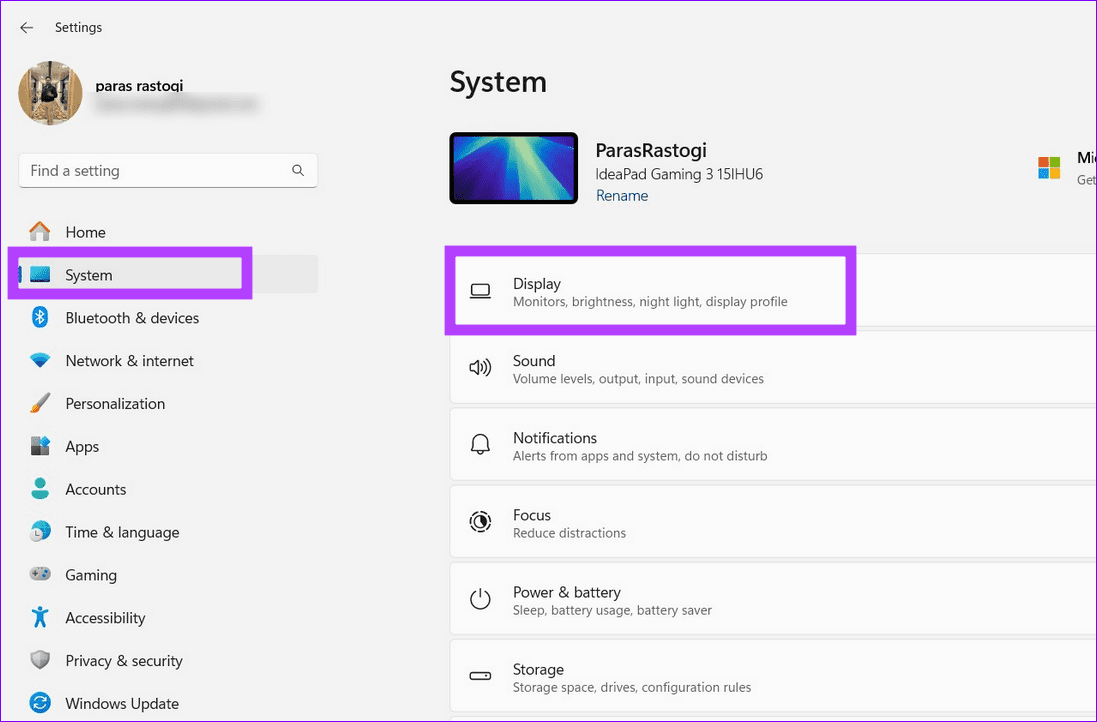
Step 2: Scroll down and click Graphics under Related settings.

Step 3: Select Camera under the list and click Options.

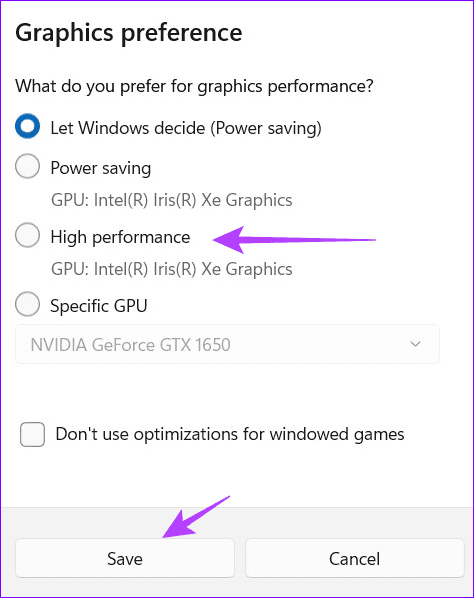
Step 4: Switch Graphics preference to High performance, and click Save.
Fix 3: Suppress Background Noise
The Zoom Workplace app on Windows offers an in-built option to eliminate background noise. Once enabled, it can filter out distracting sounds such as keyboard typing, paper crunching, etc. to improve the audio quality.
Step 1: Click your profile icon at the top right of the Zoom Workplace app, and select Settings.
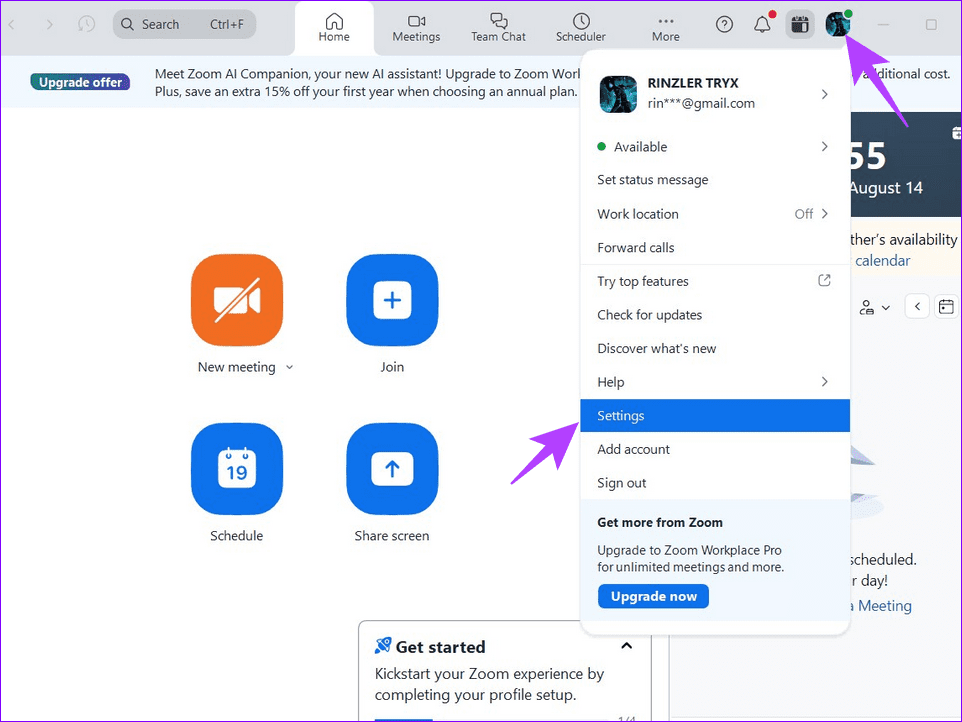
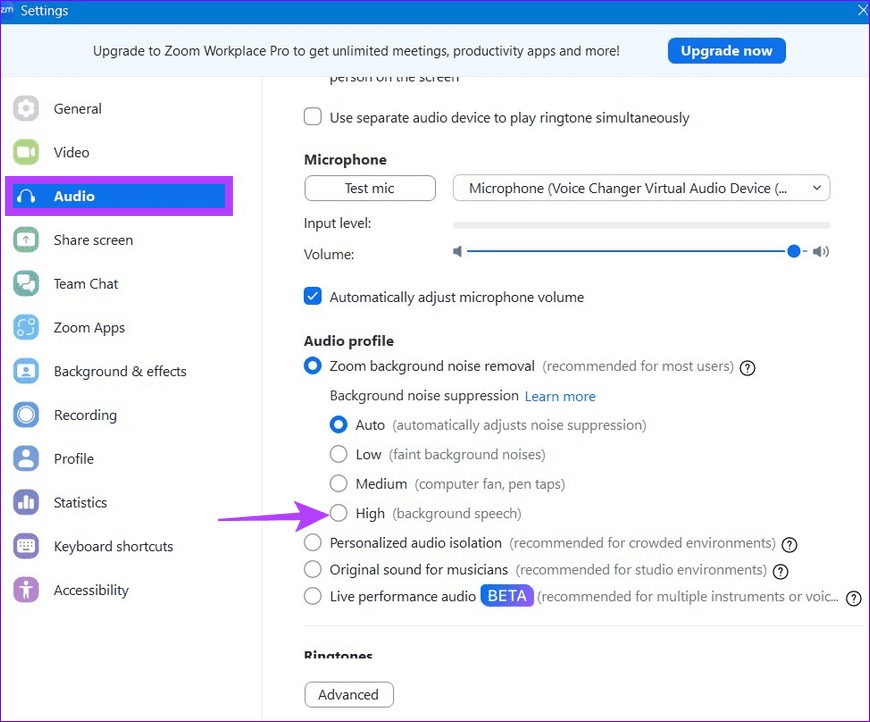
Step 2: Select Audio from the left sidebar, enable Zoom background noise removal, and set Background noise suppression to High.
Fix 4: Disable Audio Enhancement on Windows
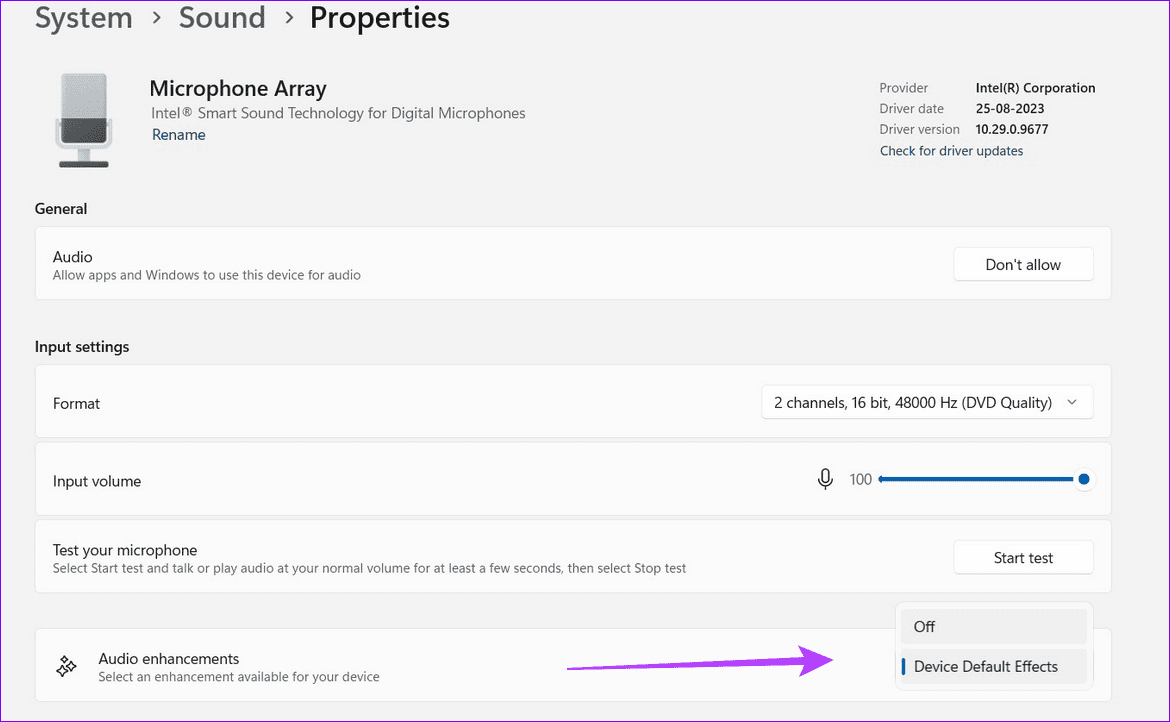
The Audio Enhancement feature in Windows improves audio performance but can sometimes cause an audio delay in the Zoom app. Disable it from Windows Settings to restore normalcy.
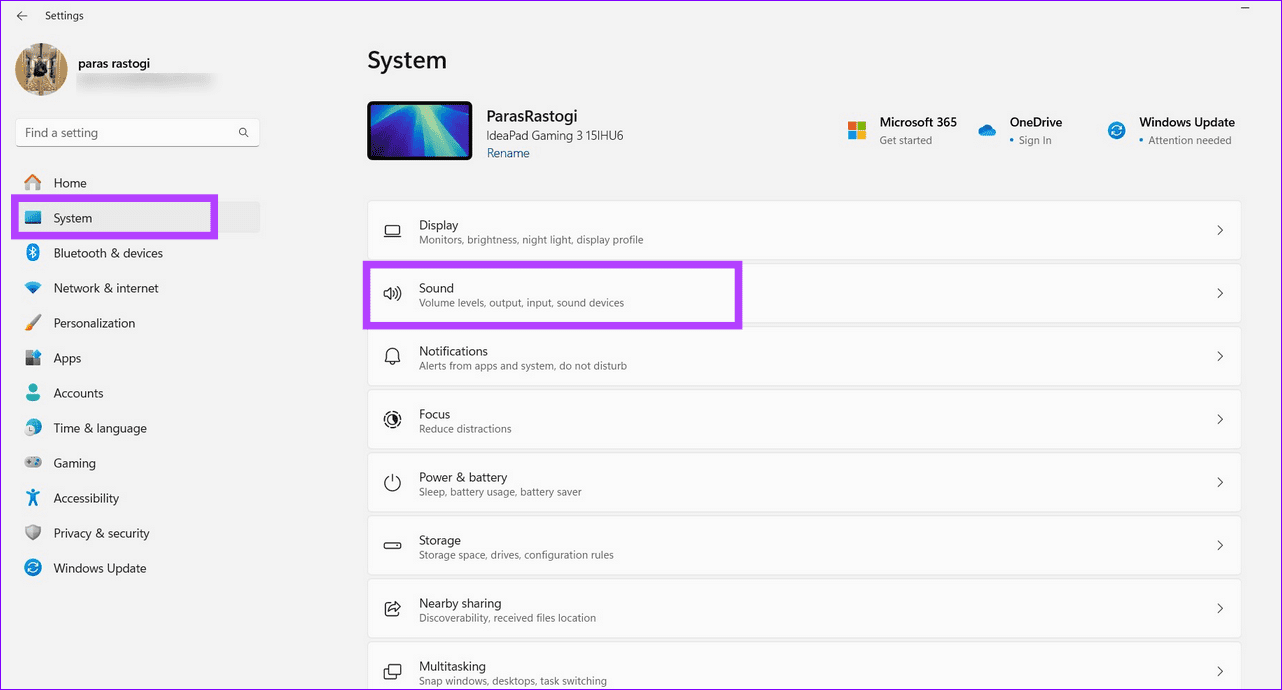
Step 1: Open Windows Settings, select System from the sidebar, and click Sound.
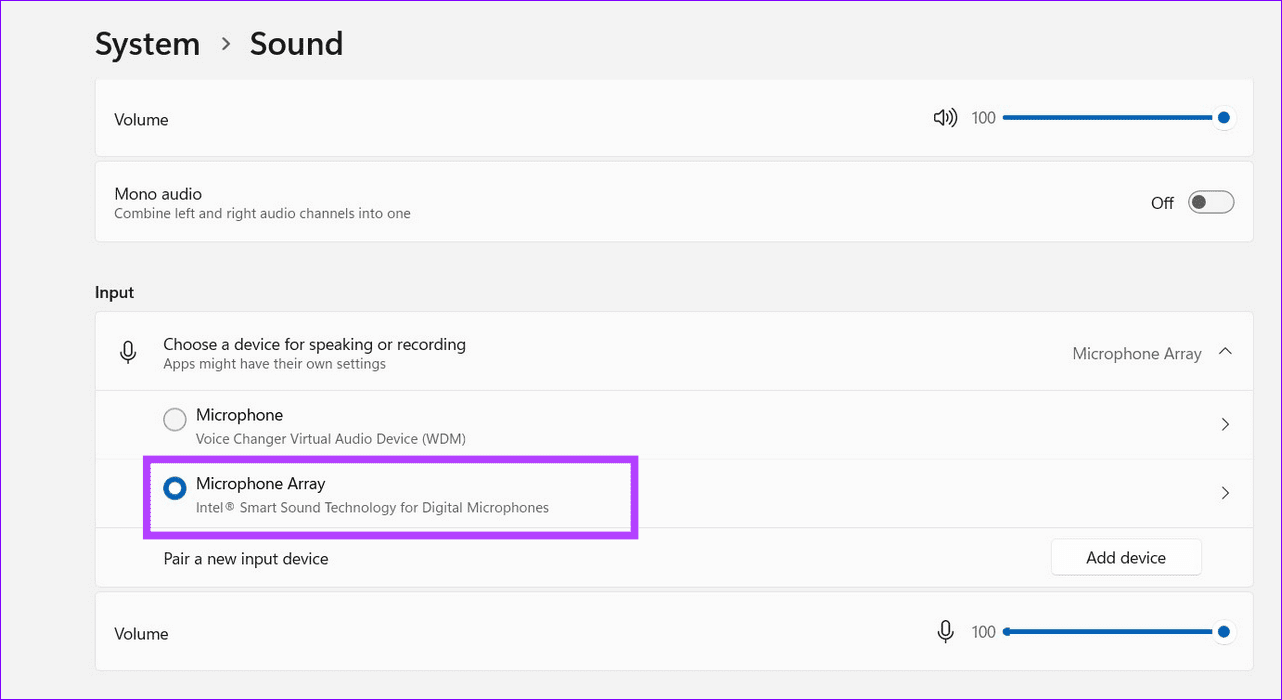
Step 2: Select the connected Microphone under Input.
Step 3: Scroll down, click the Audio enhancements drop-down menu, and set it to Off.
Was this helpful?
Last updated on 14 August, 2024
Read Next
 4 Ways to Fix Bluetooth Audio Delay on iPhone and Android
How to Fix Bluetooth Audio Lag on Your Smartphones Minimize interference: If you notice an audio delay only when other wireless devices are around, turn off the device that is
4 Ways to Fix Bluetooth Audio Delay on iPhone and Android
How to Fix Bluetooth Audio Lag on Your Smartphones Minimize interference: If you notice an audio delay only when other wireless devices are around, turn off the device that is
 6 Best Ways to Fix Bluetooth Delay on Windows 10
Say you're watching a movie or playing a game on your Windows PC.
6 Best Ways to Fix Bluetooth Delay on Windows 10
Say you're watching a movie or playing a game on your Windows PC.
 4 Ways to Fix Mouse Delay in Games on Windows 11
Basic Fixes Switch to a wired or gaming mouse: Most wired and gaming mice have higher DPI (dots per inch), allowing fast cursor movement.
4 Ways to Fix Mouse Delay in Games on Windows 11
Basic Fixes Switch to a wired or gaming mouse: Most wired and gaming mice have higher DPI (dots per inch), allowing fast cursor movement.
 4 Ways to Fix Zoom Audio and Sound Not Working on Android
Basic Fixes Check network connection: Ensure there isn't a problem with your device's cellular network or Wi-Fi.
4 Ways to Fix Zoom Audio and Sound Not Working on Android
Basic Fixes Check network connection: Ensure there isn't a problem with your device's cellular network or Wi-Fi.
 5 Ways to Fix Audio Issues in Zoom
Basic Fixes Join using computer audio: The Zoom app will offer a pop-up to let you join with Computer Audio when you tap on the New Meeting option.
5 Ways to Fix Audio Issues in Zoom
Basic Fixes Join using computer audio: The Zoom app will offer a pop-up to let you join with Computer Audio when you tap on the New Meeting option.
 5 Ways to Fix Microsoft Teams Delay When Typing
Fix 1: Close Background Apps Microsoft Teams may sometimes cause high CPU and memory usage, which could easily lead to lag problems.
5 Ways to Fix Microsoft Teams Delay When Typing
Fix 1: Close Background Apps Microsoft Teams may sometimes cause high CPU and memory usage, which could easily lead to lag problems.
 3 Ways to Fix iPhone Lock/Wake Screen Delay
https://youtu.be/94mfnn8hCSw Why Is There a Delay When Locking or Waking up Your iPhone If you have mapped a double/triple click shortcut to the power button of your iPhone, and when
3 Ways to Fix iPhone Lock/Wake Screen Delay
https://youtu.be/94mfnn8hCSw Why Is There a Delay When Locking or Waking up Your iPhone If you have mapped a double/triple click shortcut to the power button of your iPhone, and when
 3 Ways to Fix VLC Subtitle Delay on Desktop and Mobile
How to Adjust Subtitle Timing in VLC on Windows PC and Mac While your video is running, you can use the keyboard shortcuts to speed up (or down) the subtitles.
3 Ways to Fix VLC Subtitle Delay on Desktop and Mobile
How to Adjust Subtitle Timing in VLC on Windows PC and Mac While your video is running, you can use the keyboard shortcuts to speed up (or down) the subtitles.
The article above may contain affiliate links which help support Guiding Tech. The content remains unbiased and authentic and will never affect our editorial integrity.