Try Basic Fixes
- Temporarily disable VPN connection: A Virtual Private Network (VPN) connection may cause issues with the YouTube app’s sign-in process, especially if you switch servers frequently. To overrule this possibility, temporarily disable the VPN connection on your Android or iPhone.
- Check YouTube’s server status: If YouTube servers are down, you may experience issues signing in or streaming content. You can visit a website like Downdetector to determine if it’s a widespread issue.
- Update the app: The YouTube app on your phone may be outdated or buggy. If that’s the case, updating the YouTube app from the Play Store (Android) or App Store (iPhone) should help.
Fix 1: Remove and Re-Add Your Google Account (Android)
If you face sign-in issues with other Google apps, you can try removing your Google account from your Android and re-adding it. Here’s how you can go about it.
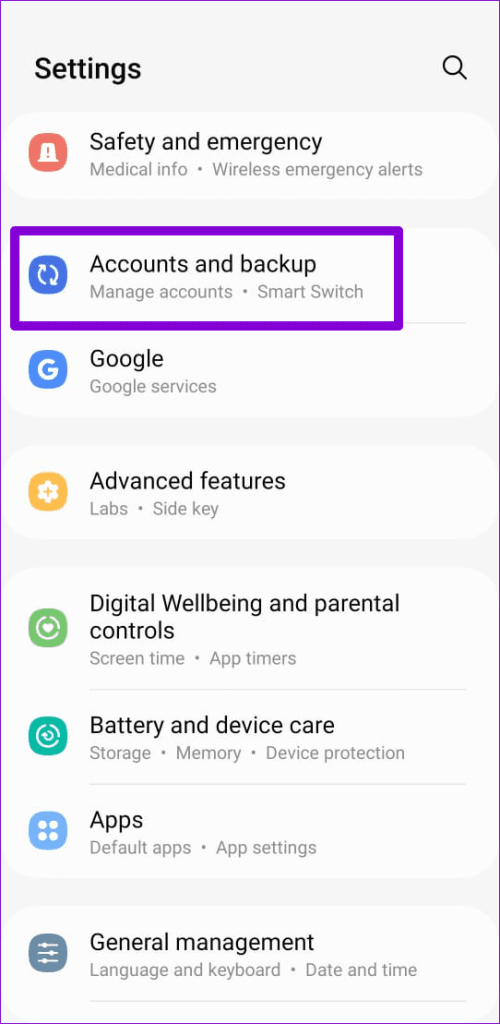
Step 1: Open the Settings app and head to Accounts and backup > Manage accounts.
Step 2: Select your Google account from the list.
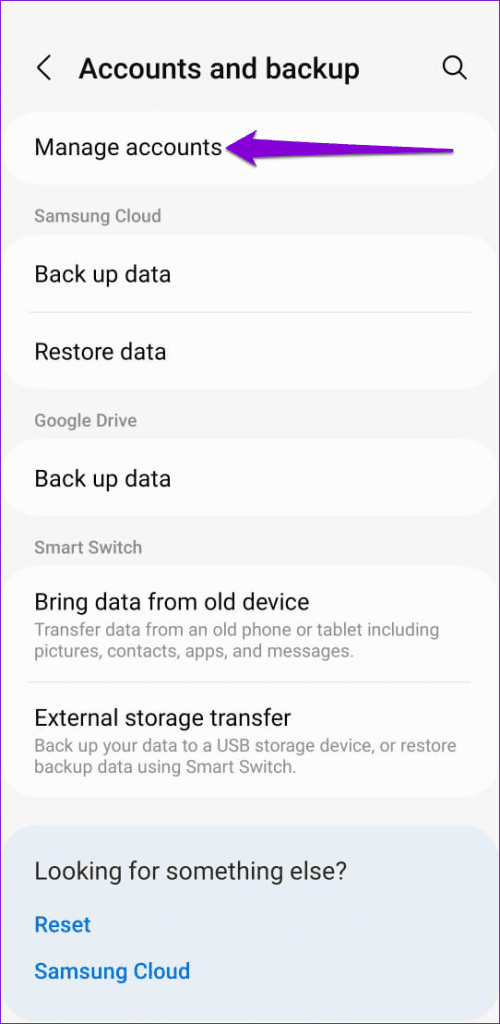

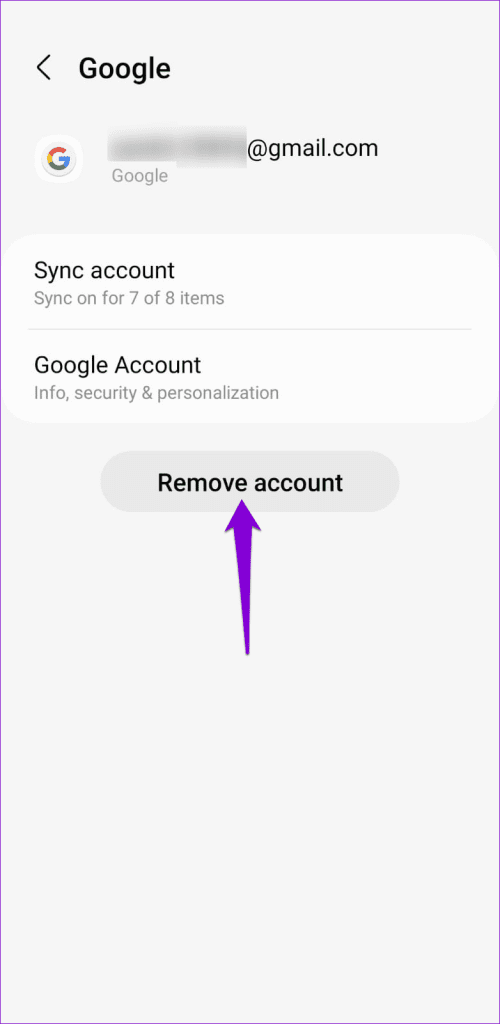
Step 3: Tap on Remove account. Select Remove account again when prompted.
Step 4: Head back to the Accounts page and select Add account to sign in with your Google account. Then, try using the Play Store again.


Fix 2: Enable Automatic Date and Time
An incorrect date or time on your phone could prevent apps like YouTube from communicating with the servers and cause problems. You can enable the automatic date and time feature on your Android or iPhone to avoid such issues. Here are the steps for the same.
Android
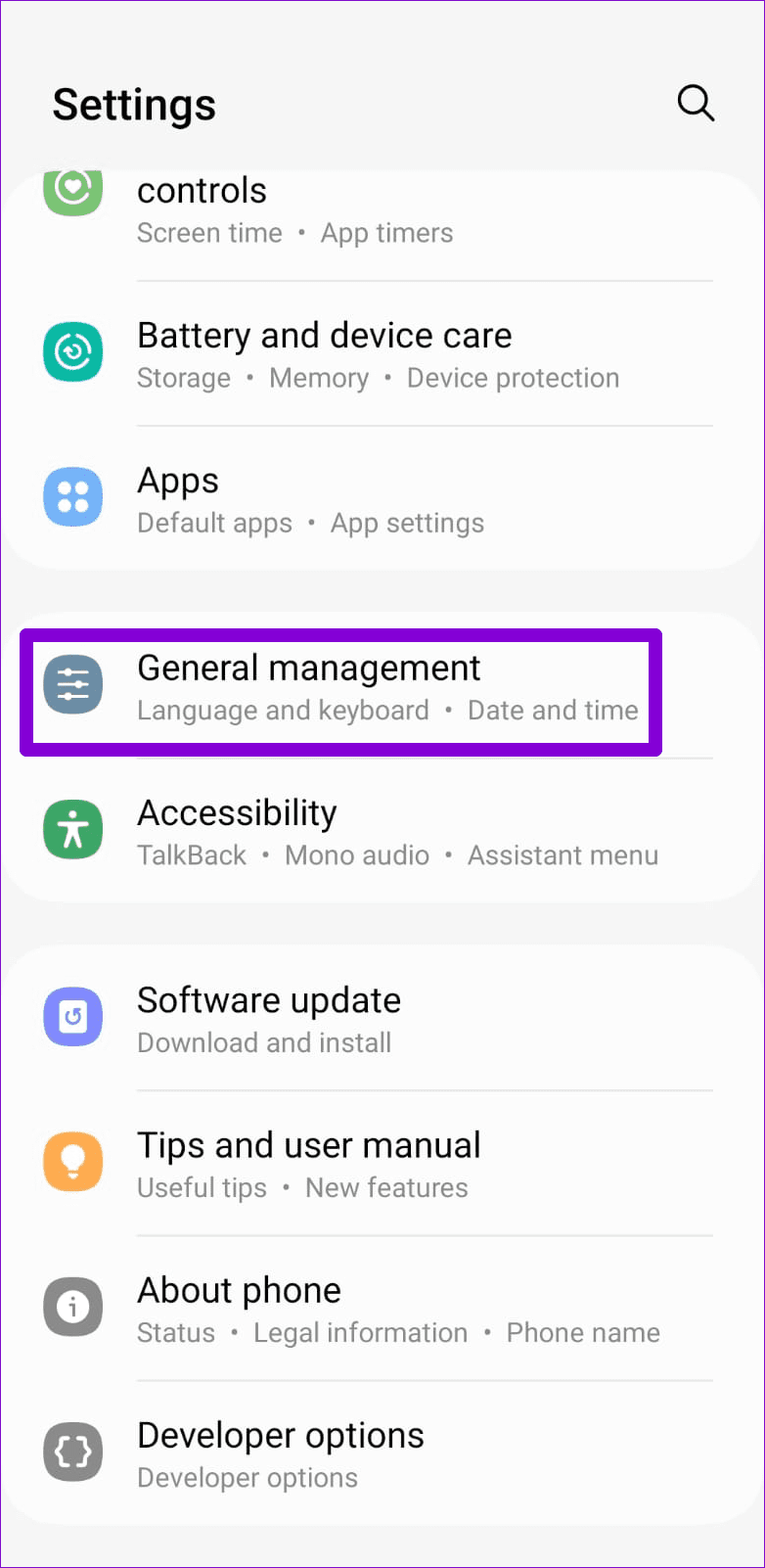
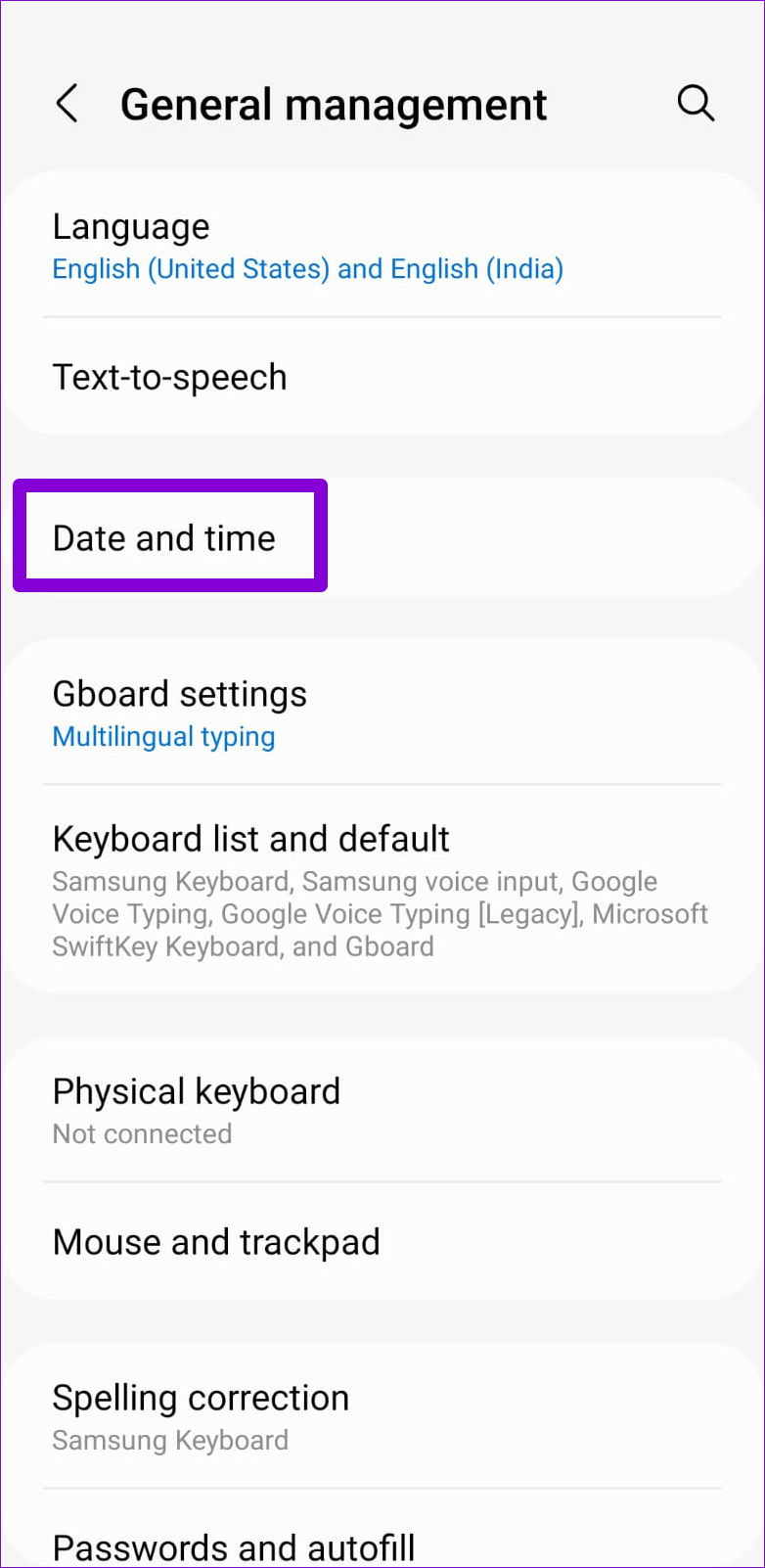
Step 1: Open the Settings app and navigate to General Management.
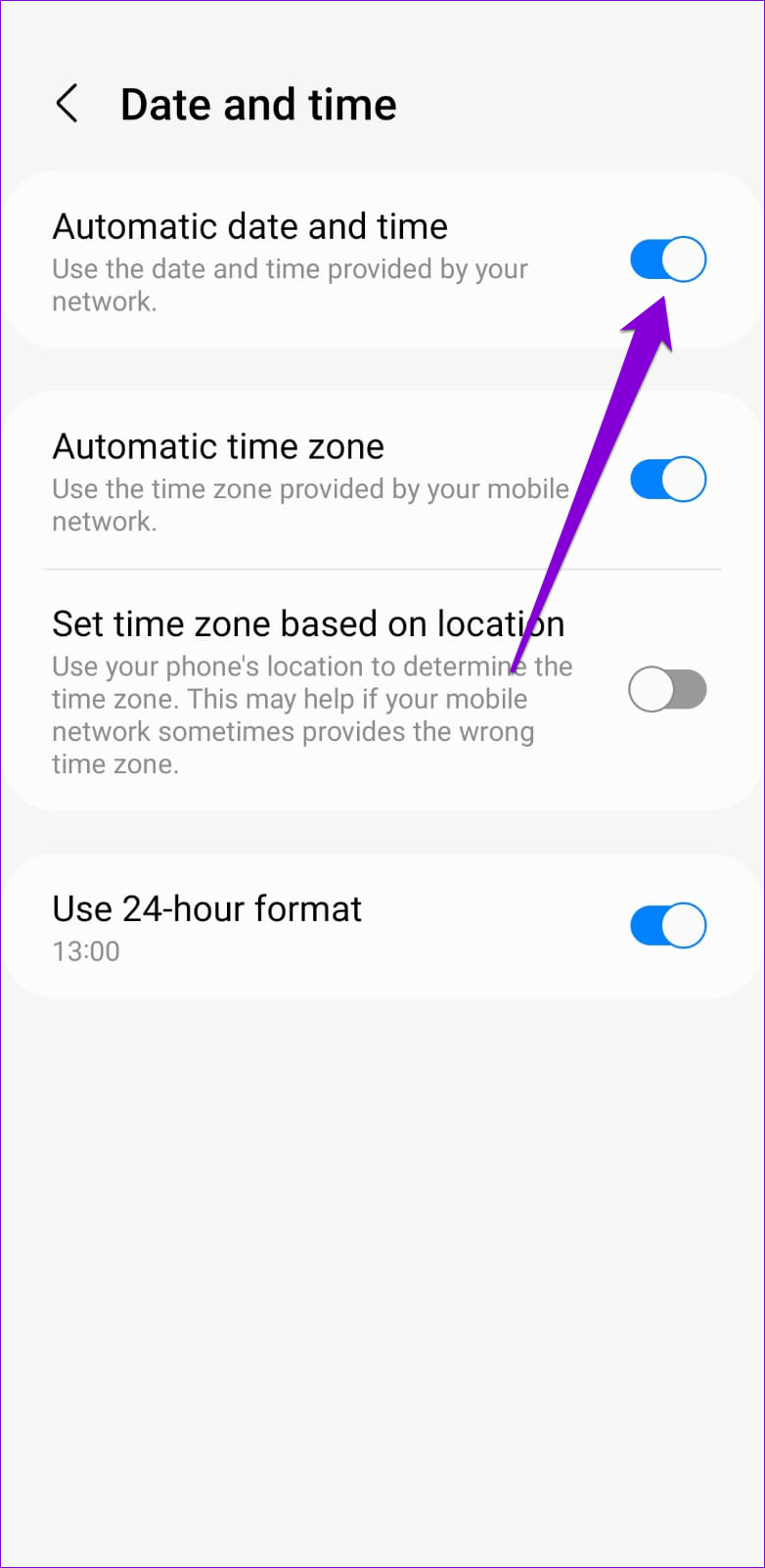
Step 2: Tap on Date and time. Then, enable the toggle for Automatic date and time.
iPhone
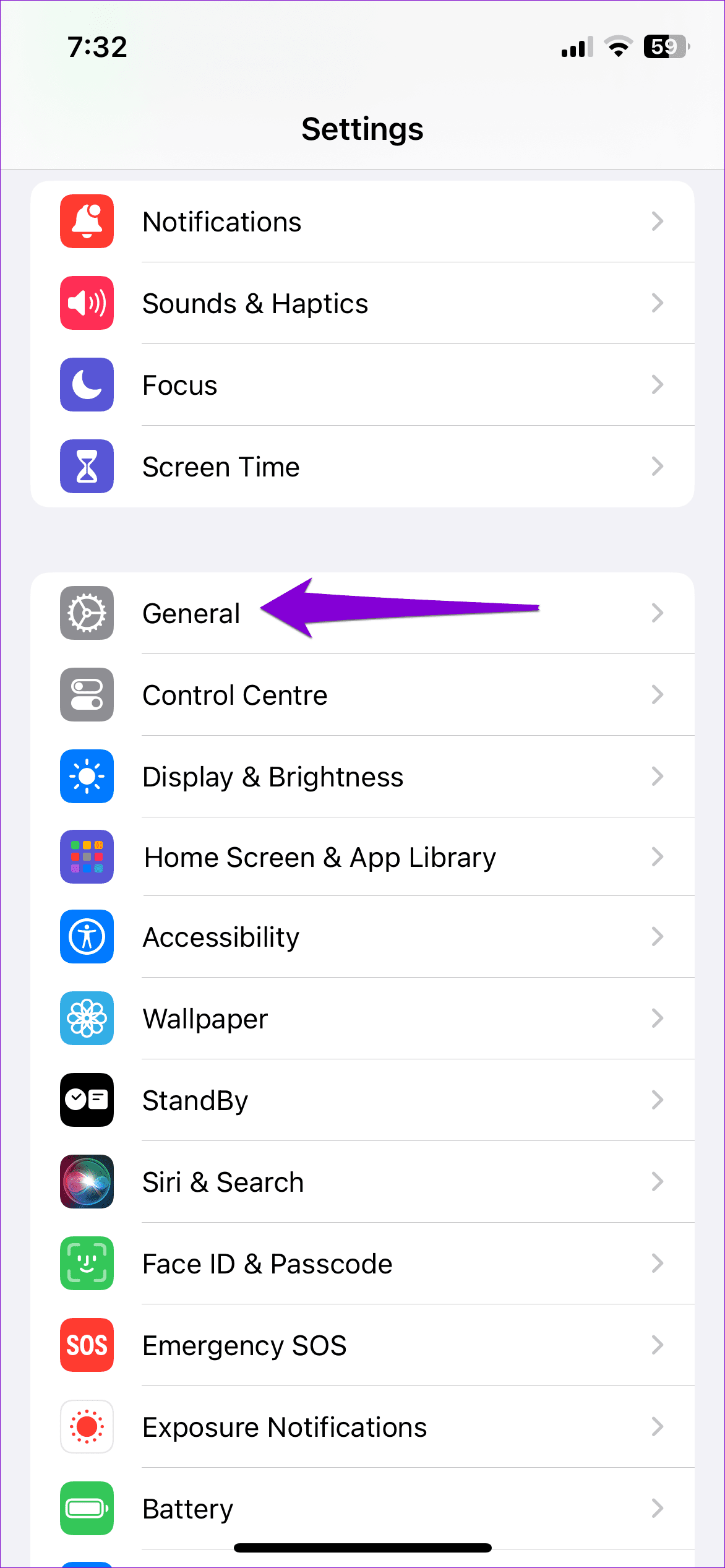
Step 1: Launch the Settings app on your iPhone and navigate to General.
Step 2: Tap on Date & Time. Toggle on the switch next to Set Automatically.


Fix 3: Clear App Cache (Android)
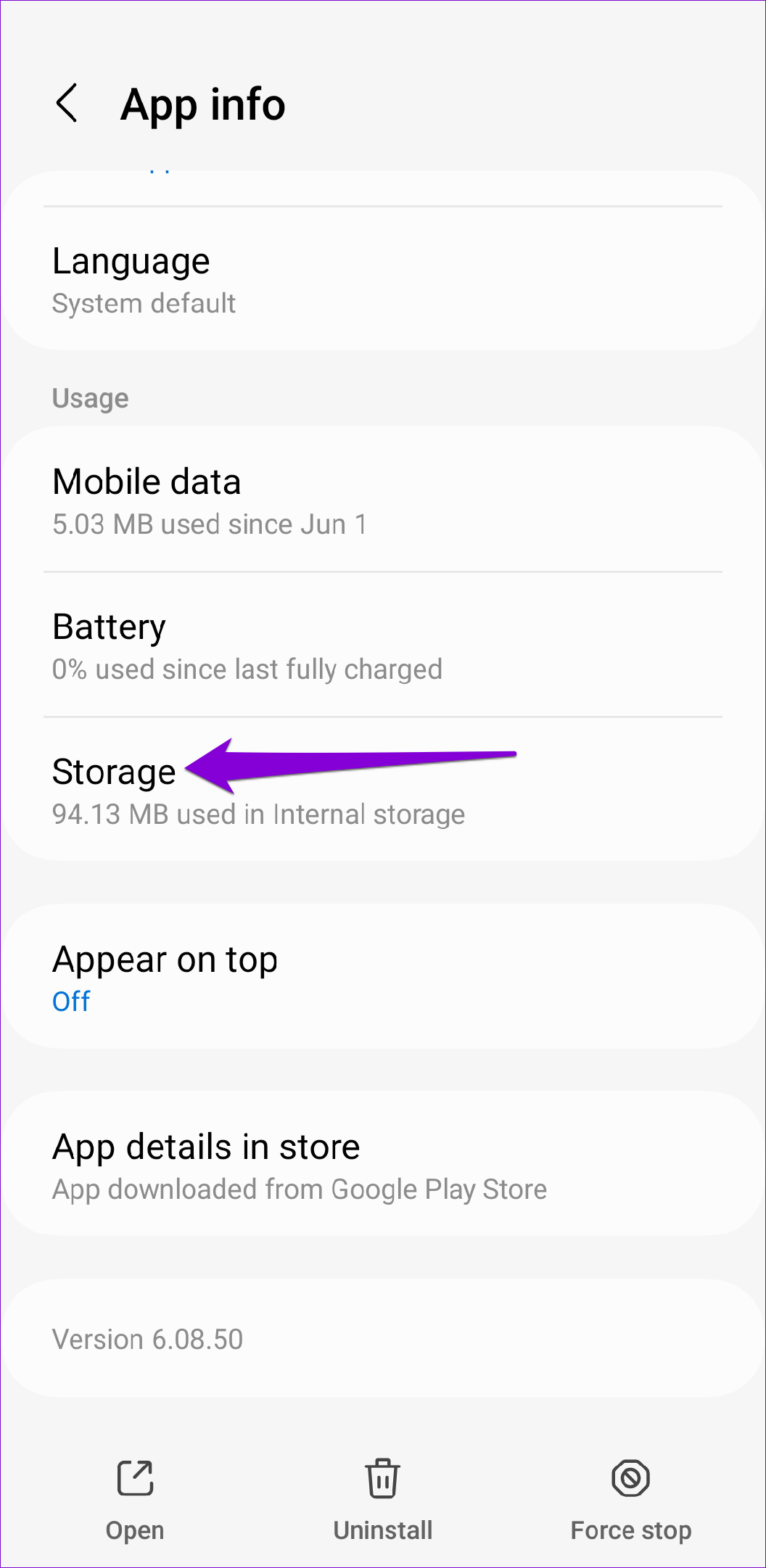
The YouTube app stores cache data on your phone as you stream videos and shorts. Sometimes, these cache files can corrupt, resulting in strange errors or abrupt app crashes. You can try clearing YouTube’s app cache on your phone and see if that helps.
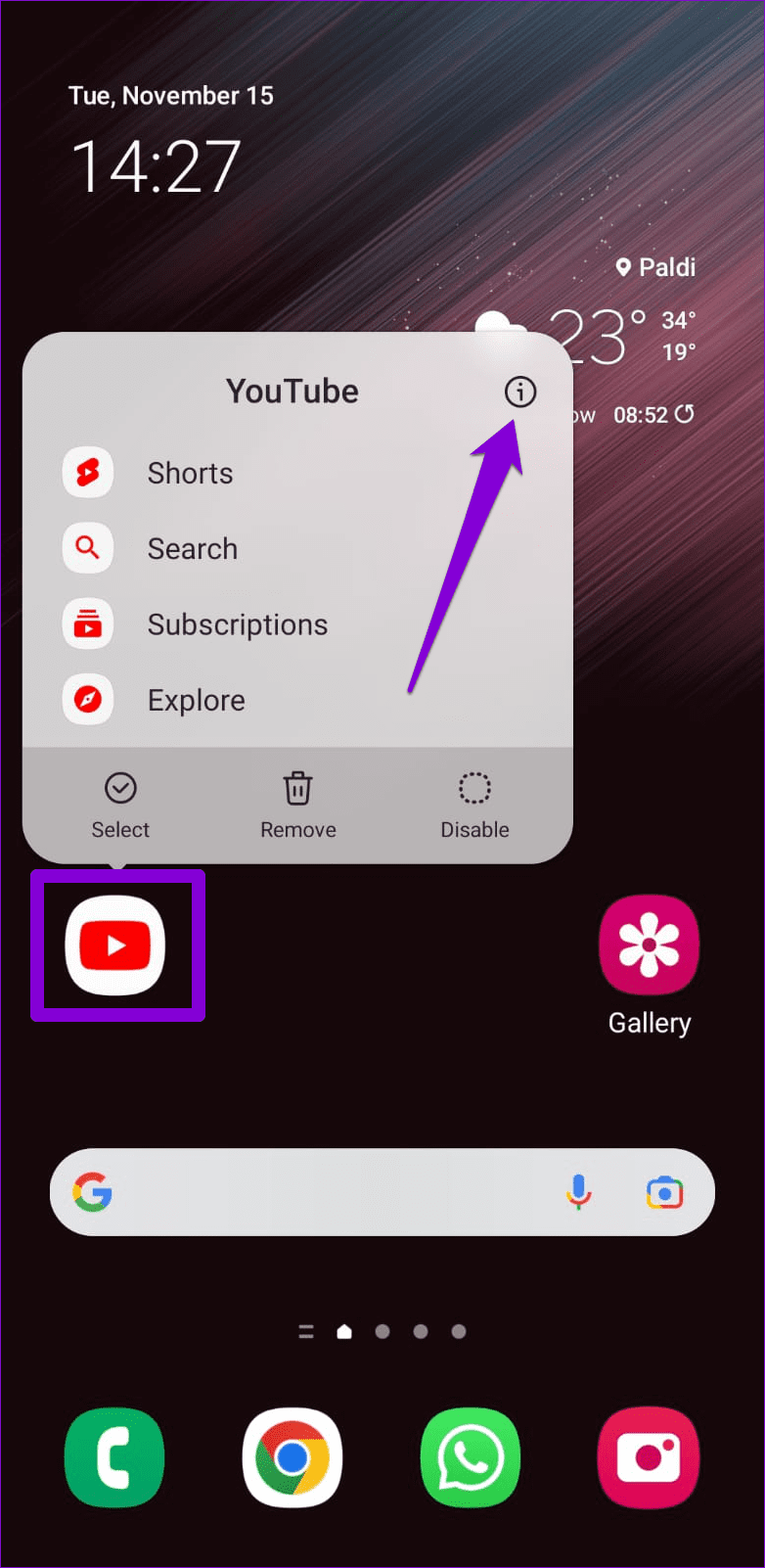
Step 1: Long-press the YouTube app icon and tap the info icon from the menu that appears.
Step 2: Tap Storage and tap the Clear cache option at the bottom.

Was this helpful?
Last updated on 05 July, 2024
Read Next
 2 Ways to Fix Facebook Messenger Won’t Let Me Log In on Android and iPhone
Try Basic Fixes Update the Messenger app: The Messenger app may not let you sign in if you’re using an outdated version of the app.
2 Ways to Fix Facebook Messenger Won’t Let Me Log In on Android and iPhone
Try Basic Fixes Update the Messenger app: The Messenger app may not let you sign in if you’re using an outdated version of the app.
 5 Ways to Fix Xbox App Won’t Let Me Log in on Windows 11
Fix 1: Ensure Xbox Services Are Running The Xbox app for Windows relies on certain background services to work on your computer.
5 Ways to Fix Xbox App Won’t Let Me Log in on Windows 11
Fix 1: Ensure Xbox Services Are Running The Xbox app for Windows relies on certain background services to work on your computer.
 Top 8 Ways to Fix Google Sheets Won’t Let Me Type or Edit Error
Google Sheet allows users to collaborate on a single spreadsheet without needing to save anything.
Top 8 Ways to Fix Google Sheets Won’t Let Me Type or Edit Error
Google Sheet allows users to collaborate on a single spreadsheet without needing to save anything.
 5 Ways to Fix Google Sheets Won’t Let Me Scroll Error
Basic Fixes: Check if Scroll Lock is enabled: Some keyboards have a physical Scroll Lock key that blocks scrolling features on your device.
5 Ways to Fix Google Sheets Won’t Let Me Scroll Error
Basic Fixes: Check if Scroll Lock is enabled: Some keyboards have a physical Scroll Lock key that blocks scrolling features on your device.
 4 Ways to Fix Google Play Won’t Let Me Sign in Error
Basic Fixes Check network connection: If your internet connection isn't stable or is facing a problem, you can't log in to Play Store.
4 Ways to Fix Google Play Won’t Let Me Sign in Error
Basic Fixes Check network connection: If your internet connection isn't stable or is facing a problem, you can't log in to Play Store.
 7 Best Ways to Fix OneNote Won’t Let Me Type Error in Windows 10
Microsoft OneNote is one of the oldest note-taking apps and a key component of Microsoft's Office Suite.
7 Best Ways to Fix OneNote Won’t Let Me Type Error in Windows 10
Microsoft OneNote is one of the oldest note-taking apps and a key component of Microsoft's Office Suite.
 3 Fixes for Snapchat Won’t Let Me Export Snaps to Phone
https://youtu.be/D3Y6bZgaodI Try Basic Fixes Check if Snapchat is down: Even popular services like Snapchat can experience server outages at times.
3 Fixes for Snapchat Won’t Let Me Export Snaps to Phone
https://youtu.be/D3Y6bZgaodI Try Basic Fixes Check if Snapchat is down: Even popular services like Snapchat can experience server outages at times.
 5 Ways to Fix Windows Stuck on “Let’s Connect You to a Network”
Fix 1: Restart the Router and Check the Internet Connectivity Restart your Wi-Fi router, as it essentially refreshes the network connection.
5 Ways to Fix Windows Stuck on “Let’s Connect You to a Network”
Fix 1: Restart the Router and Check the Internet Connectivity Restart your Wi-Fi router, as it essentially refreshes the network connection.
The article above may contain affiliate links which help support Guiding Tech. The content remains unbiased and authentic and will never affect our editorial integrity.