

Try These Basic Fixes
- Temporarily disable your VPN connection: Issues with the VPN service might prevent the YouTube app from connecting to the internet and playing videos. To check for this possibility, temporarily disable your VPN connection and see if that gets YouTube to play Shorts.
- Check if YouTube is down: The YouTube app may fail to load Shorts and other content due to server-related issues. To overrule this possibility, check YouTube’s server status on a website like Downdetector.
- Update the YouTube app: YouTube Shorts may not play on your phone because you’re using an outdated or buggy app. Head to the Play Store or App Store to update the YouTube app and see if that helps.
Fix 1: Enable Mobile Data for YouTube (iPhone)
On iOS, you can control mobile data permissions for each app. If you have previously disabled mobile data access for the YouTube app, it won’t play Shorts or other regular videos when you are away from Wi-Fi. To enable mobile data usage for the YouTube app:
Step 1: Open the Settings app and scroll down to tap on YouTube.
Step 2: Enable the toggle for Mobile Data.


Fix 2: Enable Automatic Date and Time
YouTube might fail to connect to its servers if the date or time on your phone is inaccurate. To fix this, you can configure your phone to use the network-provided date and time. Here are the steps.
On Android
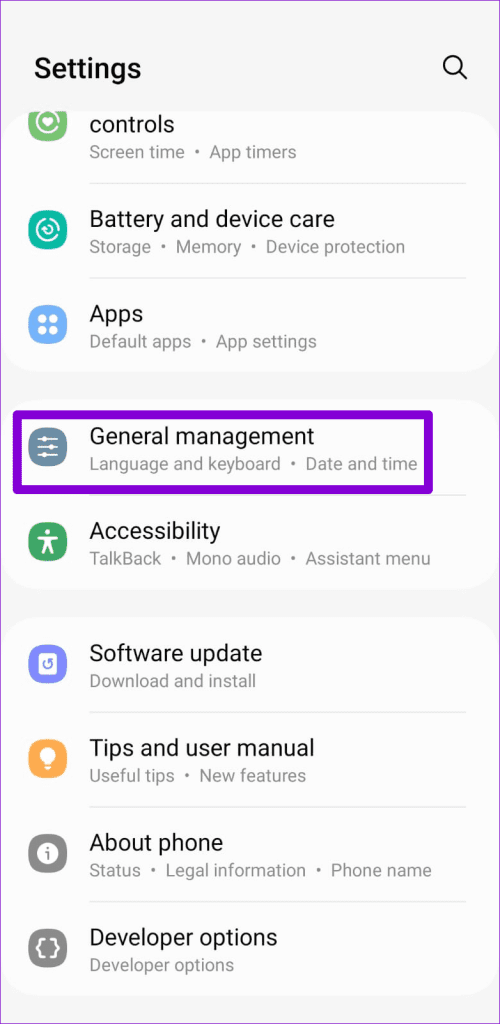
Step 1: Open the Settings app on your phone and tap on General management.
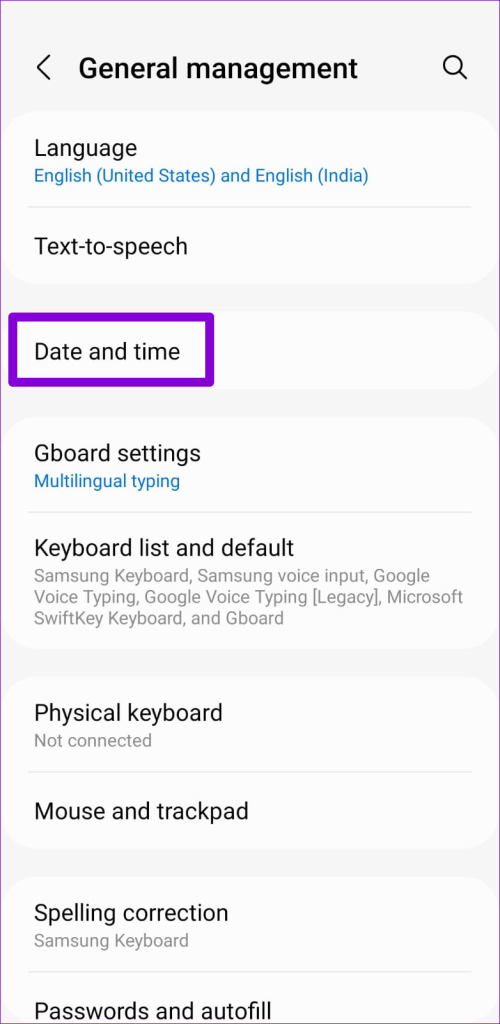
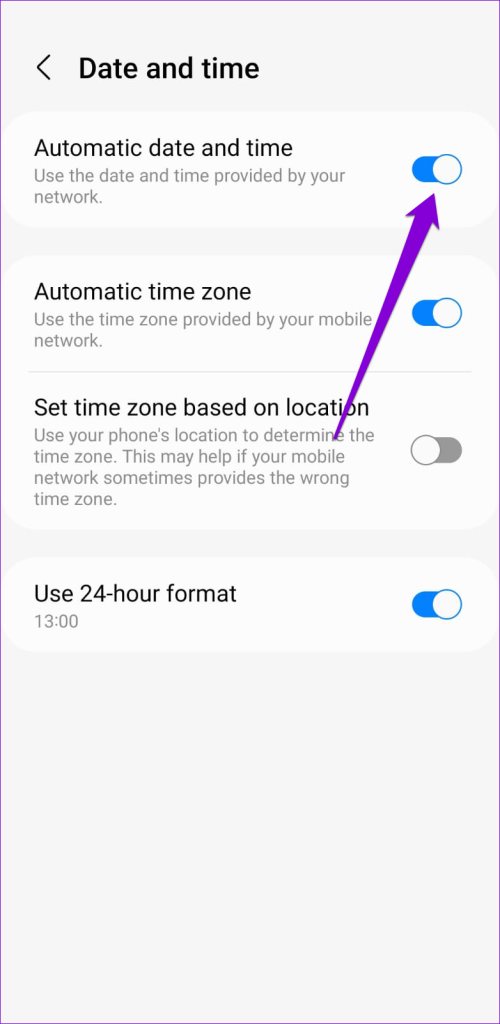
Step 2: Tap on Date and time and enable the toggle for Automatic date and time.
On iPhone
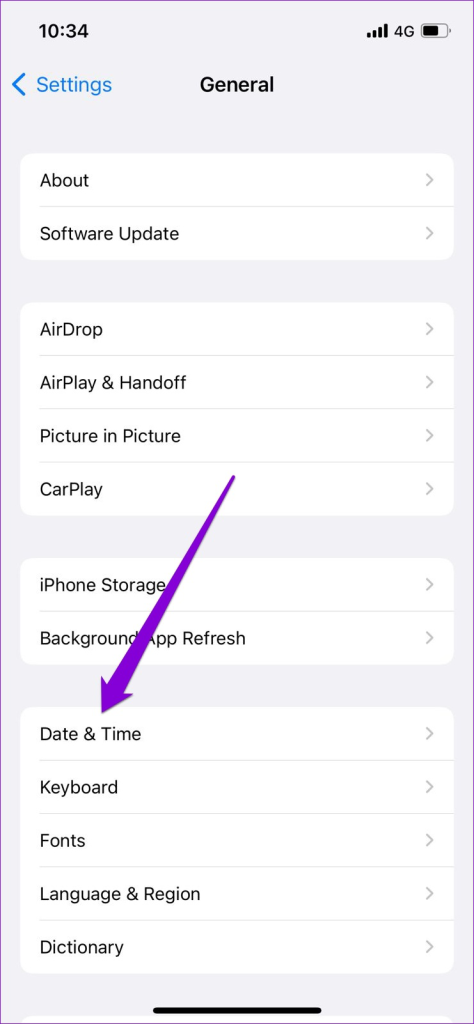
Step 1: Launch the Settings app on your iPhone and navigate to General.
Step 2: Tap on Date & Time and toggle on Set Automatically.


Fix 3: Clear YouTube App Cache (Android)
Existing cache data collected by the YouTube app could also cause such issues. Clearing the YouTube app cache should help if that’s the case.
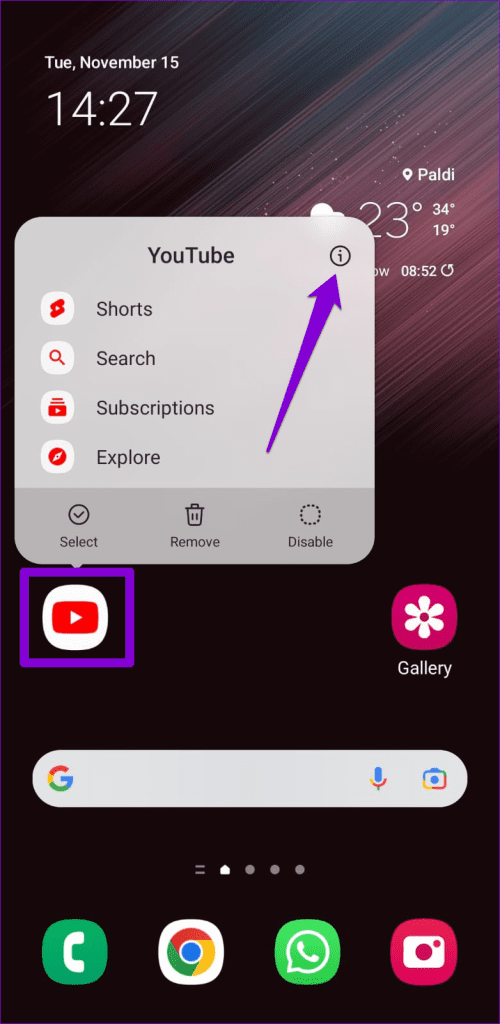
Step 1: Long-press the YouTube app icon and tap the info icon from the resulting menu.
Step 2: Go to Storage and tap the Clear cache option at the bottom.


Was this helpful?
Last updated on 03 July, 2024
1 Comment
Leave a Reply
Read Next
 5 Ways to Fix YouTube Shorts Not Playing in Google Chrome
Fix 1: Turn Off Hardware Acceleration When you enable hardware acceleration in Google Chrome, the browser uses your GPU instead of your CPU to perform specific graphic-intensive tasks.
5 Ways to Fix YouTube Shorts Not Playing in Google Chrome
Fix 1: Turn Off Hardware Acceleration When you enable hardware acceleration in Google Chrome, the browser uses your GPU instead of your CPU to perform specific graphic-intensive tasks.
 How to Disable YouTube Shorts: 8 Best Ways
Things to Know Before Disabling YouTube Shorts While some regions may have the option to disable YouTube Shorts directly within the app itself.
How to Disable YouTube Shorts: 8 Best Ways
Things to Know Before Disabling YouTube Shorts While some regions may have the option to disable YouTube Shorts directly within the app itself.
 3 Fixes for Can’t Post Comments on YouTube Videos and Shorts
Try Basic Fixes The creator may have blocked your account: YouTube gives creators the option to block specific users from commenting on their videos.
3 Fixes for Can’t Post Comments on YouTube Videos and Shorts
Try Basic Fixes The creator may have blocked your account: YouTube gives creators the option to block specific users from commenting on their videos.
 3 Ways to Fix YouTube Music App Not Playing in Background
Basic Fixes Check Internet Connectivity: Ensure your device is connected to a Wi-Fi network or cellular data with good signal strength and an active plan.
3 Ways to Fix YouTube Music App Not Playing in Background
Basic Fixes Check Internet Connectivity: Ensure your device is connected to a Wi-Fi network or cellular data with good signal strength and an active plan.
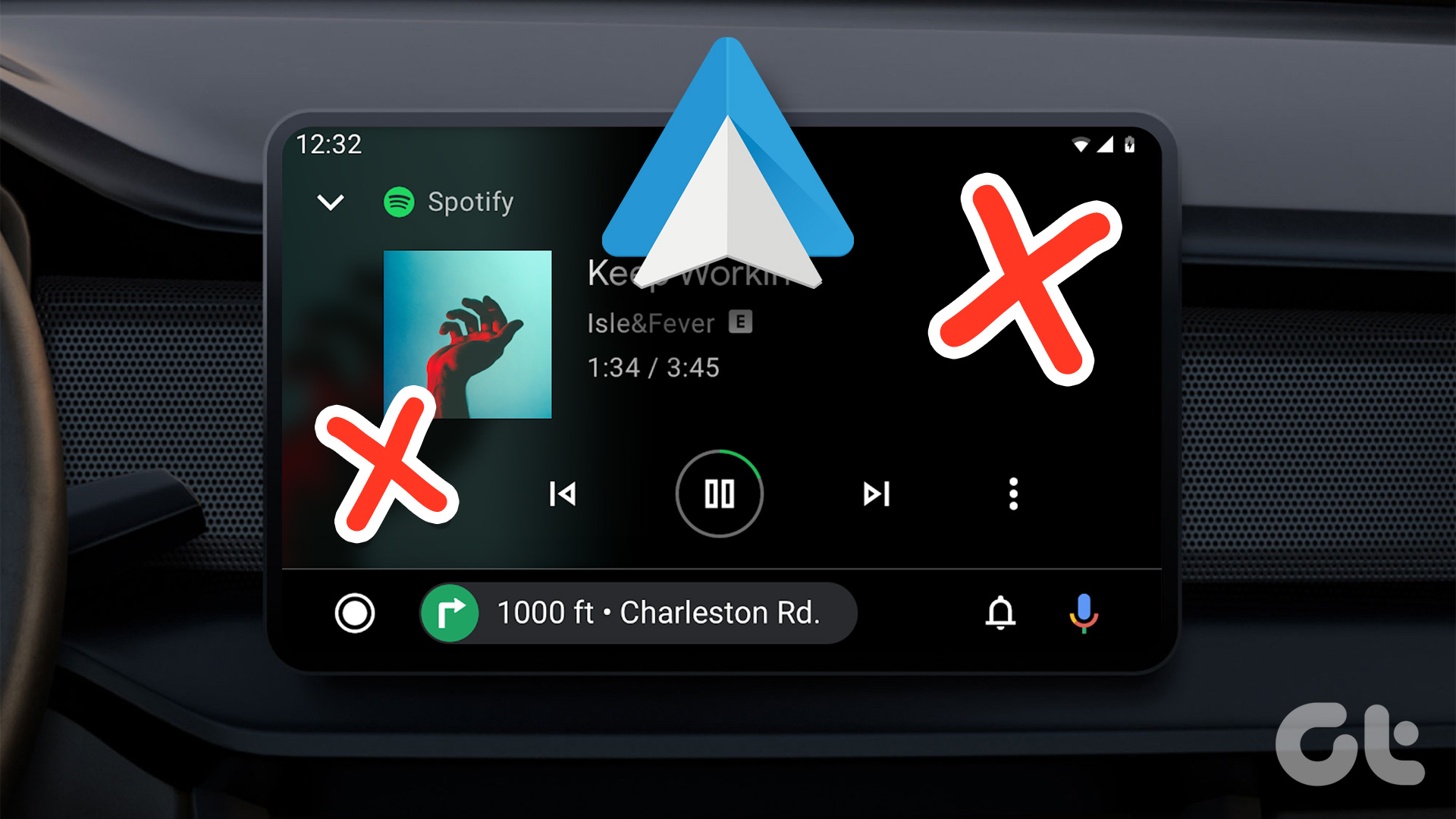 4 Fixes for Android Auto Not Playing Music From Spotify or YouTube Music
Fix 1: Change the Default Music Streaming Service Say you have a Spotify subscription.
4 Fixes for Android Auto Not Playing Music From Spotify or YouTube Music
Fix 1: Change the Default Music Streaming Service Say you have a Spotify subscription.
 4 Ways to Fix YouTube Not Playing Videos on PC
Basic Fixes Check your network connection: Ensure your device has a good internet connection.
4 Ways to Fix YouTube Not Playing Videos on PC
Basic Fixes Check your network connection: Ensure your device has a good internet connection.
 3 Ways to Fix Snapchat Not Playing Videos on Android and iPhone
Try Basic Fixes Check if Snapchat is down: At times, server congestion or other related issues can impact Snapchat’s performance and trigger various errors.
3 Ways to Fix Snapchat Not Playing Videos on Android and iPhone
Try Basic Fixes Check if Snapchat is down: At times, server congestion or other related issues can impact Snapchat’s performance and trigger various errors.
 How to Fix WhatsApp Videos Not Playing on iPhone or Android
Basic Fixes Check your network connection: Ensure your phone has a robust internet connection.
How to Fix WhatsApp Videos Not Playing on iPhone or Android
Basic Fixes Check your network connection: Ensure your phone has a robust internet connection.
The article above may contain affiliate links which help support Guiding Tech. The content remains unbiased and authentic and will never affect our editorial integrity.

I have a Huawei phone “p40 light e” and the listed actions and functions do not apply to it. How can I fix the problem with video playback in my case?