

Basic Fixes
- Check if YouTube is down: You can check YouTube’s server status on Downdetector to know if it is facing downtime.
- Check internet connection: Since YouTube has to load many elements apart from the video, you must have a good internet connection to load the comments.
- Reload the video: Refresh the video, and check if you can see the comments section.
- Update or Reinstall YouTube: Updating or reinstalling the latest version of YouTube from the Play Store or App Store can fix the missing comment section.
Fix 1: Change Your YouTube Account
Sometimes, a weird bug might affect your Google account signed into YouTube. Changing your YouTube account is one way to fix YouTube comments not showing up.
Step 1: Tap on the profile icon at the top right corner. Tap on the > icon next to your account name.
Step 2: You will be shown the Accounts page. Tap on Add Account. Once you add a new account, it will show up under Other accounts. Select the new account to switch.


Fix 2: Clear Cache
Accumulation of cache and junk files can execute bugs that can cause issues with the YouTube app. Here’s how to get rid of it on your smartphone.
On iPhone
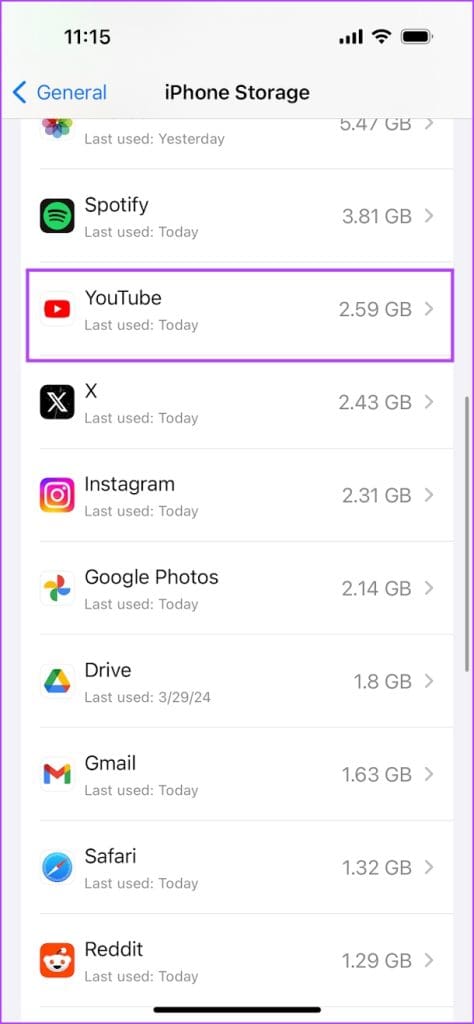
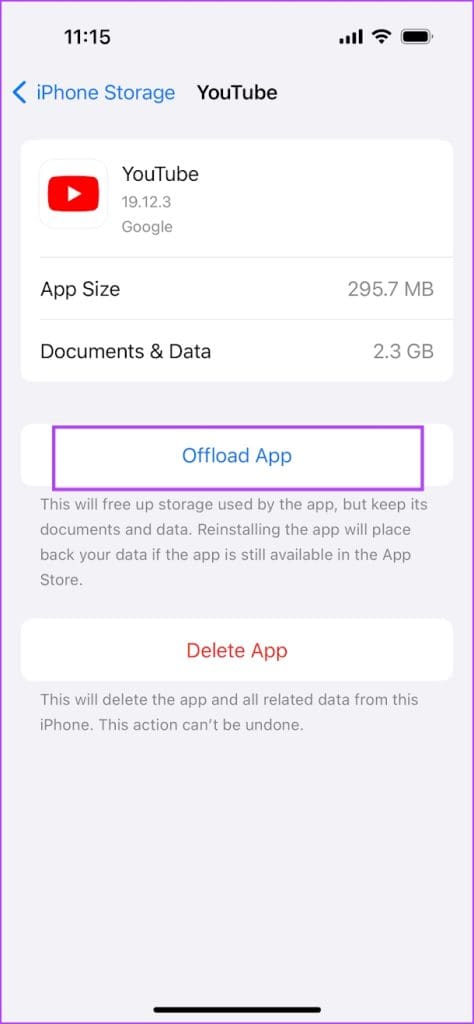
Offloading an application on your iPhone removes temporary data, including cache and junk files. However, it maintains all the other essential data, such as your sign-in information, in-app downloads and purchases, etc.
Step 1: On your iPhone, go to Settings > General > iPhone Storage
Step 2: Scroll down, select the YouTube app, and tap on Offload App. Tap on the Offload App again to confirm.
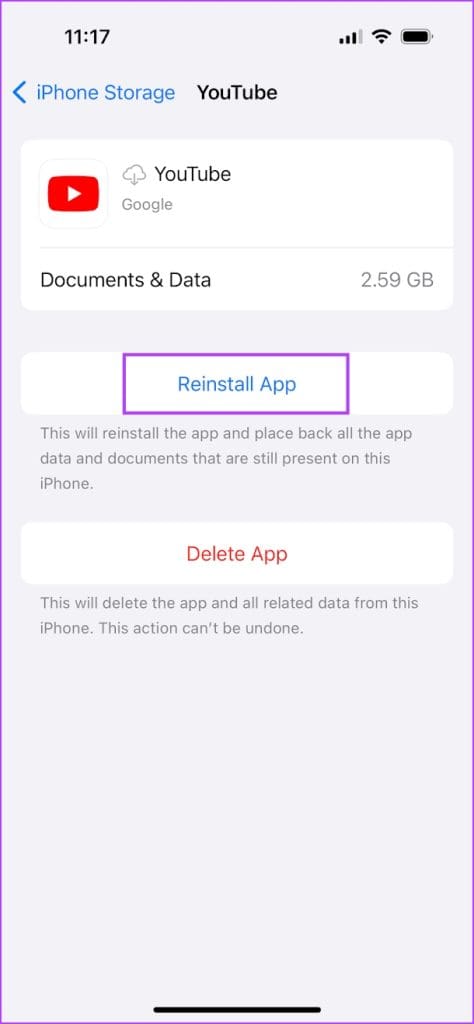
Step 3: Now, tap on Reinstall App.
On Android
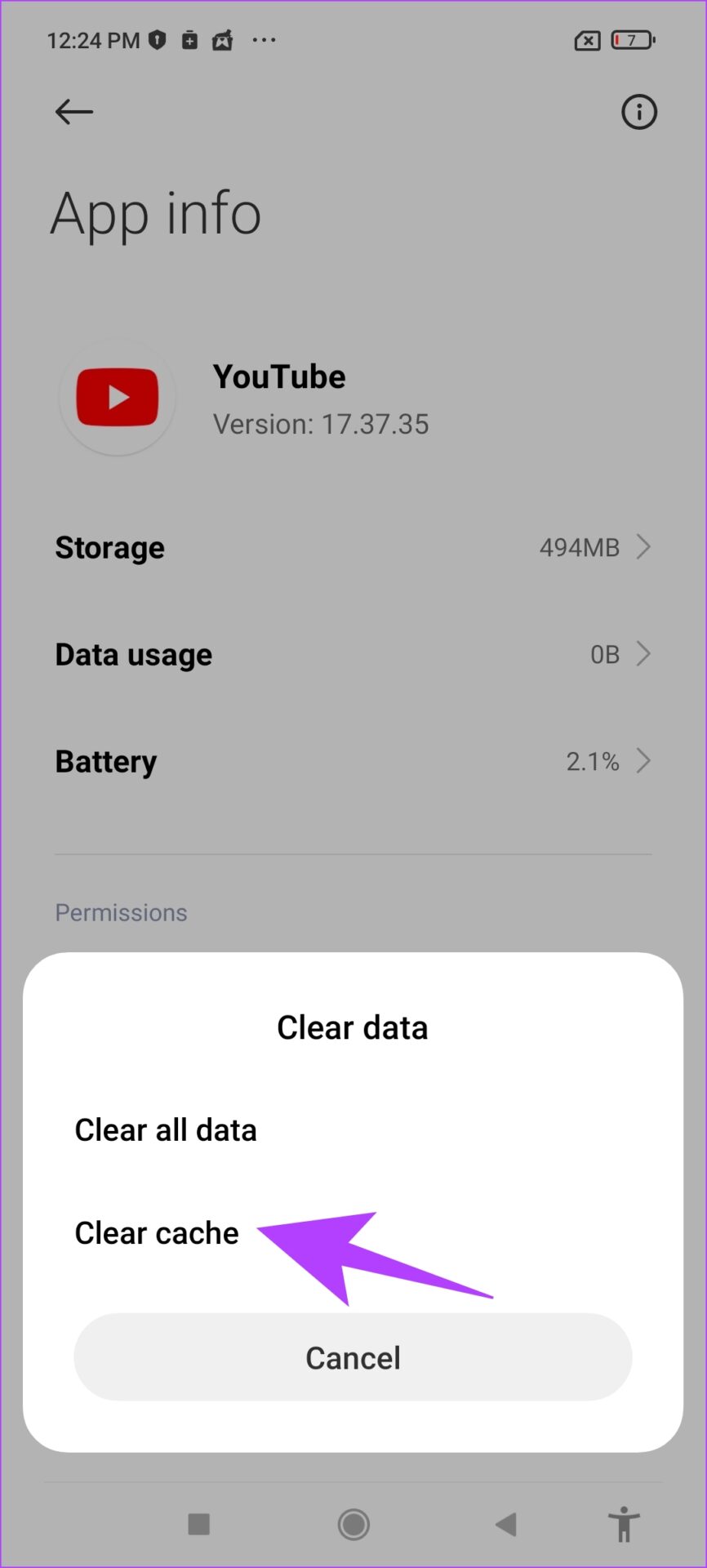
Step 1: Long-press on the YouTube app icon and select App info. Here, tap on Clear Data.
Step 2: Now, select clear cache.

Fix 3: Disable Ad Blockers
Ad Blockers might help you block intrusive and annoying ads but might cause a few issues with the functioning of the application.
On iPhone
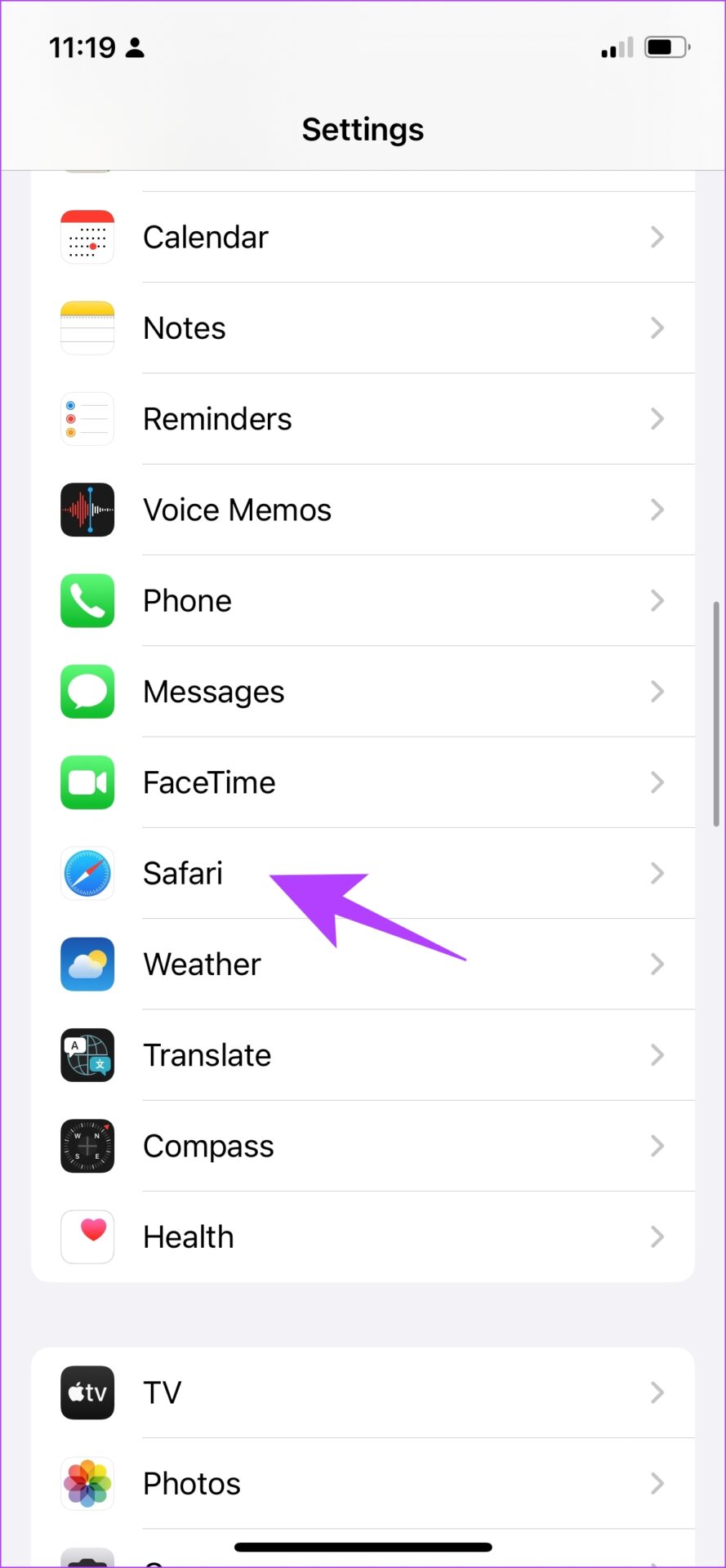
If you are watching YouTube on Safari, here’s how to disable the ad blocker on your iPhone to get back the comments section.
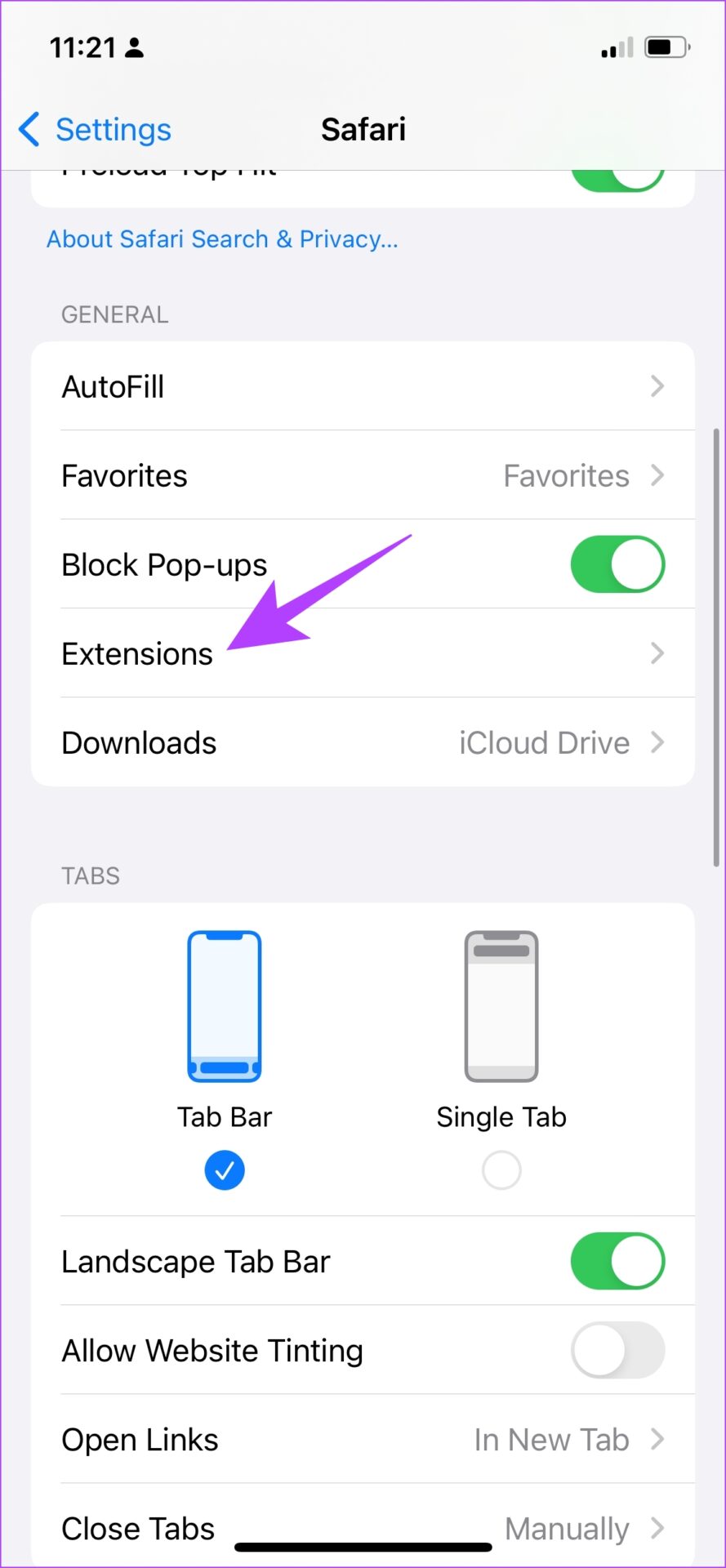
Step 1: Open the Settings app and select Safari. Tap on Extensions.
Step 2: Ensure all the toggles are turned off for any ad blockers which are extensions for Safari.

On Android
If you have an ad blocker app installed on your Android device, uninstall it to try and restore the comment section under a YouTube video.
Step 1: Long-press on the app icon > select App Info.
Step 2: Now, tap on Uninstall to delete the ad blocker app.


Was this helpful?
Last updated on 04 April, 2024
Read Next
 3 Ways to Fix Instagram Comments Not Showing on Android and iPhone
Try Basic Fixes Check Instagram’s server status: Server-side glitches could prevent Instagram from loading properly or display strange errors.
3 Ways to Fix Instagram Comments Not Showing on Android and iPhone
Try Basic Fixes Check Instagram’s server status: Server-side glitches could prevent Instagram from loading properly or display strange errors.
 3 Ways to Fix Facebook Comments Not Loading on Android and iPhone
Try Basic Fixes Check Facebook's server status: It’s not uncommon for Facebook servers to experience problems.
3 Ways to Fix Facebook Comments Not Loading on Android and iPhone
Try Basic Fixes Check Facebook's server status: It’s not uncommon for Facebook servers to experience problems.
 3 Fixes for Can’t Post Comments on YouTube Videos and Shorts
Try Basic Fixes The creator may have blocked your account: YouTube gives creators the option to block specific users from commenting on their videos.
3 Fixes for Can’t Post Comments on YouTube Videos and Shorts
Try Basic Fixes The creator may have blocked your account: YouTube gives creators the option to block specific users from commenting on their videos.
 How to Search for Comments on YouTube
Comments on YouTube are a great way to leave feedback or appreciation for the video.
How to Search for Comments on YouTube
Comments on YouTube are a great way to leave feedback or appreciation for the video.
 3 Ways to Fix Google Maps Showing Wrong Location on Android and iPhone
Try Basic Fixes Turn off battery saver mode: When you enable battery-saving mode, your phone turns off power-hungry features such as GPS tracking and background app data to improve battery
3 Ways to Fix Google Maps Showing Wrong Location on Android and iPhone
Try Basic Fixes Turn off battery saver mode: When you enable battery-saving mode, your phone turns off power-hungry features such as GPS tracking and background app data to improve battery
 What Happens When You Hide Comments on Facebook
How to Hide Comments on Facebook When you come across your comment or someone's comment on your update, select the three-dot menu next to the comment and pick the Hide
What Happens When You Hide Comments on Facebook
How to Hide Comments on Facebook When you come across your comment or someone's comment on your update, select the three-dot menu next to the comment and pick the Hide
 How to Delete All Reddit Comments and Posts on Web Browser
How to Permanently Delete Reddit Comments and Posts Individually We'll show you how to delete a Reddit post or a comment individually, then proceed to delete all Reddit posts at
How to Delete All Reddit Comments and Posts on Web Browser
How to Permanently Delete Reddit Comments and Posts Individually We'll show you how to delete a Reddit post or a comment individually, then proceed to delete all Reddit posts at
 How to Share Comments on Instagram Story
Instagram stories are an easy way to share updates with your followers quickly.
How to Share Comments on Instagram Story
Instagram stories are an easy way to share updates with your followers quickly.
The article above may contain affiliate links which help support Guiding Tech. The content remains unbiased and authentic and will never affect our editorial integrity.

