


Fix 1: Enable Xbox Game Bar in Windows Settings
If you can’t launch the Xbox Game Bar from your connected game controller on Windows 11, head to Windows Settings to enable the feature.
Step 1: Press the Windows + I shortcut to open the Settings app, select Gaming from the left sidebar, and click Game Bar.

Step 2: Toggle on Allow your controller to open Game Bar.

Fix 2: Repair the Corrupt IEFRAME.dll File
The IEFRAME.dll system file is crucial for the Xbox Game Bar to function properly. If it gets corrupt, the Xbox Game Bar may fail to open or work on Windows 11. Repair it using the System File Checker (SFC) to resolve the problem.
Step 1: Press the Windows key, search Command Prompt, and click Run as administrator.

Step 2: Approve the UAC prompt, type sfc /scannow in the console, and press Enter. This will automatically repair all corrupted files, including IEFRAME.dll.

Fix 3: Enable Xbox Game Bar From Registry Editor
Besides system file corruption, Xbox Game Bar may not work on Windows 11 if it is disabled in the Windows Registry. Use the Registry Editor app to tweak and enable it manually.
Step 1: Open the Run dialog using the Windows + R shortcut, type regedit, and press Enter.

Step 2: Copy-paste the below path in the navigation bar and hit Enter.
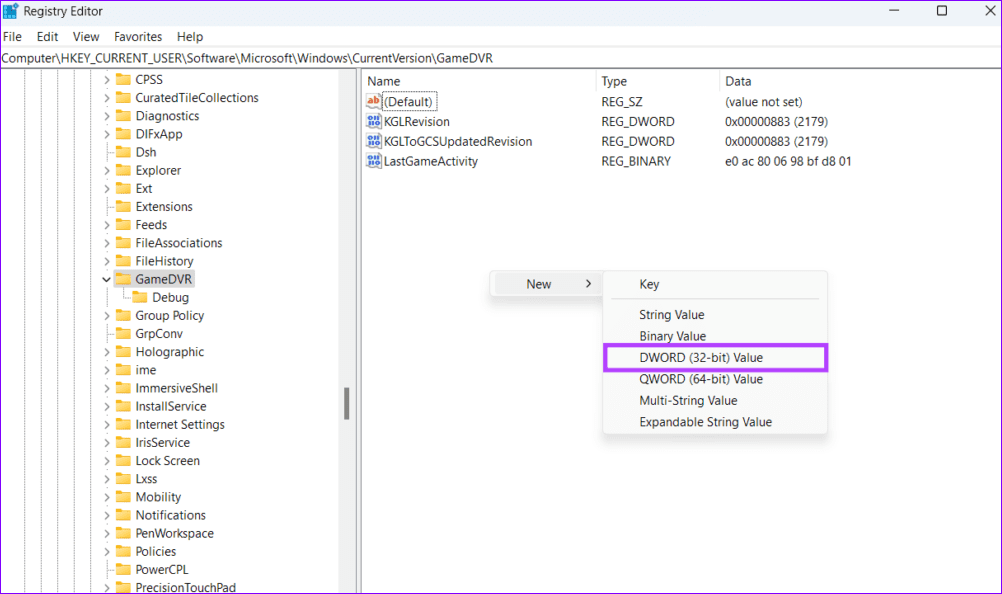
Computer\HKEY_CURRENT_USER\Software\Microsoft\Windows\CurrentVersion\GameDVR
Step 3: Right-click the empty space on the right and select New > DWORD (32-bit) Value.
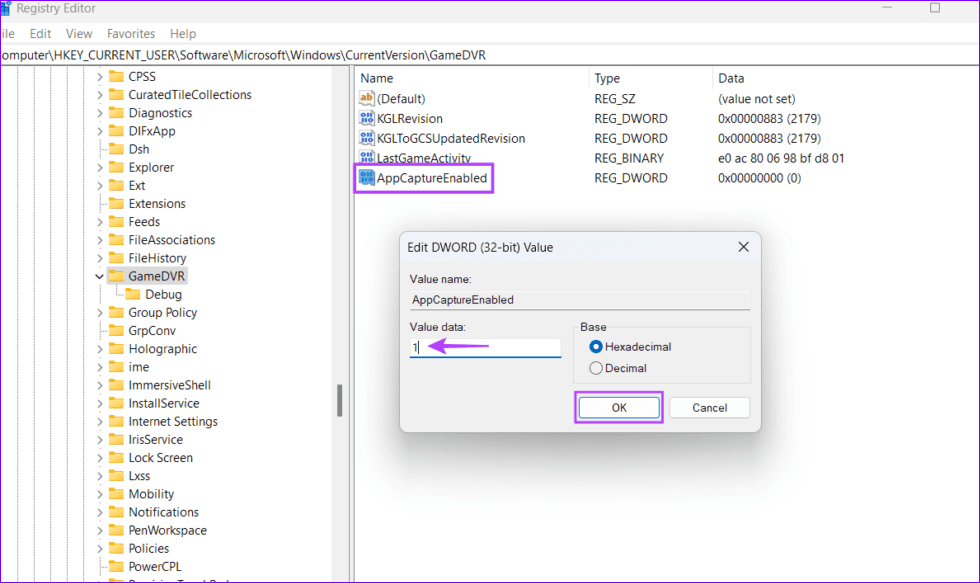
Step 4: Name it AppCaptureEnabled, press Enter, and double-click it to set its value data to 1. Click OK to save changes and restart your PC.
Fix 4: Tweak Windows Policies to Enable the Xbox Game Bar
If the Game Recording and Broadcasting policy is disabled on Windows 11, the Xbox Game Bar may fail to trigger or launch on your system. Open the Local Group Policy Editor app to turn it on.
Note: The Local Group Policy Editor app is only available on Windows 11 Pro, Education, and Enterprise editions. If you’re running a Home Edition, enable it with the batch file trick.
Step 1: Press the Windows + R shortcut to open the Run dialog, type gpedit.msc, and press Enter.

Step 2: Navigate to the following path inside the Local Group Policy Editor app.
Local Computer Policy > Administrative Templates > Windows Components > Windows Game Recording and Broadcasting
Step 3: Locate and double-click the Enables or disables the Windows Game Recording and Broadcasting policy in the right pane.
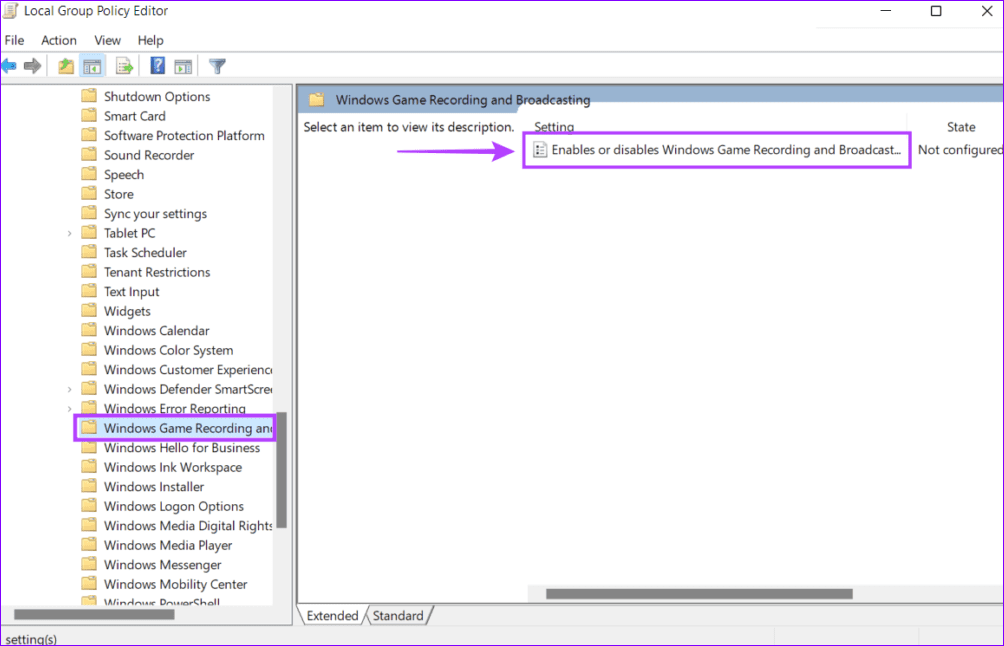
Step 4: Set its value to Enabled and click Apply to save changes.

Fix 5: Repair or Reset the Xbox Game Bar
Lastly, repair or reset the Xbox Game Bar from Windows 11 settings if nothing works out.
Step 1: Open Windows settings, select Apps from the left sidebar, and click Installed apps.
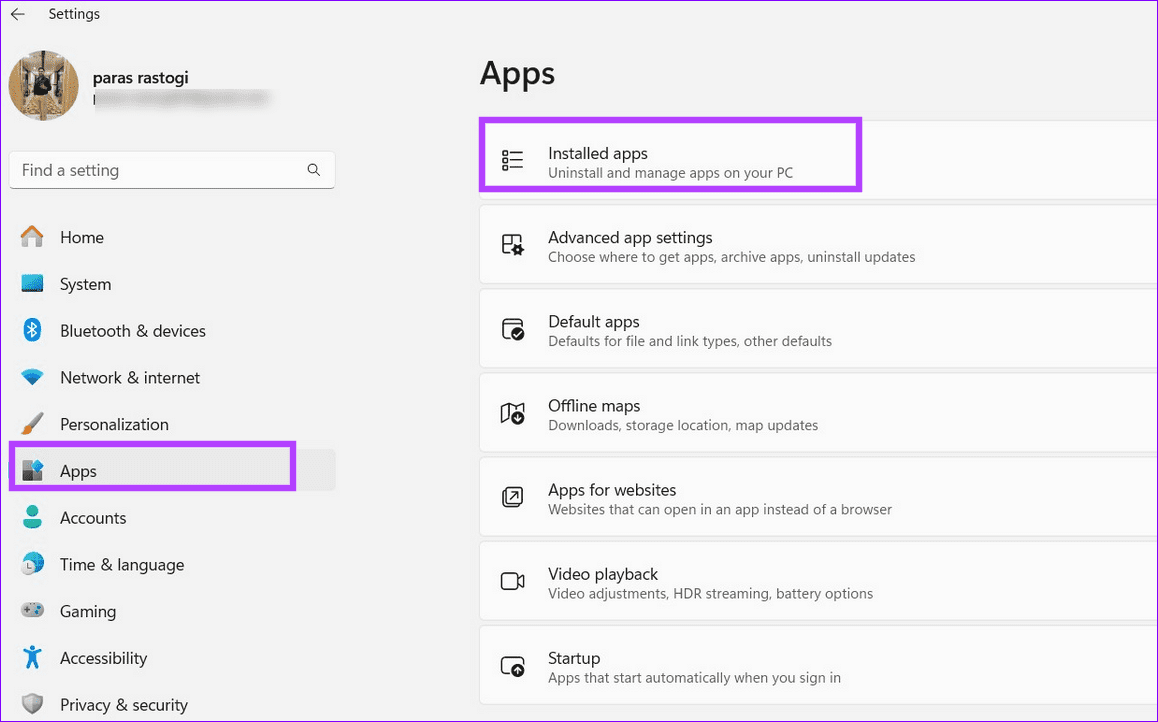
Step 2: Scroll down and select System components.

Step 3: Click the three-dot menu next to the Game Bar and select Advanced options.
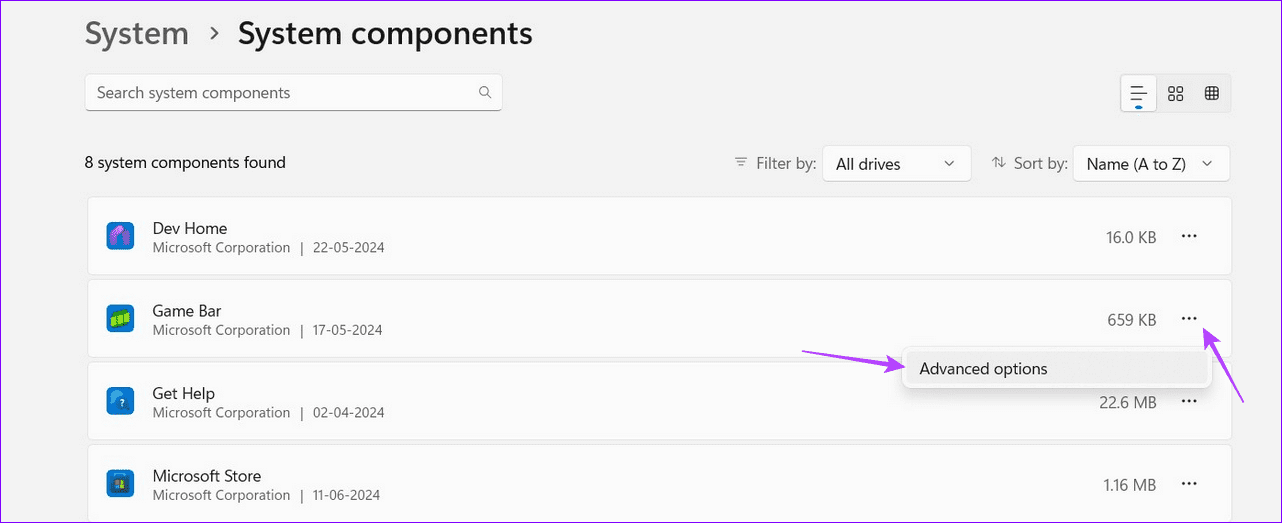
Step 4: Scroll down and click Repair. If the issue persists, select Reset to restore it to factory defaults.

Was this helpful?
Last updated on 12 July, 2024
2 Comments
Leave a Reply
Read Next
 8 Fixes for Microphone Not Working in Xbox Game Bar on Windows 11
Basic Fixes Reconnect the external microphone: Plug out the external connected microphone, wait a few seconds, and reconnect it.
8 Fixes for Microphone Not Working in Xbox Game Bar on Windows 11
Basic Fixes Reconnect the external microphone: Plug out the external connected microphone, wait a few seconds, and reconnect it.
 4 Best Ways to Record Screen Without Xbox Game Bar on Windows 11
The Xbox Game Bar on your Windows 11 computer is a good built-in tool for screen recording.
4 Best Ways to Record Screen Without Xbox Game Bar on Windows 11
The Xbox Game Bar on your Windows 11 computer is a good built-in tool for screen recording.
 3 Ways to Disable Xbox Game Bar on Windows 11
Method 1: Using PowerShell Step 1: Press the Windows key, type PowerShell, and click Run as Administrator.
3 Ways to Disable Xbox Game Bar on Windows 11
Method 1: Using PowerShell Step 1: Press the Windows key, type PowerShell, and click Run as Administrator.
 How to Solve Windows 10 Game Bar Not Working and Other Common Issues
With the recent Windows 10 version 1809 update, Microsoft pushed a bunch of improvements to the Xbox Game Bar.
How to Solve Windows 10 Game Bar Not Working and Other Common Issues
With the recent Windows 10 version 1809 update, Microsoft pushed a bunch of improvements to the Xbox Game Bar.
 6 Ways to Fix Xbox App Not Opening in Windows 11
Fix 1.
6 Ways to Fix Xbox App Not Opening in Windows 11
Fix 1.
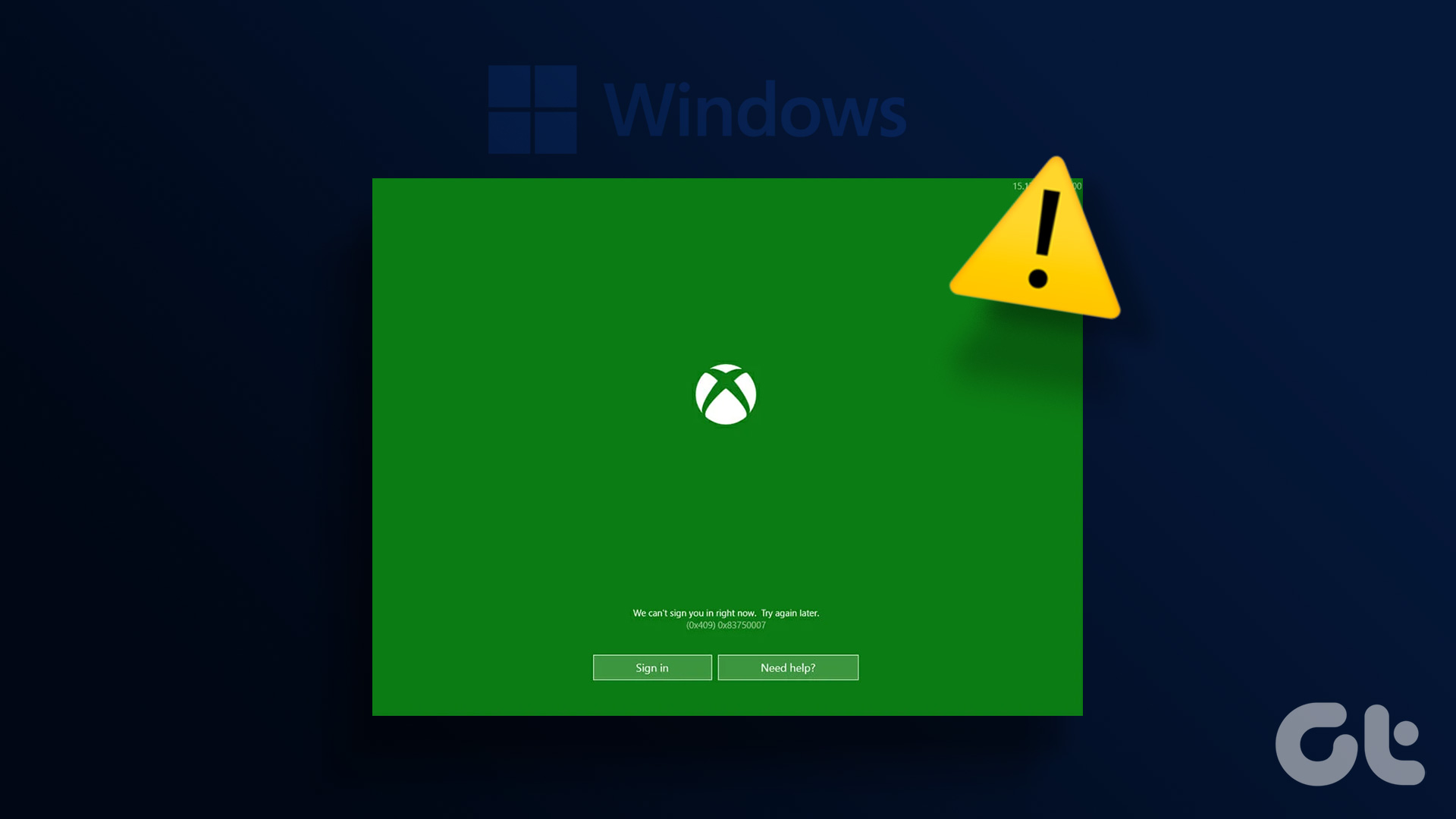 5 Ways to Fix Xbox App Won’t Let Me Log in on Windows 11
Fix 1: Ensure Xbox Services Are Running The Xbox app for Windows relies on certain background services to work on your computer.
5 Ways to Fix Xbox App Won’t Let Me Log in on Windows 11
Fix 1: Ensure Xbox Services Are Running The Xbox app for Windows relies on certain background services to work on your computer.
 6 Ways to Fix Xbox Games Installation Stuck on Windows
Try These Fixes First Restart the Xbox app: You can close the Xbox app and try installing the apps again.
6 Ways to Fix Xbox Games Installation Stuck on Windows
Try These Fixes First Restart the Xbox app: You can close the Xbox app and try installing the apps again.
 5 Fixes for Cloud Gaming Not Working in Xbox App for Windows
Fix 1.
5 Fixes for Cloud Gaming Not Working in Xbox App for Windows
Fix 1.
The article above may contain affiliate links which help support Guiding Tech. The content remains unbiased and authentic and will never affect our editorial integrity.
Can I please get my Xbox back
nah duds