


Try These Fixes First
- Restart the Xbox app: You can close the Xbox app and try installing the apps again. For this, hit the up arrow icon in the taskbar and right-click on Xbox to quit the app. Then, launch the Xbox app.
- Check the Xbox app server status: A server-side major outage can be the culprit behind the Xbox for PC not installing games issue. To confirm, visit the Xbox server status page, expand Store & subscriptions, and ensure it says Up and Running beside Download & Install service.
- Check your device storage: If your Windows computer doesn’t have enough storage space, the Xbox games installation process might get stuck. To continue installing games, check your device’s storage and delete unnecessary files if it’s running low.
Fix 1: Use the Xbox App Built-In Repair Tool
The Xbox app has a built-in repair tool that you can use to fix most of the Xbox-related issues, including the one at hand. To use this tool, follow these steps:
Step 1: Open the Xbox app on your computer > click your profile icon > choose Support.
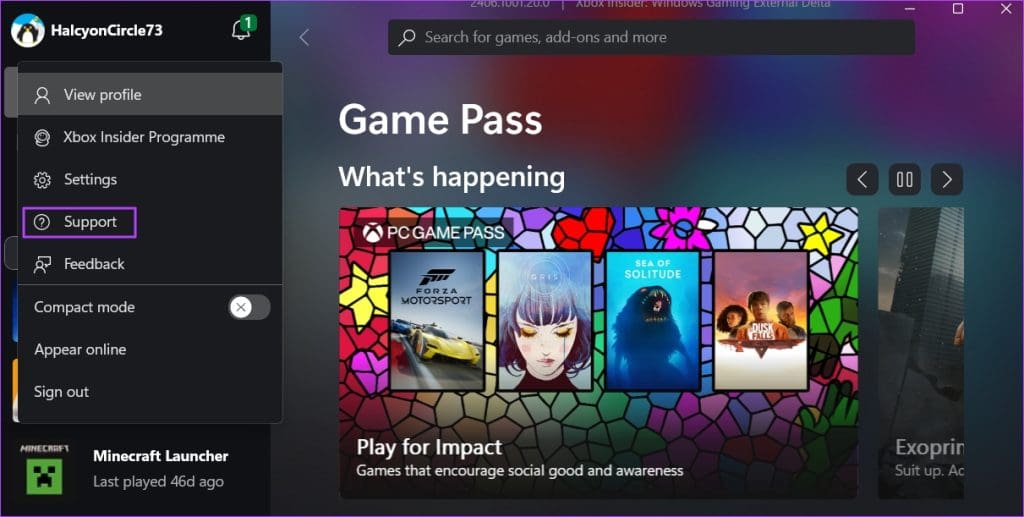
Step 2: Choose Gaming Services Repair Tool > click on Start repairing.

The repair utility will start repairing the Xbox app, and the process will take some time. Once it is complete, restart your computer and check the problem.
Fix 2: Uncheck Internet Protocol Version 6
Many users on Reddit have mentioned that disabling Internet Protocol Version 6 has helped them fix the problem. So, if you have this option enabled, disable it and check if it makes any difference. Here’s how:
Step 1: Open the Start menu, type Control Panel in the search bar, and hit Enter.
Step 2: In the Control Panel, click Network and Internet in the sidebar > select Network and Sharing Center.
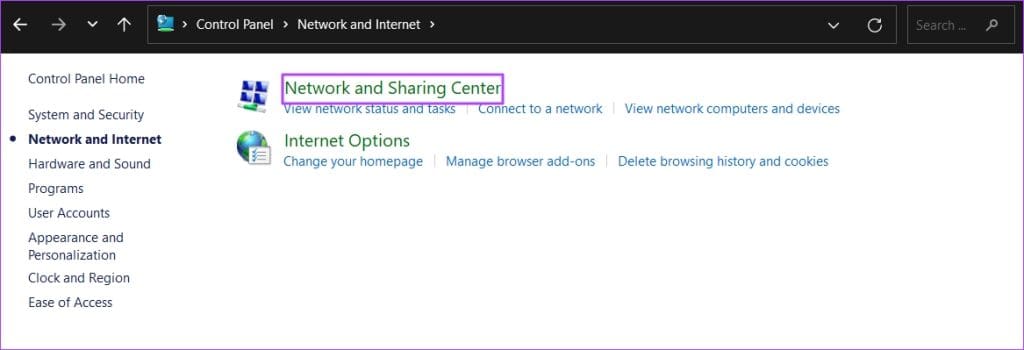
Step 3: Click your connection name next to Connections.
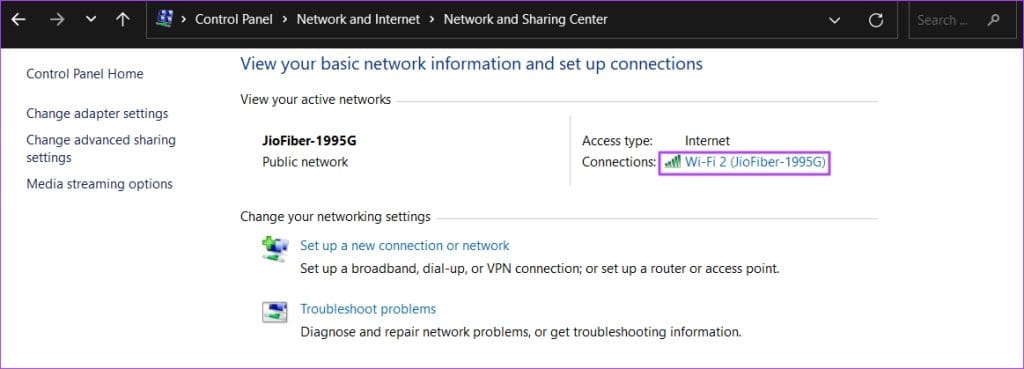
Step 4: Click the Properties option > uncheck the Internet Protocol Version 6 box > click OK to save the changes.

Fix 3: Restart Gaming Services
The Gaming Services app is a part of the Xbox app that helps deliver a smooth gaming experience. You can reset it to resolve problems with installing games from the Xbox app on Windows.
Step 1: Press the Windows + I keyboard shortcut to open Settings > go to Installed Apps under the Apps menu.
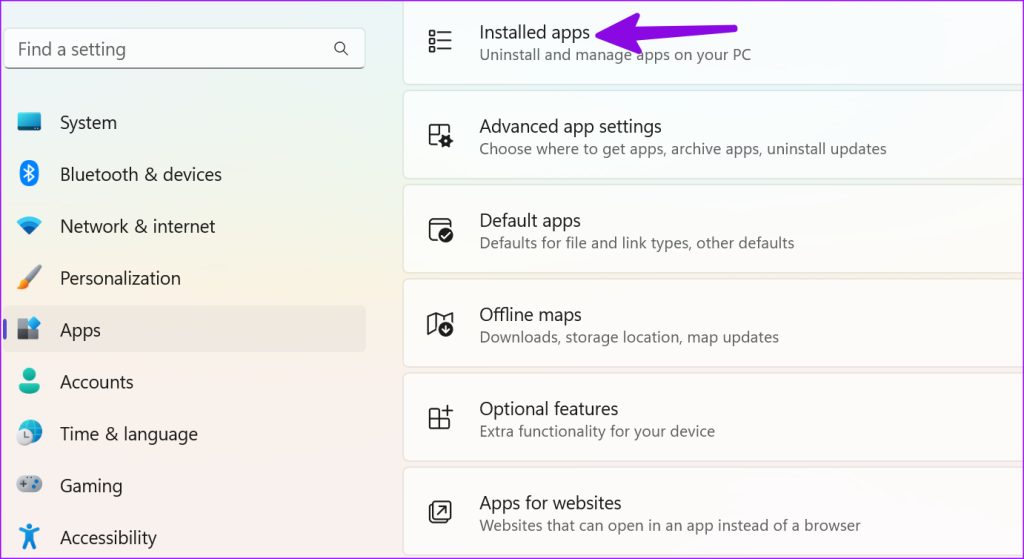
Step 2: Scroll to Gaming Services > click the three horizontal dots beside it > open Advanced options.

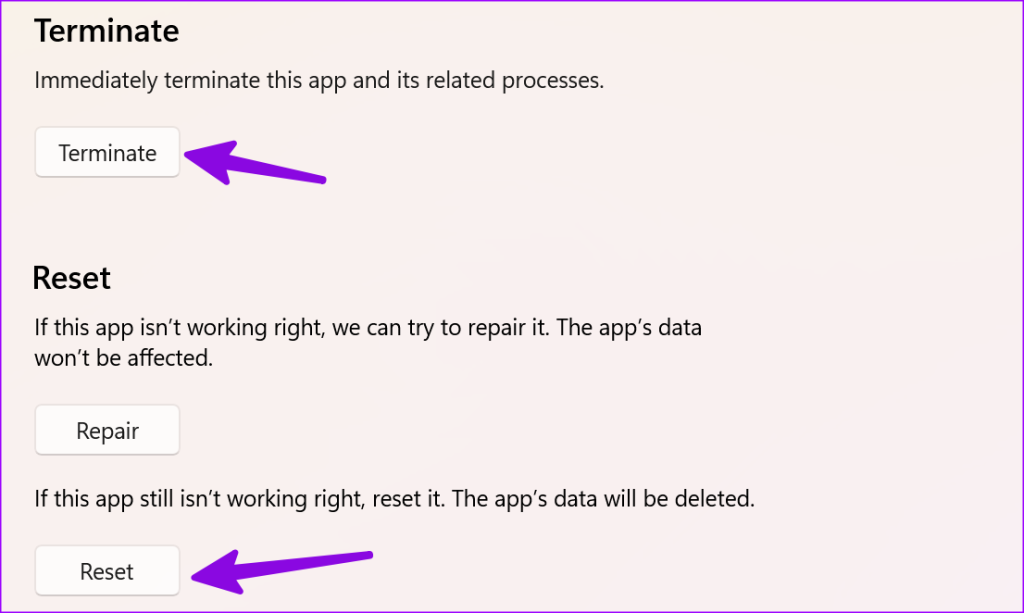
Step 3: Hit Terminate. Restart your PC and install games from Xbox without any issues.
Fix 4: Check Time Zone
Incorrect time and date settings can be the reason behind Xbox game installation getting stuck on your PC.
Step 1: Open Settings > select Time & language > open the Date & time menu.

Step 2: Select a relevant time zone based on your location.

Fix 5: Repair the Xbox App
If the Xbox app behaves strangely on Windows, you can repair it from Settings. This is another effective way to troubleshoot common Xbox problems.
Step 1: Open Installed apps in Windows Settings > click the three-dot menu beside Xbox > open Advanced options.

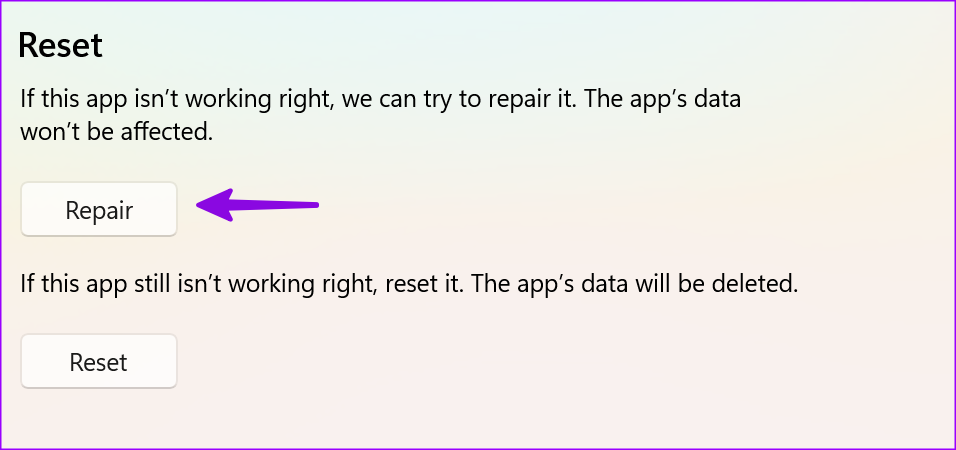
Step 2: Hit Repair and go through the on-screen instructions.
Fix 6: Reinstall the Gaming Services App
If the game installation is still stuck on the Xbox app, the last thing to try is to reinstall the Gaming Services app. Here’s how to do it:
Step 1: Open the Start menu > type Windows PowerShell in the search bar > choose Run as adminstrator.
Step 2: Type the following command in the elevated PowerShell window:
Get-AppxPackage gamingservices -allusers | remove-appxpackage -allusers
Step 3: Type the following commands one by one and hit Enter after each command:
Remove-Item -Path "HKLM:\System\CurrentControlSet\Services\GamingServices" -recurse Remove-Item -Path "HKLM:\System\CurrentControlSet\Services\GamingServicesNet" -recurse
Step 4: Restart your computer and open PowerShell with administrative rights. Then, execute the following command and install the app that appears on the Microsoft Store page.
start ms-windows-store://pdp/?productid=9MWPM2CQNLHN
Also Read: How to fix Xbox Game Bar not working on Windows 11
Was this helpful?
Last updated on 30 July, 2024
1 Comment
Leave a Reply
Read Next
 Top 5 Ways to Fix ‘Steam Stuck on Verifying Installation’ Error in Windows
Basic Fixes Check Your Internet Connection: As a starting point, it's important to ensure that your internet connection is working.
Top 5 Ways to Fix ‘Steam Stuck on Verifying Installation’ Error in Windows
Basic Fixes Check Your Internet Connection: As a starting point, it's important to ensure that your internet connection is working.
 How to Fix Xbox App Not Downloading Games on Windows 11
Basic Fixes Check your network connection: Ensure your PC has a good internet connection to download games in the Xbox app.
How to Fix Xbox App Not Downloading Games on Windows 11
Basic Fixes Check your network connection: Ensure your PC has a good internet connection to download games in the Xbox app.
 5 Fixes When Xbox App Is Not Showing Installed Games on Windows
Fix 1: Flush DNS and Reset TCP/IP Several users on the Microsoft forums reported fixing this specific issue by flushing the DNS cache and resetting the TCP/IP (Transmission Control Protocol/Internet
5 Fixes When Xbox App Is Not Showing Installed Games on Windows
Fix 1: Flush DNS and Reset TCP/IP Several users on the Microsoft forums reported fixing this specific issue by flushing the DNS cache and resetting the TCP/IP (Transmission Control Protocol/Internet
 3 Ways to Fix Google Chrome Installation Failed on Windows
Basic Fixes: Ensure adequate storage for the installation: If your drive is full, there may not be room for the new installation, which may trigger the problem.
3 Ways to Fix Google Chrome Installation Failed on Windows
Basic Fixes: Ensure adequate storage for the installation: If your drive is full, there may not be room for the new installation, which may trigger the problem.
 6 Ways to Fix “This Installation Is Forbidden by System Policy” Error in Windows 11
Fix 1: Use Another Installer File Try using a new installer file and then check if the installation completes without an error.
6 Ways to Fix “This Installation Is Forbidden by System Policy” Error in Windows 11
Fix 1: Use Another Installer File Try using a new installer file and then check if the installation completes without an error.
 How to Repair Microsoft Office Installation Errors in Windows
Are you having trouble installing Microsoft Office on your Windows computer?
How to Repair Microsoft Office Installation Errors in Windows
Are you having trouble installing Microsoft Office on your Windows computer?
 How to Update Epic Games Launcher and Its Games on Windows
How to Check and Update Epic Games Launcher Epic Games Launcher auto-updates along with its games.
How to Update Epic Games Launcher and Its Games on Windows
How to Check and Update Epic Games Launcher Epic Games Launcher auto-updates along with its games.
 5 Ways to Fix Xbox App Won’t Let Me Log in on Windows 11
Fix 1: Ensure Xbox Services Are Running The Xbox app for Windows relies on certain background services to work on your computer.
5 Ways to Fix Xbox App Won’t Let Me Log in on Windows 11
Fix 1: Ensure Xbox Services Are Running The Xbox app for Windows relies on certain background services to work on your computer.
The article above may contain affiliate links which help support Guiding Tech. The content remains unbiased and authentic and will never affect our editorial integrity.

None of these worked.