Fix 1: Ensure Windows Terminal Is Not Disabled
If you cannot launch Windows Terminal via the Start menu or Run dialog box, ensure the app is not disabled on your PC.
Step 1: Press the Windows key + I to launch the Settings app and head to Apps > Advanced app settings.
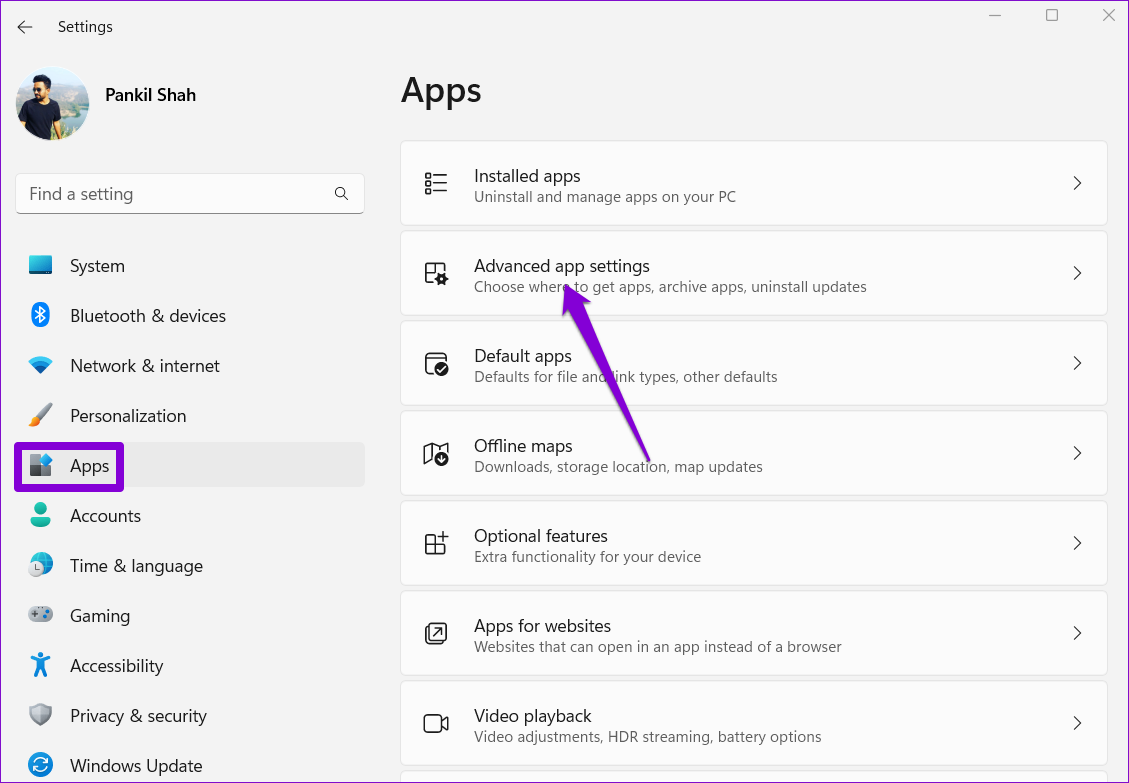
Step 2: Click on App execution aliases.

Step 3: Locate and enable the toggle for Terminal. If it is already on, turn it off and back on.

Fix 2: Perform the SFC and DISM scans
Another reason apps may fail to launch on Windows is if some of the system files on your PC are corrupt. If that’s the case, running SFC (or System File Checker) and DISM (Deployment Image Servicing and Management) scans will help detect and repair such damaged system files.
Step 1: Click the search icon on the taskbar, type cmd in the box, and select Run as administrator.

Step 2: Type the following command in the console and press Enter.
SFC /scannow
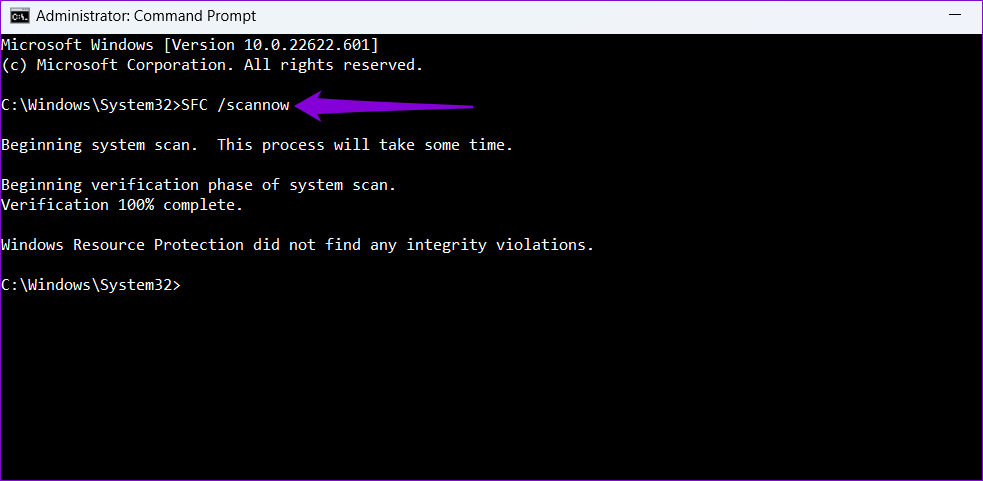
Step 3: Paste the following commands in the console one by one and press Enter after each:
DISM /Online /Cleanup-Image /CheckHealth
DISM /Online /Cleanup-Image /ScanHealth
DISM /Online /Cleanup-Image /RestoreHealth

This process may take some time. After the scan is complete, restart your PC and open the Terminal app again.
Fix 3: Repair or Reset the Windows Terminal App
Windows 11 lets you repair your apps in several ways. So, if the issue remains, repair the Windows Terminal app using these steps:
Step 1: Right-click on the Start icon and select Installed apps from the list.

Step 2: Scroll down or use the search bar to locate the Terminal app. Click the three-dot menu icon next to it and select Advanced options.

Step 3: Scroll to the Reset section and click the Repair button.

Windows will attempt to repair any issues with the app. After that, try opening the Windows Terminal app. If the problem persists, you can try resetting the app from the same menu.
Fix 4: Reinstall the Terminal App
If none of the above solutions work, you may need to resort to the nuclear option of uninstalling and reinstalling Windows Terminal. Here’s how to do it.
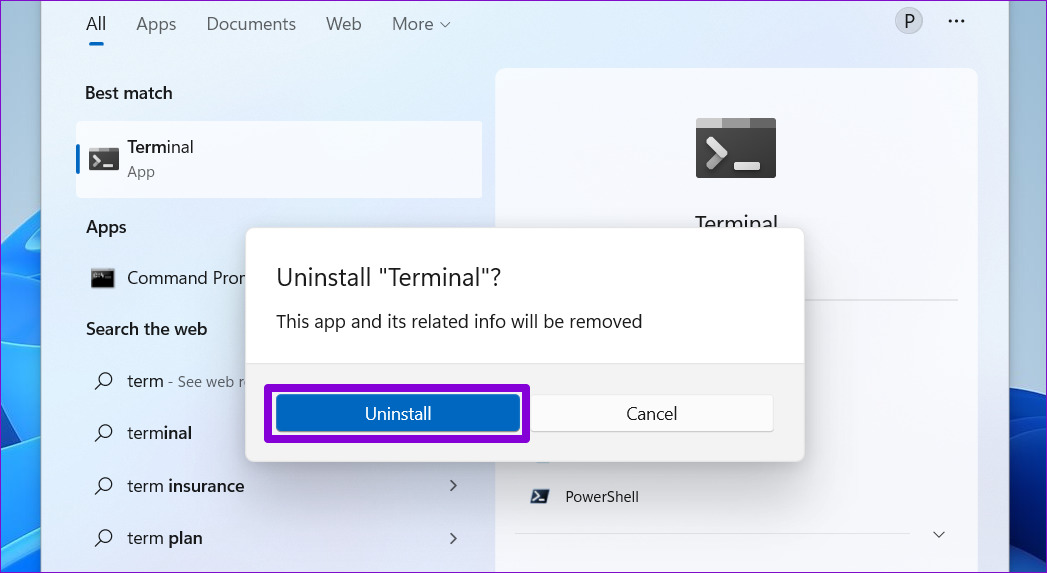
Step 1: Open the Start menu and search for Terminal. Right-click on the first result and select Uninstall.

Step 2: Select Uninstall to confirm.
Step 3: Open the Microsoft Store on your PC and search for Windows Terminal. Then, click the Install button to download the app.

Was this helpful?
Last updated on 30 July, 2024
Read Next
 3 Ways to Launch Windows Terminal on Windows 11
Method 1: Launch Windows Terminal Using the Run Dialog The Run dialog lets you execute any program or command within the same network on your computer.
3 Ways to Launch Windows Terminal on Windows 11
Method 1: Launch Windows Terminal Using the Run Dialog The Run dialog lets you execute any program or command within the same network on your computer.
 2 Ways to Fix Discord Not Opening on Windows 10 and Windows 11
Try Basic Fixes End Discord processes: Press Ctrl + Shift + Esc to launch the Task Manager.
2 Ways to Fix Discord Not Opening on Windows 10 and Windows 11
Try Basic Fixes End Discord processes: Press Ctrl + Shift + Esc to launch the Task Manager.
 6 Ways to Fix Windows Security Not Opening or Working on Windows 11
Try Basic Fixes Uninstall any third-party antivirus program: Third-party antivirus programs can sometimes interfere with the Windows Security app and prevent it from opening on your Windows 11 PC.
6 Ways to Fix Windows Security Not Opening or Working on Windows 11
Try Basic Fixes Uninstall any third-party antivirus program: Third-party antivirus programs can sometimes interfere with the Windows Security app and prevent it from opening on your Windows 11 PC.
 4 Ways to Fix Firefox Not Opening on Windows 10 and Windows 11
Fix 1: Force Close Firefox Processes Sometimes, Firefox processes may become unresponsive on your PC, resulting in such issues.
4 Ways to Fix Firefox Not Opening on Windows 10 and Windows 11
Fix 1: Force Close Firefox Processes Sometimes, Firefox processes may become unresponsive on your PC, resulting in such issues.
 9 Ways to Fix Settings App Not Opening or Working on Windows 11
Fix 1: Reset the Settings App Step 1: Right-click the Start icon and select Terminal (Admin) from the list.
9 Ways to Fix Settings App Not Opening or Working on Windows 11
Fix 1: Reset the Settings App Step 1: Right-click the Start icon and select Terminal (Admin) from the list.
 5 Ways to Fix Outlook Not Opening on Windows 11
Try Basic Fixes End Outlook processes using Task Manager: At times, Microsoft Outlook may fail to load its interface due to temporary glitches.
5 Ways to Fix Outlook Not Opening on Windows 11
Try Basic Fixes End Outlook processes using Task Manager: At times, Microsoft Outlook may fail to load its interface due to temporary glitches.
 4 Ways to Fix OneDrive Not Opening on Startup in Windows 11
Fix 1: Enable OneDrive as a Startup App Windows 11 provides several options for running apps at startup.
4 Ways to Fix OneDrive Not Opening on Startup in Windows 11
Fix 1: Enable OneDrive as a Startup App Windows 11 provides several options for running apps at startup.
 4 Ways to Fix Notepad Not Opening on Windows 11
Basic Fixes Restart PC: Press the Windows + X shortcut to open the Power User Menu.
4 Ways to Fix Notepad Not Opening on Windows 11
Basic Fixes Restart PC: Press the Windows + X shortcut to open the Power User Menu.
The article above may contain affiliate links which help support Guiding Tech. The content remains unbiased and authentic and will never affect our editorial integrity.