

Try Basic Fixes
- Restart the Windows Explorer process: There’s a chance that Windows Explorer’s high CPU usage is a one-time glitch. If that’s the case, restarting the Windows Explorer process should help.
- Scan for malware: If your computer is infected with malware, CPU usage may spike from time to time. To overrule this possibility, you can try scanning your PC with Windows Defender or a third-party antivirus program.
- Install pending Windows updates: System updates usually bring all kinds of performance improvements and bug fixes to Windows. Hence, it’s a good idea to install them and see if that helps.
Fix 1: Run System Maintenance Troubleshooter
The System Maintenance troubleshooter can detect and fix any irregularities with desktop shortcuts, disk volumes, file paths, and more. Although Windows runs this tool regularly, you can also run it manually to fix Windows Explorer’s high CPU usage issue. Here’s how.
Step 1: Press the Windows key + R to open the Run dialog. Type control in the box and press Enter.
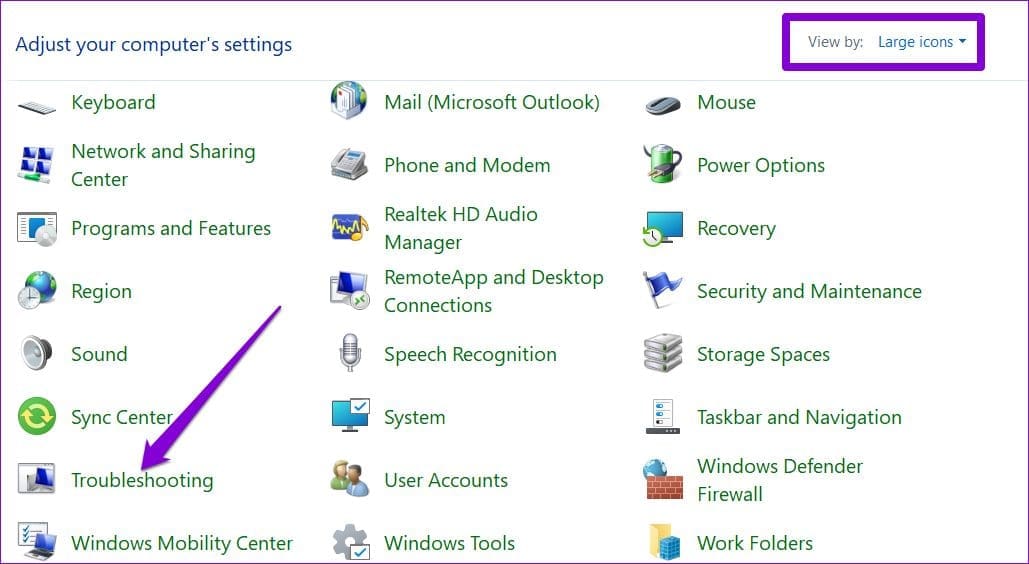
Step 2: In the Control Panel window, change the view type to Large icons, and go to Troubleshooting.
Step 3: Under System and Security, click the Run maintenance tasks option.
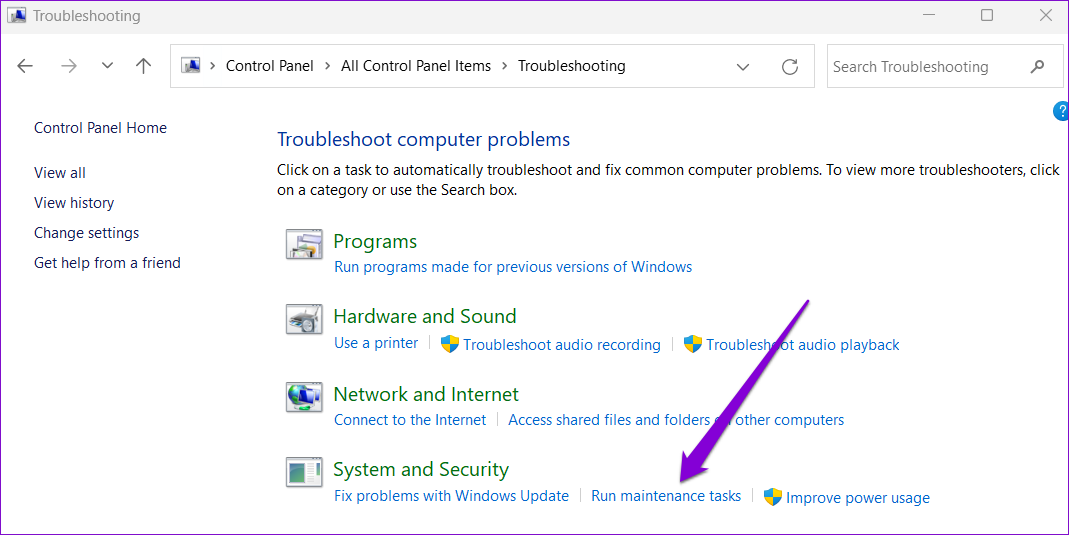
From there, follow the on-screen prompts to run the troubleshooter and restart your PC.
Fix 2: Delete Temporary Files
Sometimes, old temporary files on your system can also cause high CPU usage issues. Thankfully, getting rid of temporary files on Windows is easy.
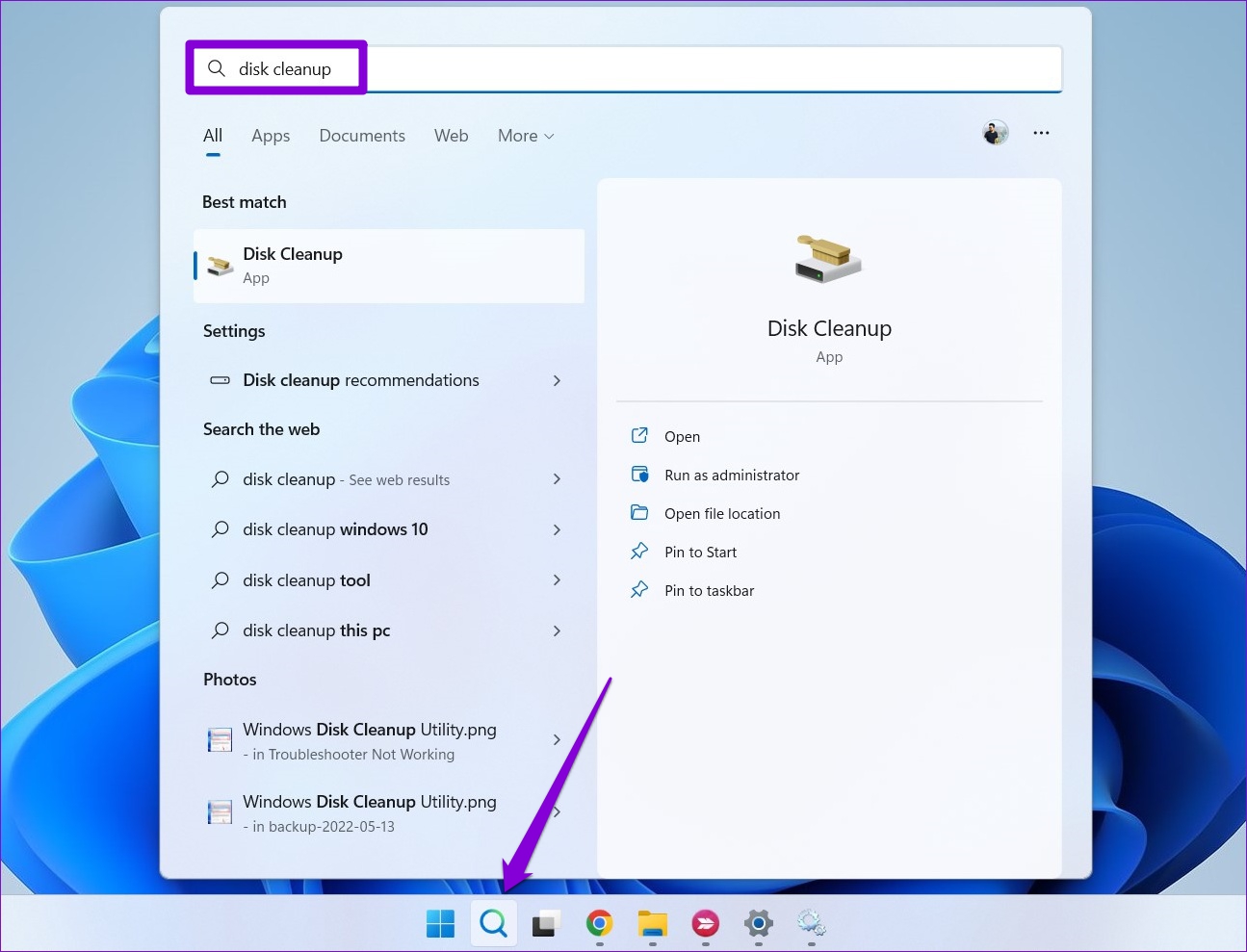
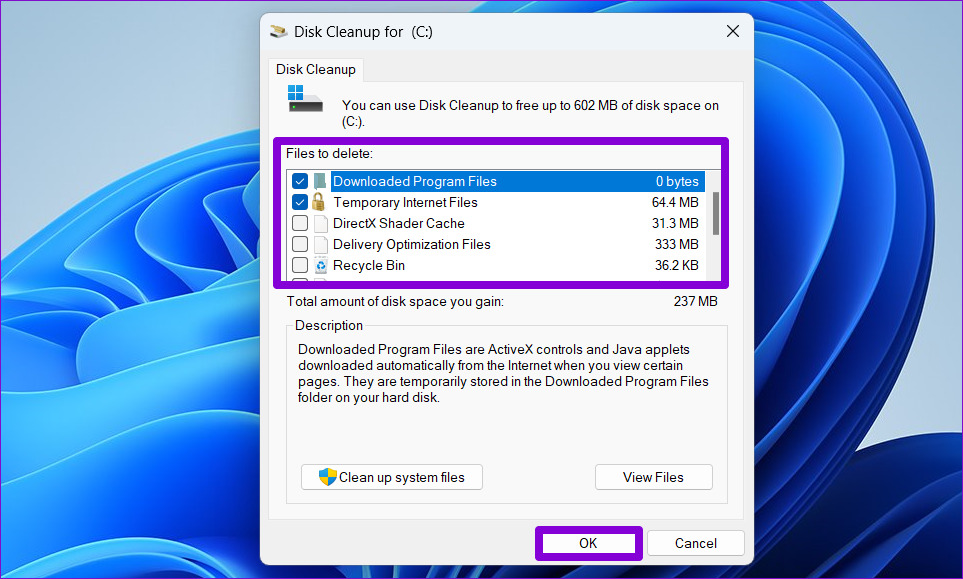
Step 1: Click the search icon on the taskbar, type in disk cleanup, and press Enter.
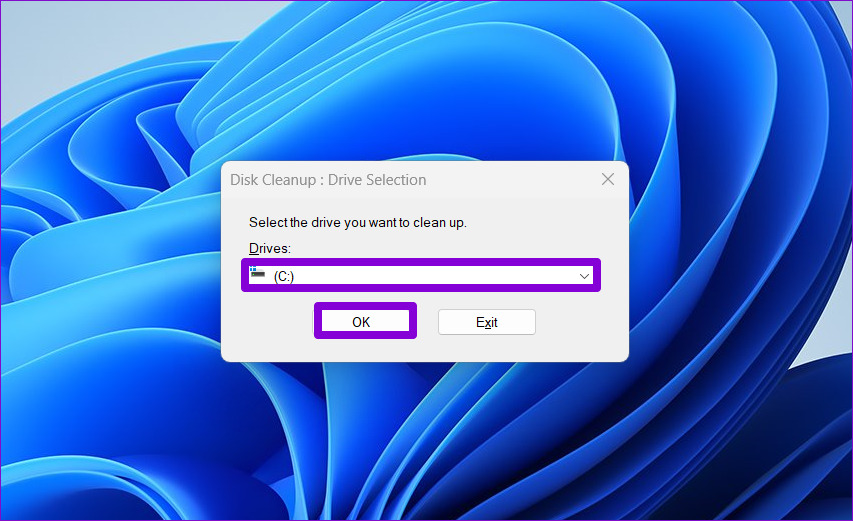
Step 2: Use the drop-down menu to select your primary drive and click OK.
Step 3: Under Files to delete, use the checkboxes to select temporary files. Then, click OK.
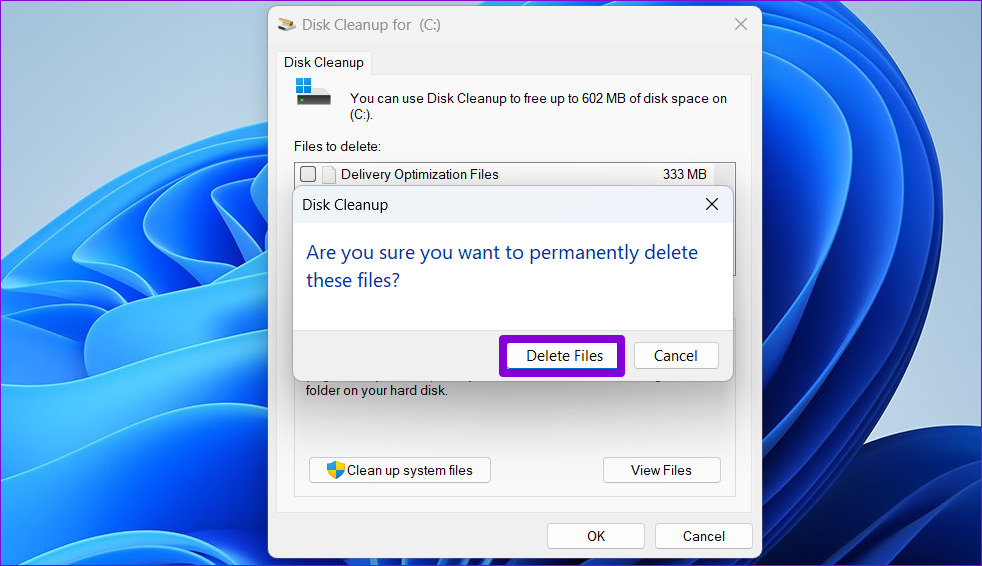
Step 4: Choose Delete Files when prompted.
Fix 3: Unlink Your OneDrive Account
Windows Explorer CPU usage may also increase when File Explorer is syncing files with your OneDrive account. One way to avoid this issue is to disconnect your OneDrive account from Windows.
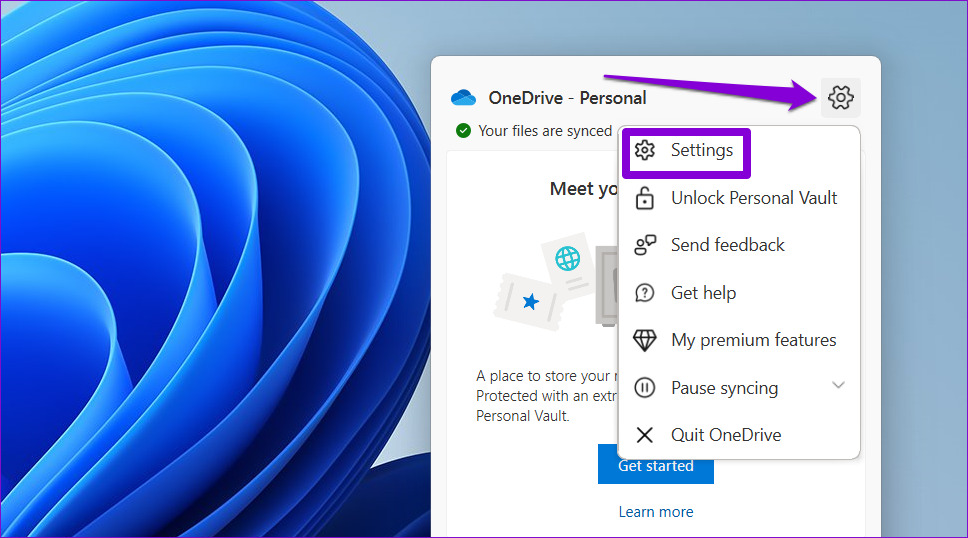
Step 1: Click the OneDrive icon on the taskbar.
Step 2: Click the gear icon and select Settings from the list.
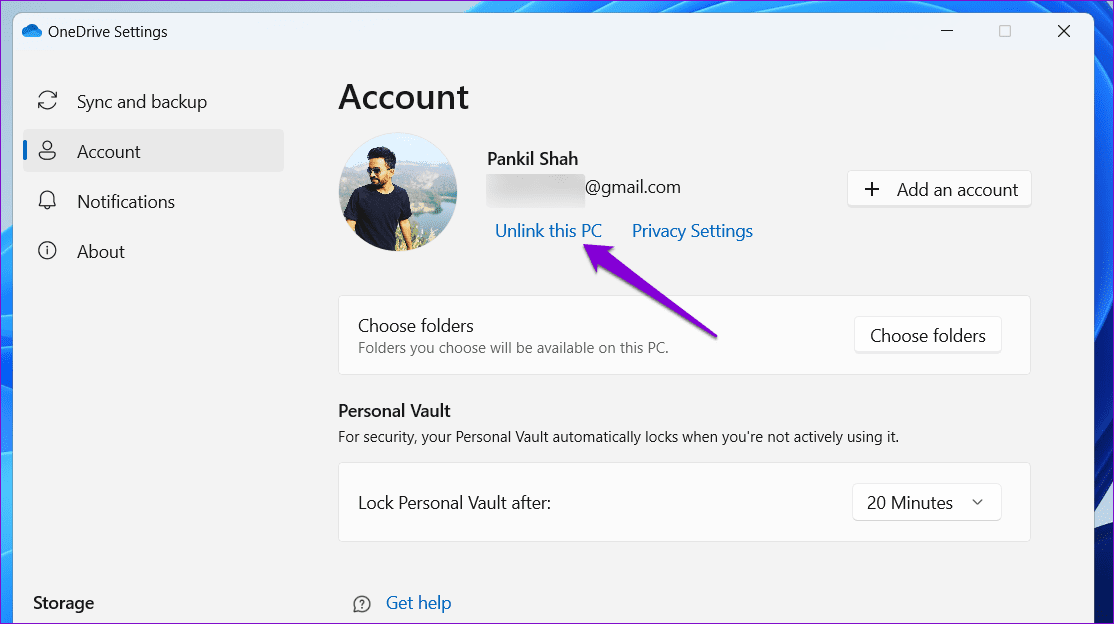
Step 3: Navigate to the Account tab and click on Unlink this PC.
Fix 4: Restore Power Plan to Default Settings
Choosing a stricter power usage profile on Windows can also cause performance issues. If that’s the case, resetting the power plan to its default settings should help.
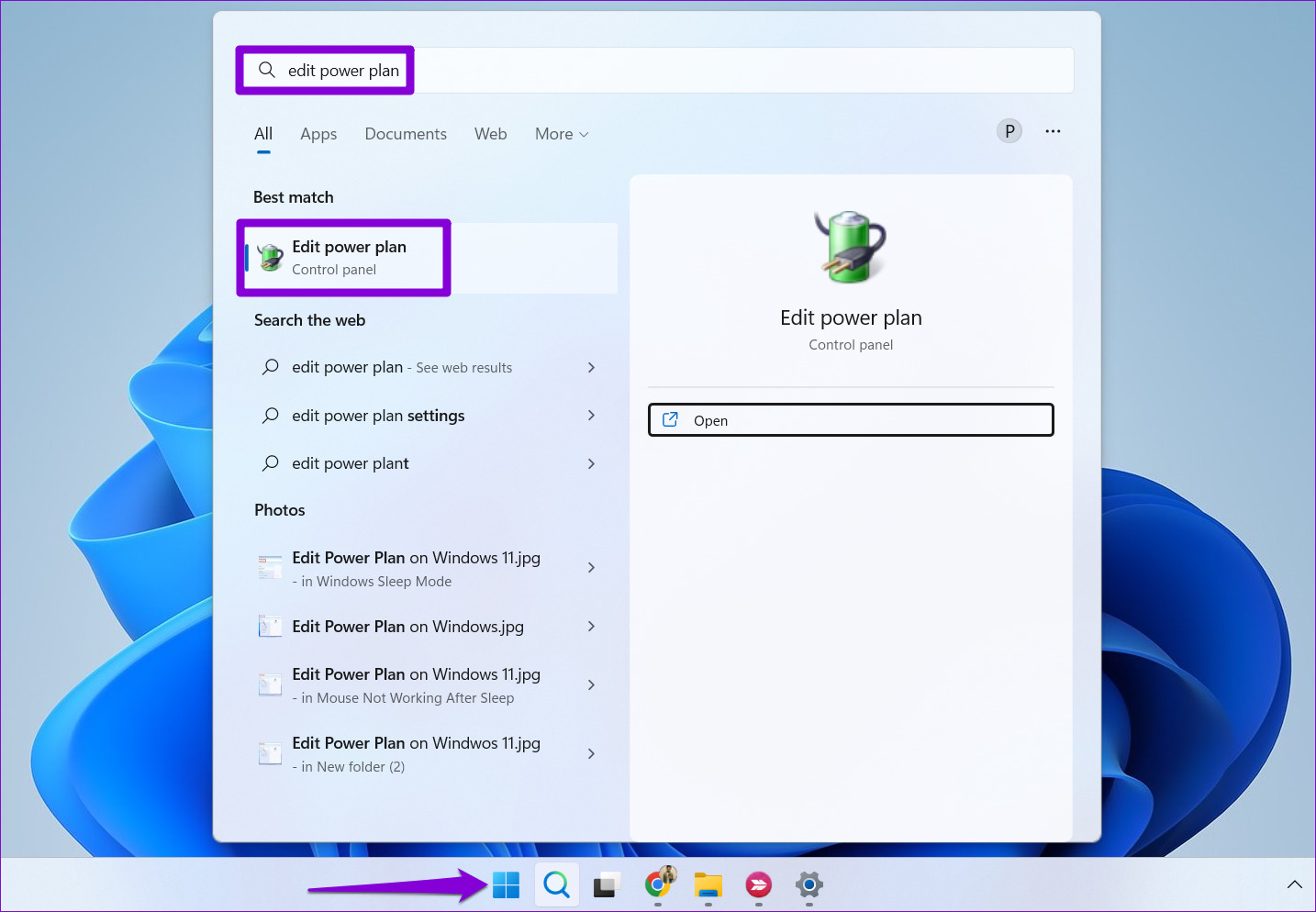
Step 1: Press the Windows key + S to open the search menu, type edit power plan in the box, and select the first result that appears.
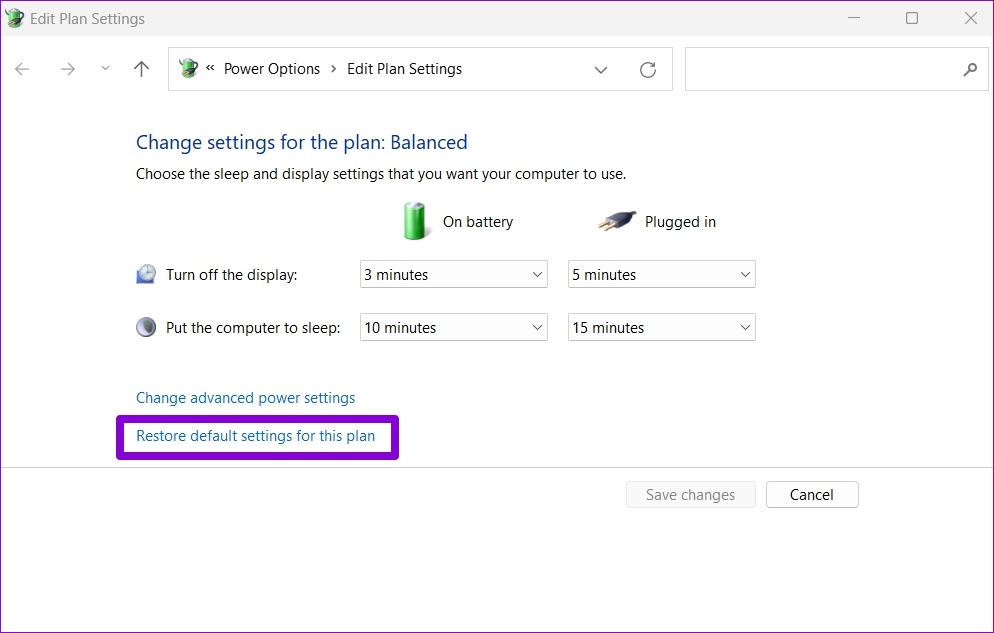
Step 2: Click on Restore default settings for this plan at the bottom. Click Yes on the prompt that follows.
Fix 5: Rebuild Windows Search Index
If the increased CPU usage problem only occurs when you search for files and folders in File Explorer, there might be a problem with the search index library on your PC. Here’s what you can do to fix it.
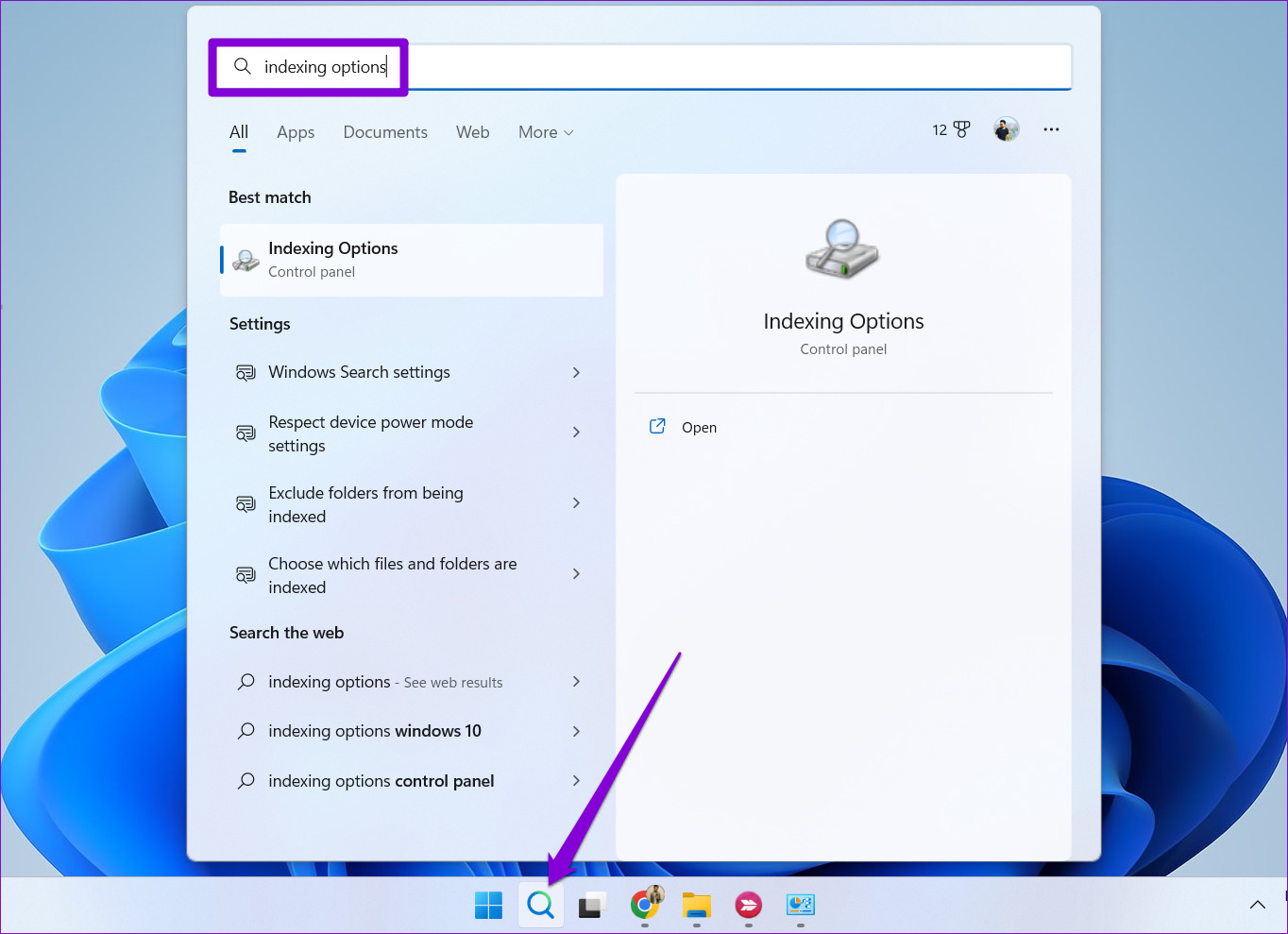
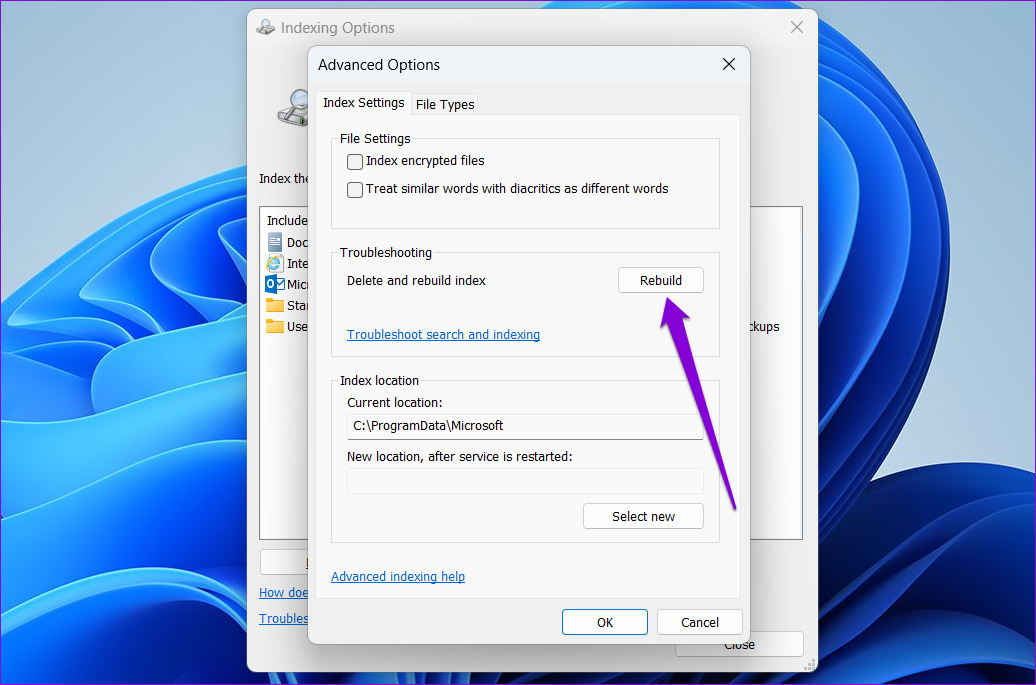
Step 1: Click the search icon on the taskbar, type in indexing options and press Enter.
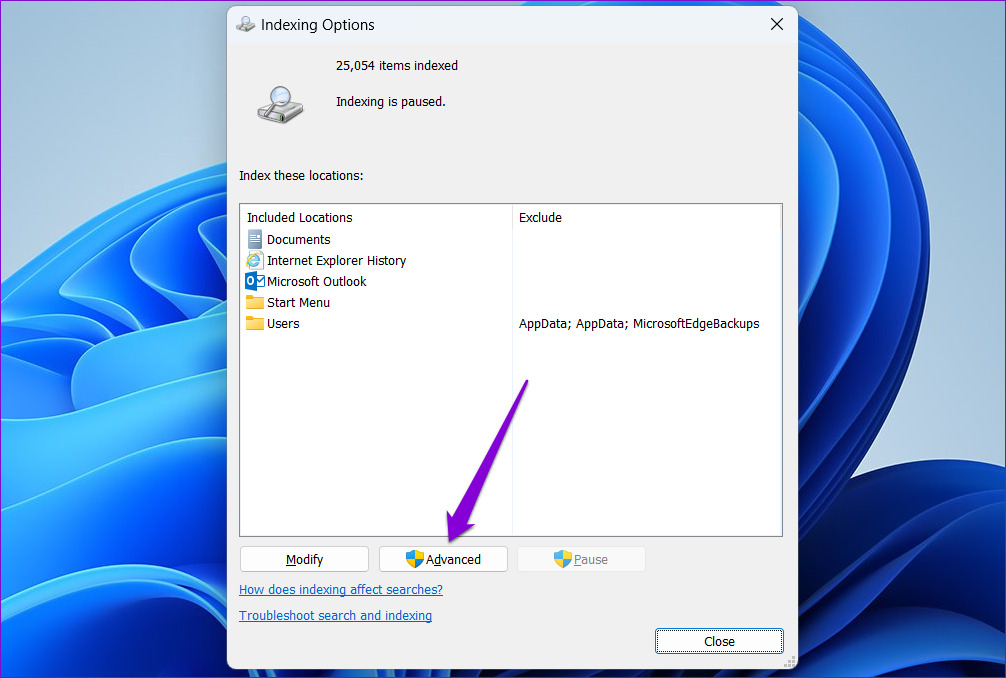
Step 2: Click Advanced.
Step 3: Click the Rebuild button under Troubleshooting.
Was this helpful?
Last updated on 28 May, 2024
2 Comments
Leave a Reply
Read Next
 5 Ways to Fix High CPU Usage on Windows 11
Try Basic Fixes Wait for Windows to finish updates: If Windows is in the process of checking, downloading, or installing any updates in the background, CPU usage may increase during
5 Ways to Fix High CPU Usage on Windows 11
Try Basic Fixes Wait for Windows to finish updates: If Windows is in the process of checking, downloading, or installing any updates in the background, CPU usage may increase during
 6 Ways to Fix Windows Modules Installer Worker High CPU Usage
If you've ever found your computer's fan working overtime and the CPU usage going sky-high, you're not alone.
6 Ways to Fix Windows Modules Installer Worker High CPU Usage
If you've ever found your computer's fan working overtime and the CPU usage going sky-high, you're not alone.
 4 Ways to Fix Microsoft Edge High Memory and CPU Usage
Basic Fixes Restart the Microsoft Edge browser - You should restart the browser as it may fix minor bugs and glitches that trigger the problem.
4 Ways to Fix Microsoft Edge High Memory and CPU Usage
Basic Fixes Restart the Microsoft Edge browser - You should restart the browser as it may fix minor bugs and glitches that trigger the problem.
 Windows Audio Device Graph Isolation: Fix High CPU Usage
What is Windows Audio Device Graph Isolation Windows Audio Device Graph Isolation, also known as audiodg.exe, is a process that handles digital signal processing, including advanced sound enhancement effects, on
Windows Audio Device Graph Isolation: Fix High CPU Usage
What is Windows Audio Device Graph Isolation Windows Audio Device Graph Isolation, also known as audiodg.exe, is a process that handles digital signal processing, including advanced sound enhancement effects, on
 6 Fixes for Discord’s High CPU Usage on Windows
Fix 1: Turn Off Hardware Acceleration The Hardware Acceleration in Discord allows the app to use your GPU instead of your CPU for graphics-intensive tasks.
6 Fixes for Discord’s High CPU Usage on Windows
Fix 1: Turn Off Hardware Acceleration The Hardware Acceleration in Discord allows the app to use your GPU instead of your CPU for graphics-intensive tasks.
 How to Reduce CPU and RAM Usage in Microsoft Teams on Windows 11
Common Fixes Update or reinstall the Microsoft Teams app: Open the Microsoft Store, search Microsoft Teams, and click Update (if available).
How to Reduce CPU and RAM Usage in Microsoft Teams on Windows 11
Common Fixes Update or reinstall the Microsoft Teams app: Open the Microsoft Store, search Microsoft Teams, and click Update (if available).
 5 Ways to Fix Google Chrome High Disk Usage on Windows
Basic Fixes Restart Chrome: Open Task Manager, end the process for Google Chrome, and reopen the browser.
5 Ways to Fix Google Chrome High Disk Usage on Windows
Basic Fixes Restart Chrome: Open Task Manager, end the process for Google Chrome, and reopen the browser.
 3 Ways to Fix Safari High Memory Usage on Mac
Basic Fixes Close irrelevant tabs: Close the tabs that you don't use frequently in Safari.
3 Ways to Fix Safari High Memory Usage on Mac
Basic Fixes Close irrelevant tabs: Close the tabs that you don't use frequently in Safari.
The article above may contain affiliate links which help support Guiding Tech. The content remains unbiased and authentic and will never affect our editorial integrity.


Thank you! The restart did it
Excellent article, competent approach to various solutions.
Enriches the user’s technical background regardless of the specific problem addressed.
Thank You Sir!