Try Basic Fixes
- Try another file or folder: Compressing another file or folder should help confirm if it’s a system-wide issue. If you can compress other files without issues, the original file or folder you are having trouble with may be corrupted.
- Scan for malware: Such issues can also arise if your PC is infected with malware. So, if the SFC and DISM scans do not find any problems, use Windows Defender to scan your system for malware. If the scan detects anything suspicious, take the recommended steps to eliminate the threat.
Fix 1: Modify Folder Optimization Settings
Windows 11 has an Automatic Folder Type Discovery feature, which automatically optimizes your folders based on their contents. If this feature cannot identify the contents of a folder correctly, the “Compress to ZIP file” option may not work. Here’s what to do to fix it.
Step 1: Press the Windows key + E to open File Explorer and locate the folder you want to compress. Right-click on it and select Properties.

Step 2: Switch to the Customize tab > click the drop-down menu under Optimize this folder for > select General items > hit Apply > OK.

Fix 2: Change Default App for ZIP Files
Another reason you may be unable to compress a file or folder into a ZIP is if the default file association is not set properly. Here’s how to fix that.
Step 1: Press the Windows key + I to open the Settings app > head to Apps > Default apps.

Step 2: Type .zip in the search box and select the first result.

Step 3: Select File Explorer > click the Set default button to confirm.

Fix 3: Run the File and Folder Troubleshooter
Microsoft offers a useful troubleshooter for fixing various issues with file and folder operations on Windows. You can try running this tool to see if it gets the “Compress to Zip File” option to work on your Windows 11 PC.
Step 1: Download the File and Folder Troubleshooter from Microsoft’s website.
Step 2: Double-click the downloaded file. Then, click Next to run the troubleshooter.

Step 3: Check the box for Renaming or moving files and folders and Others or I don’t know options > hit Next.

Allow the troubleshooter to detect and fix any issues, and try to compress files again.
Fix 4: Run the SFC and DISM Scans
Damaged or corrupted system files on your PC can also disrupt system operations on Windows 11 and cause the “Compress to Zip file” option to stop working. Fortunately, Windows includes useful tools—SFC (System File Checker) and DISM (Deployment Image Servicing and Management)—that can help you repair corrupt system files.
Step 1: Right-click on the Start icon > select Terminal (Admin) from the list.

Step 2: Type the following command in the console and press Enter.
SFC /scannow
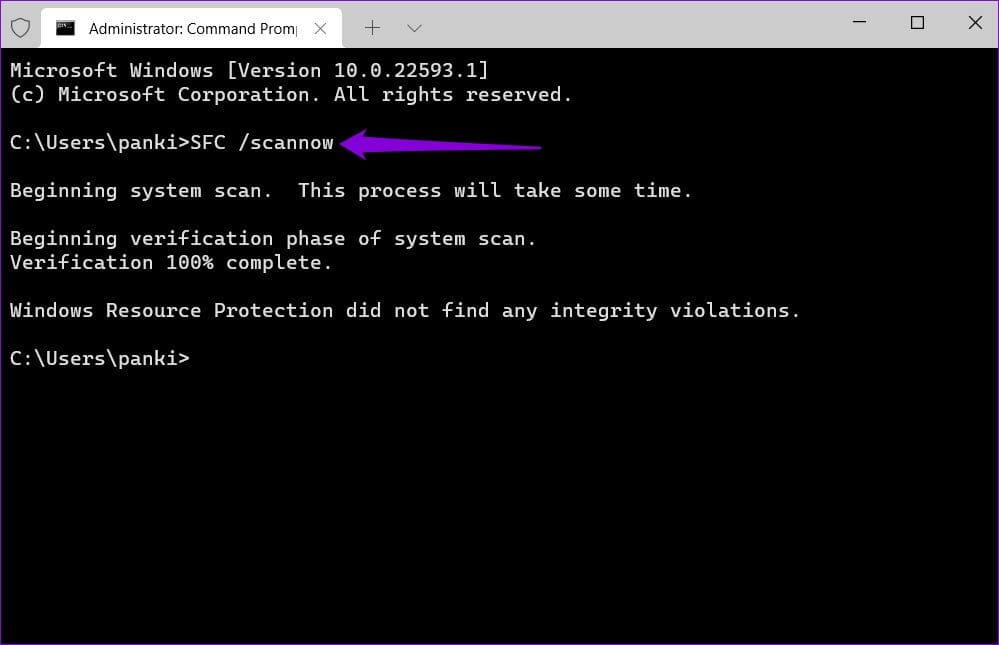
Step 3: Run the following commands individually and press Enter after each to run the DISM scan.
DISM /Online /Cleanup-Image /CheckHealth
DISM /Online /Cleanup-Image /ScanHealth
DISM /Online /Cleanup-Image /RestoreHealth

Restart your PC after this and check if the issue is still there.
Was this helpful?
Last updated on 14 August, 2024
Read Next
 6 Fixes For ‘Path too Long’ Error When Extracting a ZIP File in Windows 10 and 11
Fix 1: Restart Windows Explorer Windows Explorer offers interface support for many system apps, and if it encounters a glitch, you may have trouble with File Explorer.
6 Fixes For ‘Path too Long’ Error When Extracting a ZIP File in Windows 10 and 11
Fix 1: Restart Windows Explorer Windows Explorer offers interface support for many system apps, and if it encounters a glitch, you may have trouble with File Explorer.
 3 Easy Ways to Password Protect a ZIP File on Windows
Have you ever wanted to keep your sensitive files and documents safe and secure?
3 Easy Ways to Password Protect a ZIP File on Windows
Have you ever wanted to keep your sensitive files and documents safe and secure?
 How to Compress Videos on a Windows Computer
Method 1: Use Microsoft Clipchamp Microsoft acquired the popular web-based video editor Clipchamp and integrated it with Windows.
How to Compress Videos on a Windows Computer
Method 1: Use Microsoft Clipchamp Microsoft acquired the popular web-based video editor Clipchamp and integrated it with Windows.
 How To Automatically Extract ZIP Files After Downloading
ZIP files are necessary for combining multiple files together into one downloadable file.
How To Automatically Extract ZIP Files After Downloading
ZIP files are necessary for combining multiple files together into one downloadable file.
 4 Ways to ZIP Files on Android
Method 1: Use WinZip WinZip is a reliable app that is popular among Windows users and it can be used for compressing files on Android.
4 Ways to ZIP Files on Android
Method 1: Use WinZip WinZip is a reliable app that is popular among Windows users and it can be used for compressing files on Android.
 4 Fixes When the Windows File Explorer Stuck at ‘Working on It’
Basic Fixes: Update Windows: It's nice to start with a Windows Update since this will fix minor glitches that may trigger the problem.
4 Fixes When the Windows File Explorer Stuck at ‘Working on It’
Basic Fixes: Update Windows: It's nice to start with a Windows Update since this will fix minor glitches that may trigger the problem.
 5 Fixes When the Hosts File Is Not Working on Windows
Basic Fixes: Name the Hosts file correctly: Naming is essential.
5 Fixes When the Hosts File Is Not Working on Windows
Basic Fixes: Name the Hosts file correctly: Naming is essential.
 6 Ways to Fix Windows Hello Fingerprint Option Unavailable or Not Working
Basic Fixes Restart PC: Restart your PC to fix any temporary bugs and glitches.
6 Ways to Fix Windows Hello Fingerprint Option Unavailable or Not Working
Basic Fixes Restart PC: Restart your PC to fix any temporary bugs and glitches.
The article above may contain affiliate links which help support Guiding Tech. The content remains unbiased and authentic and will never affect our editorial integrity.