Fix 1: Forget the Network and Reconnect to It
Try forgetting the network so you can reconnect to it. This way, you’re establishing a fresh connection which may trigger the login page. Here’s how to do it.
On Mac
Step 1: Click on the Wi-Fi icon in the menu bar at the top. This will bring up the Wi-Fi options.

Step 2: Select Network Preferences.

Step 3: Click on the Advanced option. You will now see a new window.
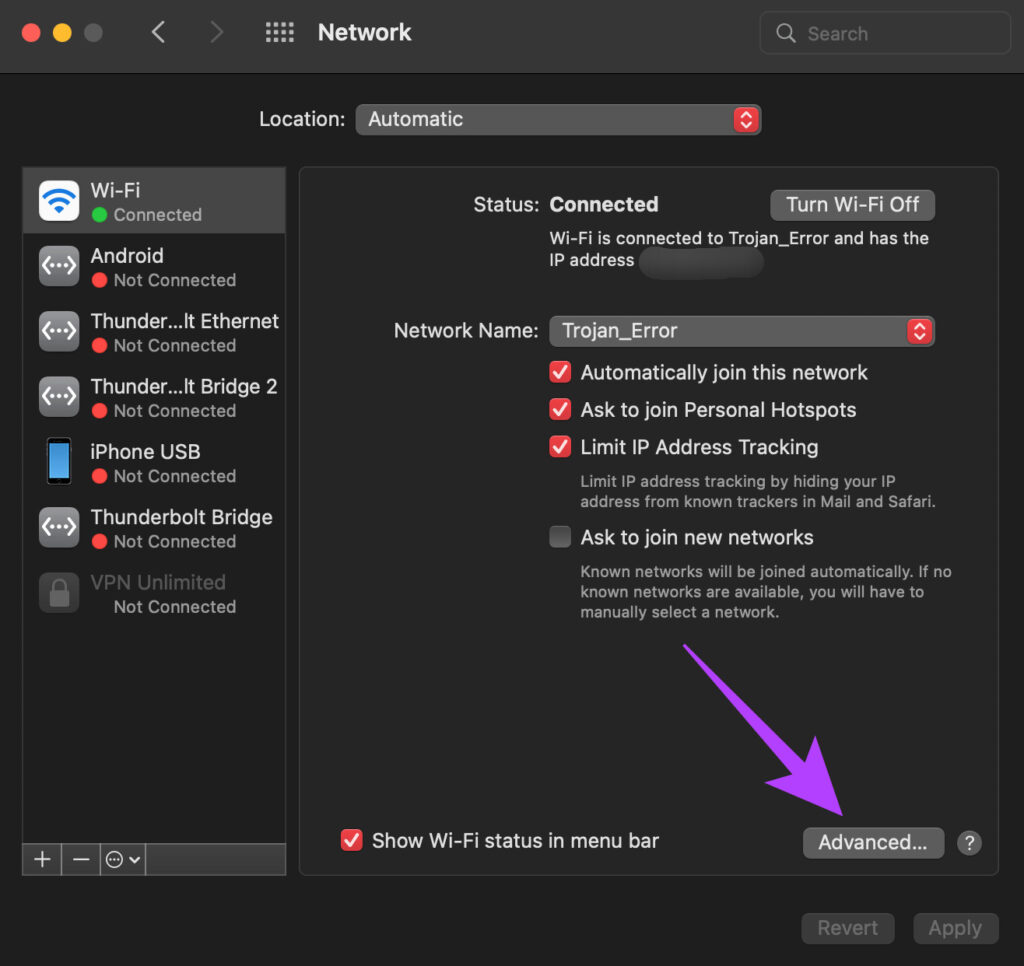
Step 4: Now, select the network you want to forget and click on the ‘–‘ (remove) icon below it.

On Windows
Step 1: Click on the Search icon in the taskbar and look for Settings. Click on the app to open it.

Step 2: Navigate to Network & internet.

Step 3: Select the Wi-Fi option. This will bring up detailed settings related to your network.

Step 4: Now, click on Manage known networks.

Step 5: Hit the Forget button next to the Wi-Fi network.

Fix 2: Disable Auto-Join for the Wi-Fi Network
If your computer automatically connects to a Wi-Fi network you’ve already used in the past, chances are that the captive portal login page may not load. So, disable the Auto-Join toggle to ensure you manually connect to the network and trigger the guest Wi-Fi login page.
First, connect to the network on your Mac or PC. Then, perform the following steps.
On Mac
Step 1: Click on the Wi-Fi icon in the menu bar at the top. This will bring up the Wi-Fi options.
Step 2: Select Network Preferences.
Step 3: You will see several options listed under the Wi-Fi network. Uncheck the tickbox next to Automatically join this network.

Step 4: Now, forget the Wi-Fi network and reconnect to it by following the steps mentioned above.
On Windows
Step 1: Click on the Search icon in the taskbar and look for Settings. Click on the app to open it.
Step 2: Navigate to Network & internet.
Step 3: Select the Wi-Fi option. This will bring up detailed settings related to your network.
Step 4: Now, click on the Wi-Fi network you’re connected to.

Step 5: Uncheck the tickbox next to Connect automatically when in range.

Fix 3: Clear DNS Cache
Clearing the DNS cache is a solution that has helped several people solve the Wi-Fi login page not showing up issue, especially on a Mac. If you’re wondering how to force the Wi-Fi login page, this is a good way. Here’s how to do it.
On Mac
Step 1: Open Spotlight search by pressing the Command + Space Bar keys. Enter terminal and press the Enter key.

Step 2: In the terminal window, type sudo killall -HUP mDNSResponder and hit the Enter key.

Step 3: You will now be asked to enter your Mac’s password. Input your password and hit the enter key once again.
Your DNS cache will now be flushed.
On Windows
Step 1: Click on the Search icon in the taskbar and look for cmd. Click on the app to open it.

Step 2: Type ipconfig /flushdns and hit the Enter key.

Fix 4: Remove Other DNS
You may be using a public DNS or Cloudflare’s popular 1.1.1.1 DNS to speed up your internet connection. While it is indeed effective, it can prevent the triggering of the Wi-Fi login page when you connect to a new network. If your hotel Wi-Fi login page is not showing up, here’s how you can remove other DNS from your computer.
On Mac
Step 1: Click on the Wi-Fi icon in the menu bar at the top. This will bring up the Wi-Fi options.
Step 2: Select Network Preferences.
Step 3: Click on the Advanced option. A new window will be displayed.
Step 4: Navigate to the DNS section at the top.

Step 5: Select a DNS server that you’ve added. Click on the ‘–‘ (remove) button at the bottom.

Step 6: Now, click on OK to save changes.

On Windows
Step 1: Click on the Search icon in the taskbar and look for Settings. Click on the app to open it.
Step 2: Navigate to Network & internet.
Step 3: Select Properties. Your network properties will be displayed here.

Step 4: Scroll down to the DNS server assignment. Click on the Edit button.

Step 5: Click on the drop-down menu at the top. Select Automatic (DHCP).

Step 6: Save the changes and you’re good to go.
Fix 5: Use the Default Browser
If you’re using a Mac, try launching Safari instead of Chrome or Firefox once you connect to a public network. On Windows, launch Microsoft Edge instead of a different browser. Sometimes, a simple action like this can trigger the login page.
Fix 6: Turn Off VPN
Oftentimes, a VPN may interfere with your computer’s ability to connect to a Wi-Fi network. Since a VPN changes your location, the Wi-Fi network may not show you the login page. If you’re using a VPN on your computer, turn it off before trying to connect to the public Wi-Fi network.
Fix 7: Open the Router’s Default Page
Every router has a default page that can be addressed by entering the IP address of the router in the address bar. Accessing this page will automatically direct you to the captive portal login page where you can enter your details to log in to the Wi-FI network. While this method may not work every time and depends on the make of the router, there’s no harm in giving it a shot.
Open the browser on your computer. In the address bar, type in 192.168.1.1 or 192.168.0.1 and hit the enter key.

This is the default IP address of most routers generally. If the address hasn’t changed, this should lead you to the login page.
Was this helpful?
Last updated on 30 August, 2024
Read Next
 Top 8 Ways to Fix Wi-Fi Login Page Not Showing on iPhone
Public Wi-Fi networks have become ubiquitous.
Top 8 Ways to Fix Wi-Fi Login Page Not Showing on iPhone
Public Wi-Fi networks have become ubiquitous.
 3 Ways to Fix Wi-Fi Login Page Not Showing on Android
https://youtu.be/PI8mmzRDJ0c Try Basic Fixes Disable and re-enable Wi-Fi: Temporary issues with your Android's Wi-Fi may prevent it from communicating with the network and loading the login page.
3 Ways to Fix Wi-Fi Login Page Not Showing on Android
https://youtu.be/PI8mmzRDJ0c Try Basic Fixes Disable and re-enable Wi-Fi: Temporary issues with your Android's Wi-Fi may prevent it from communicating with the network and loading the login page.
 3 Fixes for Gmail Login Failed in Mail App on Mac
Basic Fixes Check your internet speed: Try connecting to a 5GHz frequency band if you have a dual-band router.
3 Fixes for Gmail Login Failed in Mail App on Mac
Basic Fixes Check your internet speed: Try connecting to a 5GHz frequency band if you have a dual-band router.
 6 Ways to Fix Login Screen Not Showing in Windows 11
Common Fixes Press Ctrl + Alt + Delete - This shortcut refreshes the login interface to bring up the login screen.
6 Ways to Fix Login Screen Not Showing in Windows 11
Common Fixes Press Ctrl + Alt + Delete - This shortcut refreshes the login interface to bring up the login screen.
 5 Ways to Fix Google Chrome Showing Untitled Blank Page
Basic Fixes: Close and restart Chrome: Temporary browser glitches can cause Chrome to show an untitled blank page.
5 Ways to Fix Google Chrome Showing Untitled Blank Page
Basic Fixes: Close and restart Chrome: Temporary browser glitches can cause Chrome to show an untitled blank page.
 Top 10 Fixes for ‘Can’t Access Router Admin Page’ on Windows 11
For the most part, most users don't have to constantly access their Wi-Fi router's admin page.
Top 10 Fixes for ‘Can’t Access Router Admin Page’ on Windows 11
For the most part, most users don't have to constantly access their Wi-Fi router's admin page.
 How to Remove Email or Accounts From Facebook Login Screen
Remove Remembered Info in Facebook Login on Desktop You can remove the login info from the Facebook webpage or by removing the autofill password for your Facebook account using browser
How to Remove Email or Accounts From Facebook Login Screen
Remove Remembered Info in Facebook Login on Desktop You can remove the login info from the Facebook webpage or by removing the autofill password for your Facebook account using browser
 How to Delete ChatGPT Account (With or Without Login)
Things to Know Before Deleting Your ChatGPT Account You need to know some significant points before deleting your ChatGPT account because there is no going back after your account has
How to Delete ChatGPT Account (With or Without Login)
Things to Know Before Deleting Your ChatGPT Account You need to know some significant points before deleting your ChatGPT account because there is no going back after your account has
The article above may contain affiliate links which help support Guiding Tech. The content remains unbiased and authentic and will never affect our editorial integrity.