


Why Are My Whatsapp Media Not Showing in Gallery on iPhone and Android?
Before we move to fixes, let’s briefly understand the plausible causes. It can vary from,
- Media saving or visibility settings,
- Incorrect permissions,
- Cache issues,
- Outdated app,
- Lack of storage space, or
- Hidden/private folders.
While there can be different reasons behind this, there are some easy fixes to get out of the problem. Let’s get to them.
Note: If you want to save WhatsApp audio from your iPhone, Android, and Web, check out our guide.
5 Ways to Fix WhatsApp Photos and Videos Not Showing in Gallery
Fix 1. Basic Fixes
- Restart your device: If the WhatsApp pictures or videos aren’t appearing on your iPhone or Android phone, start by restarting your phone.
- Check internal storage: If your device storage is full, you can’t download any new images in the gallery. You can delete old WhatsApp images, videos, or files or clean up your phone to make some space.
- Clear WhatsApp Cache: A corrupt WhatsApp cache on Android might cause problems, such as media not showing in the gallery. Clear the WhatsApp cache and try again.
Fix 2. Enable Save to Gallery in WhatsApp
While WhatsApp offers a similar interface for Android and iOS devices, the media storage settings are different. To troubleshoot WhatsApp images that don’t show in the gallery, it’s wise to check these settings first.
Enable Save to Camera Roll on iPhone
WhatsApp images do not appear automatically in Photos or any other gallery apps when downloaded on an iPhone. To see WhatsApp images in the gallery app, manually save each photo or enable the Save to Camera Roll.
To enable this, open WhatsApp → tap Settings → Chats. Here, enable the toggle for Save to Camera Roll.

In addition to this, iPhone must have permission to access the Photos app. Check out Fix 4 for a detailed tutorial.
Enable Media Visibility Setting on Android
Regardless of your Android device manufacturer, if you download a photo or video from WhatsApp, it automatically becomes available in your phone’s gallery app. However, a privacy feature called Media Visibility might hide the downloaded images from the gallery.
Step 1: Open WhatsApp > tap on the three-dot icon at the top > select Settings.
Step 2: Tap Chats > enable the toggle for Media visibility; it will turn green.

Now, all the new media files that you download from any contact will be visible in your gallery.
Note: If WhatsApp images or videos are missing for select contacts or groups in the gallery, the media visibility may be disabled for them. Go to chat → contact or group name → tap Media visibility and select Yes.
Fix 3. Unhide WhatsApp Images on Android
Note: The Media visibility option only works for new images and videos. It will not unhide previously hidden files.
Here’s how to unhide old WhatsApp images or videos. When you enable the Media visibility setting, a new folder called a Private folder is created inside the WhatsApp Images and Videos folder. All the files will go into that folder. You need to move the files out of that folder.
Launch the File Explorer app → go to the WhatsApp folder → tap Media → WhatsApp Images. Here, you will see the Private folder → select all the images and tap on Cut or Move.
Now, go back to the WhatsApp Images folder and paste the copied images. Repeat the steps for WhatsApp → Media → WhatsApp Videos folder to unhide the videos.
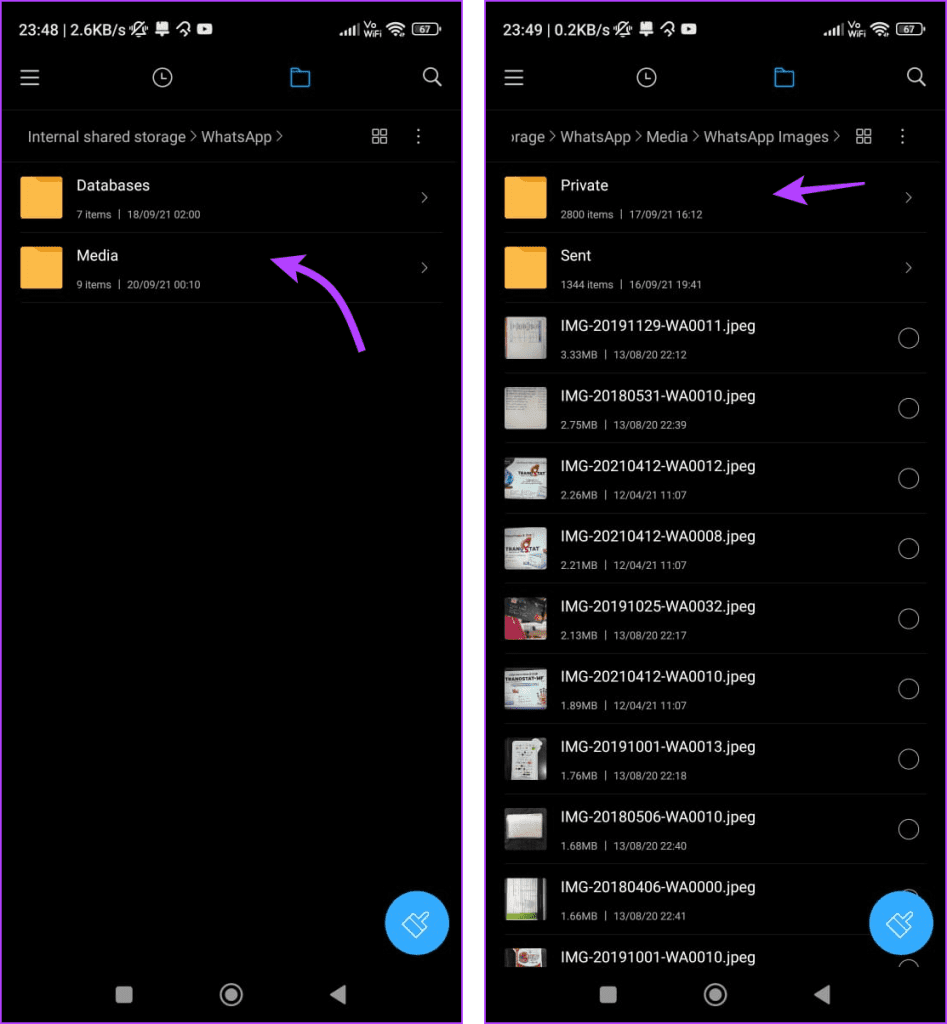
Now, all your previously downloaded WhatsApp images will appear in the gallery.
Fix 4. Grant Photos Permission to WhatsApp on iPhone
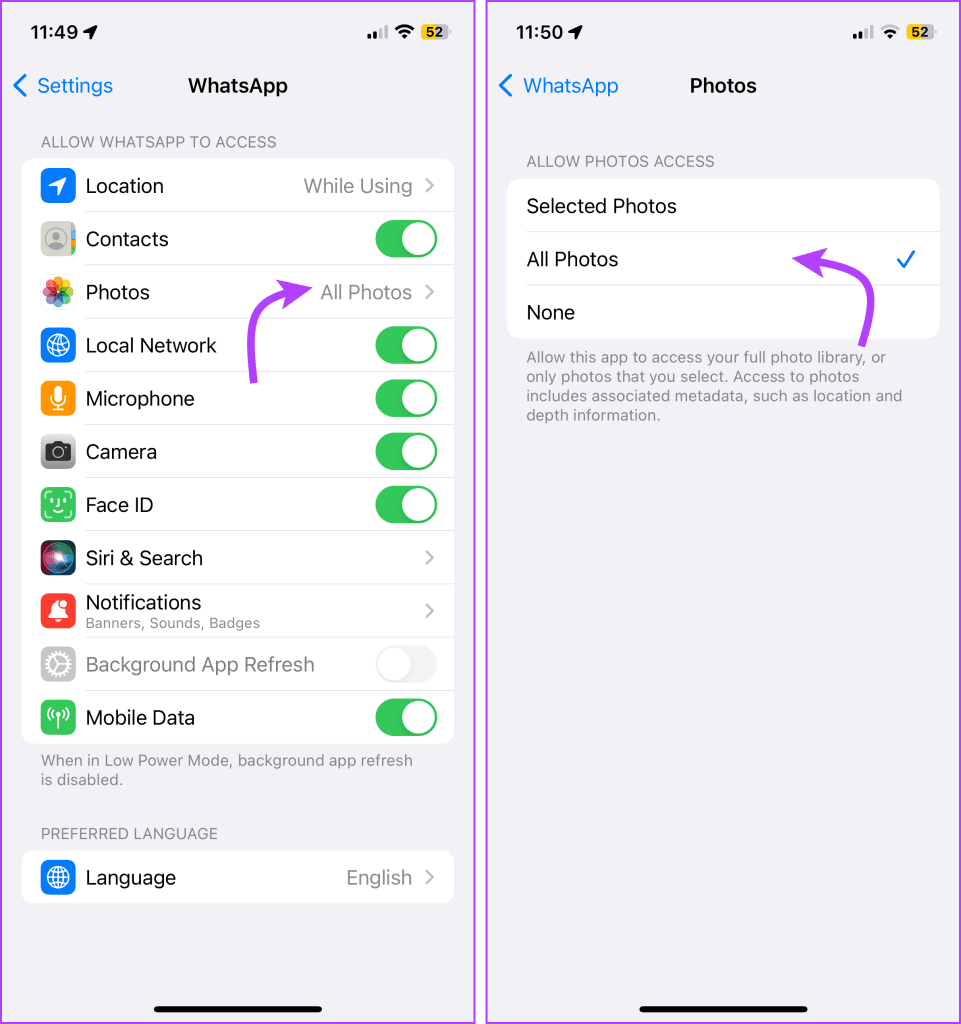
WhatsApp should have the Photos permission, whether to download or upload images. You must check if you have granted such permission.
To do so, open the Settings app → scroll down and tap WhatsApp → Photos → All Photos.
Fix 5. Reinstall WhatsApp
If WhatsApp images still do not show up in the gallery, reinstall WhatsApp. However, before you do that, use the native backup option inside WhatsApp to back up your WhatsApp chats to Google Drive (Android) and iCloud (iPhone).
Notably, uninstalling WhatsApp will delete your chats, settings, files, etc. Once uninstalled, reinstall the app and retrieve all your WhatsApp data from the backup.
Was this helpful?
Last updated on 20 August, 2024
Read Next
 How to Save WhatsApp Photos or Videos to Gallery on Any Device
How to Save WhatsApp Media on iPhone Save a Single Photo or Video WhatsApp lets you save photos or videos one by one to the gallery on your iPhone.
How to Save WhatsApp Photos or Videos to Gallery on Any Device
How to Save WhatsApp Media on iPhone Save a Single Photo or Video WhatsApp lets you save photos or videos one by one to the gallery on your iPhone.
 3 Ways to Fix Telegram Photos Not Appearing in Gallery
Basic Fixes Check network connection: If your device is not connected to the internet or has an issue, Telegram won't download pictures to your gallery.
3 Ways to Fix Telegram Photos Not Appearing in Gallery
Basic Fixes Check network connection: If your device is not connected to the internet or has an issue, Telegram won't download pictures to your gallery.
 10 Best Ways to Fix Samsung Gallery Not Showing All Pictures on Galaxy Phones
Samsung Galaxy phones have a default Gallery app to manage and edit media files.
10 Best Ways to Fix Samsung Gallery Not Showing All Pictures on Galaxy Phones
Samsung Galaxy phones have a default Gallery app to manage and edit media files.
 3 Ways to Fix Can’t Delete Photos from Android Gallery
Basic Fixes Check trash: If you delete photos from the gallery app and yet it doesn't clear storage, ensure you clear the trash as well.
3 Ways to Fix Can’t Delete Photos from Android Gallery
Basic Fixes Check trash: If you delete photos from the gallery app and yet it doesn't clear storage, ensure you clear the trash as well.
 How to Stop Photos and Videos From Auto-Downloading on WhatsApp
Disable Media Auto-Download on WhatsApp By default, WhatsApp automatically downloads all photos, videos, and other files shared in a WhatsApp chat or group.
How to Stop Photos and Videos From Auto-Downloading on WhatsApp
Disable Media Auto-Download on WhatsApp By default, WhatsApp automatically downloads all photos, videos, and other files shared in a WhatsApp chat or group.
 4 Ways to Download WhatsApp Status Videos on Any Device
Method 1.
4 Ways to Download WhatsApp Status Videos on Any Device
Method 1.
 How to Send HD Photos and Videos in WhatsApp
How to Send HD Photos and Videos on WhatsApp Mobile App To send your photo or video without compromising image quality, use the sharing options available in the WhatsApp mobile
How to Send HD Photos and Videos in WhatsApp
How to Send HD Photos and Videos on WhatsApp Mobile App To send your photo or video without compromising image quality, use the sharing options available in the WhatsApp mobile
 5 Best Gallery Apps With Hide Photos Option for Android
Many times, we want to hide some sensitive photos and videos from our phones.
5 Best Gallery Apps With Hide Photos Option for Android
Many times, we want to hide some sensitive photos and videos from our phones.
The article above may contain affiliate links which help support Guiding Tech. The content remains unbiased and authentic and will never affect our editorial integrity.

