Basic Fixes:
- Check app server status: When your preferred VPN provider faces an outage, you may face issues when using their services. You can head to Downdetector and search for the VPN network name to confirm the issue.
- Try connecting to a different location: Most VPN apps offer several servers from different regions. When the VPN app isn’t working on a specific server, connect to another one and try again.
- Check for app and software updates: An outdated VPN app on your iPhone or iPad can also cause problems. You should update the VPN app from the App Store. Similarly, you can install the latest iOS or iPadOS version and then try using the VPN app again.
Fix 1: Delete and Add VPN Profile
You can delete the current VPN profile on your iPhone and add it again. This can solve any issues occurring due to the previous VPN profile. Here’s how to do it.
Step 1: Open the Settings app and select VPN.
Step 2: Tap the i icon beside a preferred VPN profile and select Delete VPN. Then, open the VPN app and try connecting to a server.


Fix 2: Reset Network Settings
Does VPN still fail to work on your iPhone or iPad? It’s time to reset network settings. It deletes all saved Wi-Fi networks, Bluetooth devices, and VPN profiles from your Apple device. Here’s how to use it to resolve your VPN woes.
Step 1: Open the Settings app and scroll to General. Here, tap on Transfer or Reset iPhone.

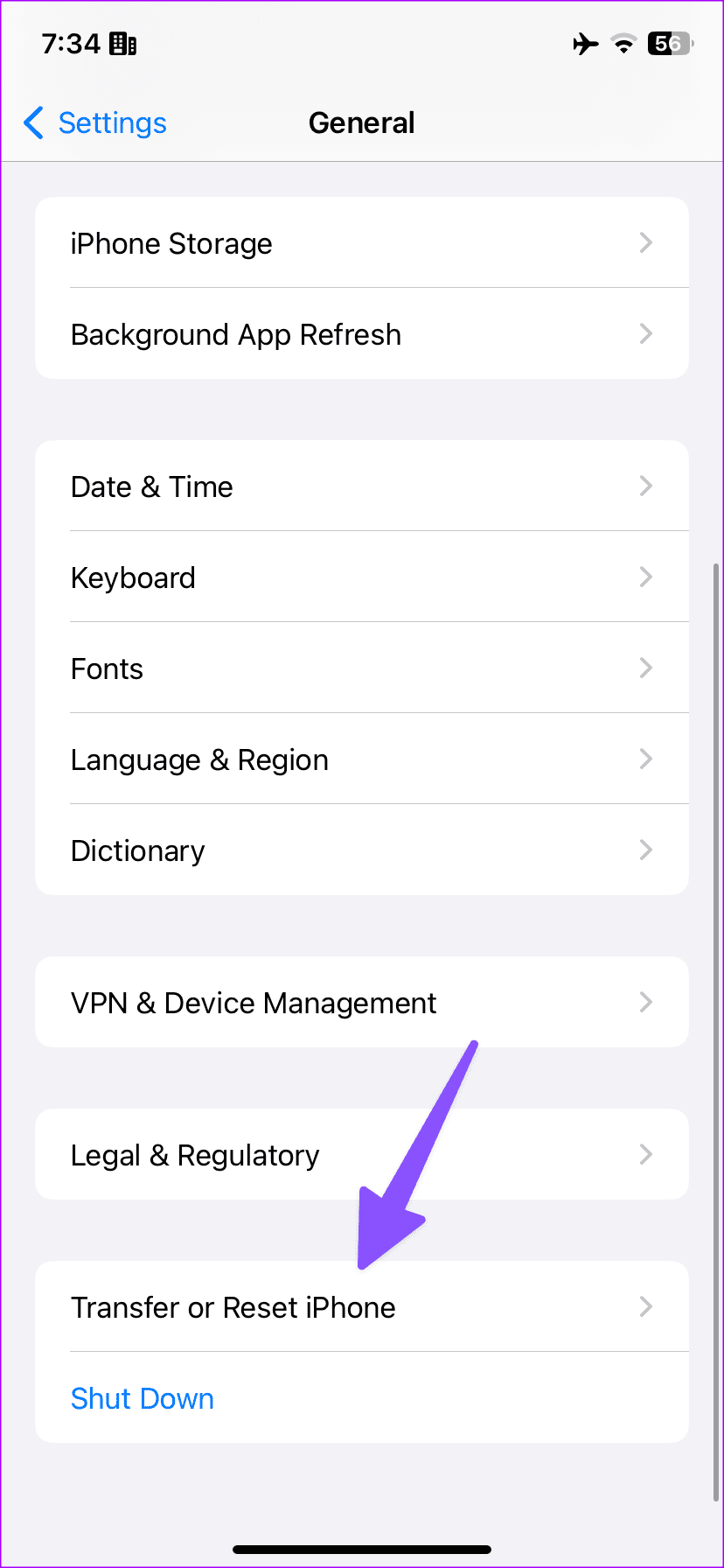
Step 2: Tap on Reset. Then, tap on Reset Network Settings.


Follow the on-screen instructions to finish the process. Then, open the relevant VPN app and try connecting to the VPN again.
Also Read: How to fix iPad not connecting to the internet
Fix 3: Reinstall VPN Configuration
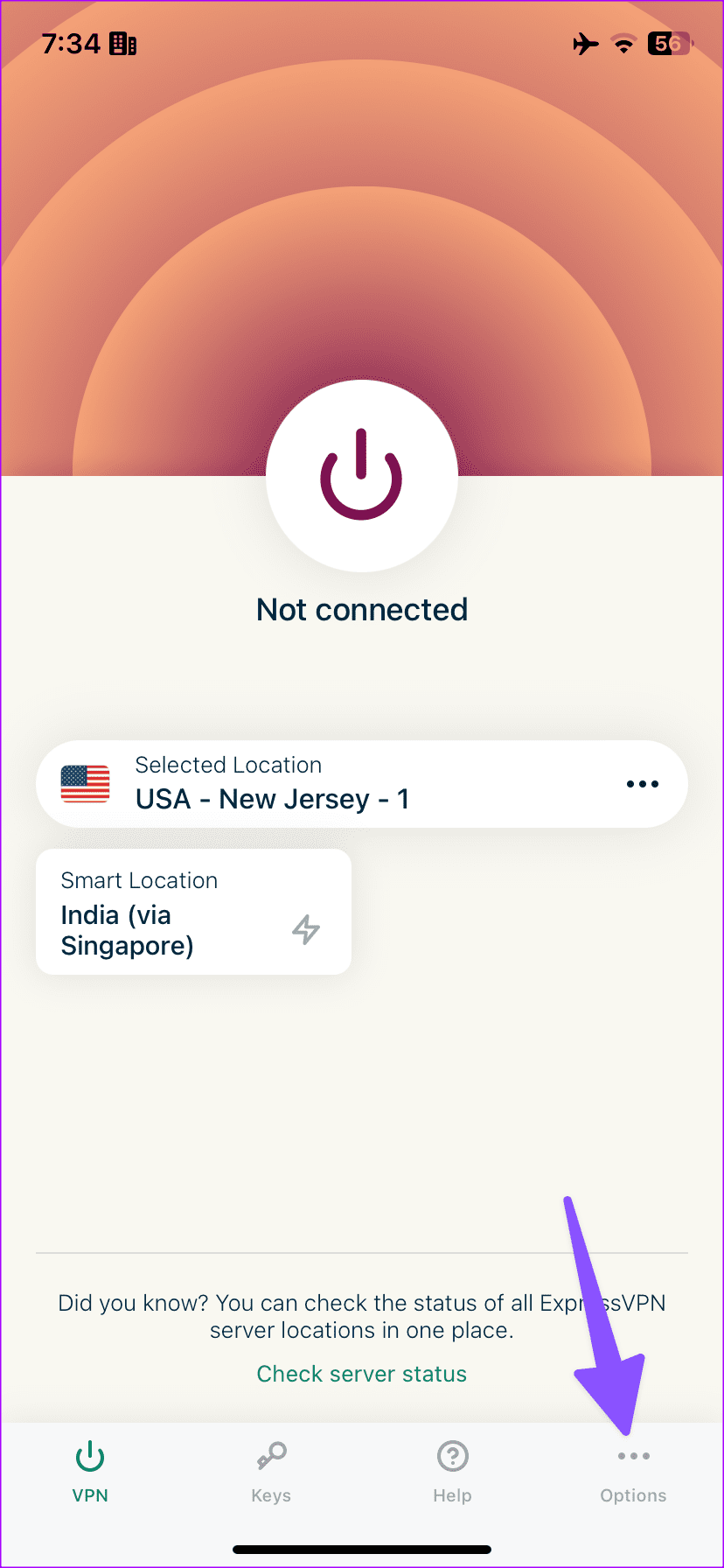
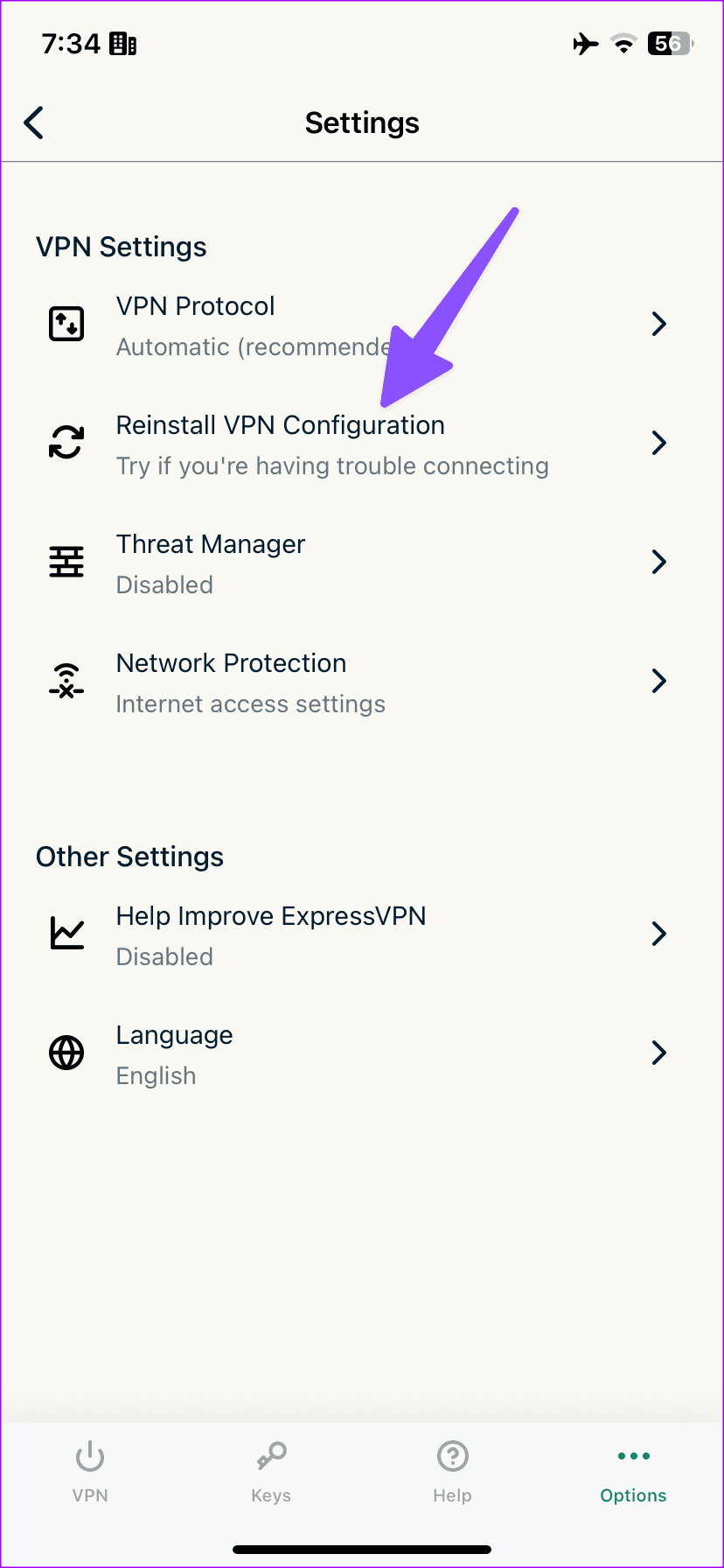
Several VPN apps offer an option to reinstall the VPN configuration. This can help resolve any VPN issues due to incomplete or old configuration details. Follow the below steps to do it. We’re using ExpressVPN as an example.
Step 1: Open ExpressVPN and go to Options.
Step 2: Select Reinstall VPN Configuration and follow the on-screen instructions.
Fix 4: Add VPN Configuration Manually
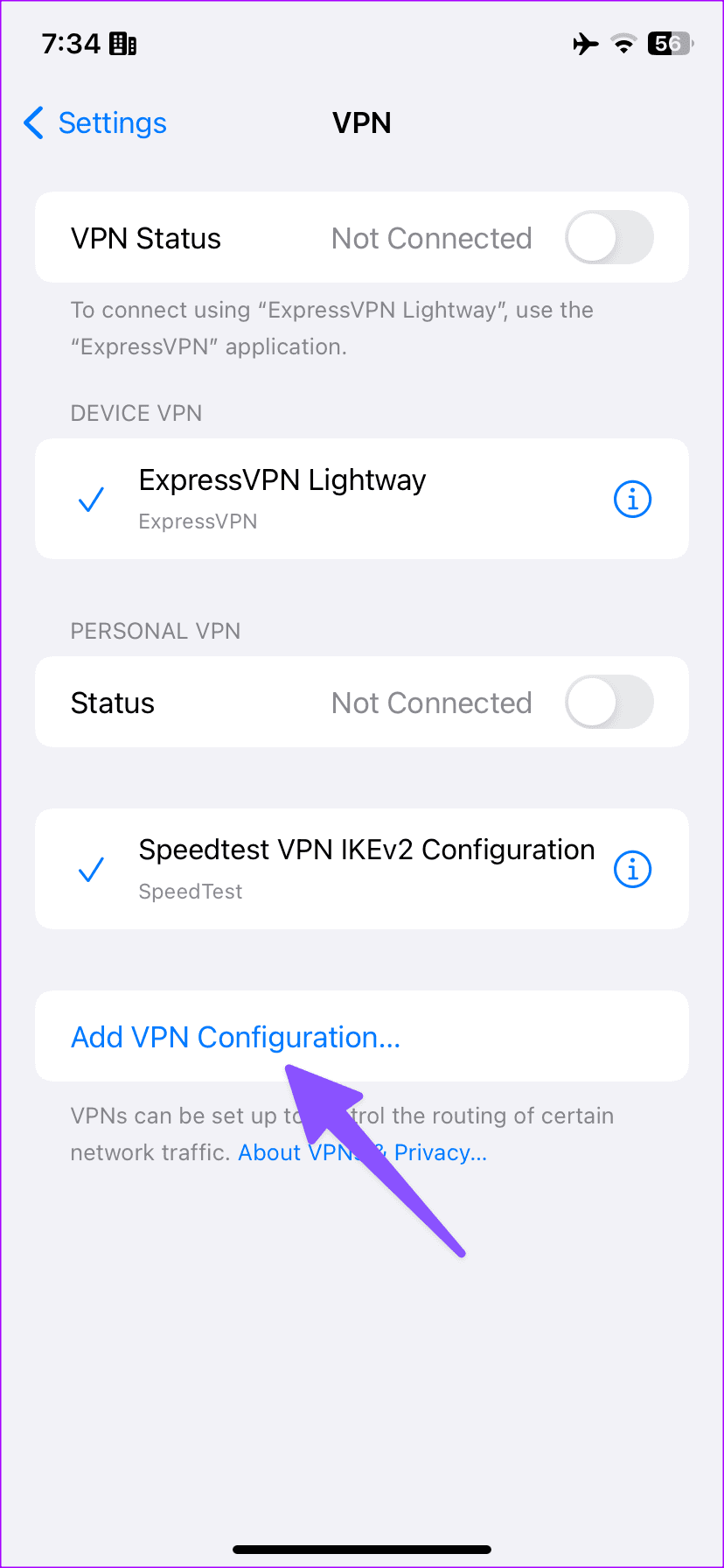
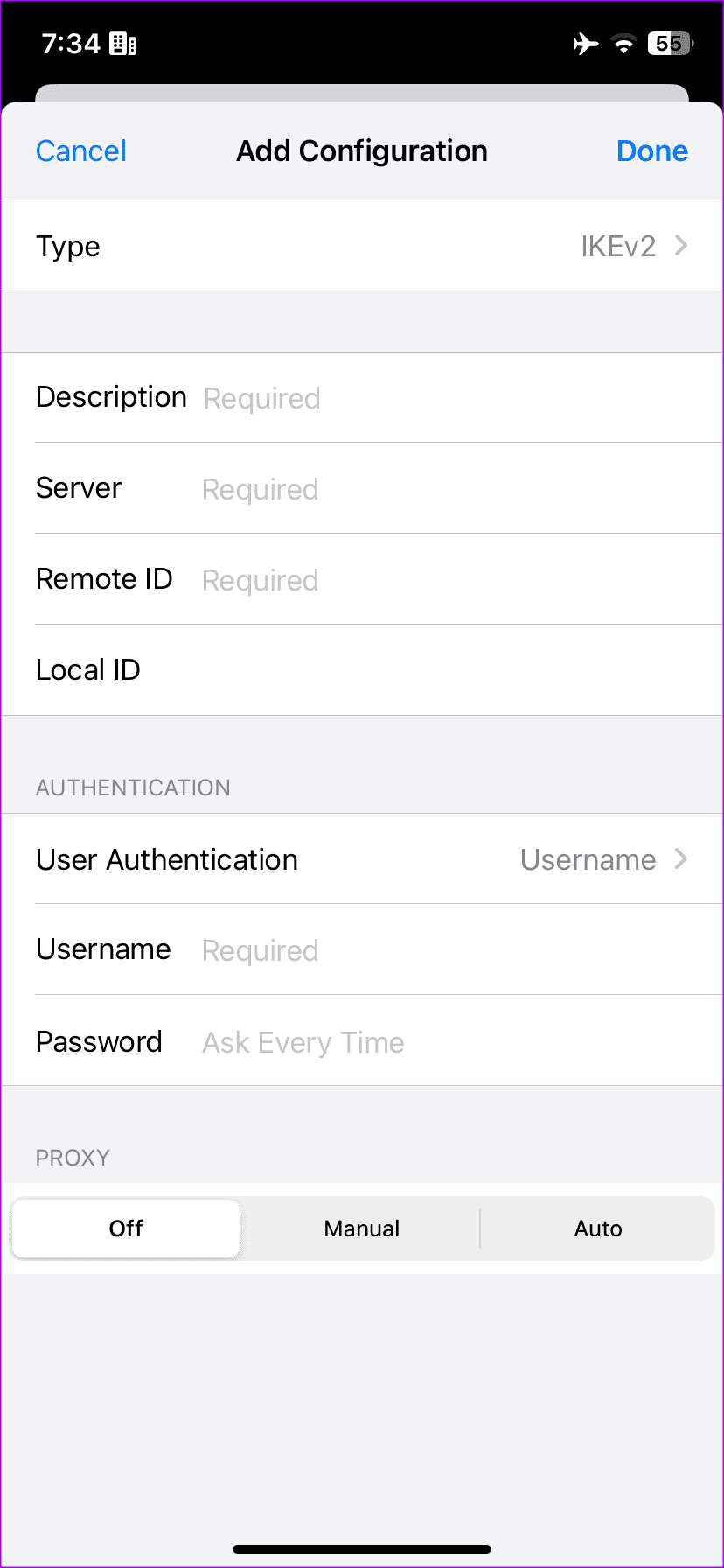
iOS also offers an option to add VPN configuration manually. You can use this to manually update the VPN configuration without using the VPN app. Here’s what you need to do.
Step 1: Open the Settings app and tap on VPN. Here, tap on Add VPN Configuration.
Step 2: Fill in the required details from your VPN provider and tap on Done.
Now close and reopen your VPN app. Then, try using it to see if the issue has been fixed on your Apple device.
Was this helpful?
Last updated on 16 May, 2024
Read Next
 Top 8 Ways to Fix VPN Not Working in Windows 11
You can hide your location (IP address) and browsing history from an ISP (Internet Service Provider) and local government using a VPN.
Top 8 Ways to Fix VPN Not Working in Windows 11
You can hide your location (IP address) and browsing history from an ISP (Internet Service Provider) and local government using a VPN.
 3 Ways to Fix Google Chrome Not Working With VPN
Basic Fixes Use another VPN server: Most VPN apps have hundreds of servers.
3 Ways to Fix Google Chrome Not Working With VPN
Basic Fixes Use another VPN server: Most VPN apps have hundreds of servers.
 5 Best Ways to Fix iMessage Not Working On iPhone and iPad
Try Basic Fixes Check if iMessage is down: Sometimes, it's possible that the iMessage servers are down, which is why your iPhone's iMessage is not working.
5 Best Ways to Fix iMessage Not Working On iPhone and iPad
Try Basic Fixes Check if iMessage is down: Sometimes, it's possible that the iMessage servers are down, which is why your iPhone's iMessage is not working.
 6 Ways to Fix Spotlight Search Not Working On iPhone and iPad
Before you begin, try restarting your iPhone or updating it to the latest version to get rid of any bugs that are affecting Spotlight Search.
6 Ways to Fix Spotlight Search Not Working On iPhone and iPad
Before you begin, try restarting your iPhone or updating it to the latest version to get rid of any bugs that are affecting Spotlight Search.
 3 Ways to Fix Guided Access Not Working on iPhone or iPad
Basic Fixes Enable Guided Access: Make sure you have enabled Guided Access on your iOS device.
3 Ways to Fix Guided Access Not Working on iPhone or iPad
Basic Fixes Enable Guided Access: Make sure you have enabled Guided Access on your iOS device.
 3 Ways to Fix Amazon Prime Video Not Working on iPhone and iPad
Basic Fixes: Check your internet connection: The app may not load properly if you access Prime Video on a sketchy internet connection.
3 Ways to Fix Amazon Prime Video Not Working on iPhone and iPad
Basic Fixes: Check your internet connection: The app may not load properly if you access Prime Video on a sketchy internet connection.
 3 Ways to Fix AutoFill Passwords Not Working on iPhone and iPad
Basic Fixes Turn off private browsing mode: The autofill feature does not work when you browse in private mode on your iPhone or iPad.
3 Ways to Fix AutoFill Passwords Not Working on iPhone and iPad
Basic Fixes Turn off private browsing mode: The autofill feature does not work when you browse in private mode on your iPhone or iPad.
 How to Fix Disney+ Not Working on iPhone or iPad
Common Fixes Check your network connection: Ensure your iPhone/iPad has a good internet connection.
How to Fix Disney+ Not Working on iPhone or iPad
Common Fixes Check your network connection: Ensure your iPhone/iPad has a good internet connection.
The article above may contain affiliate links which help support Guiding Tech. The content remains unbiased and authentic and will never affect our editorial integrity.