

Before you begin, ensure there are no problems with the network connectivity on your device, and install the latest version of WhatsApp from the Play Store or App Store.
Fix 1: Change Minimum DPI Using Developer Options (Android)
The linked devices feature was initially meant for WhatsApp web and desktop apps – meaning this feature was meant to be used on larger screens.
If you’re trying to add your WhatsApp account on a second phone and not finding the option to link devices, you can manipulate your phone to act as a larger device by changing the DPI – Dots Per Inch.
Note: You must change the DPI only on the second phone on which you want to use WhatsApp, and unfortunately, it is not applicable on an iOS device.
Open Settings > About Device > Version. Tap several times on the Build number until you get a message saying, “You are now a developer”.


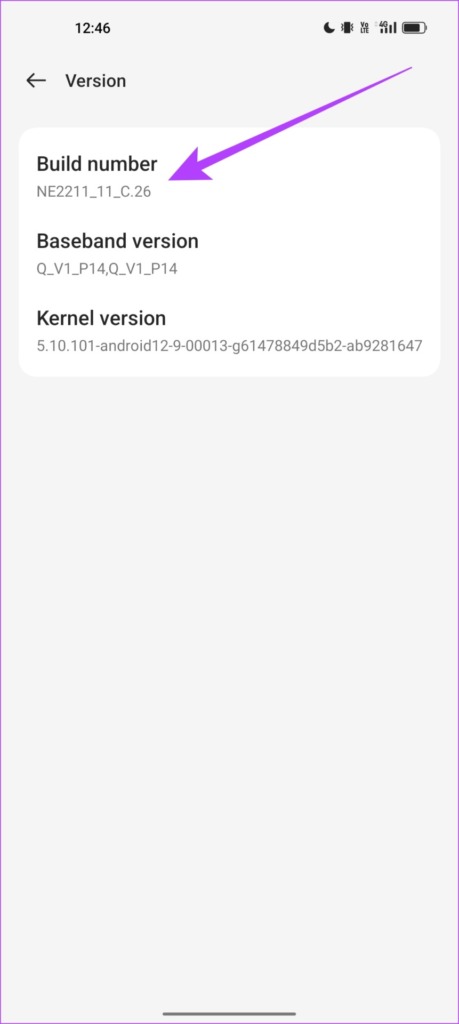
Step 1: Now, open developer options. Open the Additional Settings menu in the settings app or search for Developer Options in the Settings app search bar.
Step 2: Tap on Developer options. Scroll down to find and tap Smallest Width. Change the value to 600 and confirm your change.


Fix 2: Check the Number of Linked Devices
WhatsApp has a limit on the number of devices that you can use the same WhatsApp account on. You can link a maximum of four devices, so ensure that you can still link a new device.
Step 1: Open WhatsApp on your primary device and open WhatsApp settings.
Step 2: Tap on Linked Devices and check the number of devices. If it is less than five devices, you can add more devices.


Also Read: How to log out linked devices from WhatsApp account
Fix 3: Clear WhatsApp Cache
Clearing the cache for an app on your Android device erases all the accumulated junk files responsible for executing bugs.
On Android
Step 1: Long-tap on the WhatsApp icon > tap on App Info.
Step 2: Tap on Storage usage > Clear cache.


On iPhone
Offloading an app clears all cache and junk files. This can remove any bugs from the app.
Go to Settings > General > iPhone Storage > select WhatsApp > tap on Offload > Reinstall the app. Don’t worry; this will not delete the chats or media files.


Fix 4: Reinstall WhatsApp on Secondary Device
Lastly, if none of these methods work, try reinstalling WhatsApp on your secondary phone. A freshly installed app may erase all the bugs from the previous version.
Note: Do not uninstall WhatsApp on the primary device. You will lose all your chats.
Was this helpful?
Last updated on 27 August, 2024
3 Comments
Leave a Reply
Read Next
 3 Ways to Fix Unable to Send Multiple Documents on WhatsApp on Android
Basic Fixes: Check document size: WhatsApp allows you to send documents only up to 2GB.
3 Ways to Fix Unable to Send Multiple Documents on WhatsApp on Android
Basic Fixes: Check document size: WhatsApp allows you to send documents only up to 2GB.
 3 Ways to Fix Unable to Log In to Instagram on Android and iPhone
Try Basic Fixes Temporarily disable VPN connection: Instagram might flag your login attempts as suspicious if it detects unusual network activity.
3 Ways to Fix Unable to Log In to Instagram on Android and iPhone
Try Basic Fixes Temporarily disable VPN connection: Instagram might flag your login attempts as suspicious if it detects unusual network activity.
 3 Ways to Fix Unable to Log In to Spotify on Android and iPhone
Try Basic Fixes Update the app: The Spotify app on your phone may be outdated or buggy.
3 Ways to Fix Unable to Log In to Spotify on Android and iPhone
Try Basic Fixes Update the app: The Spotify app on your phone may be outdated or buggy.
 3 Ways to Fix Unable to Log in to Snapchat on Android and iPhone
Try Basic Fixes Check Snapchat's server status: It’s not uncommon for popular social media services like Snapchat to experience server outages.
3 Ways to Fix Unable to Log in to Snapchat on Android and iPhone
Try Basic Fixes Check Snapchat's server status: It’s not uncommon for popular social media services like Snapchat to experience server outages.
 How to Fix “Unable to Initiate Call” Error in WhatsApp
Basic Fixes Check WhatsApp server - If the server is facing the issue, you can't make WhatsApp calls from any device, say iPhone or Android phone, Mac, or Windows, Go
How to Fix “Unable to Initiate Call” Error in WhatsApp
Basic Fixes Check WhatsApp server - If the server is facing the issue, you can't make WhatsApp calls from any device, say iPhone or Android phone, Mac, or Windows, Go
 How to Delete WhatsApp Call History on Android and iOS Devices
How to Clear All WhatsApp Call History If you wish to permanently find and delete all WhatsApp call history and start as a clean slate, WhatsApp lets you do so
How to Delete WhatsApp Call History on Android and iOS Devices
How to Clear All WhatsApp Call History If you wish to permanently find and delete all WhatsApp call history and start as a clean slate, WhatsApp lets you do so
 Top 7 Ways to Fix Google Docs Unable to Load File Issue
Google Docs is one of the popular word-processing software out there.
Top 7 Ways to Fix Google Docs Unable to Load File Issue
Google Docs is one of the popular word-processing software out there.
 3 Ways to Fix Unable to Add Another Google Account on Android
https://youtu.be/-__pOuBj9is Try Basic Fixes Rule out issues with your Google account: Google may not let you add your secondary Google account to your Android if it’s suspended or hacked.
3 Ways to Fix Unable to Add Another Google Account on Android
https://youtu.be/-__pOuBj9is Try Basic Fixes Rule out issues with your Google account: Google may not let you add your secondary Google account to your Android if it’s suspended or hacked.
The article above may contain affiliate links which help support Guiding Tech. The content remains unbiased and authentic and will never affect our editorial integrity.


On my secondary iPhone 13, with the latest OS and the most recent version of WhatsApp, there is no option to “link this device to an existing account.” I have restarted the phone, deleted and reinstalled WhatsApp Messenger, all to no avail. Further, WhatsApp Help seems to think I want to link my phone to my computer, and can’t figure out that I want to link to iPhones to the same account.
On June 21th. I’ve my iOS on the last version, same the WhatsApp business App and there is not “link this device” óption anywhere
WA is a total sh—t. I don’t understand why people keep on using it. Try Telegram and be amazed.