

Basic Fixes:
- Uninstall conflicting Java versions: If conflicts are causing the problem, you can resolve them by completely removing older Java versions and leaving only the most recent one.
- Verify environment variables: If the application cannot find the necessary Java installation to execute Java-based programs, confirm Java is on the right path.
Fix 1: Install or Re-Install Java Properly
If you’ve not installed Java or have installed it incorrectly, all applications that rely on it will return the error message: Java Runtime Environment not found. Before you advance to the solutions below, you should check the status of Java on the computer. Here’s how.
Step 1: Click the magnifying lens on the Taskbar, type Command Prompt, and click the Run as Administrator option.

Step 2: Type the command below and hit Enter to check your Java status.
java -version

Step 3: Running the command will display the version of Java on your computer if installed correctly. If not, you may receive an error message.
Tip: You may follow these steps if you can not open the Windows 11 Command Prompt.
Fix 2: Repair or Reinstall the Java Dependent Application
You should also investigate the possibility of a corrupt Java-dependent application. Some programs come with a repair option. While the repair steps may vary by program, generally, most apps follow the process outlined below.
Step 1: Open the search window on the Taskbar, type control, and click the Uninstall a program option.

Step 2: Select the app under the Name column, then click any of these available options: Change, Uninstall/Change.

Step 3: Click the Repair button and follow any instructions to complete the process.

Alternatively, if repairing the dependent application does not work, you should consider reinstalling the application. Before reinstalling it, however, you must completely uninstall the application and ensure you reinstall from a freshly downloaded copy.
This way, you are guaranteed that any corruption that affected the older installation will not affect the new one.
Fix 3: Download and Install the Java Runtime Environment
After you run the Java -version command, if you discover Java is not present on your computer, you must download and install it. This will require visiting the official Java website. The steps below will walk you through the process.
Step 1: Visit the official website and click the green Download button.

Step 3: Double-click the downloaded file to start the installation.
Step 4: Click the Install button.

Step 5: Close the installer and verify the problem is fixed.
Fix 4: Allow Java Through Your Firewall
The Windows 11 firewall helps protect your computer by blocking threats, unwanted programs, and other malicious software. Some programs may ask for permission to pass through the firewall. If the firewall blocks Java, you will get the Java Runtime Environment is not found error. Here’s how you can fix the same.
Step 1: Click the magnifying lens on the Taskbar, type allow, and click Allow an app through Windows Firewall.

Step 2: Click the Change Settings button and Allow another app.

Step 3: Click Browse, navigate the path below, and add your Java installation.
C:\ProgramData\Microsoft\Windows\Start Menu\Programs\Java

Step 4: Click the OK button.
Was this helpful?
Last updated on 21 August, 2024
Read Next
 7 Ways to Fix Java Virtual Machine Launcher Error on Windows
Java Virtual Machine (JVM) is a program that ensures Java apps can run on any machine.
7 Ways to Fix Java Virtual Machine Launcher Error on Windows
Java Virtual Machine (JVM) is a program that ensures Java apps can run on any machine.
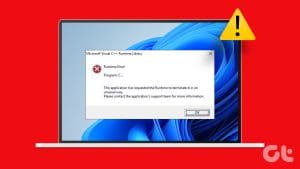 6 Ways to Fix Runtime Errors on Windows 11
Fix 1: Run SFC and DISM Scans Damaged or corrupted system files on your PC can often result in runtime errors.
6 Ways to Fix Runtime Errors on Windows 11
Fix 1: Run SFC and DISM Scans Damaged or corrupted system files on your PC can often result in runtime errors.
 What is Runtime Broker on Windows 10 and Should You Worry About It
One of Windows users' most common complaints is that their computer tends to get slower over time.
What is Runtime Broker on Windows 10 and Should You Worry About It
One of Windows users' most common complaints is that their computer tends to get slower over time.
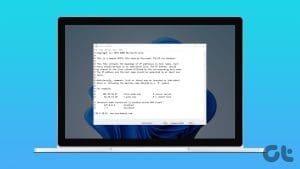 How to Locate and Edit Hosts File on Windows
Where Is the Hosts File Located in Windows The host files are stored locally on your computer within the C drive.
How to Locate and Edit Hosts File on Windows
Where Is the Hosts File Located in Windows The host files are stored locally on your computer within the C drive.
 4 Ways to Fix Unable to Contact Your DHCP Server Error on Windows 11
Fix 1: Restart Your DHCP Client service The DHCP Client service registers and updates the PC's IP address and DNS record.
4 Ways to Fix Unable to Contact Your DHCP Server Error on Windows 11
Fix 1: Restart Your DHCP Client service The DHCP Client service registers and updates the PC's IP address and DNS record.
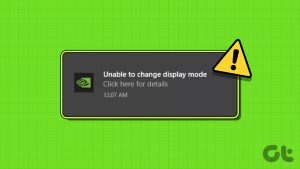 6 Ways to Fix NVIDIA’s ‘Unable to Change Display Mode’ Error on Windows 11
Method 1: Terminate and Restart the NVIDIA Control Panel It is common for apps and their associated processes to encounter glitches and stop working properly.
6 Ways to Fix NVIDIA’s ‘Unable to Change Display Mode’ Error on Windows 11
Method 1: Terminate and Restart the NVIDIA Control Panel It is common for apps and their associated processes to encounter glitches and stop working properly.
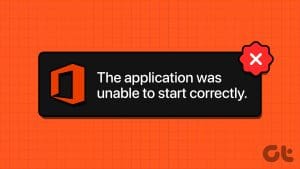 5 Fixes for “Application Was Unable to Start Correctly (0xc0000142)” Error for Office Apps
Fix 1: Run the Office App as Administrator Lack of relevant permissions can prevent Office apps from accessing essential files, triggering the "The application was unable to start correctly (0xc0000142)"
5 Fixes for “Application Was Unable to Start Correctly (0xc0000142)” Error for Office Apps
Fix 1: Run the Office App as Administrator Lack of relevant permissions can prevent Office apps from accessing essential files, triggering the "The application was unable to start correctly (0xc0000142)"
 5 Ways to Fix “Unable to Load Photo” Error on iPhone
Try Basic Fixes Free up storage space: A lack of storage space could prevent your iPhone from loading photos from the cloud.
5 Ways to Fix “Unable to Load Photo” Error on iPhone
Try Basic Fixes Free up storage space: A lack of storage space could prevent your iPhone from loading photos from the cloud.
The article above may contain affiliate links which help support Guiding Tech. The content remains unbiased and authentic and will never affect our editorial integrity.

