Why Certain Apps Don’t Allow You to Take Screenshots on Android
Some Android apps may prevent you from taking screenshots for security reasons. Financial apps (banking or payment apps, for example) may prohibit you from taking screenshots to protect your data. Similarly, popular browsers such as Chrome prevent you from taking screenshots in incognito mode. Furthermore, popular streaming services like Netflix, Prime Video, and others disable screenshot functionality to prevent misuse of digital content. As a result, screenshots captured in those apps appear blank.
Try Basic Fixes
- Use the correct key combination: On most Android phones, you can press the Power and Volume down buttons at the same time to capture a screenshot. You’ll hear a sound and see a preview of your screenshot.
- Try alternative methods to capture screenshots: Activate Google Assistant on your Android by saying “Hey Google” or “OK Google” wake words. Then, say “take a screenshot” and Google Assistant will take a snapshot of your current screen. If you have a Samsung phone, you can swipe your hand across the screen to take a screenshot. On OnePlus, Motorola, and Xiaomi phones, you can swipe down from the top of your screen with three fingers to take a screenshot.
Fix 1: Check Storage Space
Is your Android phone low on storage space? If so, you may see the “Can’t take screenshot due to limited storage space” message on your screen.
To check your phone’s storage space, open the Settings menu and navigate to Device care. Then, tap on Storage to view a complete breakdown of your phone’s storage space.


Delete a few unnecessary apps or move some of your media files to the cloud to quickly free up storage space. Following that, you should be able to capture screenshots on your phone.
Fix 2: Enable File Access for Samsung Capture (For Samsung Phones Only)
Samsung Capture is a system app that allows you to capture screenshots and record the screen of your Samsung phone. If you have accidentally disabled file access for this app, you’ll see the “Unable to use Samsung capture” error while taking screenshots. Here’s how to fix it.
Step 1: Open the Settings app and scroll down to tap on Apps.
Step 2: Tap the three-dot icon in the top-right corner and select Special access.
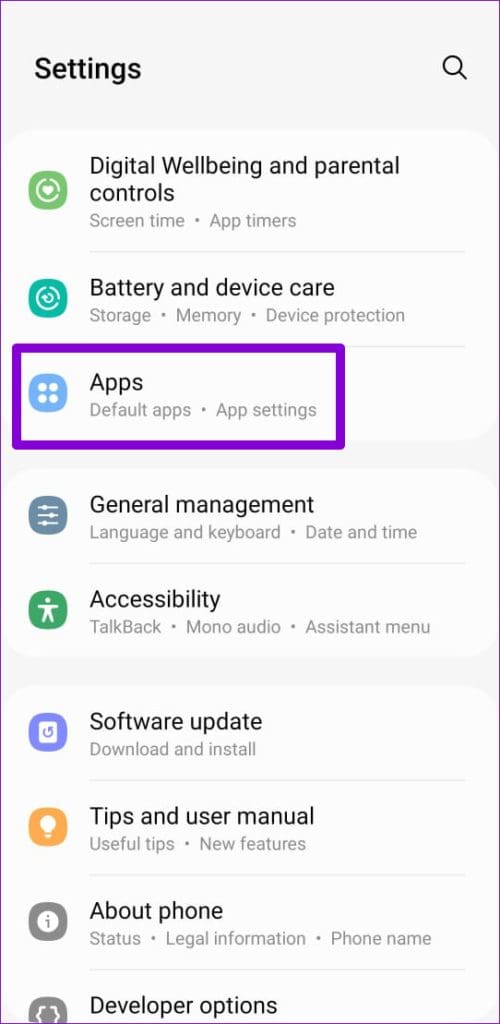

Step 3: Tap on All files access and enable the switch next to Samsung capture.


After this, you can take screenshots on your Samsung Galaxy phone.
Fix 3: Try Safe Mode
When you boot your Android phone into Safe Mode, it runs only the necessary apps and services. This allows you to determine if a third-party app is causing the issue.
To boot your phone in Safe Mode, press and hold the power button until the power menu appears. Tap and hold the Power off option and tap the green checkmark to enter Safe Mode.


Try taking a screenshot after your phone enters Safe Mode. If this method works, there’s a good chance that one of your third-party apps is to blame. Go through your recently installed apps and remove them one by one to resolve the issue.
Was this helpful?
Last updated on 01 August, 2024
Read Next
 Best Ways to Capture Scrolling Screenshots on macOS
When you want to capture an entire webpage, document, or any content that extends beyond the visible screen, a scrolling screenshot is the best route.
Best Ways to Capture Scrolling Screenshots on macOS
When you want to capture an entire webpage, document, or any content that extends beyond the visible screen, a scrolling screenshot is the best route.
 How to Capture and Edit Screenshots on Mac
Capture Screenshots on Mac Just like Windows, macOS comes with a built-in screenshot-capturing tool that you can summon with keyboard shortcuts.
How to Capture and Edit Screenshots on Mac
Capture Screenshots on Mac Just like Windows, macOS comes with a built-in screenshot-capturing tool that you can summon with keyboard shortcuts.
 5 Ways to Take Screenshots Without Power Button on Android
Method 1: Use Gestures You can use Gestures to capture a screenshot - on Xiaomi devices, go to Settings > Additional Settings > Gestures > enable the Slide 3 fingers
5 Ways to Take Screenshots Without Power Button on Android
Method 1: Use Gestures You can use Gestures to capture a screenshot - on Xiaomi devices, go to Settings > Additional Settings > Gestures > enable the Slide 3 fingers
 4 Ways to Fix if You’re Unable to Answer Calls on Android
Basic Fixes Before we start, let us look at some preliminary fixes that might help resolve this issue.
4 Ways to Fix if You’re Unable to Answer Calls on Android
Basic Fixes Before we start, let us look at some preliminary fixes that might help resolve this issue.
 3 Ways to Fix Unable to Send Multiple Documents on WhatsApp on Android
Basic Fixes: Check document size: WhatsApp allows you to send documents only up to 2GB.
3 Ways to Fix Unable to Send Multiple Documents on WhatsApp on Android
Basic Fixes: Check document size: WhatsApp allows you to send documents only up to 2GB.
 3 Ways to Fix Unable to Add Another Google Account on Android
https://youtu.be/-__pOuBj9is Try Basic Fixes Rule out issues with your Google account: Google may not let you add your secondary Google account to your Android if it’s suspended or hacked.
3 Ways to Fix Unable to Add Another Google Account on Android
https://youtu.be/-__pOuBj9is Try Basic Fixes Rule out issues with your Google account: Google may not let you add your secondary Google account to your Android if it’s suspended or hacked.
 How to Take Scrolling (Long) Screenshots on Android
How to Take a Long Screenshot on Samsung Devices Step 1: Press the power button and volume down together.
How to Take Scrolling (Long) Screenshots on Android
How to Take a Long Screenshot on Samsung Devices Step 1: Press the power button and volume down together.
 How to Take Screenshots in Incognito Mode on Android
How to Take Screenshots in Chrome Incognito Mode Step 1: Open the Google Chrome browser on your Android phone.
How to Take Screenshots in Incognito Mode on Android
How to Take Screenshots in Chrome Incognito Mode Step 1: Open the Google Chrome browser on your Android phone.
The article above may contain affiliate links which help support Guiding Tech. The content remains unbiased and authentic and will never affect our editorial integrity.