

Basic Fixes
- Check network connection: If there’s a problem with your Wi-Fi or cellular connection, X may be unable to play the video.
- Check if the video is restricted in your region: If the video isn’t available in your region, you can’t play it.
- Restart X: Close the app and open it again to see if it fixes the issue.
- Check if X is down: If X is facing downtime, wait for the services to be restored.
- Update X: Update the app on your iPhone or Android device for a bug-free experience.
Fix 1: Enable Autoplay
Enabling autoplay for videos on X plays the video as it appears when you scroll through your feed.
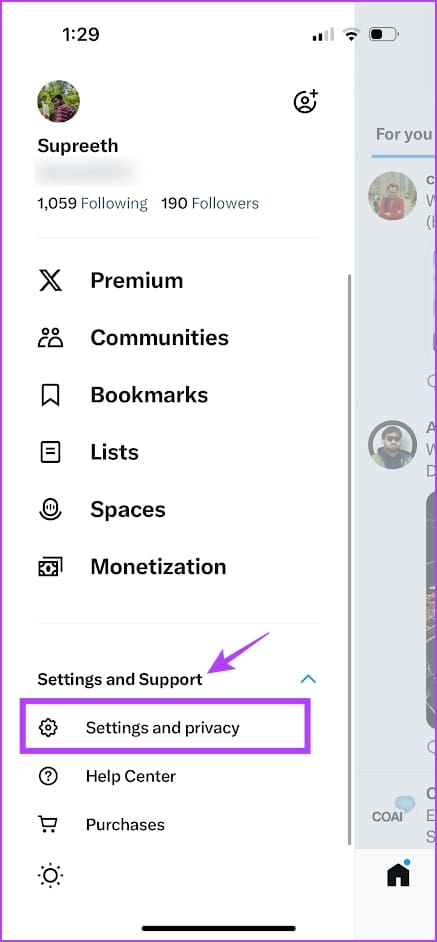
Step 1: Tap on the profile picture icon. Select Settings and Support and tap on Settings and Privacy in the dropdown menu.
Step 2: Select Accessibility, Display, and Languages. Then, select Data usage.

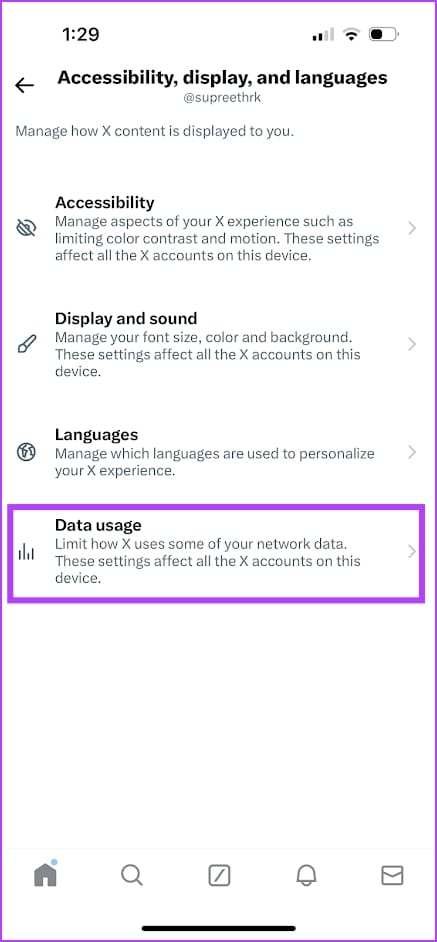
Step 3: Select Video autoplay, and enable autoplay by selecting the relevant option – whether you want to autoplay videos on the cellular network and Wi-Fi or only Wi-Fi.


Also Read: How to fix X (Twitter) stuck on the loading screen.
Fix 2: Disable Data Saver
The data saver option helps you save some data on X (Twitter), but at the same time, this feature is responsible for videos and images not loading within the app.
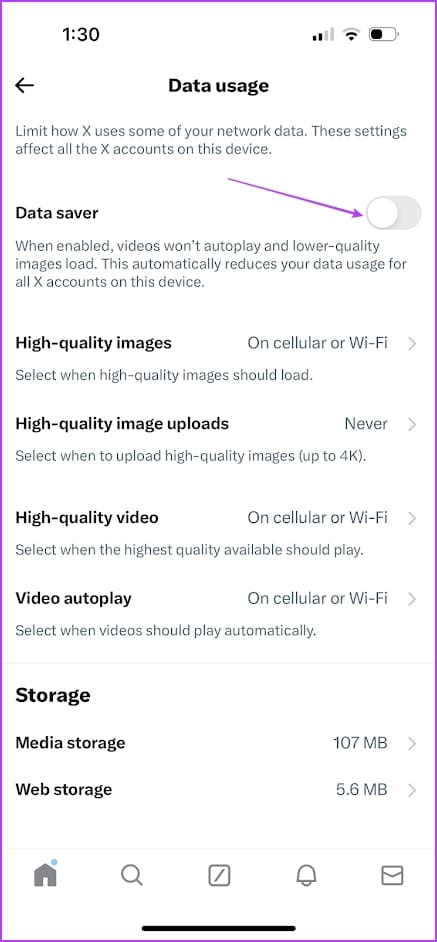
Step 1: In Twitter settings, select Accessibility, display, and Languages and tap on Data usage.
Step 2: Turn off the toggle for Data saver.
Fix 3: Enable Media Previews
When you disable media preview on X, you can’t see a visual preview of the image or the video. Instead, you will be shown a link to it. This may lead you to believe that the app is facing an issue playing videos.
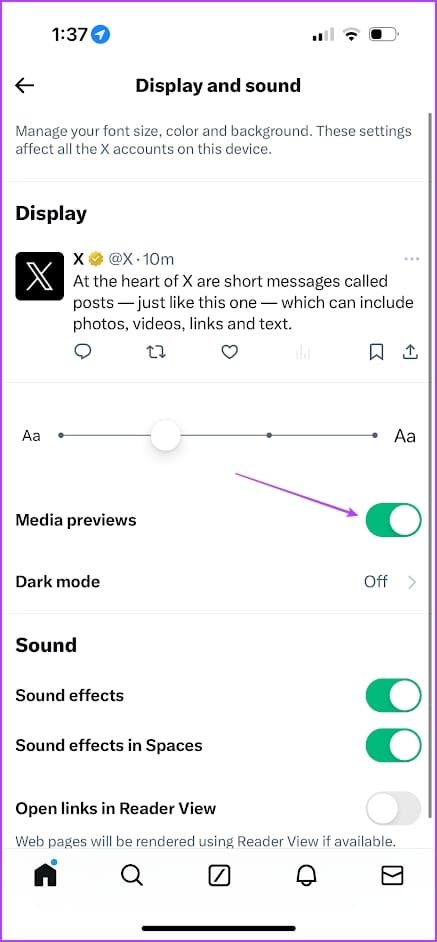
Step 1: Inside Twitter settings, tap on Accessibility, Display, and Sound.
Step 2: Select Display and sound and turn on the toggle for Media previews.

Also Read: How to fix sound not working on Twitter (X)
Fix 4: Check the Network Settings on Your Device
Check if you have disabled cellular data access for X. If yes, the app can’t connect to the internet via mobile data.
On iPhone
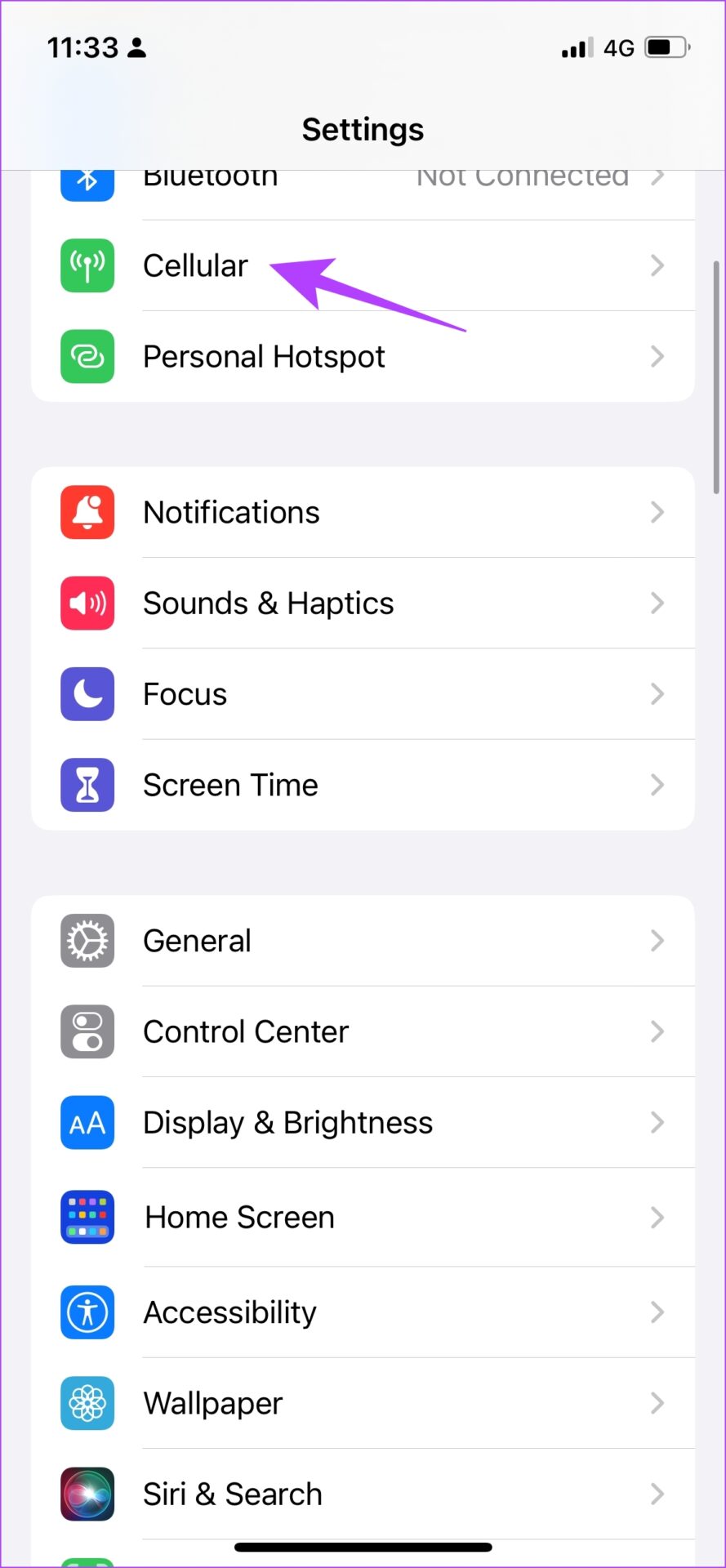
Open the Settings app > Cellular > scroll down to find X and turn on the toggle.

On Android
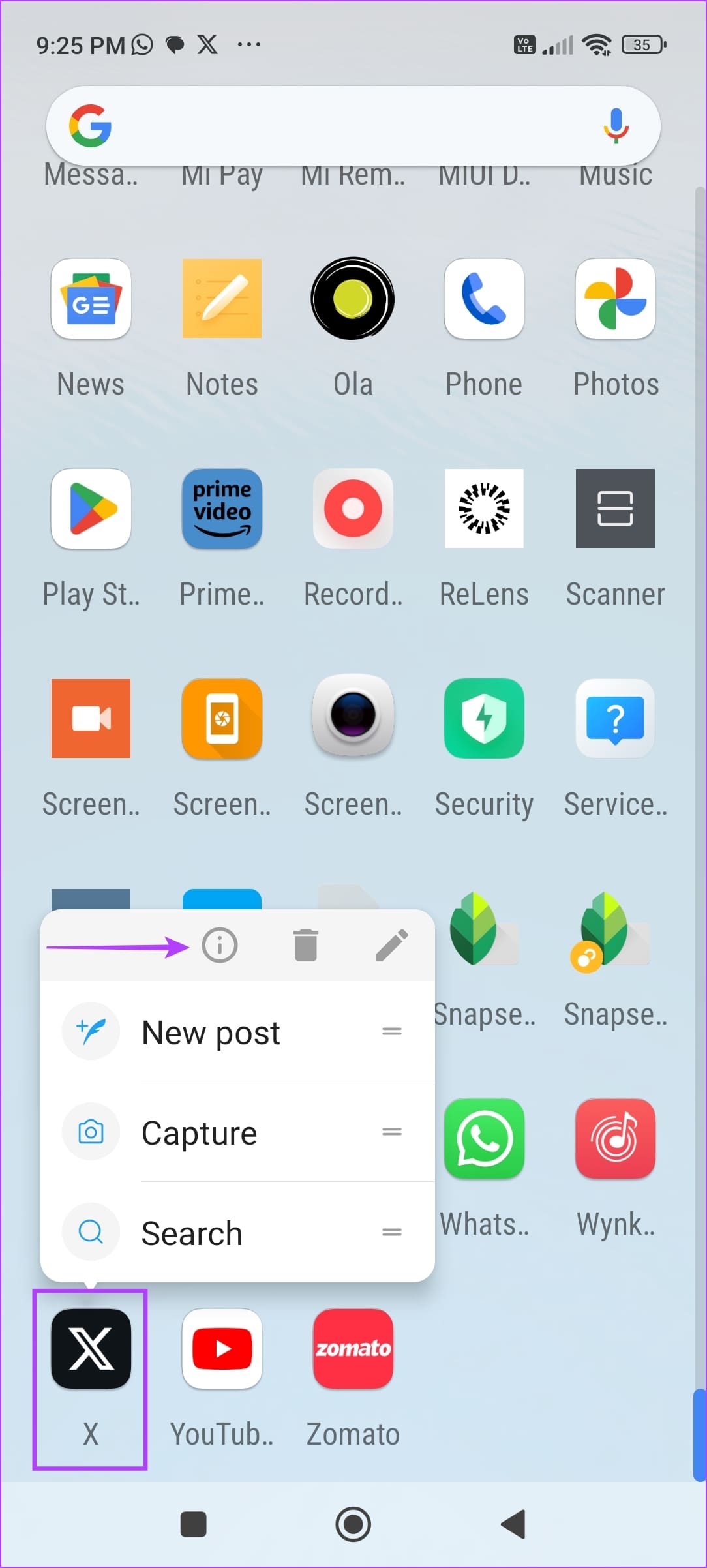
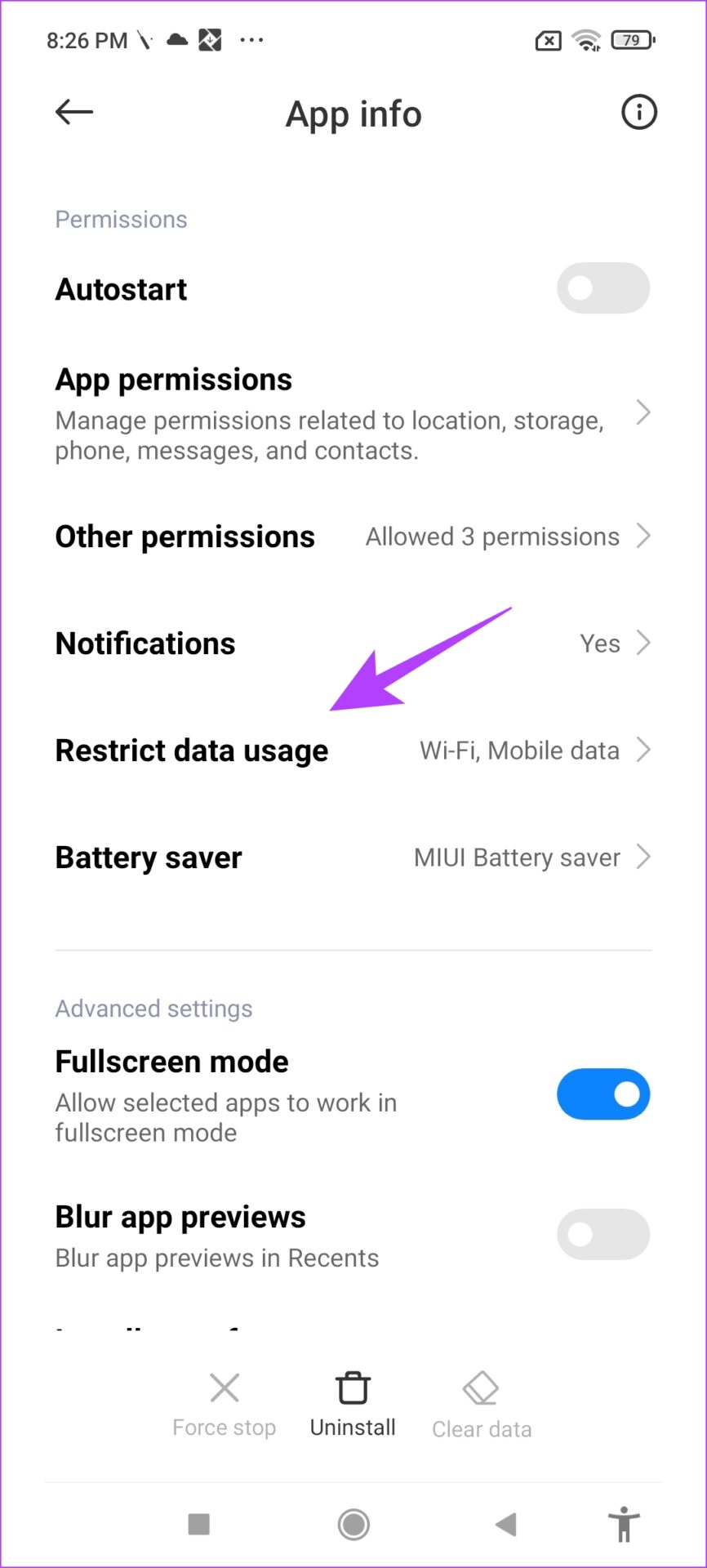
Step 1: Long-press on the X app icon > tap on the info icon. Scroll down to find Restrict data usage.
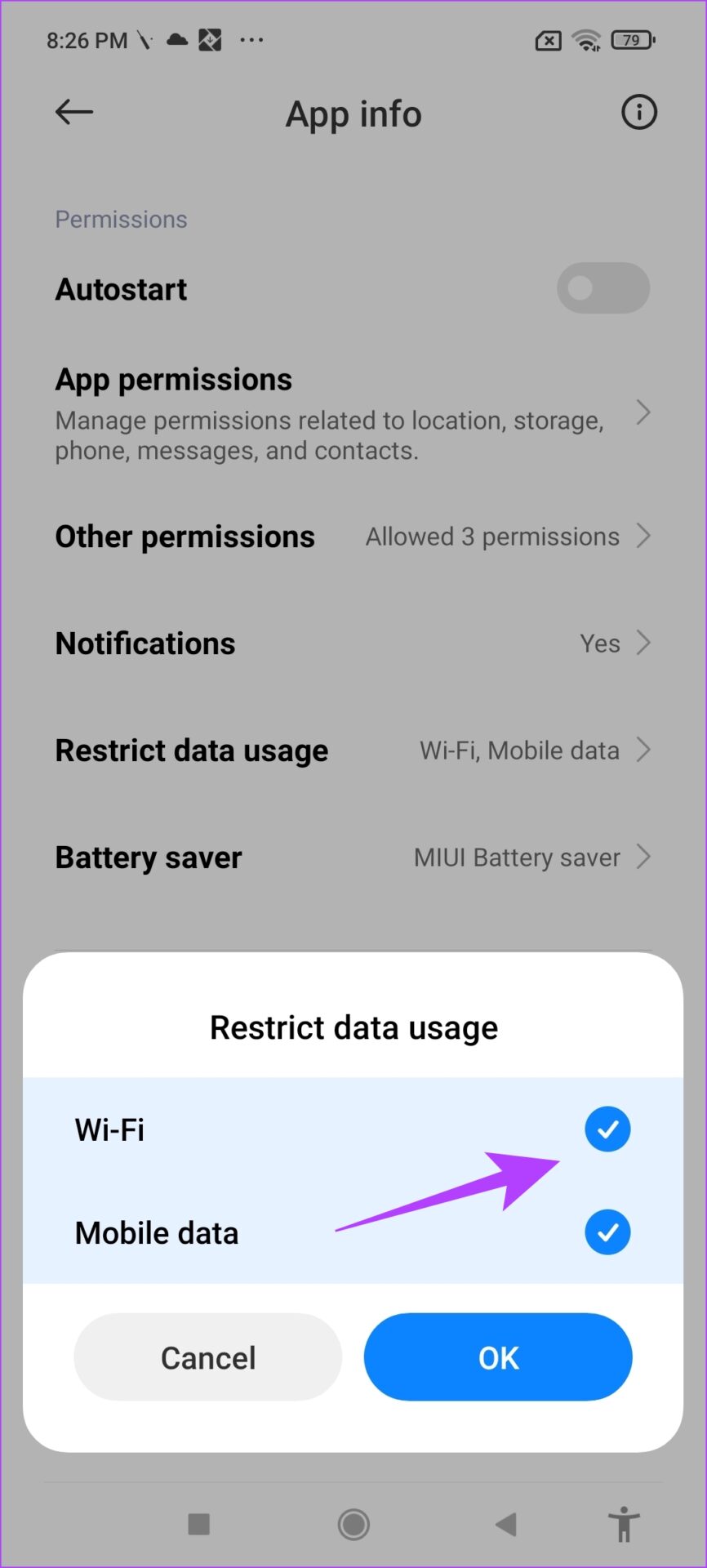
Step 2: Ensure both boxes are selected. This means X can access the internet via Wi-Fi and cellular data without restrictions.
Also Read: How to fix X (Twitter) search not working
Fix 5: Clear Cache
Accumulated cache and junk files can cause problems in an application. Clearing it from X can help you resolve the issues with video.
On Android
Tap and hold the X app icon > select app info > tap on Clear data > Clear cache.


On iPhone
Offloading an application on your iPhone removes temporary data, including cache and junk files. However, it maintains all the other essential data, such as your sign-in information, in-app purchases, etc.
Step 1: On your iPhone, go to Settings > General > tap on iPhone Storage.
Step 2: Scroll down, select the X app, and tap on Offload App. Tap on the Offload App once again to confirm.
Step 3: Now, tap on Reinstall App.


Was this helpful?
Last updated on 15 July, 2024
1 Comment
Leave a Reply
Read Next
 3 Fixes for HDR Videos Not Playing on Instagram
Basic Fixes Check internet connection: Ensure that you have a stable internet connection on your device.
3 Fixes for HDR Videos Not Playing on Instagram
Basic Fixes Check internet connection: Ensure that you have a stable internet connection on your device.
 4 Fixes for Google Drive Videos Not Playing or Processing Error
Basic Fixes File size is too large: Google Drive supports up to 5TB file size.
4 Fixes for Google Drive Videos Not Playing or Processing Error
Basic Fixes File size is too large: Google Drive supports up to 5TB file size.
 5 Fixes When Videos Are Not Playing on Firefox
Basic Fixes: Try Incognito mode: Open the website you're trying to access in an incognito window.
5 Fixes When Videos Are Not Playing on Firefox
Basic Fixes: Try Incognito mode: Open the website you're trying to access in an incognito window.
 3 Ways to Fix Snapchat Not Playing Videos on Android and iPhone
Try Basic Fixes Check if Snapchat is down: At times, server congestion or other related issues can impact Snapchat’s performance and trigger various errors.
3 Ways to Fix Snapchat Not Playing Videos on Android and iPhone
Try Basic Fixes Check if Snapchat is down: At times, server congestion or other related issues can impact Snapchat’s performance and trigger various errors.
 How to Fix WhatsApp Videos Not Playing on iPhone or Android
Basic Fixes Check your network connection: Ensure your phone has a robust internet connection.
How to Fix WhatsApp Videos Not Playing on iPhone or Android
Basic Fixes Check your network connection: Ensure your phone has a robust internet connection.
 4 Fixes When Videos in PowerPoint Are Not Playing
Basic Fixes: Confirm if the video plays outside PowerPoint: You want to ensure the video file isn't corrupt.
4 Fixes When Videos in PowerPoint Are Not Playing
Basic Fixes: Confirm if the video plays outside PowerPoint: You want to ensure the video file isn't corrupt.
 3 Fixes for YouTube Not Playing 4K Videos on Apple TV 4K
Basic Fixes Check your internet connection: YouTube lets you watch 4K content in Dolby Vision and HDR.
3 Fixes for YouTube Not Playing 4K Videos on Apple TV 4K
Basic Fixes Check your internet connection: YouTube lets you watch 4K content in Dolby Vision and HDR.
 3 Fixes for Google TV Not Playing 4K Videos
Basic Fixes Ensure your TV supports 4K resolution: This is the first and most obvious solution you must consider.
3 Fixes for Google TV Not Playing 4K Videos
Basic Fixes Ensure your TV supports 4K resolution: This is the first and most obvious solution you must consider.
The article above may contain affiliate links which help support Guiding Tech. The content remains unbiased and authentic and will never affect our editorial integrity.


You made a mistake. It’s under accessibility, not display and sound.