Basic Fixes:
- Open page in Incognito Mode: Incognito mode allows you to load your browser without any extensions, cookies, or cache data. Thus, it is the easiest way to bypass privacy restrictions caused inadvertently by extensions.
- Check for browser updates: Regularly updating your browsers can fix bugs and give access to new features and security updates. So, check and install the latest browser updates.
- Disable VPN and proxy services: VPN and Proxy services are often used to hide browsing information and access content that might be otherwise restricted. However, this can also prevent X (Twitter) links from working. So, turn off your VPN service and check again.
- Log out and log in to X (Twitter): Logging out of accounts and logging back in helps refresh account information on your browsers. This can also help fix the issue related to X (Twitter) links.
- Change DNS servers: If your currently connected DNS server is not working properly, it can cause links to not open when using X (Twitter) on Safari or Chrome. In this case, change the DNS server on your Windows or Mac devices and try again.
- Try using a different browser: If you still can’t open links from X (Twitter), changing your browser might do the trick. Simply copy and paste the link onto the address bar of a different web browser like Firefox and check if it works.
Fix 1: Check Wi-Fi Signal Strength
An active Wi-Fi connection ensures that you have a smooth browsing experience. So, if you have trouble with X (Twitter) links not opening, check if your system is connected to an active Wi-Fi connection with good signal strength. Here’s how.
On Windows
Step 1: In the taskbar, click on the Wi-Fi icon to open Quick Settings. Click on the Wi-Fi icon and connect to your desired network.

You can also refer to our guide to learn more about how to view your Wi-Fi signal strength in Windows.
On Mac
Checking your Wi-Fi’s dBm or decibel levels is a good way to check the Wi-Fi signal strength on your Mac. If the levels are anywhere below -50 dBm, it is better to connect to another nearby network instead.
Step 1: Press the option key and click on the Wi-Fi icon simultaneously. Check if RSSI is between -30 dBm to -50 dBm range.
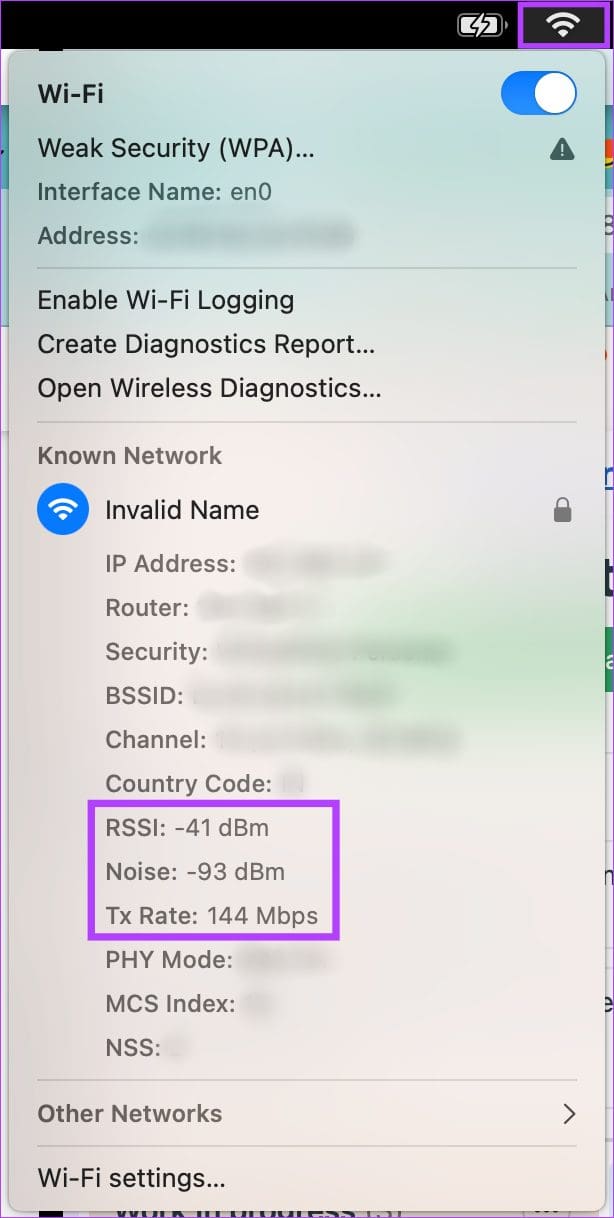
If the Wi-Fi connectivity is perfect, move on to the next step. If not, contact your internet service provider to get things sorted.
Fix 2: Turn off Metered Connection
The metered connection setting can prevent the browser from loading content if you have exhausted the data limit. In such a case, the metered connection setting might be preventing you from opening the X (Twitter) link. Here’s how to disable it on your Windows device.
Note: The metered connection setting is not available on Mac.
Step 1: Open Settings and click on Network & internet. Click on Wi-Fi.
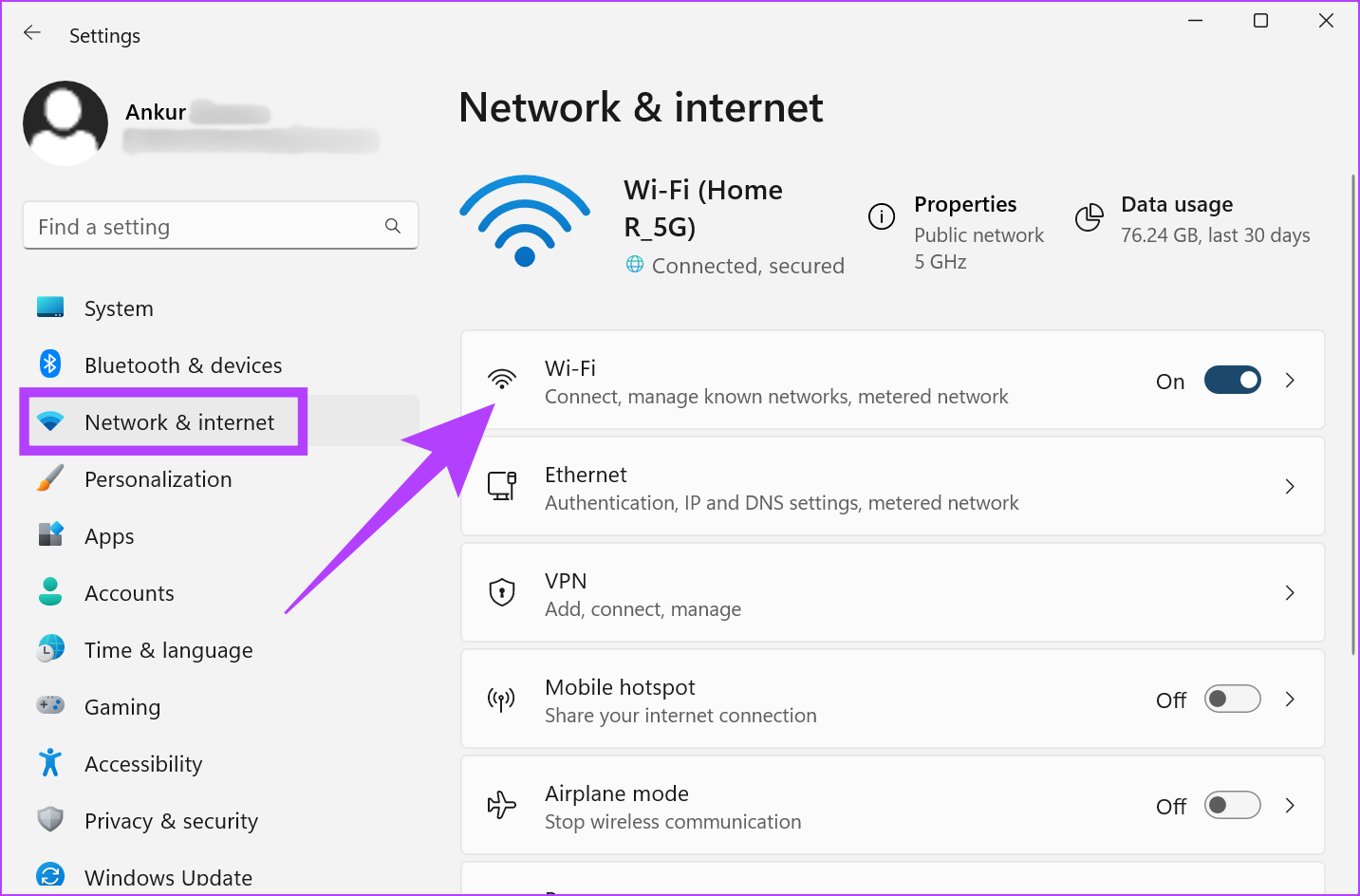
Step 2: Here, go to your Wi-Fi properties.

Step 3: Scroll down and turn off the toggle for Metered connection.

Also Read: How to fix links not opening or working in X (Twitter) app
Fix 3: Remove Browser Extensions
Chrome and Safari come with a plethora of extensions that offer additional features to your browser. However, sometimes these extensions might end up interfering with your browser’s functionality, leading to X (Twitter) links not working. Here’s how you can remove extensions on your Chrome and Safari browsers.
On Chrome
Step 1: Open Chrome and click the three-dot icon. Go to Extensions and click on Manage Extensions.

Step 2: Go to the relevant extension, click on Remove, and confirm the same.

On Safari
Step 1: Open Safari and, from the menu options, click on Safari. Click on Settings.
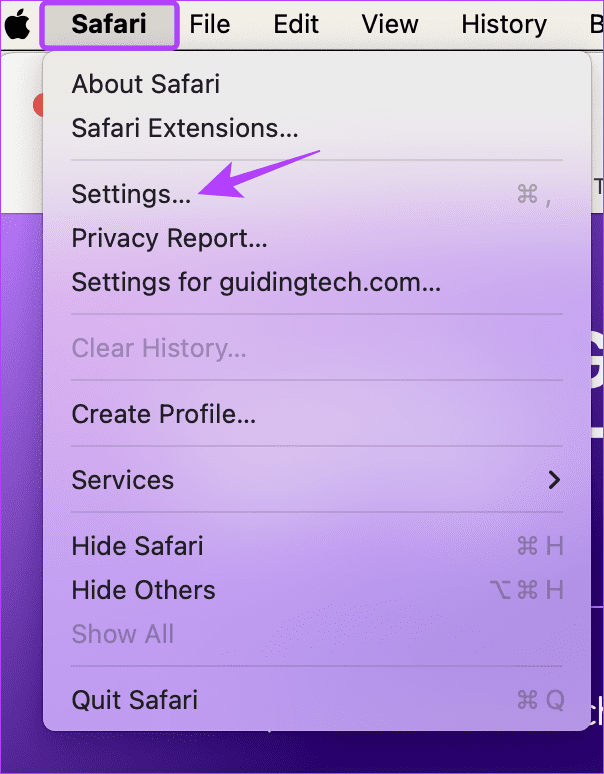
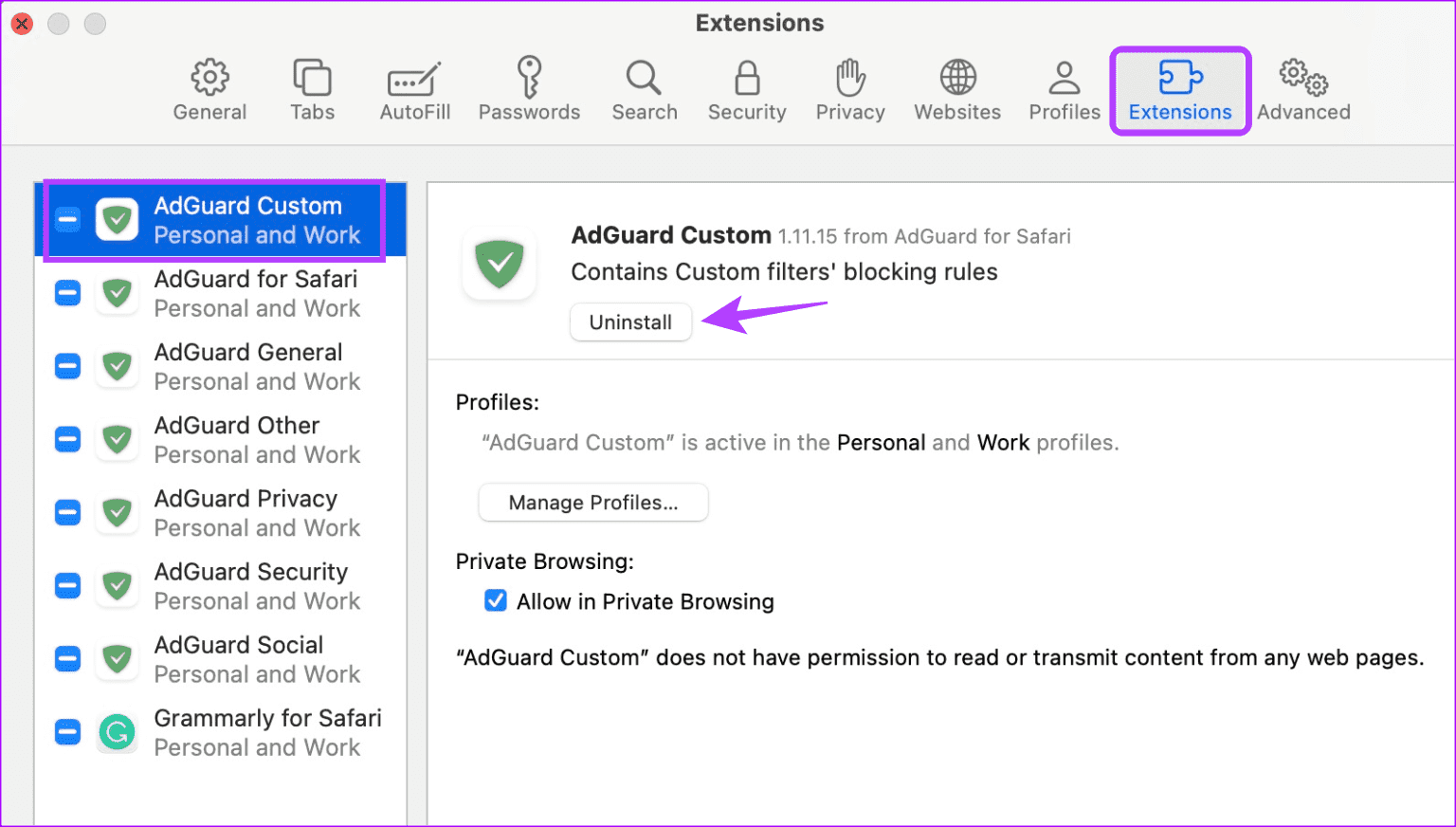
Step 2: Click on Extensions. Click on the relevant extension and click on Uninstall.
Fix 4: Clear Cookies and Cache
While browser cache and cookies are there to help load the pages faster, they are known to sporadically slow down the browser. Besides, if this cache gets compromised, it can also prevent X (Twitter) links from working. Here’s how to fix it by clearing the browser cookies and cache.
On Chrome
Step 1: Open Chrome and click the three-dot icon. Click on Delete browsing data.

Step 2: Select the relevant options and click on Delete data. Confirm when prompted.

On Safari
Step 1: Open Safari and, from the menu options, click on Safari. Click on Settings.
Step 2: Click on Advanced.

Step 3: Check the Show Develop Menu in the Menu Bar option.

Step 4: Close the window and click on Develop from the menu options.

Step 5: Click on Empty Caches.

Once this is done, restart Safari and reopen X (Twitter). Then, try opening the link again to check if the issue has been resolved.
Was this helpful?
Last updated on 28 August, 2024
Read Next
 How to Fix Links Not Opening or Working in X (Twitter) App
Basic Fixes: Restart your device: Restarting your smartphone helps close and restart the app process from scratch.
How to Fix Links Not Opening or Working in X (Twitter) App
Basic Fixes: Restart your device: Restarting your smartphone helps close and restart the app process from scratch.
 3 Ways to Stop Mac From Opening Links in Safari
Method 1: Change the Default Browser on Your Mac Your Mac comes with Safari as the default browser.
3 Ways to Stop Mac From Opening Links in Safari
Method 1: Change the Default Browser on Your Mac Your Mac comes with Safari as the default browser.
 3 Ways to Fix Links Not Opening in Google Chrome
Fix 1: Disable Browser Extensions (for Desktop Only) Using third-party extensions in Chrome allows you to extend the browser's functionality.
3 Ways to Fix Links Not Opening in Google Chrome
Fix 1: Disable Browser Extensions (for Desktop Only) Using third-party extensions in Chrome allows you to extend the browser's functionality.
 4 Ways to Fix Links Not Opening in Telegram for Android and iPhone
Try Basic Fixes Check if Telegram is down: Telegram links may stop working if there’s an issue with its servers.
4 Ways to Fix Links Not Opening in Telegram for Android and iPhone
Try Basic Fixes Check if Telegram is down: Telegram links may stop working if there’s an issue with its servers.
 4 Fixes for Links Not Opening in WhatsApp on iPhone and Android
Basic Fixes Check if the link is working: If the links you shared with your contact are not working, you should check whether the link is correct.
4 Fixes for Links Not Opening in WhatsApp on iPhone and Android
Basic Fixes Check if the link is working: If the links you shared with your contact are not working, you should check whether the link is correct.
 5 Fixes for Links Not Opening in Facebook Messenger for Android and iPhone
Fix 1: Allow Messenger to Open Supported Links (Android) Messenger may fail to open links on your Android phone due to a lack of relevant permissions.
5 Fixes for Links Not Opening in Facebook Messenger for Android and iPhone
Fix 1: Allow Messenger to Open Supported Links (Android) Messenger may fail to open links on your Android phone due to a lack of relevant permissions.
 How to Find and Delete Safari’s ‘Shared With You’ Links on iPhone
How to Enable Shared With You If your iPhone runs iOS 15 or later, you can use the Shared With You feature.
How to Find and Delete Safari’s ‘Shared With You’ Links on iPhone
How to Enable Shared With You If your iPhone runs iOS 15 or later, you can use the Shared With You feature.
 Top 4 Ways to Open All Links in New Tabs in Chrome
Method 1: Scroll Wheel/Middle Mouse Button If you do not like the idea of having a Chrome extension, you can trust the mouse to handle this job for you.
Top 4 Ways to Open All Links in New Tabs in Chrome
Method 1: Scroll Wheel/Middle Mouse Button If you do not like the idea of having a Chrome extension, you can trust the mouse to handle this job for you.
The article above may contain affiliate links which help support Guiding Tech. The content remains unbiased and authentic and will never affect our editorial integrity.