Try Basic Fixes
- Restart your phone: This is an effective way to resolve any temporary issues with the operating system and give it a fresh start. So, before you try any advanced troubleshooting tips, try restarting your Android or iPhone to fix the clock.
- Install software updates: If your phone displays an incorrect time even after a reboot, the problem could be software-related. Most of the time, you can fix such issues by installing pending system updates on your Android or iPhone.
Fix 1: Allow Your Phone to Set Time Automatically
The “Automatic date and time” feature allows your phone to retrieve the correct date and time from your network and set the system clock accordingly. It’s a good idea to enable this feature if your phone’s clock is wrong or keeps changing.
Android
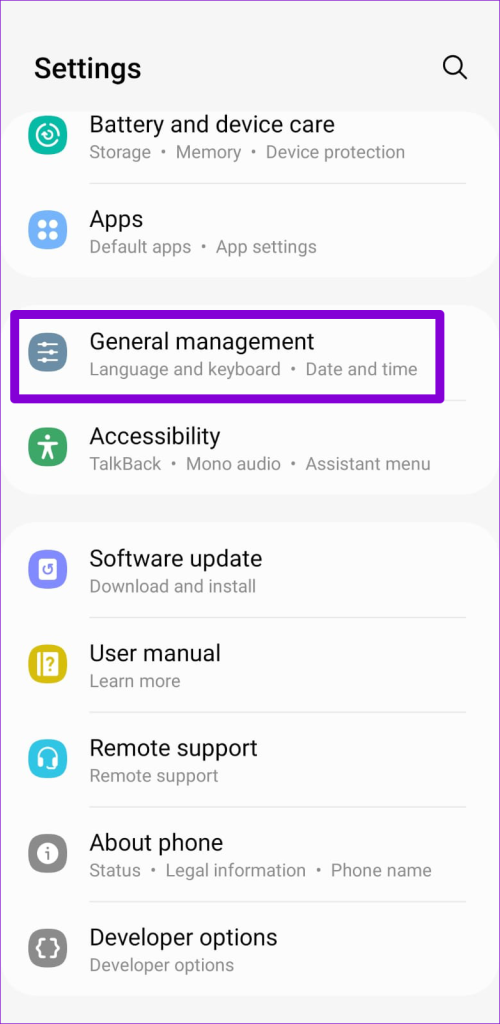
Step 1: Open the Settings app on your phone and scroll down to tap on General management.
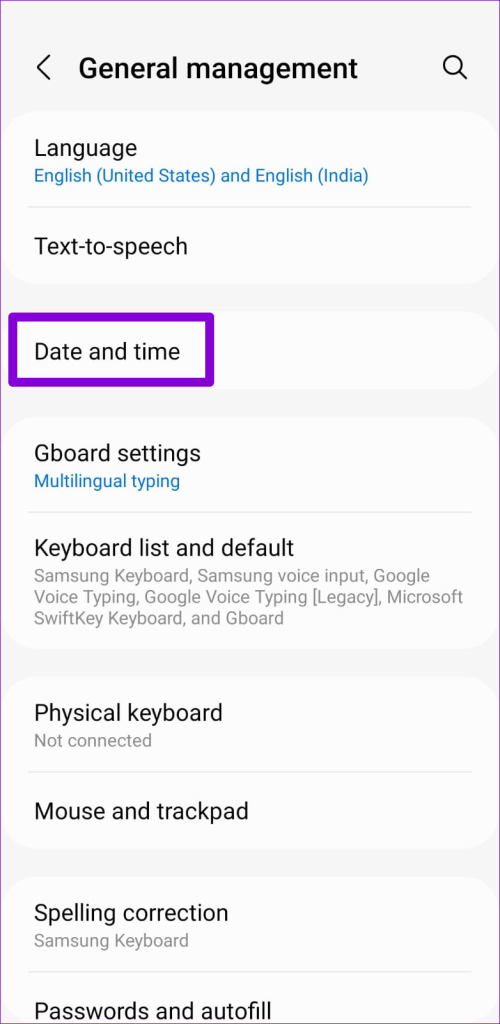
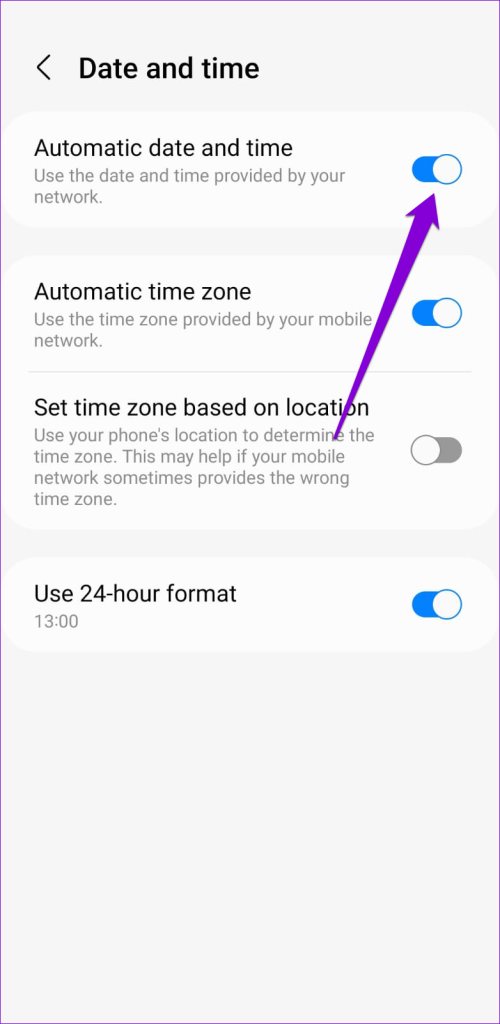
Step 2: Tap Date and time and enable the toggle next to Automatic date and time.
iPhone
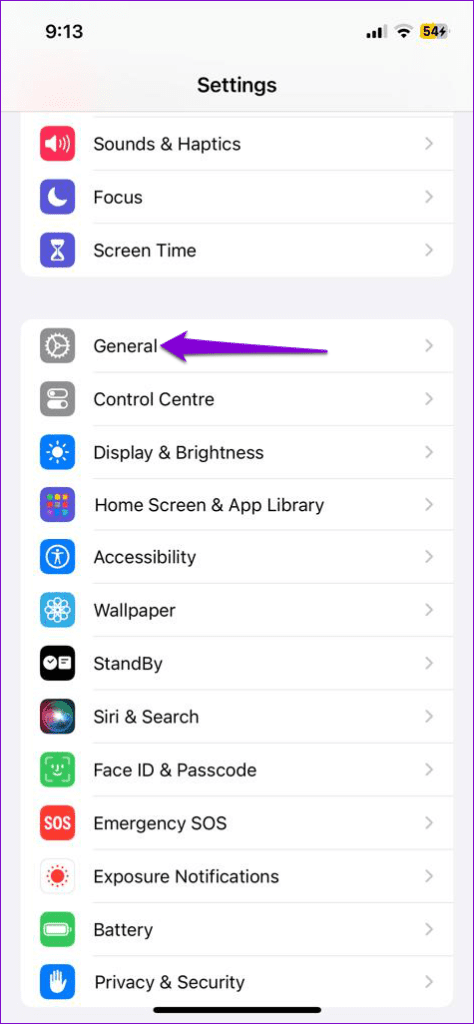
Step 1: Launch the Settings app on your iPhone and navigate to General.
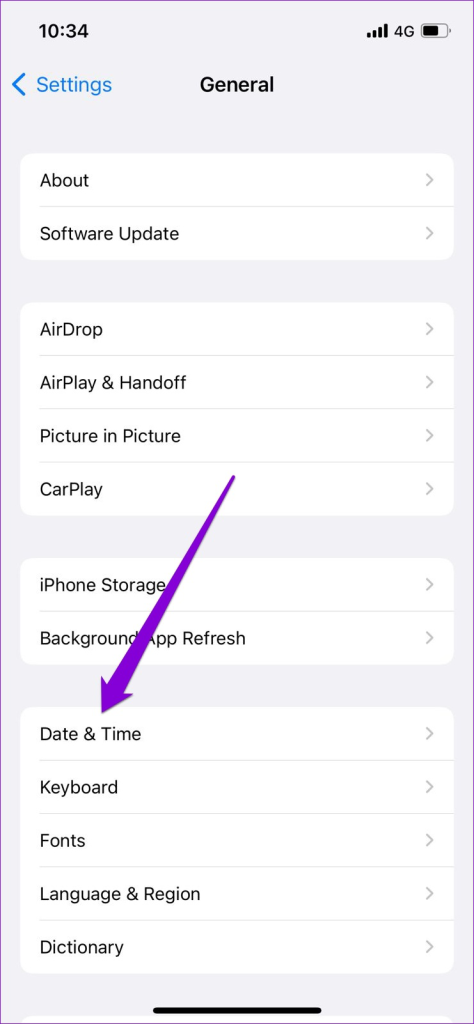
Step 2: Tap on Date & Time and toggle on the switch next to Set Automatically.

Fix 2: Correct the Clock Manually
Setting the time manually is a quick and easy way to fix an out-of-sync clock on your Android or iPhone. You can use this method if the automatic date and time feature isn’t working properly on your phone.
Android
Step 1: Open the Settings app and head to General management > Date and time.
Step 2: Turn off the toggle next to Automatic date and time.
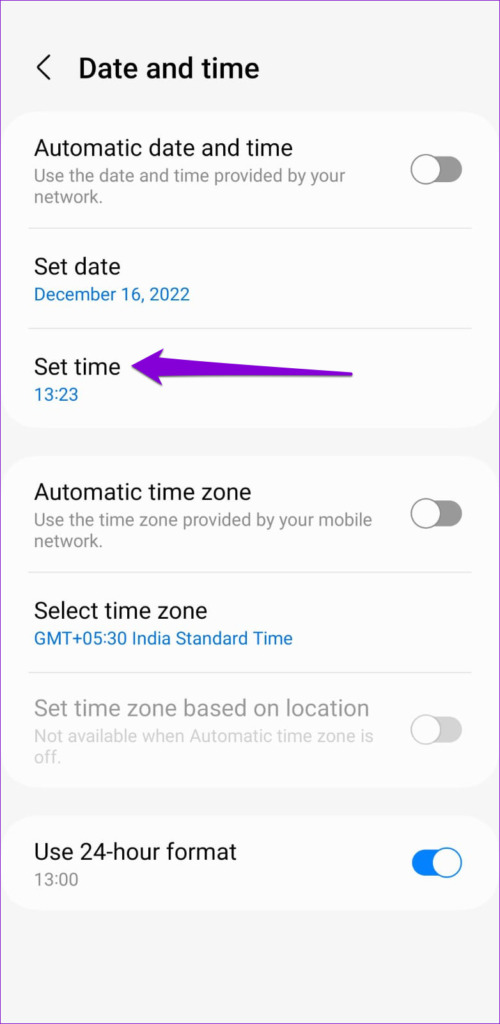
Step 3: Tap Set time, set the clock, and tap Done.


iPhone
Step 1: Open the Settings app on your iPhone and tap on General.
Step 2: Tap Date & Time and disable the toggle next to Set Automatically.
Step 3: Tap the date or time below the Time Zone option.
Step 4: Tap the time field at the bottom-right corner and correct the clock manually.


Fix 3: Set the Correct Time Zone
If your phone is set to an incorrect time zone, it will display the wrong time even when the “Automatic date and time” setting is turned on. Here’s how you can set the correct time zone on your Android or iPhone.
Android
Step 1: Open the Settings app and head to General management > Date and time.
Step 2: Tap Select time zone and set the right Region and Time zone in the following menu.


iPhone
Step 1: Launch the Settings app and head to General > Date & Time > Time Zone.
Step 2: Use the search bar to look for your current time zone and select it.


Was this helpful?
Last updated on 25 July, 2024
Read Next
 3 Ways to Fix Google Maps Showing Wrong Location on Android and iPhone
Try Basic Fixes Turn off battery saver mode: When you enable battery-saving mode, your phone turns off power-hungry features such as GPS tracking and background app data to improve battery
3 Ways to Fix Google Maps Showing Wrong Location on Android and iPhone
Try Basic Fixes Turn off battery saver mode: When you enable battery-saving mode, your phone turns off power-hungry features such as GPS tracking and background app data to improve battery
 4 Ways to Fix Instagram Something Went Wrong Error
Basic Fixes Check your network connection: Ensure your device has a good internet connection.
4 Ways to Fix Instagram Something Went Wrong Error
Basic Fixes Check your network connection: Ensure your device has a good internet connection.
 5 Ways to Fix iPhone Showing Wrong Caller ID
Basic Fixes Force restart your iPhone: Press and quickly release the Volume Up button followed by Volume Down.
5 Ways to Fix iPhone Showing Wrong Caller ID
Basic Fixes Force restart your iPhone: Press and quickly release the Volume Up button followed by Volume Down.
 5 Ways to Fix “Something Went Wrong” on YouTube for iPhone
Can't watch YouTube on your iPhone due to the "Something went wrong, tap to retry" error?
5 Ways to Fix “Something Went Wrong” on YouTube for iPhone
Can't watch YouTube on your iPhone due to the "Something went wrong, tap to retry" error?
 3 Ways to Fix iPhone Clock Widget Showing Wrong Time
Basic Troubleshooting Restart iPhone: If the iPhone clock widget used to show the correct time but suddenly stopped working, restart your iPhone.
3 Ways to Fix iPhone Clock Widget Showing Wrong Time
Basic Troubleshooting Restart iPhone: If the iPhone clock widget used to show the correct time but suddenly stopped working, restart your iPhone.
 3 Ways to Fix Snapchat “Something Went Wrong” Error on Android and iPhone
https://youtu.be/qmKVtzAaayE Try Basic Fixes Avoid adding too many friends at once: If you've recently added too many friends, Snapchat may prevent you from adding more by displaying errors like "Something
3 Ways to Fix Snapchat “Something Went Wrong” Error on Android and iPhone
https://youtu.be/qmKVtzAaayE Try Basic Fixes Avoid adding too many friends at once: If you've recently added too many friends, Snapchat may prevent you from adding more by displaying errors like "Something
 3 Ways to Fix Something Went Wrong Error in Spotify for Android and iPhone
Try Basic Fixes Update the app: Using an outdated version of the Spotify app can also trigger the "Something went wrong" error.
3 Ways to Fix Something Went Wrong Error in Spotify for Android and iPhone
Try Basic Fixes Update the app: Using an outdated version of the Spotify app can also trigger the "Something went wrong" error.
 6 Ways to Fix ‘Something Went Wrong’ Error in Play Store
Basic Fixes Restart Play Store: Long tap on the Play Store app, select App Info, and tap on Force Stop.
6 Ways to Fix ‘Something Went Wrong’ Error in Play Store
Basic Fixes Restart Play Store: Long tap on the Play Store app, select App Info, and tap on Force Stop.
The article above may contain affiliate links which help support Guiding Tech. The content remains unbiased and authentic and will never affect our editorial integrity.