Fix 1: Enable Slide to Type on iPhone
You might have accidentally disabled the slide-to-type function on your iPhone. Here’s how to check and fix it.
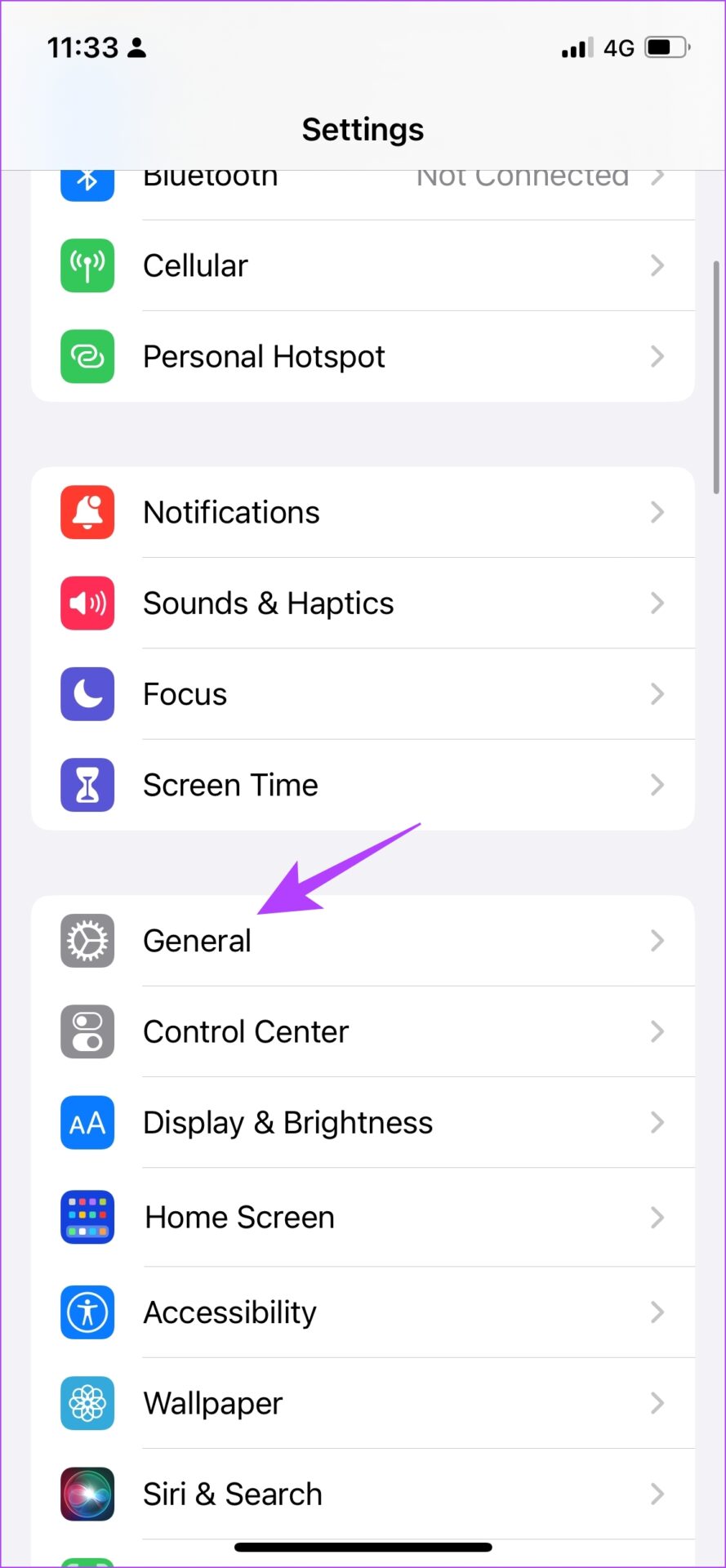
Step 1: Open the Settings app > tap on General.
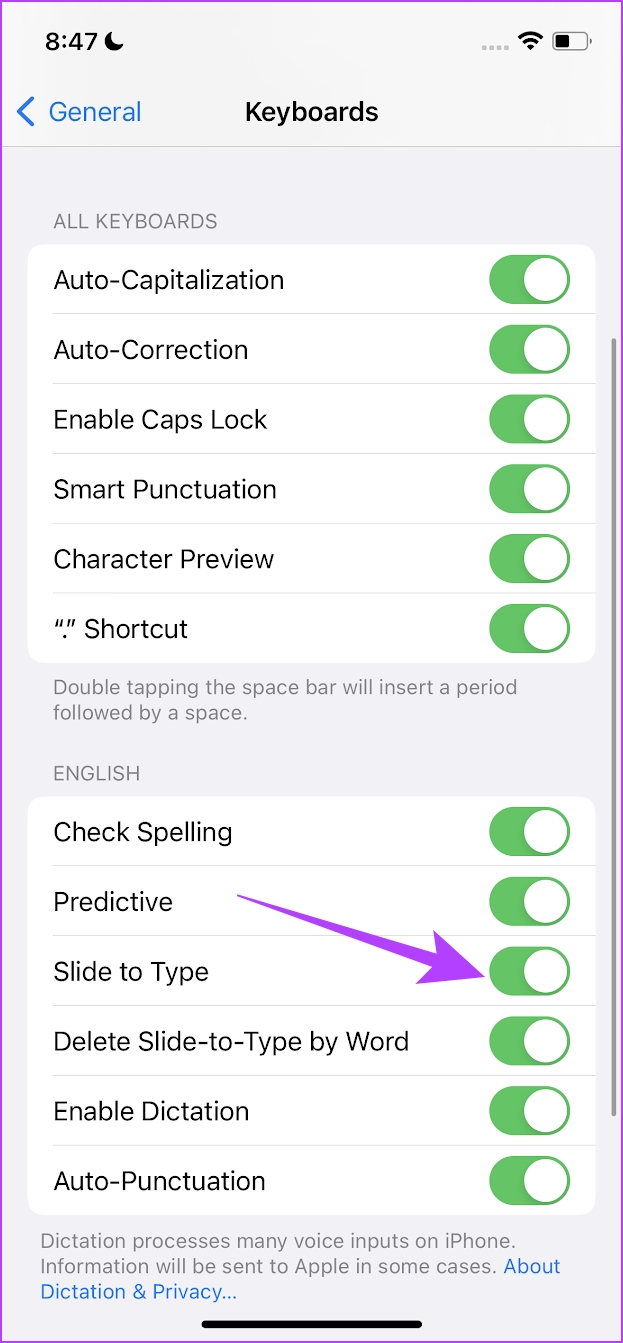
Step 2: Tap on Keyboard > turn on the toggle for Slide to Type.

Fix 2: Switch to Default Apple Keyboard
You might be unable to access the swipe keyboard feature if you are stuck using a third-party keyboard on your iPhone and iPad. To access slide to type, switch back to the default iPhone keyboard.
To return to using the default Apple keyboard, tap on the globe icon on the keyboard.


Also Read: How to fix iPhone keyboard not showing up
Fix 3: Disable Third-Party Keyboard
If you have trouble switching back to the default Apple keyboard, disable the third-party keyboard on your iPhone and iPad.
Step 1: Open the Settings app > tap on General > Keyboard.
Step 2: Tap on Keyboards. This will open up a list of all the keyboards in use.
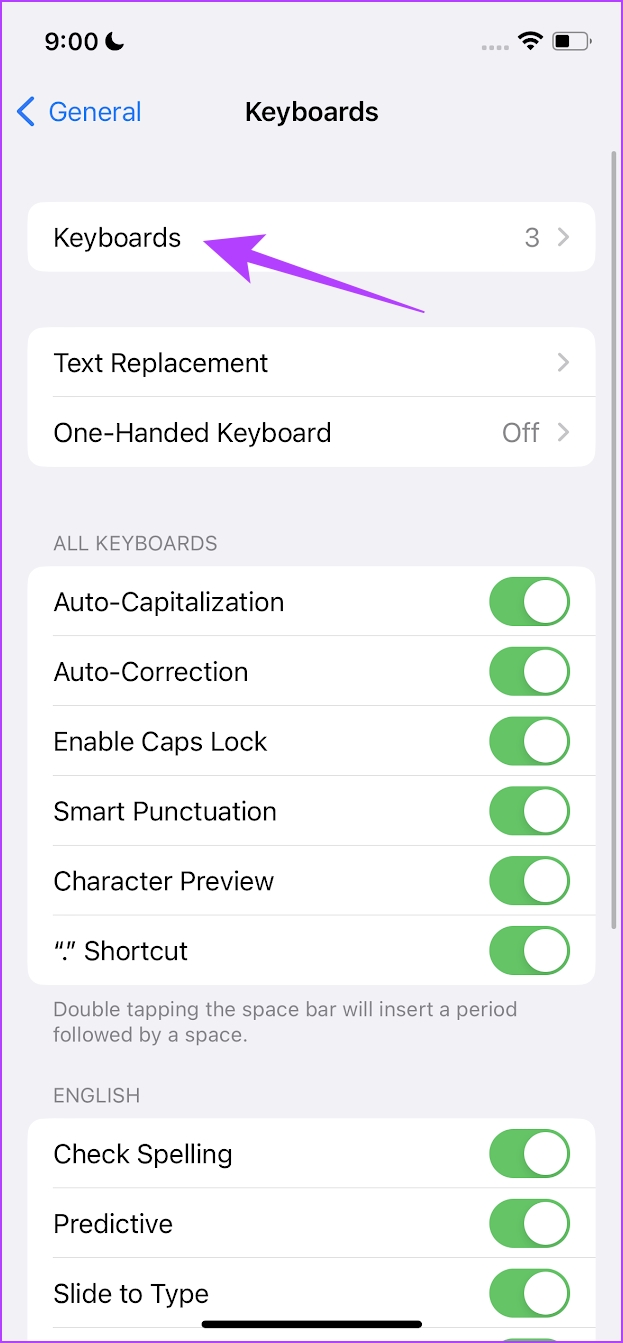
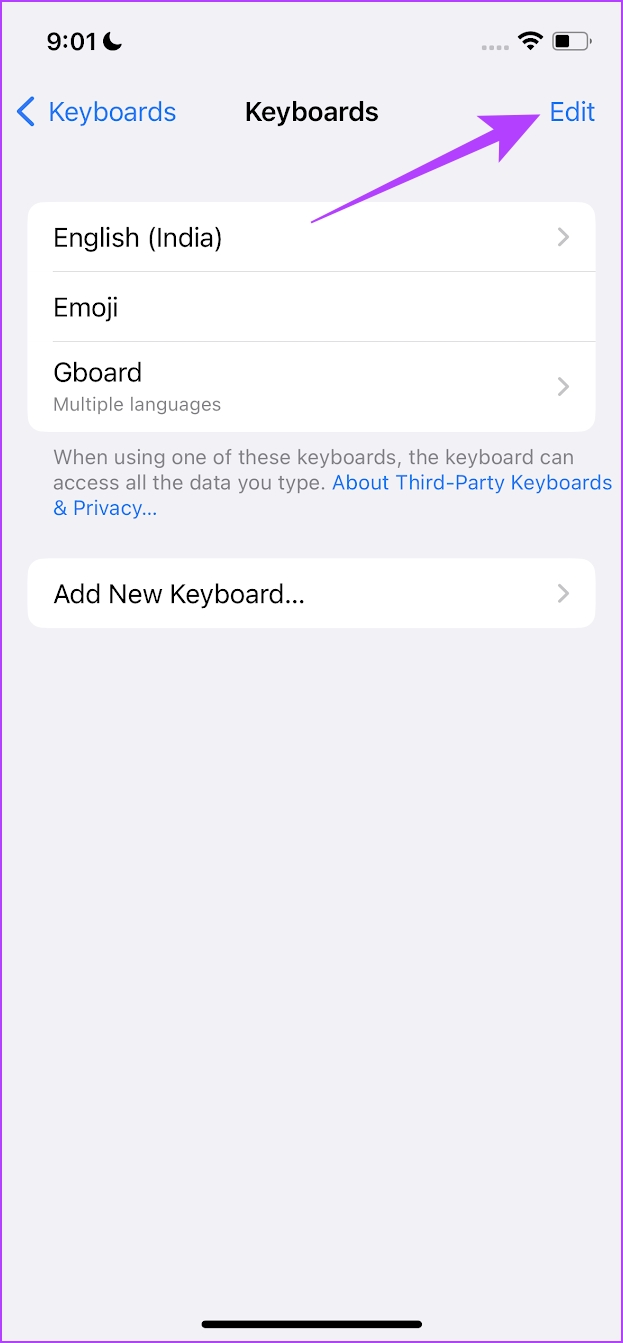
Step 3: Now, tap on Edit.
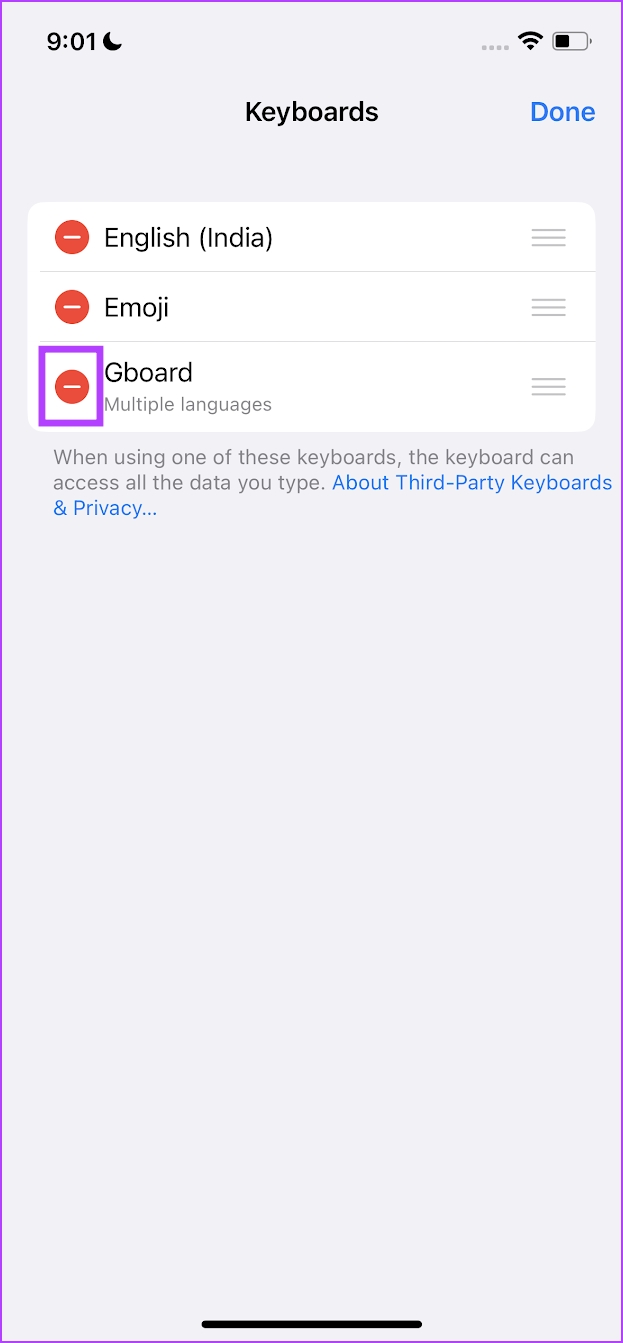
Step 4: Tap on the minus option to remove all the third-party keyboards.
If nothing works, you can install a third-party keyboard from the App Store to use the swipe feature or reset all settings to fix any misconfiguration causing the issue.
Was this helpful?
Last updated on 09 August, 2024
Read Next
 4 Ways to Fix Swipe Up Not Working on iPhone
https://youtu.be/vornyo94MCA If You're Unable to Unlock iPhone Force restart iPhone: The first thing you must do if you can’t swipe up on your iPhone is restart it.
4 Ways to Fix Swipe Up Not Working on iPhone
https://youtu.be/vornyo94MCA If You're Unable to Unlock iPhone Force restart iPhone: The first thing you must do if you can’t swipe up on your iPhone is restart it.
 2 Ways to Fix Apple Watch Swipe Up Not Working
Try Basic Fixes Force restart the Apple Watch: Press and hold the side button along with the Apple Watch digital crown simultaneously for 10 seconds.
2 Ways to Fix Apple Watch Swipe Up Not Working
Try Basic Fixes Force restart the Apple Watch: Press and hold the side button along with the Apple Watch digital crown simultaneously for 10 seconds.
 How to Remove Mi Browser From Swipe up Gesture and Disable the App
Stop Mi Browser From Opening When You Swipe up on Home Screen Step 1: Open the Settings app.
How to Remove Mi Browser From Swipe up Gesture and Disable the App
Stop Mi Browser From Opening When You Swipe up on Home Screen Step 1: Open the Settings app.
 Top 9 Fixes for Facebook Notifications Not Working on iPhone and iPad
Imagine getting several comments and likes on your recent profile picture, and Facebook doesn't notify you about the same.
Top 9 Fixes for Facebook Notifications Not Working on iPhone and iPad
Imagine getting several comments and likes on your recent profile picture, and Facebook doesn't notify you about the same.
 Top 11 Fixes for FaceTime Audio Not Working on iPhone and iPad
FaceTime is a fantastic video-calling service that Apple users cherish.
Top 11 Fixes for FaceTime Audio Not Working on iPhone and iPad
FaceTime is a fantastic video-calling service that Apple users cherish.
 Top 6 Fixes for Facetime Picture-in-Picture Not Working on iPhone & iPad
With the Picture-in-Picture (PiP) mode, multitasking is easy on iPhone and iPad.
Top 6 Fixes for Facetime Picture-in-Picture Not Working on iPhone & iPad
With the Picture-in-Picture (PiP) mode, multitasking is easy on iPhone and iPad.
 Top 7 Fixes for Share Sheet Not Working on iPhone and iPad
The Share Sheet on iPhone and iPad houses shortcuts to contacts, apps, and various actions.
Top 7 Fixes for Share Sheet Not Working on iPhone and iPad
The Share Sheet on iPhone and iPad houses shortcuts to contacts, apps, and various actions.
 How to Hide Android On-Screen Keyboard When Using External Keyboard
Google understands that multiple users connect physical keyboards to their Android devices.
How to Hide Android On-Screen Keyboard When Using External Keyboard
Google understands that multiple users connect physical keyboards to their Android devices.
The article above may contain affiliate links which help support Guiding Tech. The content remains unbiased and authentic and will never affect our editorial integrity.