Basic Fixes:
- Reboot the home network and fix other network problems: You should restart your home connection since this problem mainly points to a network issue.
- Ensure Steam is set to Go Offline: Click the Steam option at the top left. Under the Change account, you should see Go Online or Go Offline. Set it to Go Offline if not already.
- Reinstall Steam: Reinstalling Steam will also be effective since it fixes all corruption triggering the problem.
- Use Google DNS: Switching to Google DNS is an easy fix; this will resolve the underlying network issues, causing the Steam problem.
Fix 1: Turn off Limit IP Tracking in the Network Settings (Mac)
This first solution is very effective but only works for Mac users. Many users have claimed it was the ultimate solution.
Step 1: Click the Apple logo at the top left > click on System Settings.
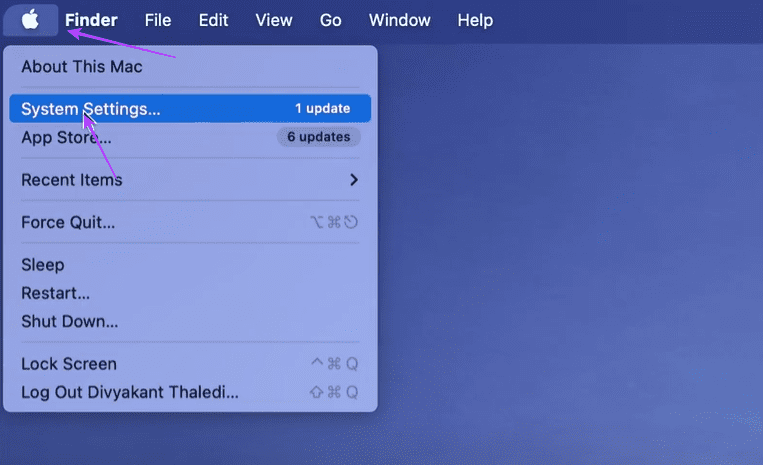
Step 2: Click on Network on the left pane > Wi-Fi on the right.

Step 3: Click on the Details option > toggle off Limit IP address tracking, > click OK.

Fix 2: Clear Download Cache
Here, we are not referring to your Windows or macOS computer cache. We are talking about the Steam client cache, and there is a way to clear it from inside the app.
Step 1: Open the Steam client > select Settings under Steam.

Step 2: The Clear Download Cache button is under the Downloads tab. Click on it and confirm in the pop-up that follows.
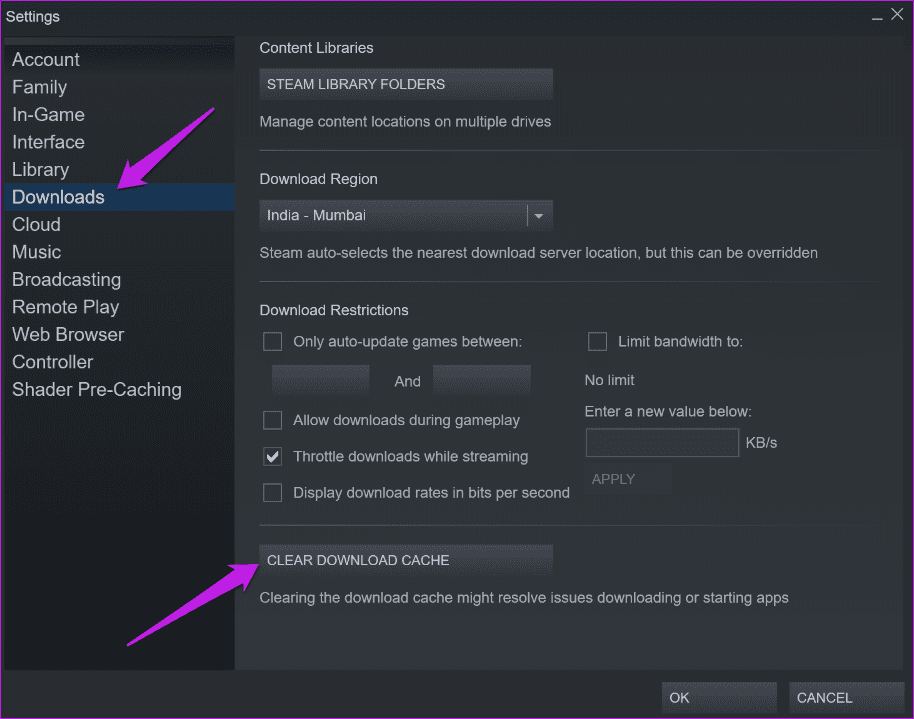
At this point, you don’t need to reboot your computer or sign back into the Steam client, as it has the option built into it.
Fix 3: Change Download Region
Steam has download servers worldwide and will automatically choose one based on your IP address. One that’s closest to you to provide optimal speeds. Changing the server location can help improve download speeds or fix downloading errors.
Step 1: Open the Steam client again and go to Settings > Downloads tab.
Step 2: Choose a new download location from the Download Region drop-down menu.
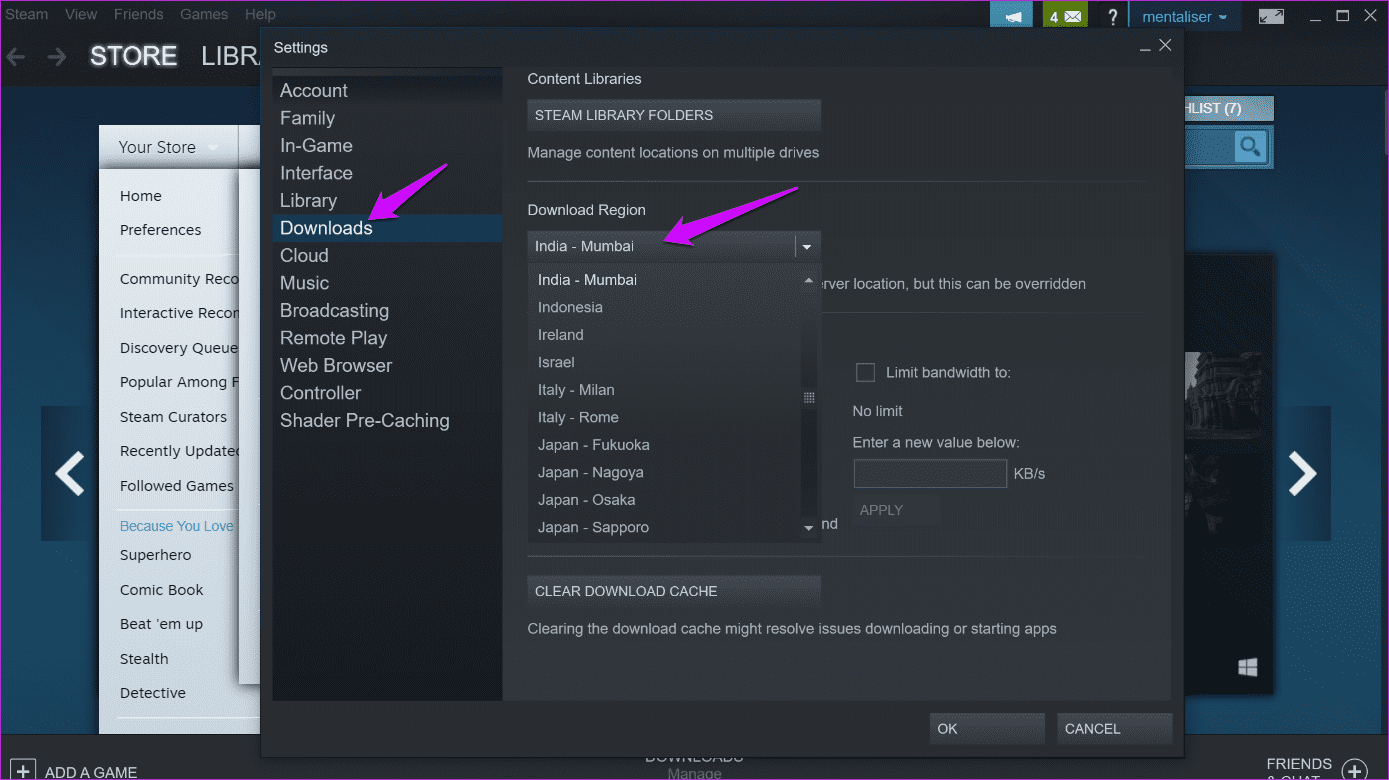
I suggest choosing a location that’s closer to where you live. That will give you better download speeds. Try a couple of locations before moving on to the next method. Multiple servers could be affected.
Fix 4: Verify Game Files Integrity and Repair Library Folders
Steam downloads all the required game files to ensure your favorite game runs smoothly. However, these files could get corrupted, and updates cannot be downloaded via the Steam client. Steam knows this, so it offers a way to check files’ integrity.
Step 1: Open Steam client > go to Library where you will find all your downloaded games > right-click to select Properties.

Step 2: Under the Local Files tab, click on Verify Integrity of game files to begin the process.

Now, proceed to repair library folders following the steps below:
Step 1: Open the Steam client > go to Steam > Settings.

Step 2: Click on Steam Library Folders under the Downloads tab.
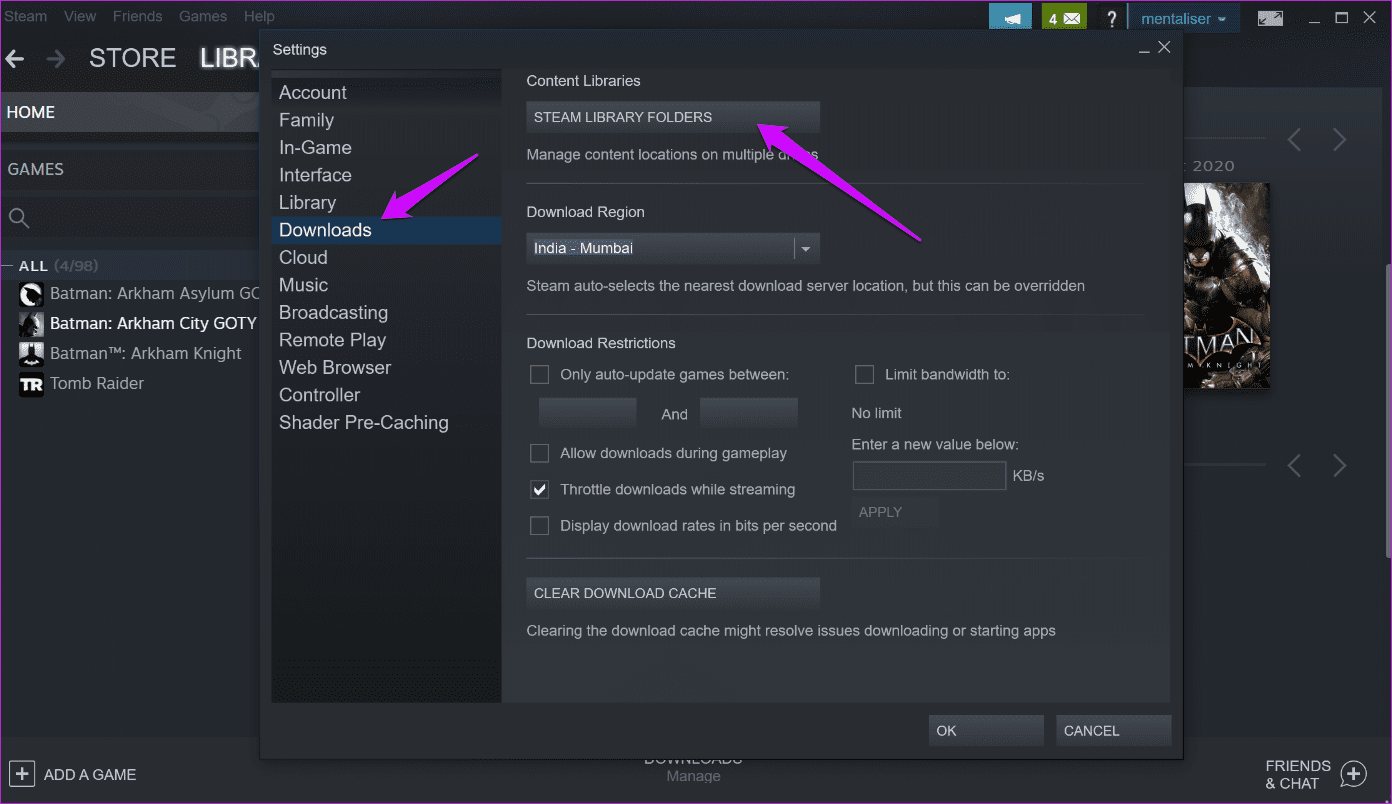
Step 3: In the following pop-up, right-click on the Steam folder location where files are saved > select Repair Library Folder.
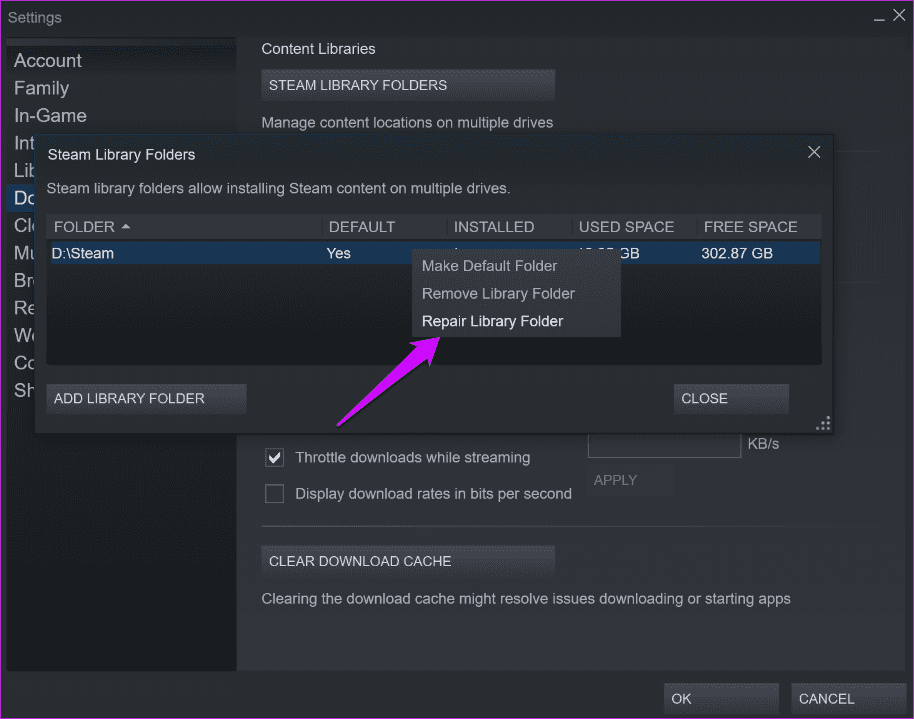
Steam will check for corrupt files and repair them or re-download them. Check if you can now download game updates via Steam.
Was this helpful?
Last updated on 26 July, 2024
Read Next
 7 Ways to Fix Microsoft Store Not Downloading Apps or Games
Fix 1: Restart Microsoft Store Shutting down the app can kill any bugs, and it is unlikely to appear once you open the Microsoft Store again.
7 Ways to Fix Microsoft Store Not Downloading Apps or Games
Fix 1: Restart Microsoft Store Shutting down the app can kill any bugs, and it is unlikely to appear once you open the Microsoft Store again.
 How to Fix Xbox App Not Downloading Games on Windows 11
Basic Fixes Check your network connection: Ensure your PC has a good internet connection to download games in the Xbox app.
How to Fix Xbox App Not Downloading Games on Windows 11
Basic Fixes Check your network connection: Ensure your PC has a good internet connection to download games in the Xbox app.
 How to Fix Epic Games Library Not Showing Games
Basic Fixes: Refresh Epic Games launcher library: A quick refresh can help fix any glitches keeping you from accessing your Epic Games Library.
How to Fix Epic Games Library Not Showing Games
Basic Fixes: Refresh Epic Games launcher library: A quick refresh can help fix any glitches keeping you from accessing your Epic Games Library.
 How to Uninstall Epic Games Launcher and Its Games
Things to Consider Before Uninstalling Games or Epic Games Launcher Before uninstalling Epic Games Launcher or the games in it, consider the following things: Backup game files: If you have
How to Uninstall Epic Games Launcher and Its Games
Things to Consider Before Uninstalling Games or Epic Games Launcher Before uninstalling Epic Games Launcher or the games in it, consider the following things: Backup game files: If you have
 Where Are Steam Games Stored and How to Change Their Location
Where Does Steam Install Games?
Where Are Steam Games Stored and How to Change Their Location
Where Does Steam Install Games?
 How to Link Epic Games to Steam: Everything You Need to Know
Things to Remember Before you go ahead with linking your Steam and Epic Games accounts to one another, there are a handful of things to keep in mind.
How to Link Epic Games to Steam: Everything You Need to Know
Things to Remember Before you go ahead with linking your Steam and Epic Games accounts to one another, there are a handful of things to keep in mind.
 How to Share Games on Steam With Friends and Family
Do you ever stare at your massive Steam library, wishing you could share the joy with your friends?
How to Share Games on Steam With Friends and Family
Do you ever stare at your massive Steam library, wishing you could share the joy with your friends?
 6 Ways to Fix Steam Games Not Launching on Windows 11
Basic Fixes Restart the Steam Client: Before starting the Steam client, close it using the Task Manager.
6 Ways to Fix Steam Games Not Launching on Windows 11
Basic Fixes Restart the Steam Client: Before starting the Steam client, close it using the Task Manager.
The article above may contain affiliate links which help support Guiding Tech. The content remains unbiased and authentic and will never affect our editorial integrity.