Try These Basic Fixes
- Clean the keyboard: Use a soft brush and a can of compressed air to remove any dust particles around and beneath the spacebar key on your keyboard.
- Rule out issues with your keyboard: If you use an external keyboard, try disconnecting and reconnecting it to your computer. Alternatively, connect your keyboard to another computer and check the spacebar key. This should help you determine whether the issue is related to the keyboard itself.
Fix 1: Turn off Sticky Keys and Filter Keys
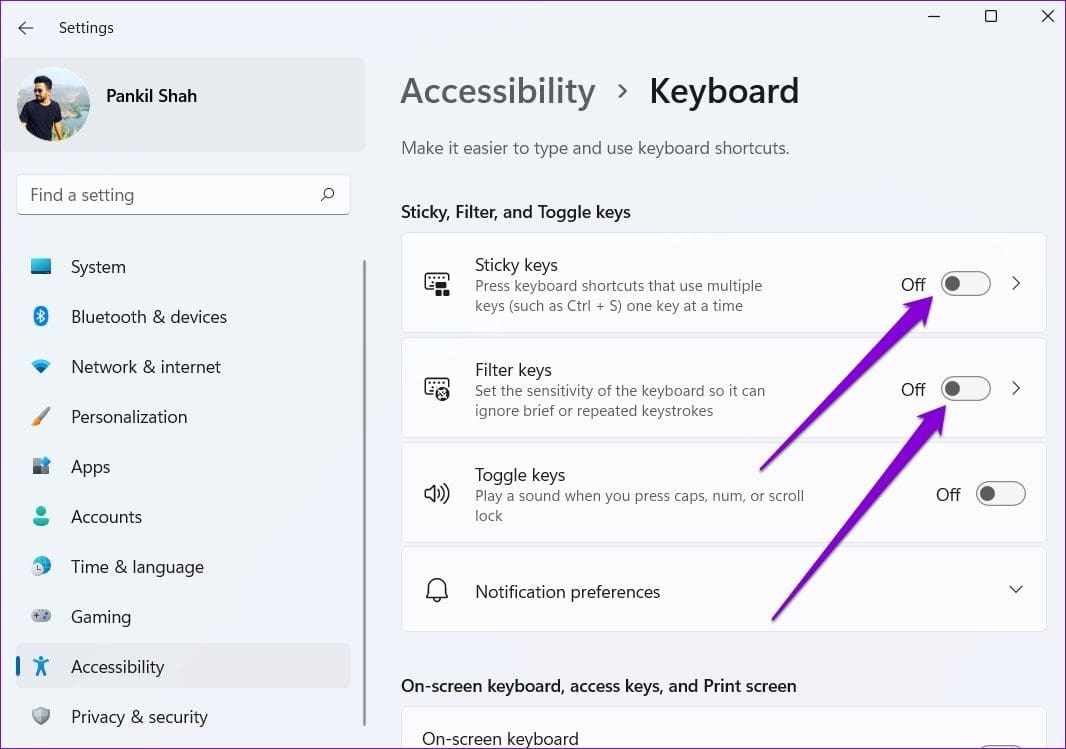
Windows 11 includes several accessibility features to assist users with disabilities. Sticky Keys and Filter Keys can cause problems with certain keys, such as the spacebar. Hence, it’s best to turn these features off if you don’t need them.
Step 1: Press the Windows key + I to open the Settings app, then go to Accessibility > Keyboard.

Step 2: Toggle off Sticky keys and Filter keys. Then, check if the issue persists.
Fix 2: Run Hardware and Devices Troubleshooter
Windows 11 offers a range of troubleshooters for resolving common computer issues. In this case, run the Hardware and Devices troubleshooter. This tool will attempt to find and fix problems with all your external devices, including the keyboard.
Step 1: Press the Windows + R keyboard shortcut to open the Run dialog box. Type msdt.exe -id DeviceDiagnostic in the Open field and press Enter.
Step 2: Click Next and follow the on-screen prompts to run the troubleshooter.

Fix 3: Restart the Human Interface Device Service
Human Interface Device Service is responsible for registering your keyboard inputs on Windows. If this service is experiencing issues, restarting it should help restore normalcy. Here are the steps.
Step 1: Click the search icon on the taskbar, type services, and press Enter.
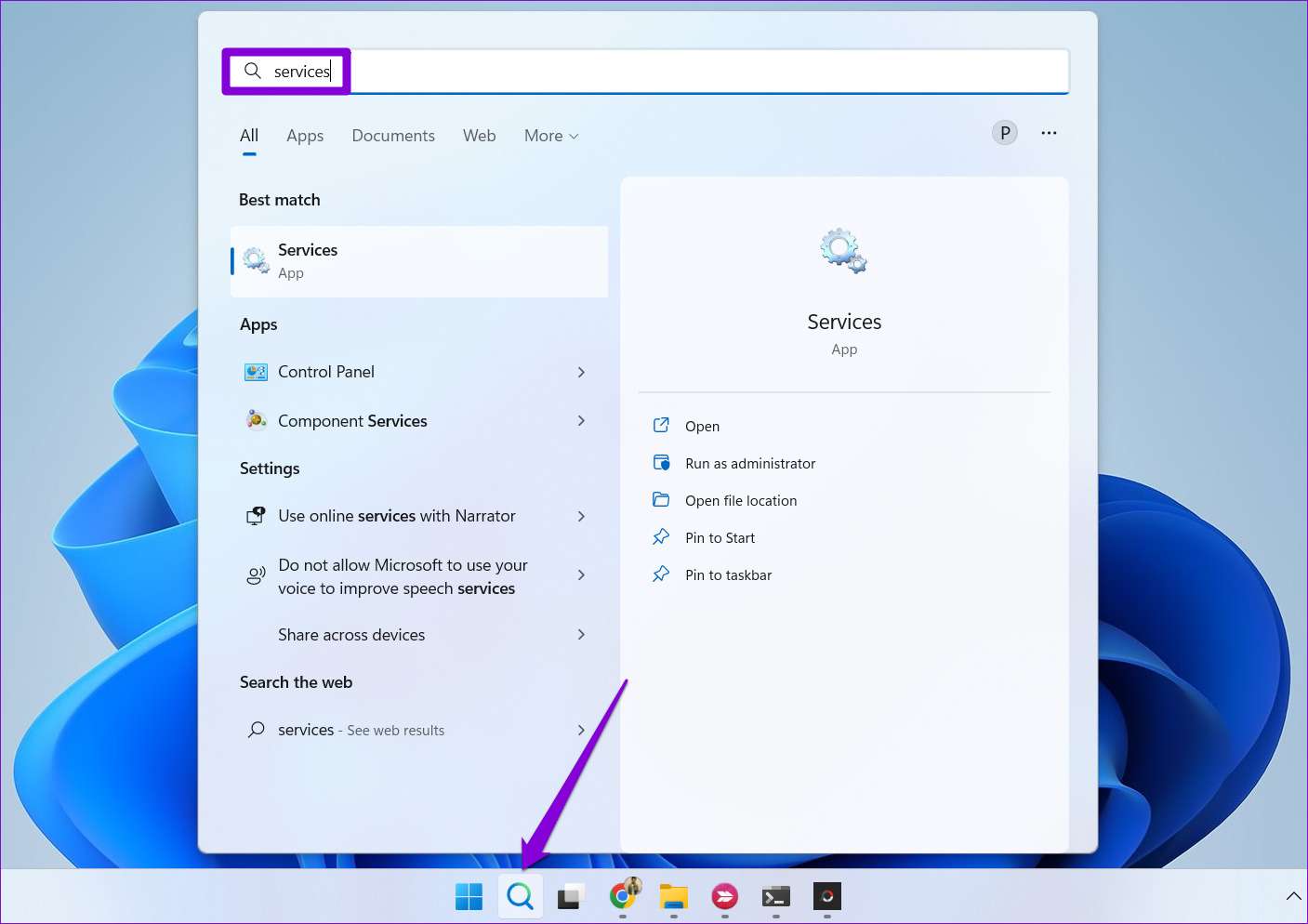
Step 2: In the Services window, scroll down to locate Human Interface Device Service. Right-click on it and select Restart.

Fix 4: Update or Reinstall Keyboard Drivers
The keyboard driver on your computer serves as a bridge between Windows and your keyboard. If this driver is outdated, it can lead to the malfunctioning of specific keys, such as the spacebar. You can try updating the keyboard driver on your PC to see if that gets the spacebar working.
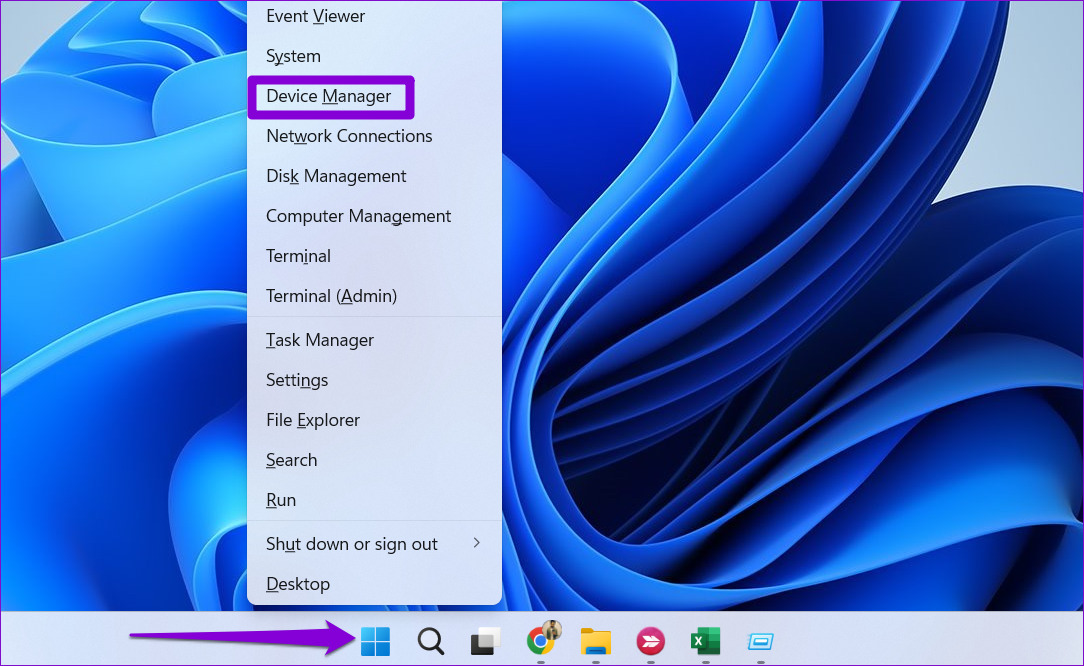
Step 1: Right-click on the Start icon and select Device Manager from the Power User menu.
Step 2: Double-click on Keyboards to expand it. Right-click on your keyboard and select Update driver.

From there, follow the on-screen prompts to update the driver. If the problem persists, uninstall the keyboard driver using Device Manager and restart your PC. Windows will automatically install the missing driver after it boots up.

Fix 5: Try System Restore
Recent changes to your computer may have made the spacebar unresponsive. If you can’t pinpoint the exact cause, performing a system restore will help reverse any bad changes. Rest assured, this process will not impact your data.
Step 1: Click the search icon on the taskbar, type create a restore point, and press Enter.

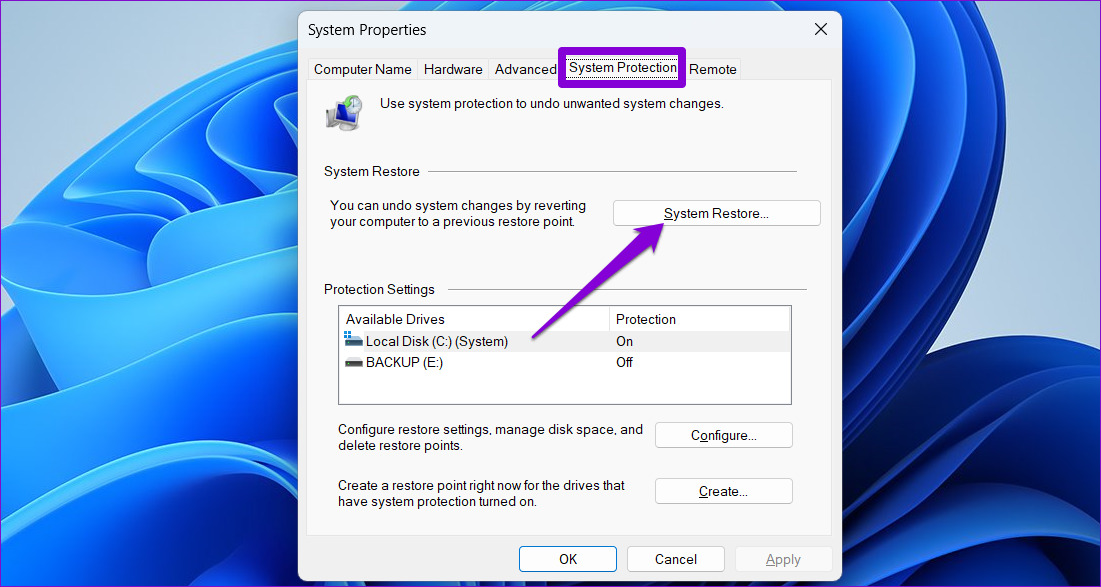
Step 2: Under the System Protection tab, click on System Restore.
Step 3: Click Next to continue.

Step 4: Select a restore point before the issue first occurs and hit Next.

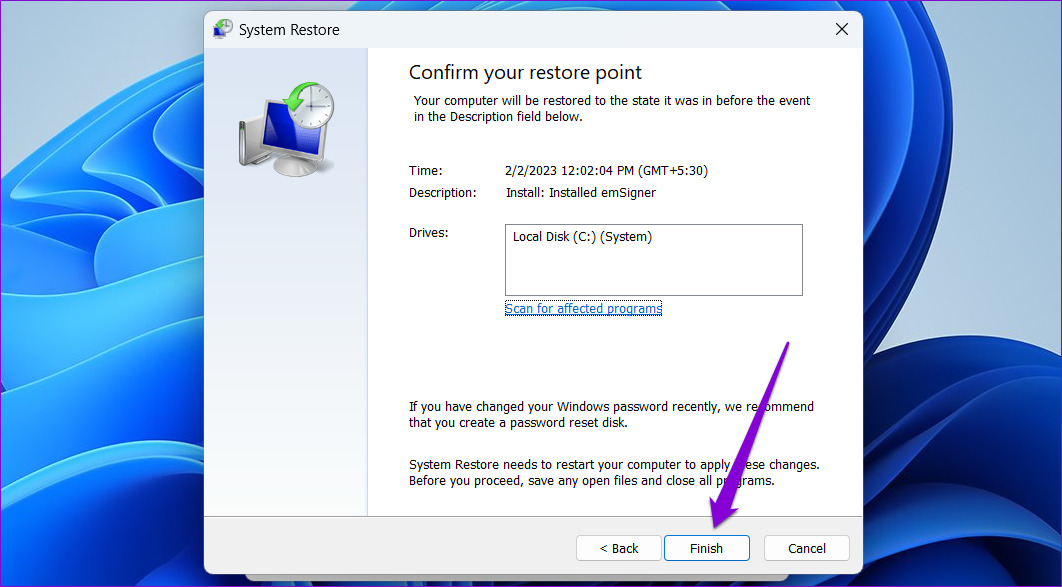
Step 5: Click Finish and allow Windows to restore to the specified restore point.
Was this helpful?
Last updated on 03 July, 2024
Read Next
 Top 7 Ways to Fix Windows Key Not Working on Windows 10
Windows 10 operating system is full of keyboard shortcuts.
Top 7 Ways to Fix Windows Key Not Working on Windows 10
Windows 10 operating system is full of keyboard shortcuts.
 6 Ways to Fix Windows Security Not Opening or Working on Windows 11
Try Basic Fixes Uninstall any third-party antivirus program: Third-party antivirus programs can sometimes interfere with the Windows Security app and prevent it from opening on your Windows 11 PC.
6 Ways to Fix Windows Security Not Opening or Working on Windows 11
Try Basic Fixes Uninstall any third-party antivirus program: Third-party antivirus programs can sometimes interfere with the Windows Security app and prevent it from opening on your Windows 11 PC.
 7 Ways to Fix Windows Key Not Working in Windows 11
Basic Fixes Check for physical damage: There might be physical damage or dirt buildup on your keyboard.
7 Ways to Fix Windows Key Not Working in Windows 11
Basic Fixes Check for physical damage: There might be physical damage or dirt buildup on your keyboard.
 4 Ways to Fix Telegram Notifications Not Working on Windows 10 and Windows 11
Try Basic Fixes Disable Do Not Disturb mode: The Telegram app may not be showing notifications due to the Do Not Disturb mode on your Windows PC.
4 Ways to Fix Telegram Notifications Not Working on Windows 10 and Windows 11
Try Basic Fixes Disable Do Not Disturb mode: The Telegram app may not be showing notifications due to the Do Not Disturb mode on your Windows PC.
 3 Best Ways to Fix Keyboard Backlight Not Working on Windows 10 and Windows 11
Try Basic Fixes Toggle the keyboard backlight using the hotkey: You can use a key combination to quickly enable or disable the keyboard backlight on your Windows 11 PC.
3 Best Ways to Fix Keyboard Backlight Not Working on Windows 10 and Windows 11
Try Basic Fixes Toggle the keyboard backlight using the hotkey: You can use a key combination to quickly enable or disable the keyboard backlight on your Windows 11 PC.
 6 Ways to Fix Task Manager Not Working on Windows 11
Basic Fixes Install Windows updates: Such issues with Task Manager can also arise due to faulty Windows builds.
6 Ways to Fix Task Manager Not Working on Windows 11
Basic Fixes Install Windows updates: Such issues with Task Manager can also arise due to faulty Windows builds.
 11 Ways to Fix Sound Not Working on Windows 11
While Windows 11 is Microsoft's most stable release to date, it's not without its flaws.
11 Ways to Fix Sound Not Working on Windows 11
While Windows 11 is Microsoft's most stable release to date, it's not without its flaws.
 5 Ways to Fix HDMI Port Not Working on Windows 11
Common Fixes Check for physical damage: Ensure the HDMI cable and connectors are intact.
5 Ways to Fix HDMI Port Not Working on Windows 11
Common Fixes Check for physical damage: Ensure the HDMI cable and connectors are intact.
The article above may contain affiliate links which help support Guiding Tech. The content remains unbiased and authentic and will never affect our editorial integrity.