


Basic Fixes:
- Check Snapchat server status: If Snapchat’s servers are not working properly, it can cause the security code not to come through. In this case, use Downdetector to check.
- Turn Airplane Mode on and off: You can turn Airplane Mode on and off to refresh your phone’s cellular network. Then, request the code again from Snapchat.
- Double-check the spam folder: Most messaging apps have dedicated spam folders. So, check to see if the security code message has been accidentally marked as spam.
- Check your internet connection: Snapchat uses your device’s internet connection to work. So, if your internet is not working properly, Snapchat might face delays in raising the request for the security code. So, ensure your internet is working properly before proceeding.
Fix 1: Try Receiving the Code via Email
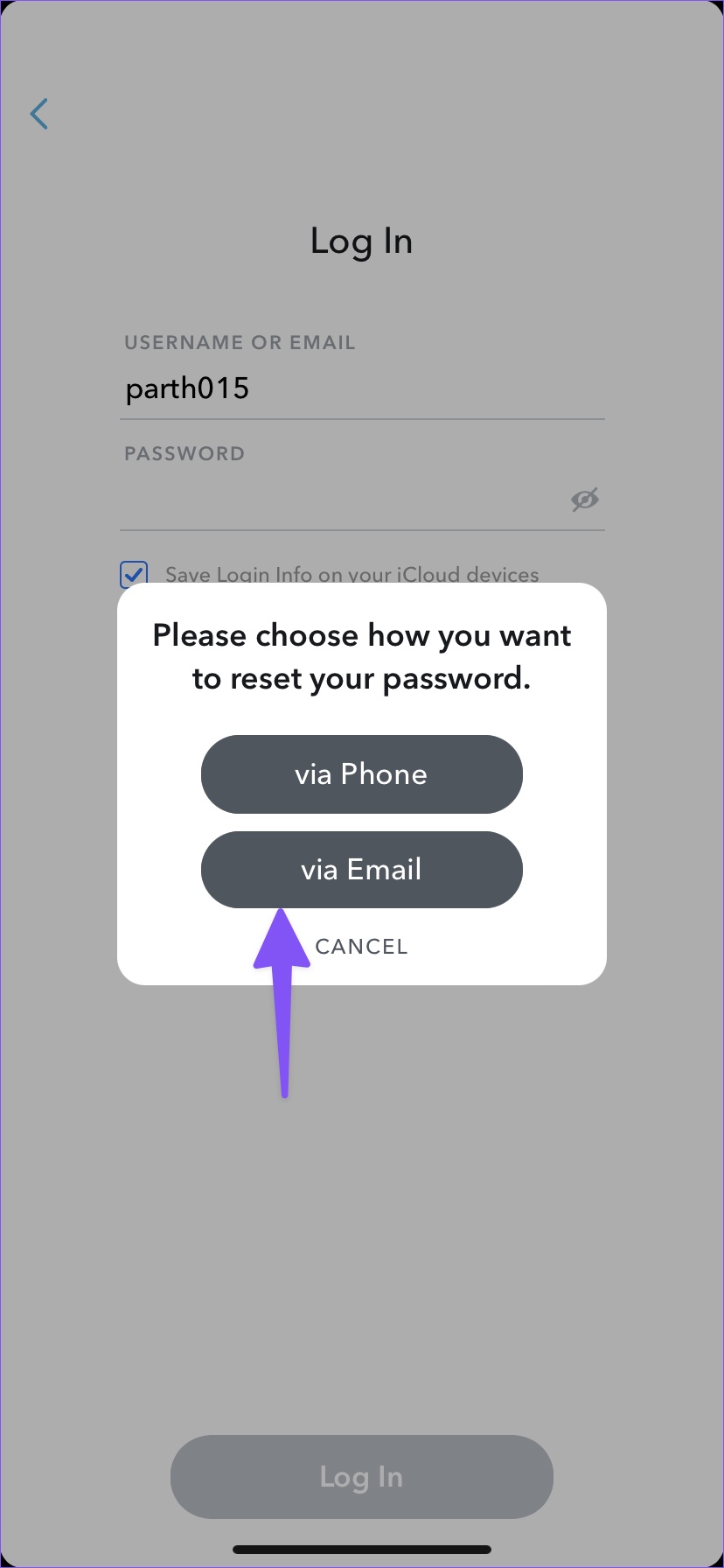
When you forget your Snapchat password, Snapchat allows you to reset it via a security code received by text message or email. If you are not getting a Snapchat verification code on text, you can opt to receive the same in an email instead. Ensure you check all the relevant folders. Here’s how.
Step 1: Open the Snapchat app on your phone and tap on Forgot your password?
Step 2: Then, tap on via Email. Snapchat will send a security code to your saved email address.

Fix 3: Clear Snapchat Cache on Android
Apps use cache to decrease loading time and improve overall app functioning. However, a corrupt app cache can stop it from functioning properly and prevent it from sending the security code. So, you can clear Snapchat cache and try again. Here’s how.
Tip: If you’re using an iPhone, consider offloading the Snapchat app. Then, download the app and try again.
Step 1: Open Settings > tap on Apps. Here, tap on Snapchat.

Step 2: Scroll down and tap on Storage. Then, tap on Clear cache.

Fix 3: Enable 2FA on Snapchat
Once you get access to your Snapchat account, enable two-factor authentication (2FA) via the authenticator app. This way, you don’t need to wait for Snapchat to send a security code next time. You can get a verification code from the 2FA mobile app. Here’s how to do it.
Step 1: Open Snapchat on your phone and tap on your bitmoji icon at the top left corner. Then, tap on the cogwheel icon at the top right corner.


Step 2: Scroll down and tap on Two-Factor Authentication. Then, tap on Continue.
Step 3: Tap on Authentication App and follow the on-screen instructions to complete the process.


If you have tried the above fixes and still have trouble getting the security code from Snapchat, you can contact Snapchat support. Describe your issue in detail and submit a ticket for easy resolution.
Was this helpful?
Last updated on 20 April, 2024
5 Comments
Leave a Reply
Read Next
 Top 4 Ways to Fix Instagram Not Sending a Security Code
https://youtu.be/N1KvHzjClJA Preliminary Fixes Check the Network Connection: A weak or unstable internet connection can prevent Instagram from sending security codes.
Top 4 Ways to Fix Instagram Not Sending a Security Code
https://youtu.be/N1KvHzjClJA Preliminary Fixes Check the Network Connection: A weak or unstable internet connection can prevent Instagram from sending security codes.
 3 Ways to Fix Facebook Not Sending Security Code
Basic Fixes: Wait for some time: Due to a large number of user requests, Facebook servers might get jammed and delay sending a verification code.
3 Ways to Fix Facebook Not Sending Security Code
Basic Fixes: Wait for some time: Due to a large number of user requests, Facebook servers might get jammed and delay sending a verification code.
 Top 4 Ways to Fix Google Not Sending a Security Code
Preliminary Fixes Check the Network Connection: A stable internet connection is essential for receiving security codes via email.
Top 4 Ways to Fix Google Not Sending a Security Code
Preliminary Fixes Check the Network Connection: A stable internet connection is essential for receiving security codes via email.
 2 Ways to Fix Epic Games Not Sending a Security Code
Basic Fixes: Check network connection: If your phone has a spotty network connection, you may not receive a security code from Epic Games via email or SMS.
2 Ways to Fix Epic Games Not Sending a Security Code
Basic Fixes: Check network connection: If your phone has a spotty network connection, you may not receive a security code from Epic Games via email or SMS.
 2 Ways to Fix Discord Not Sending a Security Code
Basic Troubleshooting Double-check the number and country code: A silly mistake could be causing the issue.
2 Ways to Fix Discord Not Sending a Security Code
Basic Troubleshooting Double-check the number and country code: A silly mistake could be causing the issue.
 3 Ways to Fix PayPal Not Sending a Security Code
Before we talk about troubleshooting tricks, let’s understand why PayPal is asking for a security code in the first place: When you use a new device to use PayPal, it
3 Ways to Fix PayPal Not Sending a Security Code
Before we talk about troubleshooting tricks, let’s understand why PayPal is asking for a security code in the first place: When you use a new device to use PayPal, it
 2 Ways to Fix Microsoft Not Sending a Security Code
Basic Fixes: Double-check contact information: If you haven't selected the correct country code for your number or are missing a digit, Microsoft can't send you the security code.
2 Ways to Fix Microsoft Not Sending a Security Code
Basic Fixes: Double-check contact information: If you haven't selected the correct country code for your number or are missing a digit, Microsoft can't send you the security code.
 3 Ways to Fix Snapchat Not Sending Snaps
Try Basic Fixes Check if Snapchat is down: Snapchat may fail to send snaps if its servers are down.
3 Ways to Fix Snapchat Not Sending Snaps
Try Basic Fixes Check if Snapchat is down: Snapchat may fail to send snaps if its servers are down.
The article above may contain affiliate links which help support Guiding Tech. The content remains unbiased and authentic and will never affect our editorial integrity.

I want my snapchart code
berry.x.anime : this is my Instagram
My friend chenge emile I’d how can open my id
How to open my old snap chat
Can’t login sanp please help me
Emile problem ????
Help me my account snapchat disaccount and my gmail is not code becouse I forgot my password with Gmail
I can’t login in log in to many times