Basic Fixes
- Switch to 5G: To get the most accurate weather data, we suggest switching to 5G network on your Samsung phone.
- Disable power saving mode: Open Settings > Battery and device care > Battery > Disable Power Saving.
- Force quit and relaunch the Weather app: This will give the app a fresh start on your Samsung device.
- Update weather app: Install the latest version of the Weather app to get rid of bugs or glitches.
Fix 1: Check Location Settings in the Weather App
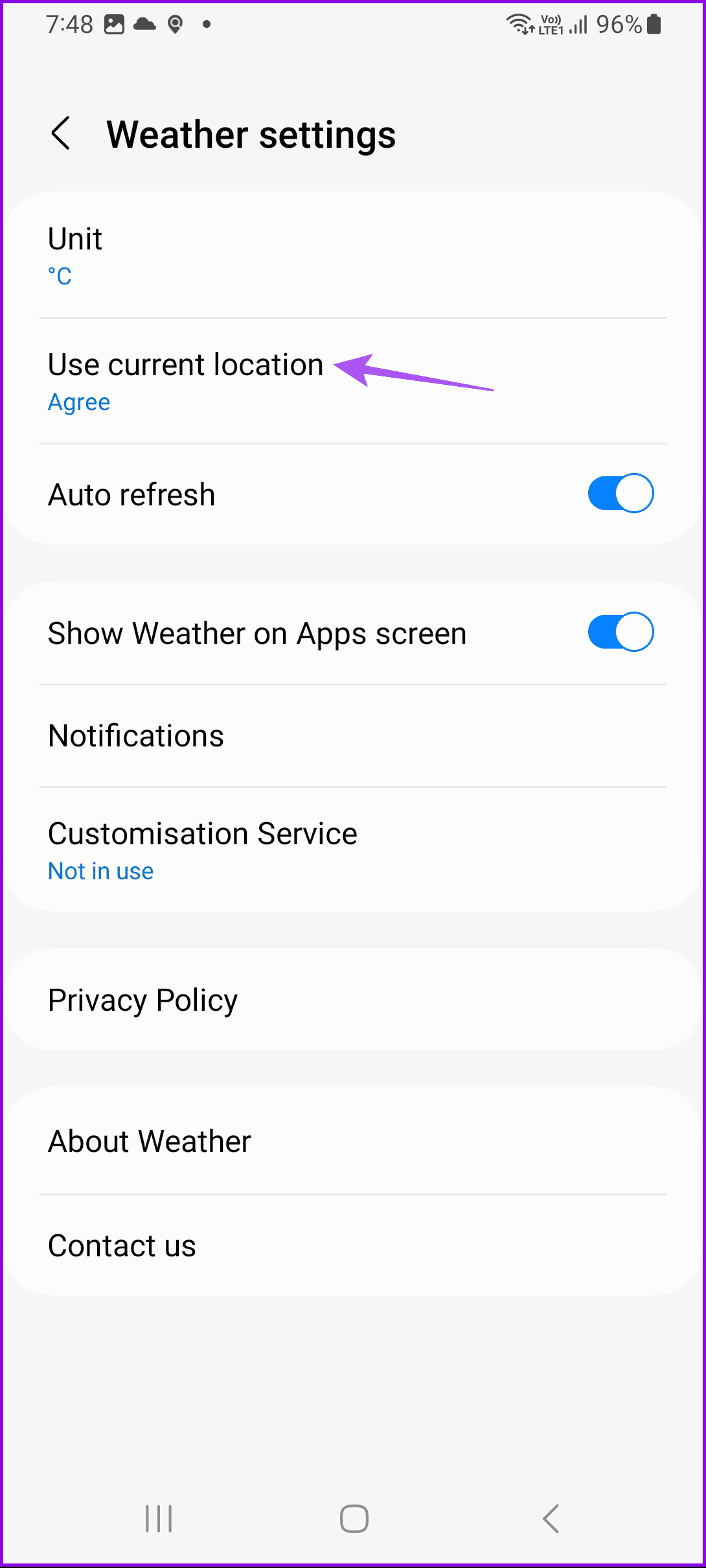
The first solution to follow if the weather app shows the wrong location is to allow the app to automatically detect your current location. Here’s how.
Step 1: Open the Weather app > Hamburger menu at the top-left corner > Settings.
Step 2: Select Use Current Location and then tap the toggle next to Agree.

Fix 2: Set Location to ‘Always Allow/Allow All The Time’ for Samsung Weather App
Another way to ensure that the app has access to your current location.
Open Settings > Apps > Weather > Permissions > Location > Choose Always Allow/Allow All the Time.


Tip: Learn how to get weather information on the Always On Display screen for Samsung devices.
Fix 3: Enable Google Location Accuracy
If the Samsung Weather app still doesn’t detect your current location, you need to check and enable Google Location Accuracy. If the feature is turned off, your Samsung device will only use GPS to determine your current location. But for the most accurate weather information, you need to allow Google to collect your current location data.
Step 1: Open Settings > Location > Location Services> Google Location Accuracy.


Step 2: Tap the toggle to enable the feature if disabled previously.
Fix 4: Reset Network Settings
If none of the solutions work, you can reset the network settings of your Samsung Galaxy phone. That will remove all wireless network permissions and you’ll need to add those details again.
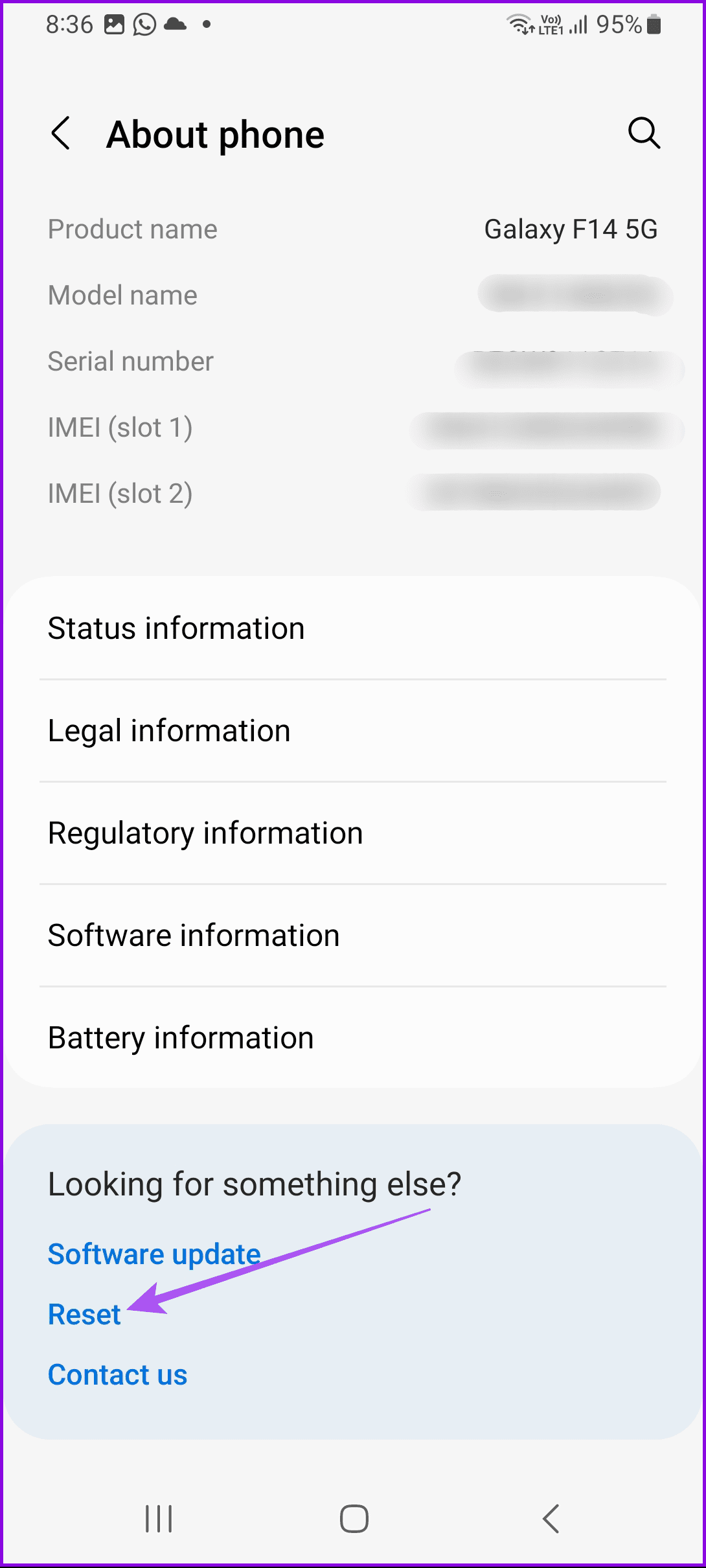
Step 1: Open Settings > System > Reset > Reset Network Settings.
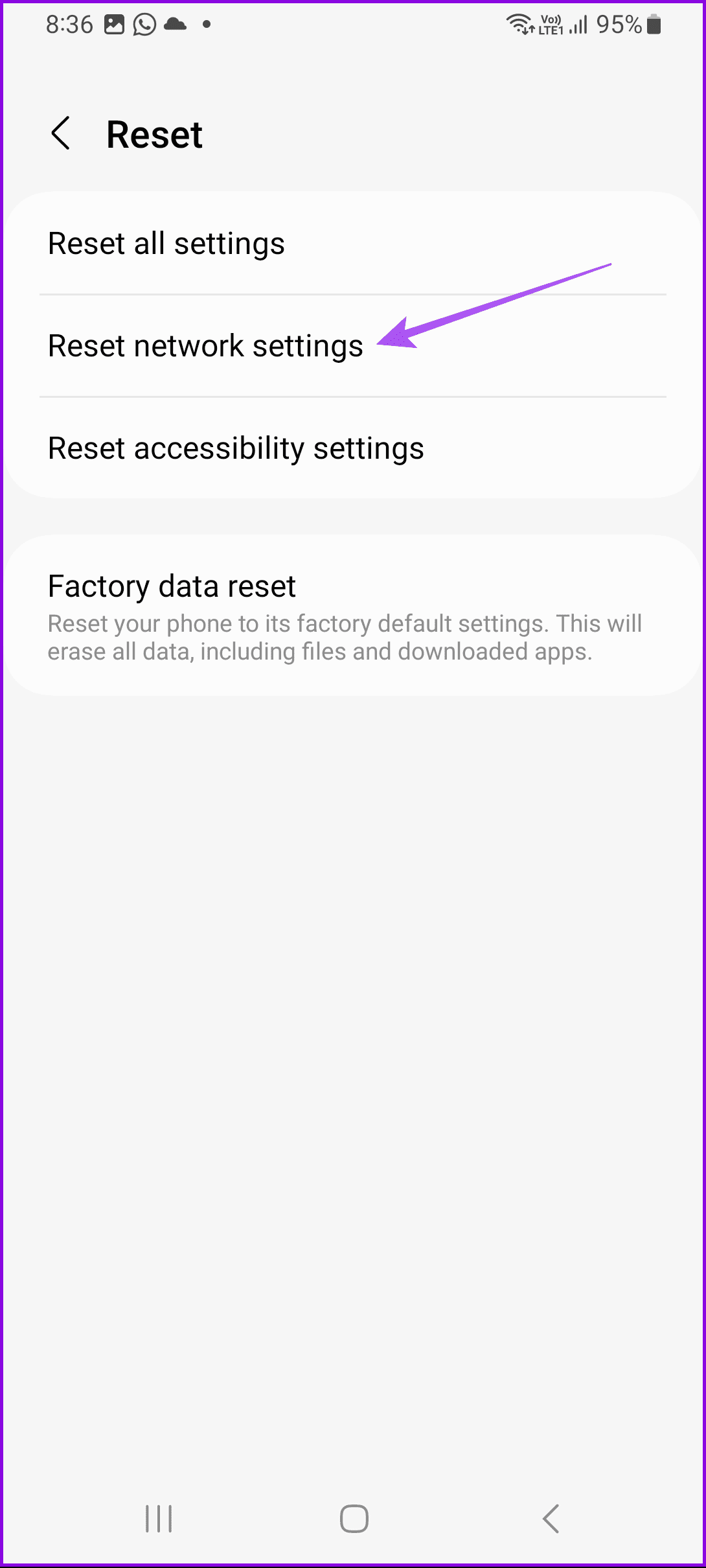
Step 2: Tap on Reset Settings to confirm.
After that, open the Weather app and check if the problem is solved.
Was this helpful?
Last updated on 26 July, 2024
Read Next
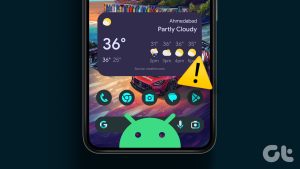 4 Fixes for Weather Widget Not Updating on Android
Basic Fixes Disable data saver: Open Settings > Network and internet > Disable Data saver.
4 Fixes for Weather Widget Not Updating on Android
Basic Fixes Disable data saver: Open Settings > Network and internet > Disable Data saver.
 4 Fixes for Apple Watch Weather Not Showing or Updating
Basic Fixes Check Apple Watch connectivity: Ensure your Apple Watch is connected to Wi-Fi and your iPhone via Bluetooth.
4 Fixes for Apple Watch Weather Not Showing or Updating
Basic Fixes Check Apple Watch connectivity: Ensure your Apple Watch is connected to Wi-Fi and your iPhone via Bluetooth.
 5 Fixes for Samsung Health App Not Tracking Steps
Basic Fixes Ensure that step counter is enabled: Open the Health app > Tap on Steps > Three dots in the top-right corner > Check and ensure that the step
5 Fixes for Samsung Health App Not Tracking Steps
Basic Fixes Ensure that step counter is enabled: Open the Health app > Tap on Steps > Three dots in the top-right corner > Check and ensure that the step
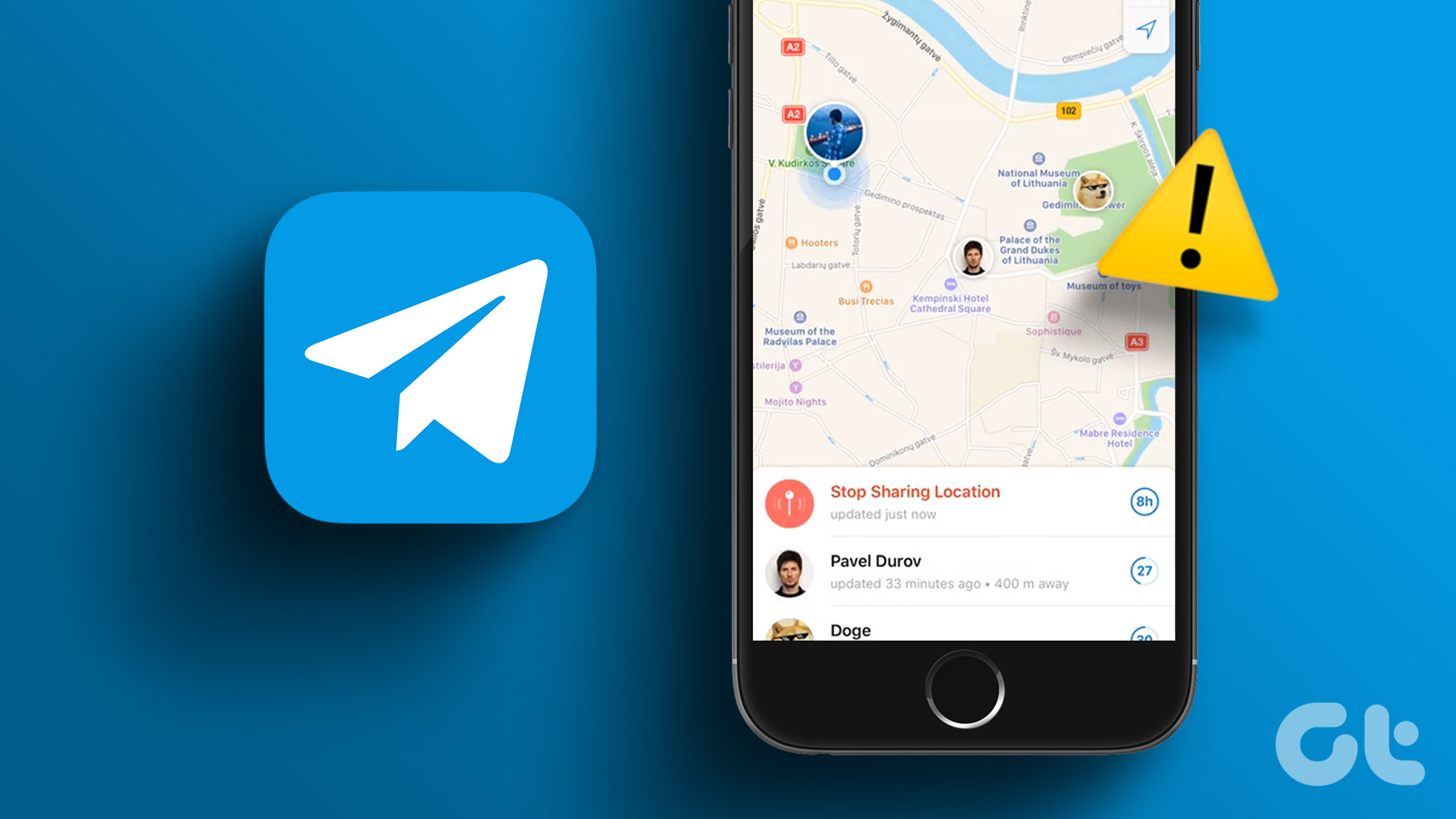 4 Fixes for Telegram Live Location Not Updating on iPhone and Android
Basic Fixes: Check internet access: For apps to access your location, you require internet access on your mobile.
4 Fixes for Telegram Live Location Not Updating on iPhone and Android
Basic Fixes: Check internet access: For apps to access your location, you require internet access on your mobile.
 Top 10 Fixes for Vibration Not Working in Samsung Galaxy Phones
Even if you keep ringer volume at a high level, you might miss calls when you are in a loud environment.
Top 10 Fixes for Vibration Not Working in Samsung Galaxy Phones
Even if you keep ringer volume at a high level, you might miss calls when you are in a loud environment.
 5 Ways to Fix Live Location Not Updating on Android and iPhone
Fix 1: Ensure Location Services Are Enabled Enabling location services on your phone is the most basic step before you can share your live location.
5 Ways to Fix Live Location Not Updating on Android and iPhone
Fix 1: Ensure Location Services Are Enabled Enabling location services on your phone is the most basic step before you can share your live location.
 5 Ways to Fix Location Sharing Not Updating in Google Maps on Phone
Common Fixes Check your internet connection - Google Maps will fail to update the location if your internet is unstable.
5 Ways to Fix Location Sharing Not Updating in Google Maps on Phone
Common Fixes Check your internet connection - Google Maps will fail to update the location if your internet is unstable.
 Top 3 Ways to Change App Drawer on Samsung Galaxy Phones
https://youtu.be/A_ni2sV14uM 1.
Top 3 Ways to Change App Drawer on Samsung Galaxy Phones
https://youtu.be/A_ni2sV14uM 1.
The article above may contain affiliate links which help support Guiding Tech. The content remains unbiased and authentic and will never affect our editorial integrity.