

Try Basic Fixes
- Update the Gallery app: Samsung regularly releases updates for the Gallery app to add new features, fix bugs, and enhance app performance. You can try updating the Samsung Gallery app from the Galaxy Store to see if that helps.
- Check OneDrive storage status: Since OneDrive’s basic plan only offers 5GB of storage, it’s easy to run out of space if you’re using a free account or if your subscription has expired. Check your OneDrive storage in the app and see if it needs expanding.
Fix 1: Check Gallery Sync Settings
The Samsung Gallery app may stop syncing your photos or videos with OneDrive if you have accidentally disabled the sync option. Here’s how to check.
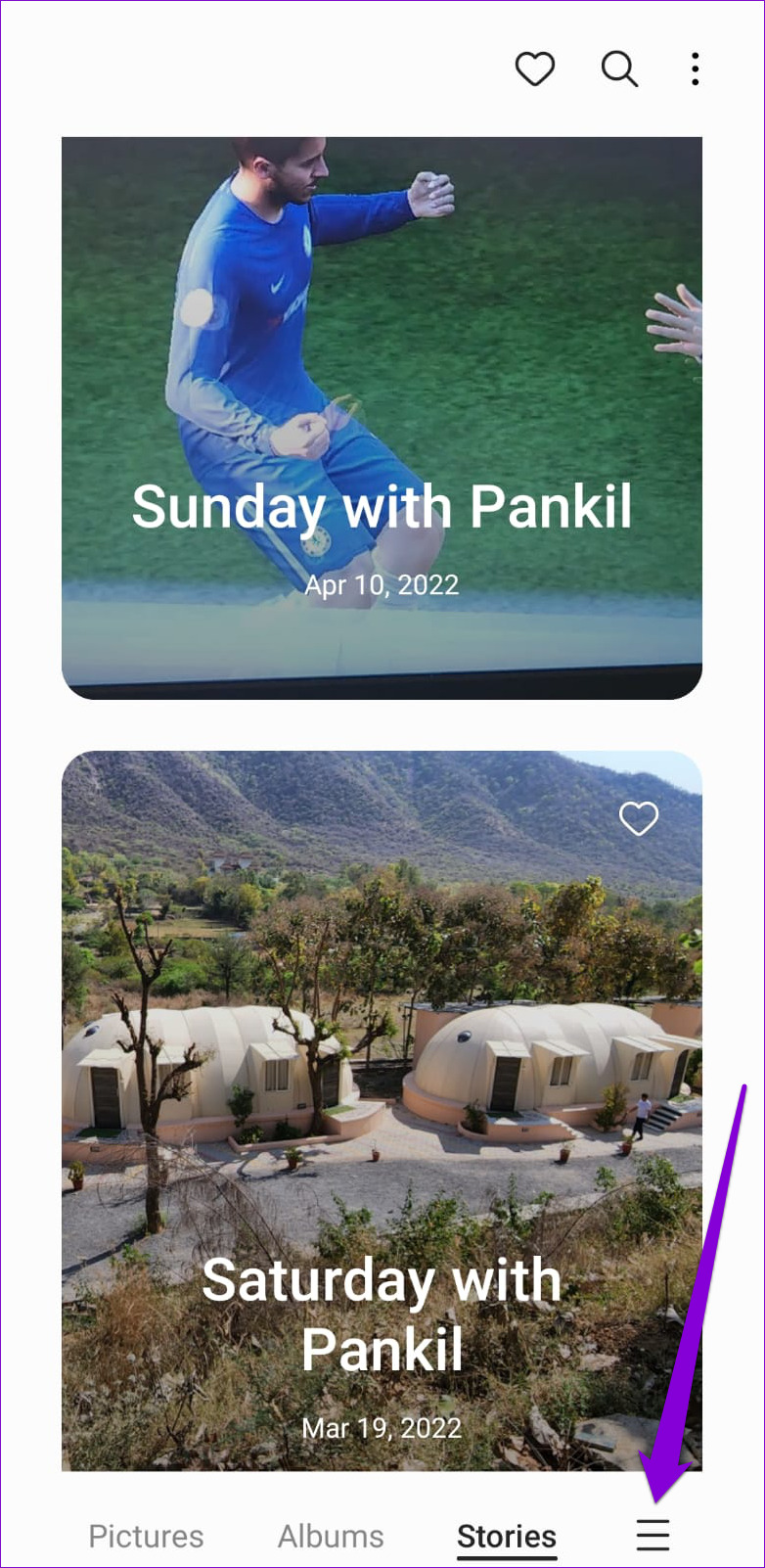
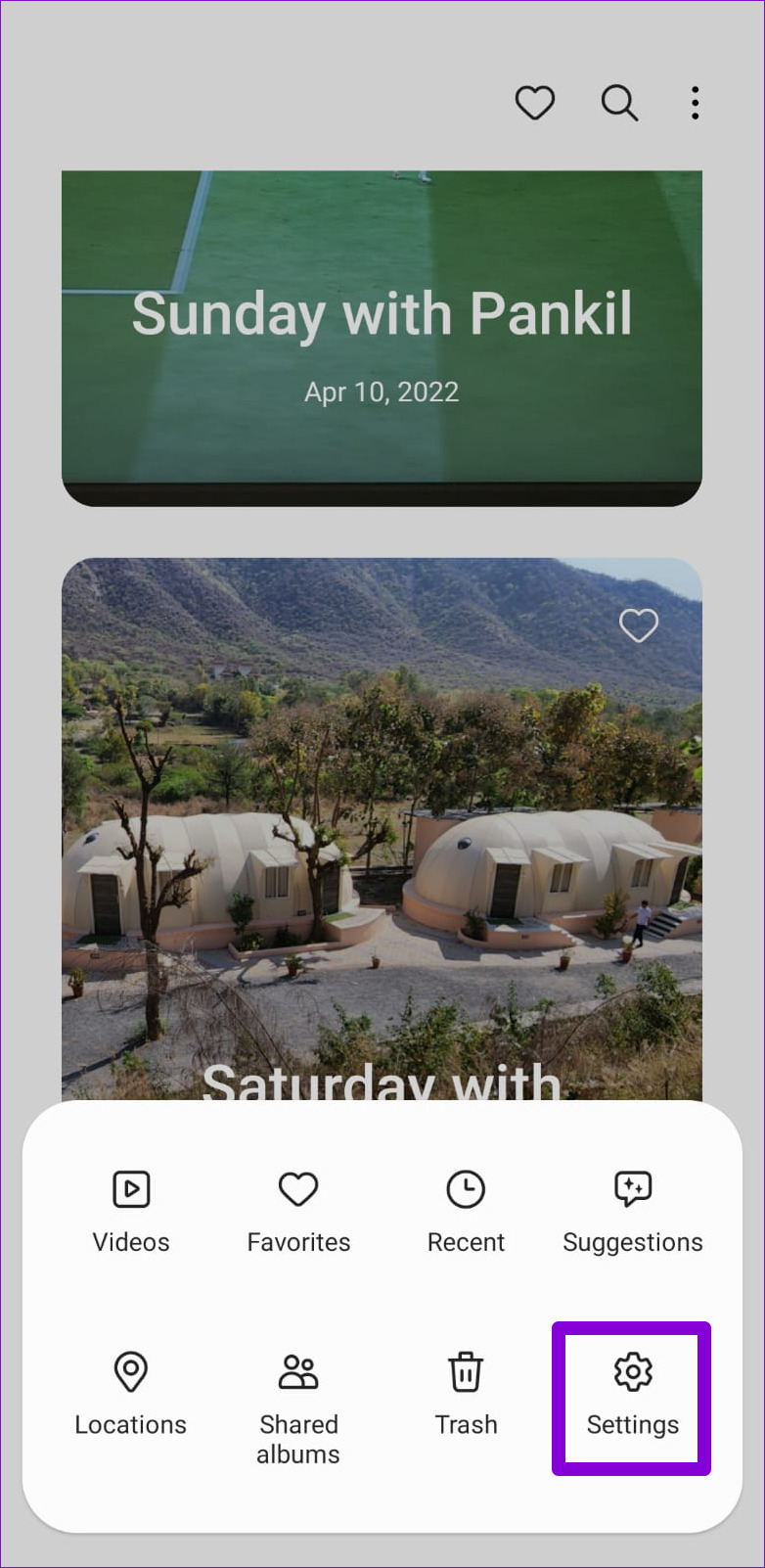
Step 1: Open the Gallery app. Tap the menu icon (three horizontal lines) at the bottom-right corner, and select Settings.
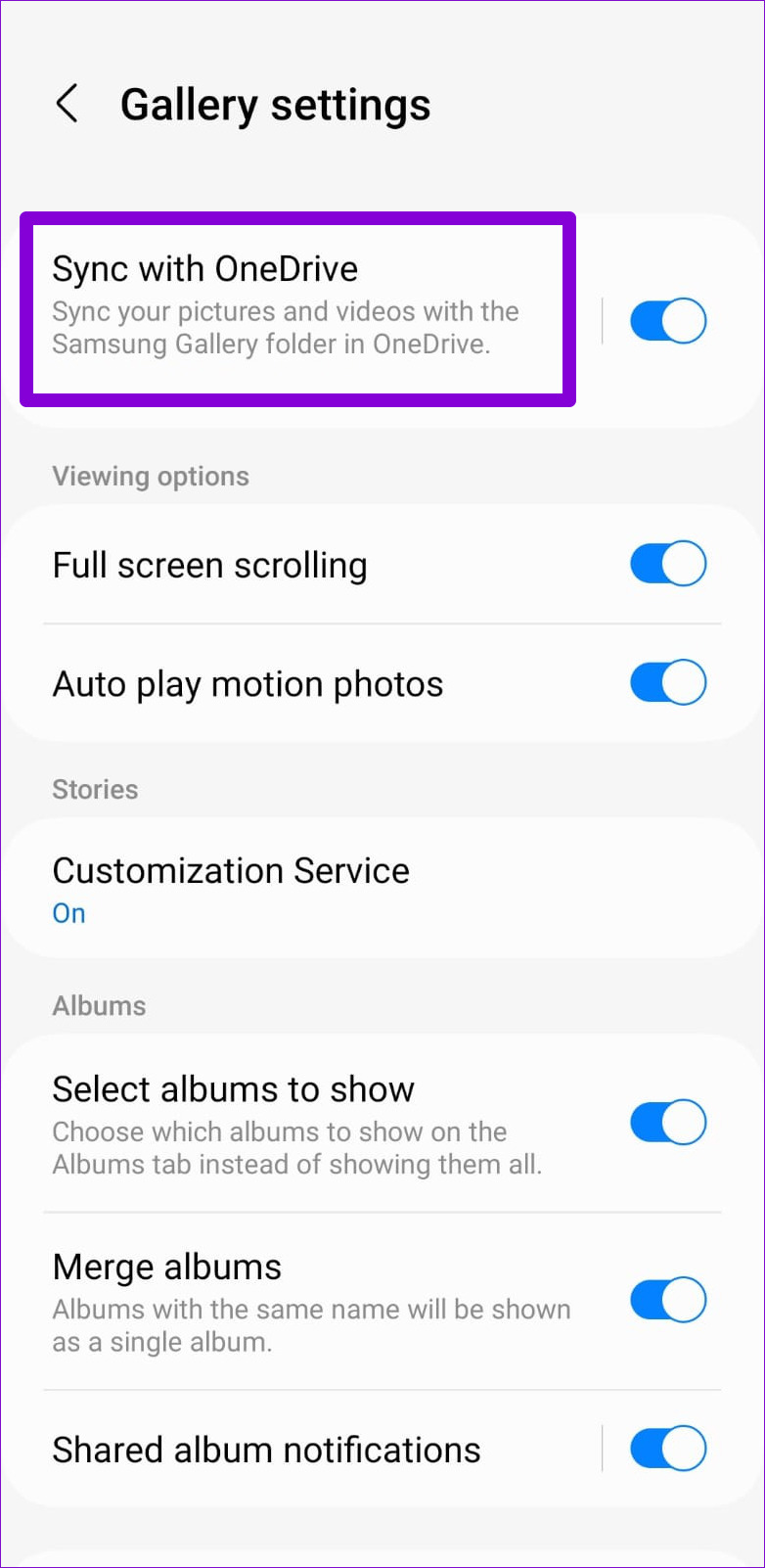
Step 2: Tap on Sync with OneDrive.
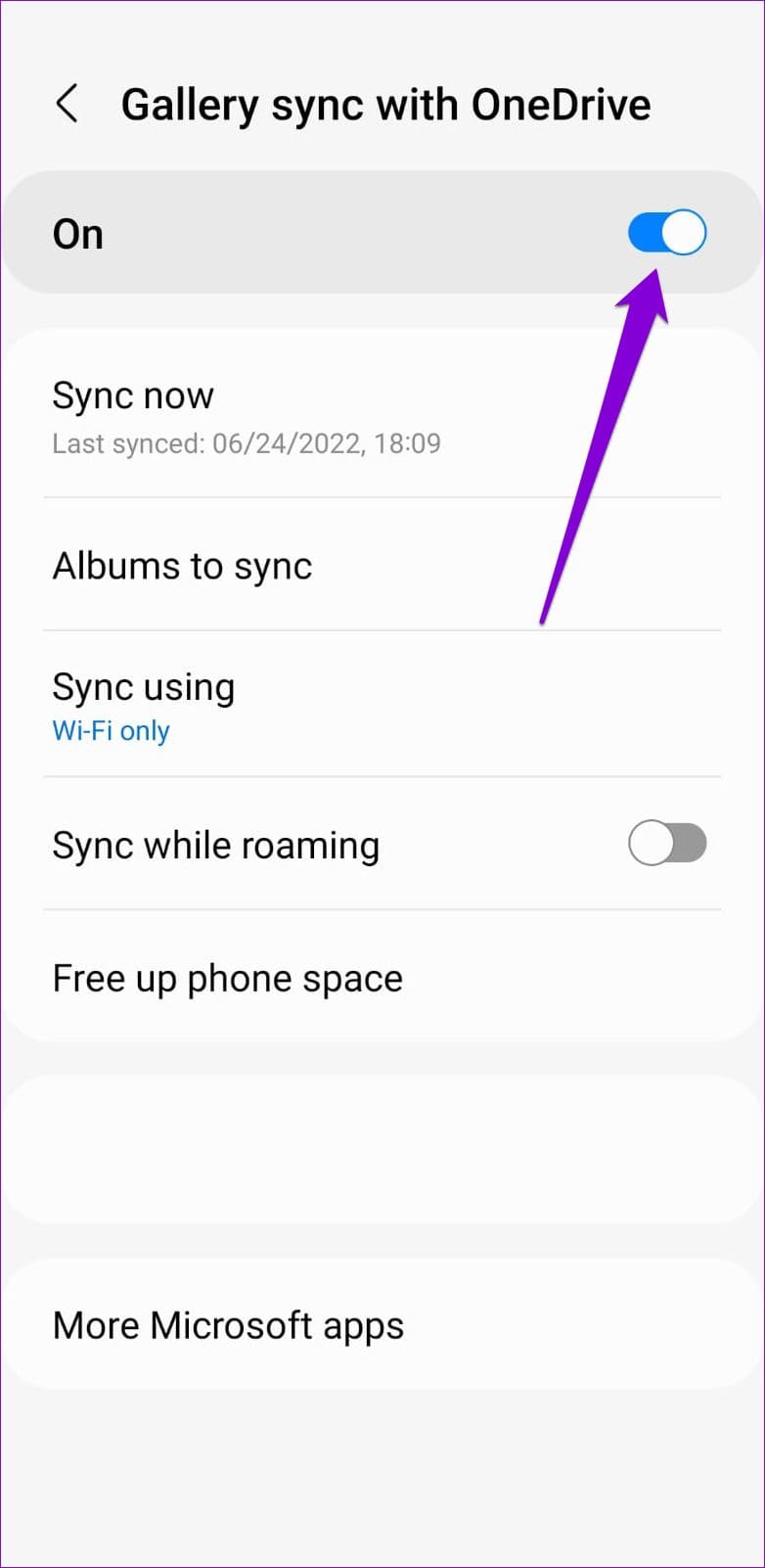
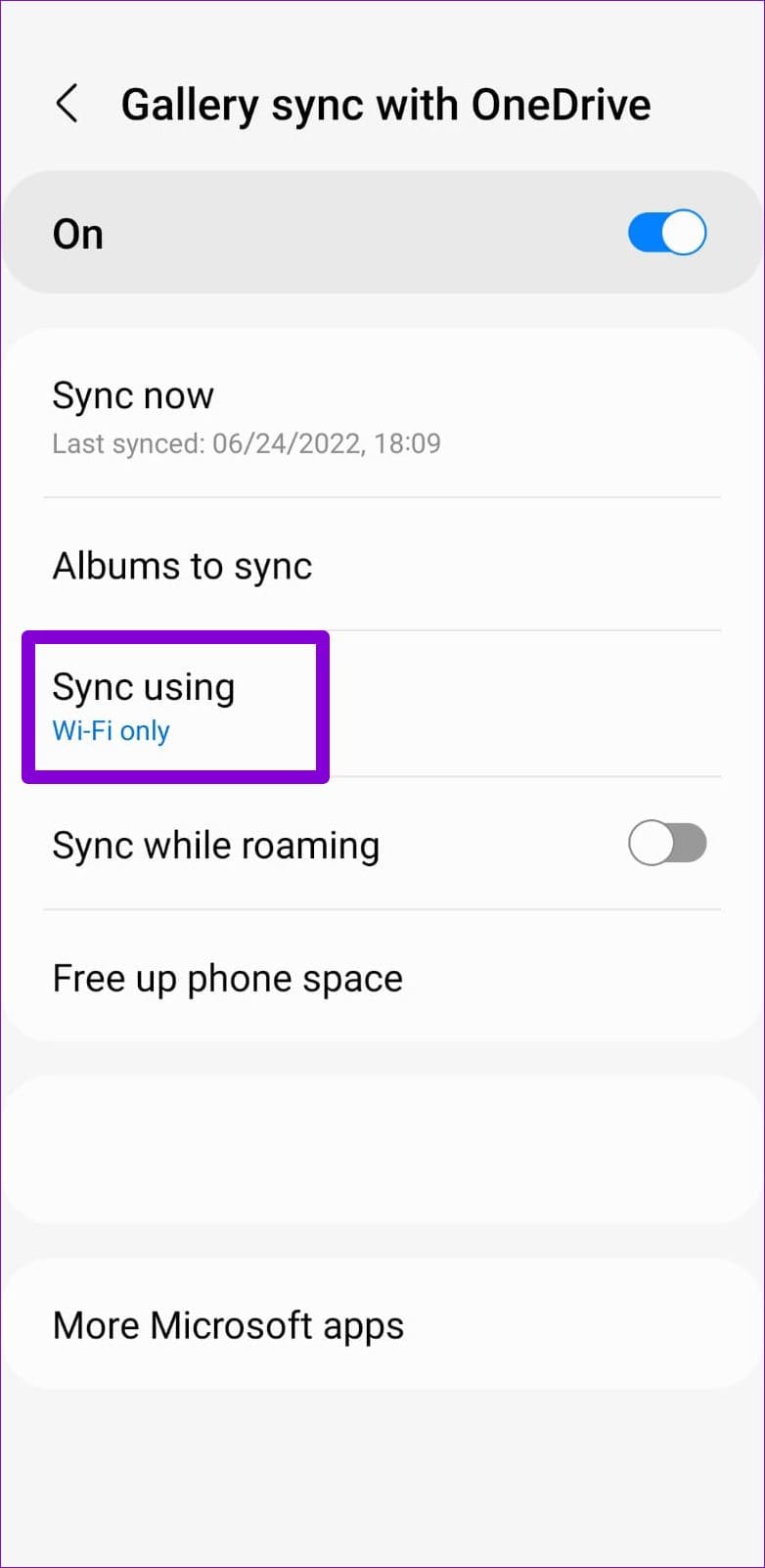
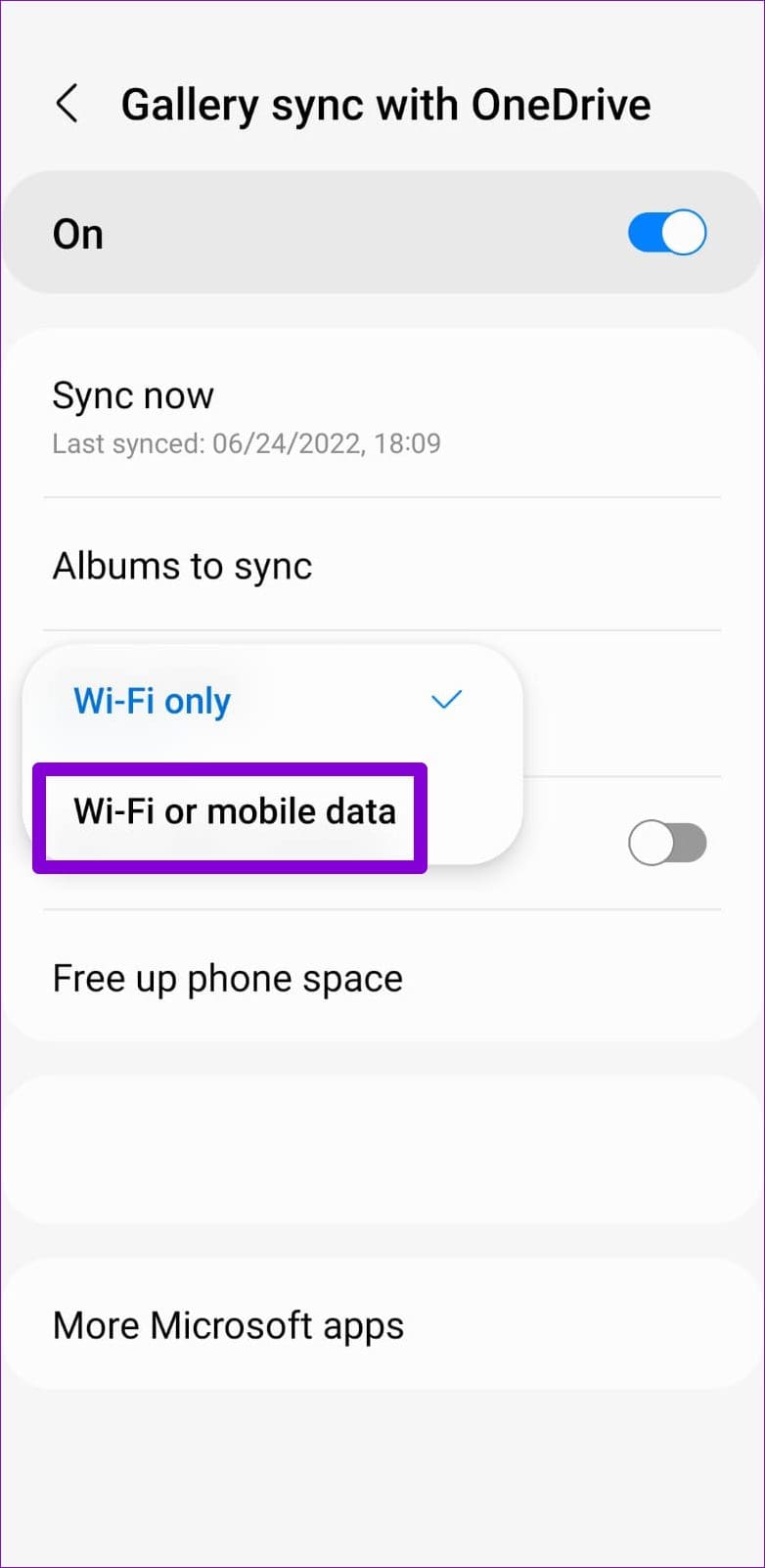
Step 3: Enable the toggle at the top. Tap Sync using and select Wi-Fi or mobile data.
Fix 2: Enable Sync for Specific Albums
Is the Samsung Gallery app not syncing specific albums with OneDrive? If so, it’s worth checking whether the sync option for those albums is enabled. Here’s how to do it.
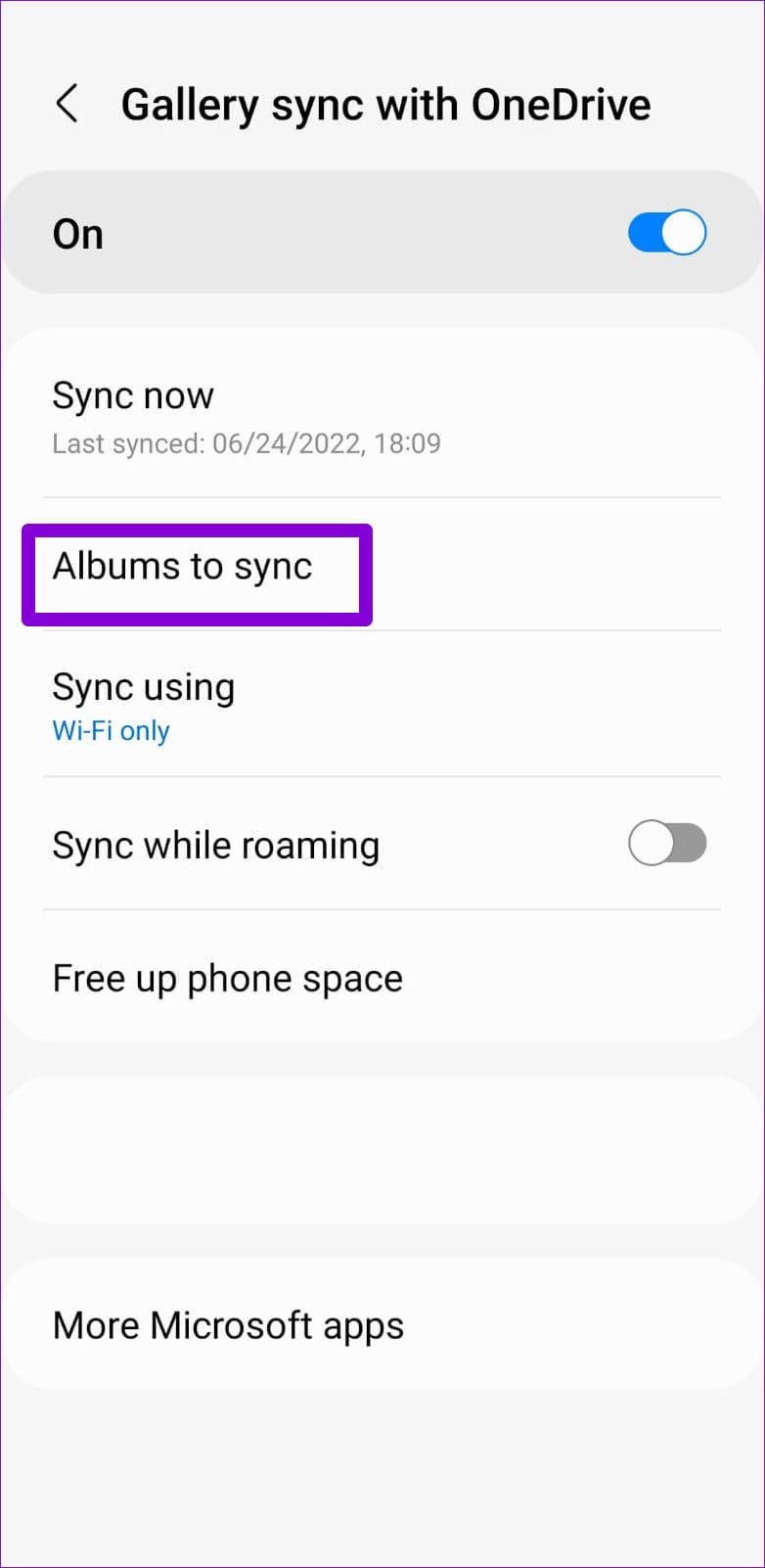
Step 1: Open the Gallery app settings and tap Sync with OneDrive.
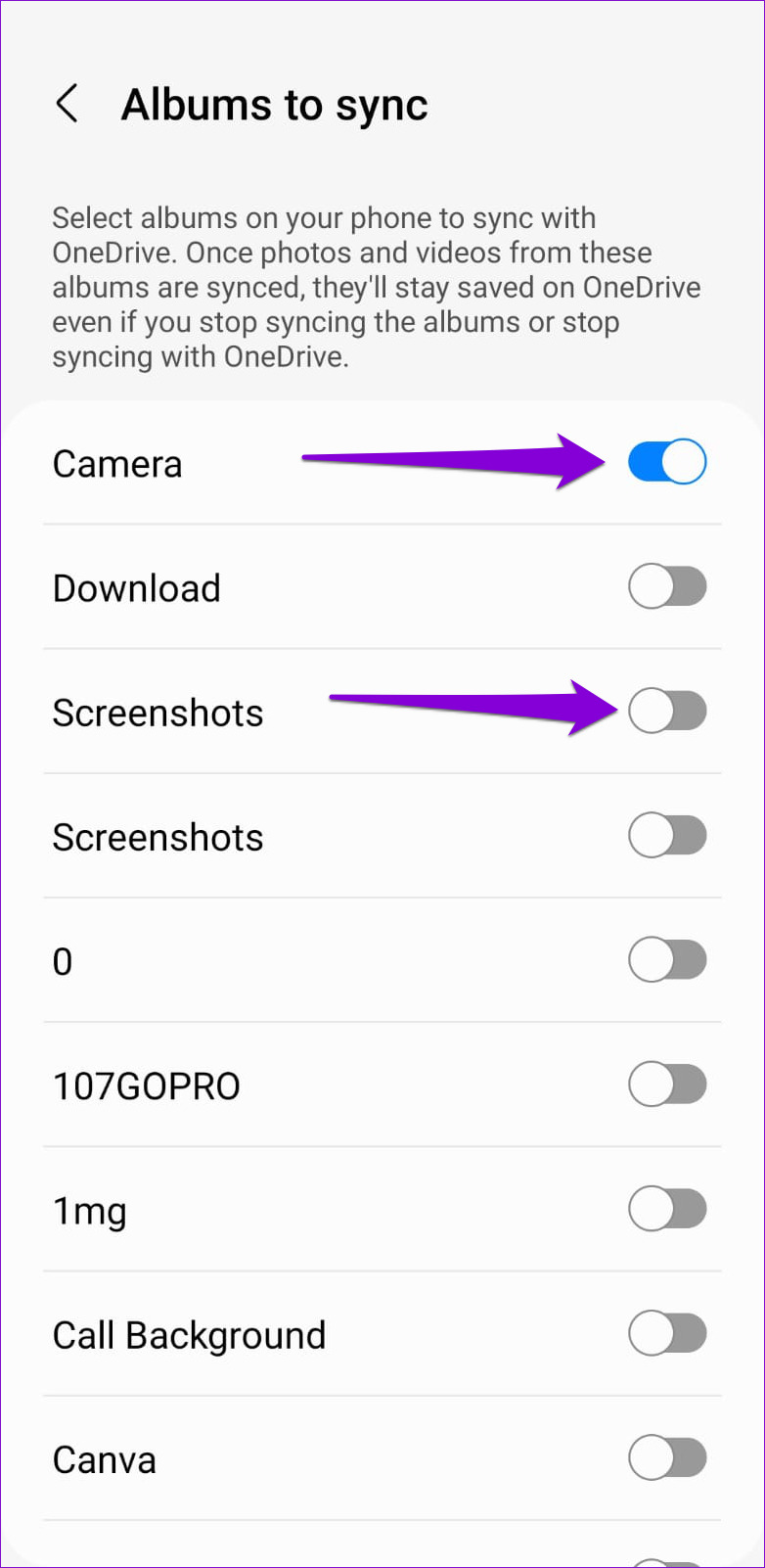
Step 2: Tap Albums to sync and enable the toggles next to the albums you want to sync with OneDrive.
Fix 3: Enable Media Sync for OneDrive Account
Another reason the Samsung Gallery app may fail to upload photos and videos is if the media sync feature for your OneDrive account is disabled. Several users on the Samsung forums reported fixing this particular issue by enabling the media sync toggle. You can also give it a go.
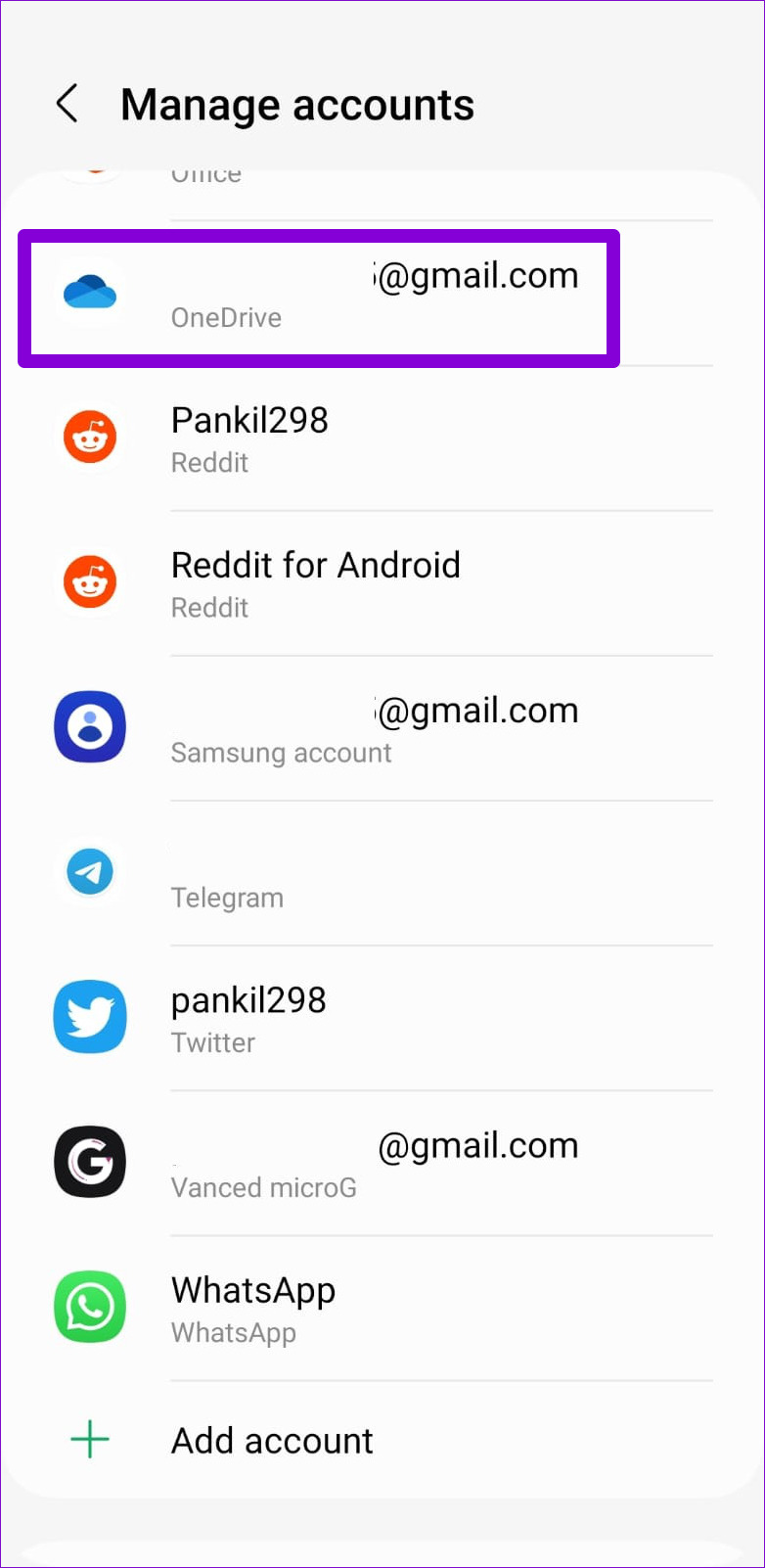
Step 1: Open the Settings app. Head to Accounts and backup > Manage accounts.
Step 2: Select your OneDrive account from the list.


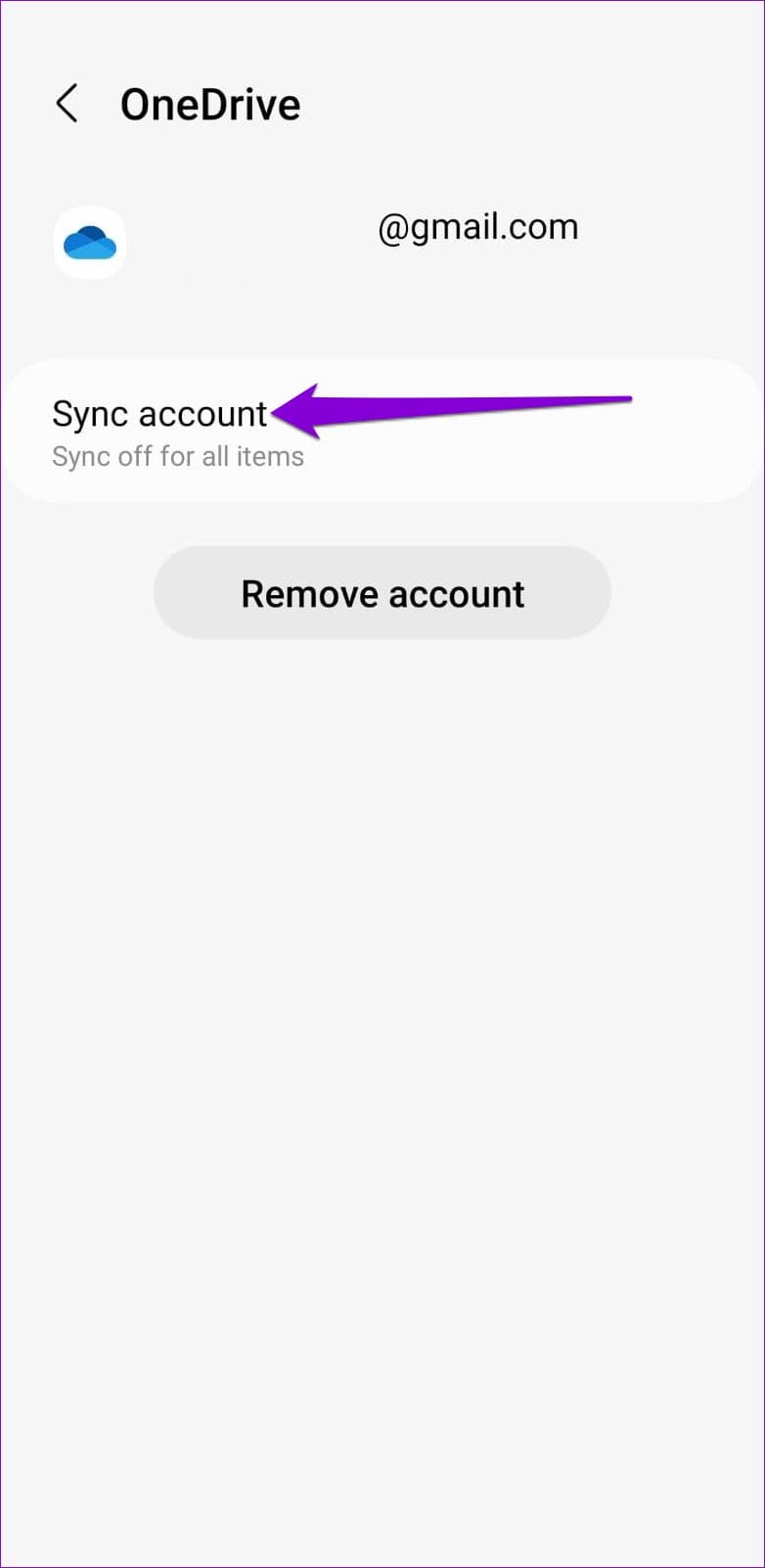
Step 3: Tap on Sync account and enable the toggle next to Media.

Fix 4: Remove and Re-Add Your OneDrive Account
Have you recently changed the password for your Microsoft account? If so, you’ll need to reauthenticate your account on your Samsung phone to resume sync services. Here’s how to do it.
Step 1: Open the Settings app. Head to Accounts and backup > Manage accounts.
Step 2: Select your OneDrive account from the list.
Step 3: Tap on Remove account. Select Remove account again when prompted.
Step 4: In the Manage accounts page, scroll down to tap on Add account and select OneDrive from the following screen.


Follow the on-screen prompts to sign in with your credentials and then check if the issue is still there.
Fix 5: Clear Gallery App Cache
Corrupt or inaccessible cache data could also cause the Samsung Gallery app to malfunction on your Galaxy phone. Thankfully, it’s both safe and easy to clear the Samsung Gallery app cache. Here’s how you can go about it.
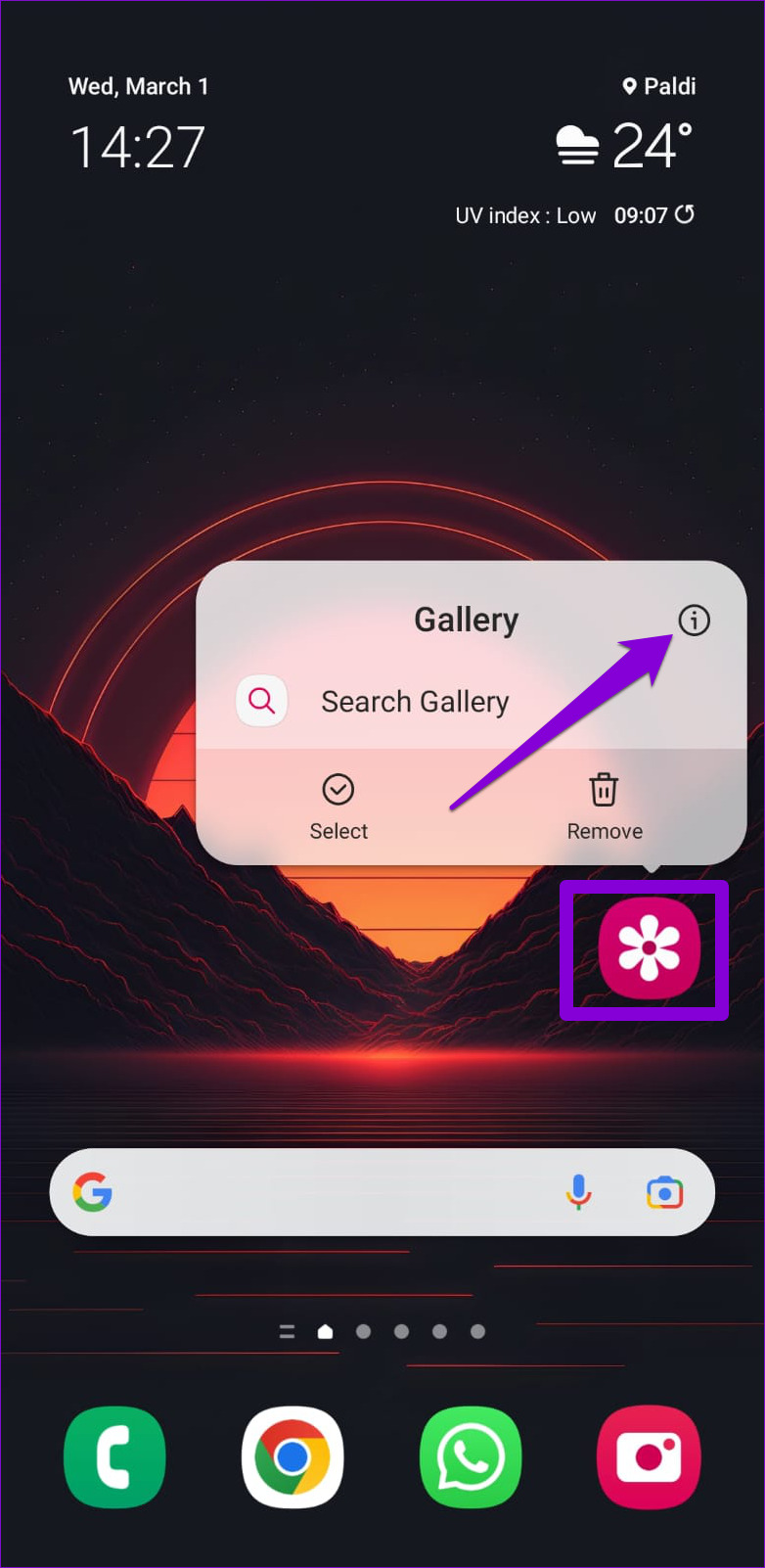
Step 1: Long-press on the Gallery app icon and tap the info icon from the menu that appears.
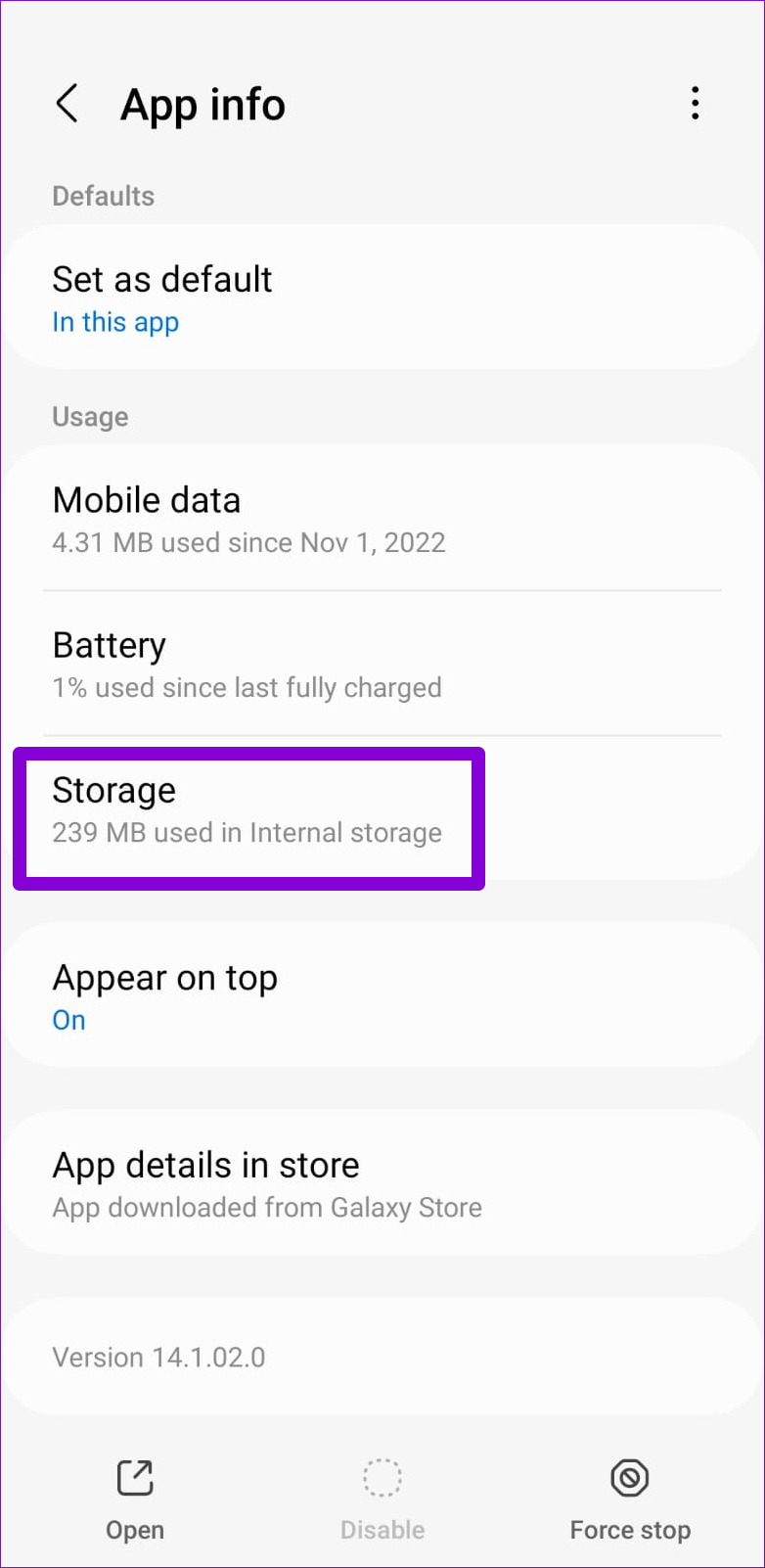
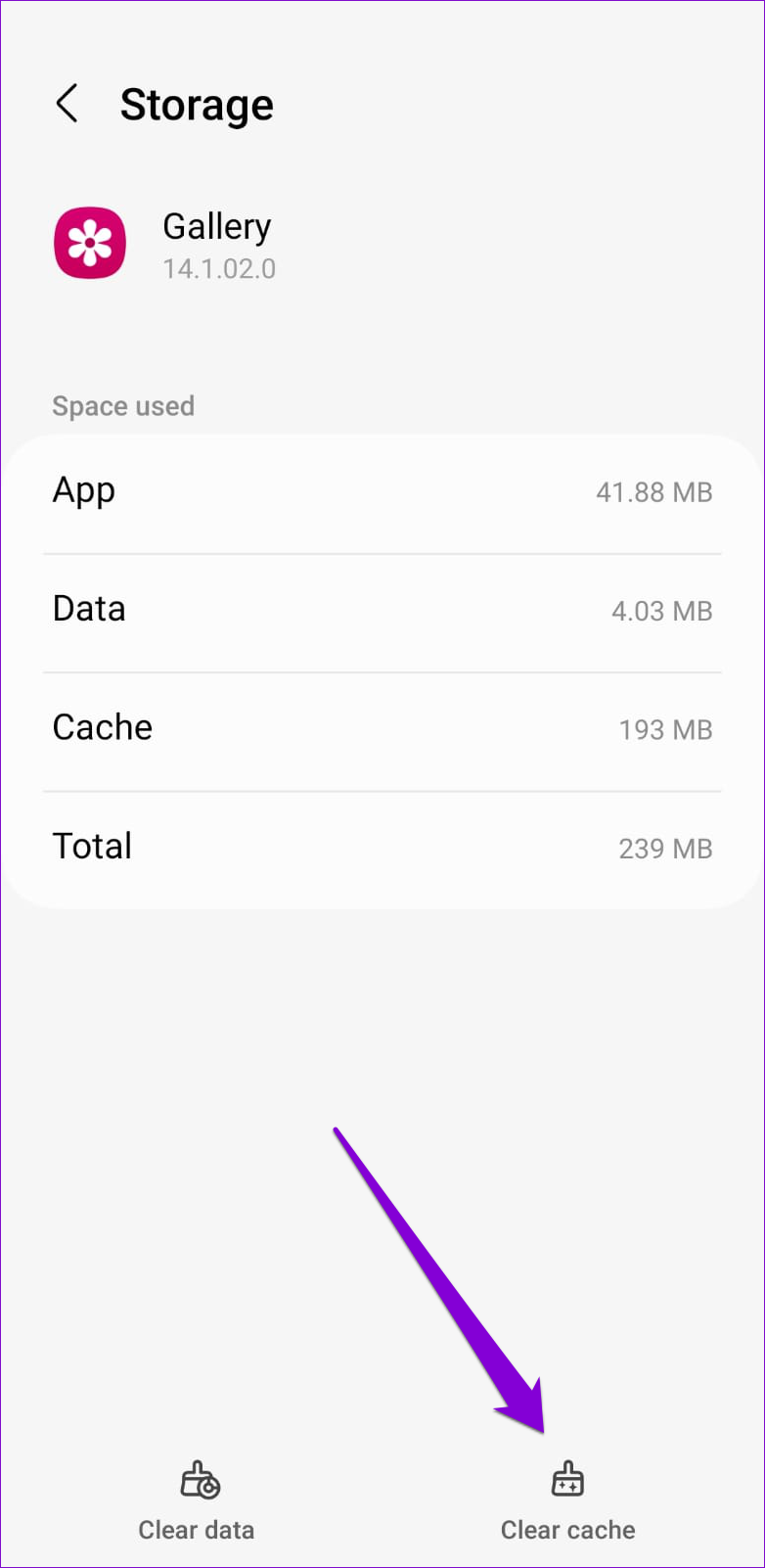
Step 2: Go to Storage and tap the Clear cache option at the bottom.
Was this helpful?
Last updated on 13 May, 2024
3 Comments
Leave a Reply
Read Next
 6 Fixes for OneDrive App Not Syncing on Android and iPhone
Try Basic Fixes Check OneDrive storage status: The OneDrive app on your Android or iPhone may fail to upload files due to insufficient storage space.
6 Fixes for OneDrive App Not Syncing on Android and iPhone
Try Basic Fixes Check OneDrive storage status: The OneDrive app on your Android or iPhone may fail to upload files due to insufficient storage space.
 4 Ways to Fix Contacts App Not Syncing on Samsung Galaxy Phones
Common Fixes Verify correct date and time - Incorrect date and time prevents the Contacts app from syncing data.
4 Ways to Fix Contacts App Not Syncing on Samsung Galaxy Phones
Common Fixes Verify correct date and time - Incorrect date and time prevents the Contacts app from syncing data.
 10 Best Ways to Fix Samsung Gallery Not Showing All Pictures on Galaxy Phones
Samsung Galaxy phones have a default Gallery app to manage and edit media files.
10 Best Ways to Fix Samsung Gallery Not Showing All Pictures on Galaxy Phones
Samsung Galaxy phones have a default Gallery app to manage and edit media files.
 11 Best Ways to Fix Samsung Notes Not Syncing Issue
Samsung phones come pre-installed with many apps, and one of them is Samsung Notes.
11 Best Ways to Fix Samsung Notes Not Syncing Issue
Samsung phones come pre-installed with many apps, and one of them is Samsung Notes.
 7 Ways to Fix Outlook App Not Syncing Emails on Android and iPhone
Try Basic Fixes Remove filters: In the Outlook app, tap the filter icon in the top right corner and select All messages to view all your emails.
7 Ways to Fix Outlook App Not Syncing Emails on Android and iPhone
Try Basic Fixes Remove filters: In the Outlook app, tap the filter icon in the top right corner and select All messages to view all your emails.
 What’s the Difference Between Google Photos and Gallery App on Android
Google Photos vs.
What’s the Difference Between Google Photos and Gallery App on Android
Google Photos vs.
 3 Ways to Fix Can’t Delete Photos from Android Gallery
Basic Fixes Check trash: If you delete photos from the gallery app and yet it doesn't clear storage, ensure you clear the trash as well.
3 Ways to Fix Can’t Delete Photos from Android Gallery
Basic Fixes Check trash: If you delete photos from the gallery app and yet it doesn't clear storage, ensure you clear the trash as well.
 4 Ways to Fix Microsoft To Do App Not Syncing on Windows
Try Basic Fixes Check Microsoft To Do service status: Microsoft maintains a service status page for all its services, including Microsoft To Do.
4 Ways to Fix Microsoft To Do App Not Syncing on Windows
Try Basic Fixes Check Microsoft To Do service status: Microsoft maintains a service status page for all its services, including Microsoft To Do.
The article above may contain affiliate links which help support Guiding Tech. The content remains unbiased and authentic and will never affect our editorial integrity.


This helped me, thank you! Enabling Media Sync for my OneDrive account through Samsung settings did the trick. Very helpful article.
Brilliant advice! Everything was in order except the Account settings where for some reason “Media sync”was off. Thank you very much.
Amazing tips!! Cache and Media enabling on Onedrive helped.